What’s actually slowing this PC down?
Pick the symptom - the matching free tool is one click away.
Mute external speakers, route sound and voice input through the headset, lower microphone gain, and reduce mic monitoring or sidetone. That fixes most gaming-headset echo. The exact adjustment depends on whether other players hear your playback or you hear your own voice.
In most cases, you can stop gaming-headset echo by muting the TV or external speakers, selecting the headset for both audio output and microphone input, lowering microphone level or sensitivity, and reducing mic monitoring or sidetone. If other players hear their own voices or your game audio, you are usually dealing with acoustic feedback: playback is leaking into the microphone and being sent back into chat. If you hear your own voice, the cause is more likely mic monitoring, sidetone, or microphone playback.
As an Amazon Associate I earn from qualifying purchases.
First, identify who hears the echo
| Symptom | Most likely cause | Start here |
|---|---|---|
| Other players hear their own voices | TV, monitor speakers, or headset playback is entering your microphone | Mute external speakers, lower volume, and reduce microphone input level |
| Other players hear your game audio | Game sound is leaking into the microphone or the wrong output device is selected | Use the headset as the output device and mute the TV or monitor |
| You hear your own voice | Mic monitoring, sidetone, or local microphone playback | Turn down mic monitoring or sidetone |
| Your voice sounds doubled or delayed only in one app | Application routing or audio-processing settings | Check the app’s input and output devices and run its microphone test |
The fastest fix: follow these steps in order
- Mute the TV, monitor speakers, soundbar, or other external speakers. Even when you are wearing a headset, an active speaker near the microphone can create a feedback loop. Keep external speakers muted for the entire test.
- Lower headset volume temporarily. If the echo becomes quieter immediately, playback is probably reaching the microphone. Keep the volume at the lowest comfortable level while continuing the diagnosis.
- Check the headset’s physical mute control. Make sure the microphone is not partially muted, and check whether the boom must be extended or fully inserted before it works correctly.
- Position the microphone near the corner of your mouth. A boom microphone generally works best close to the mouth but slightly to the side, rather than pointing directly at your lips or sitting far away. Retractable microphones should be extended according to the headset’s design.
- Select the headset for both input and output. The microphone should be the headset microphone, and chat and game audio should be routed to the same headset. If the microphone is active while game audio is playing through the TV or monitor, other players may hear that playback.
- Lower microphone input level, sensitivity, boost, or gain. Start with the operating system or console’s normal input-level control. Do not begin by increasing microphone boost; excessive gain makes playback leakage and room noise easier to capture.
- Turn down mic monitoring or sidetone if you hear yourself. This changes what you hear locally. It does not necessarily stop other players from hearing an acoustic echo.
- Run a microphone test outside the affected party or game. A clean recording in the system test but an echo in one application points toward that application’s routing or processing settings.
- Reseat the connection. Unplug and reconnect a 3.5 mm plug, try another USB port, or disconnect and re-pair a Bluetooth headset. Then test again.
Fix echo on Windows 11 and Windows 10
1. Select and test the correct microphone
- Open Start > Settings > System > Sound.
- Under Input, select the headset microphone rather than a laptop, webcam, monitor, or controller microphone.
- Open the microphone’s properties and use Start test while speaking normally.
- Play the sample back and adjust the Input volume slider. Lower it if the recording includes game audio, room sound, or feedback.
If the Windows test is clean but a game or chat program still echoes, the headset is less likely to be the immediate cause. Check that program’s input and output selections next.
2. Check microphone permissions
In Windows 11, open Settings > Privacy & security > Microphone. Ensure microphone access is enabled, including access for the relevant apps and desktop apps. Windows 10 uses the corresponding Microphone privacy settings. If an app cannot use the intended headset microphone, it may fall back to another available microphone while audio continues through speakers.
#1 Best Overall

- HIGH QUALITY--This replacement gaming mic boom is using a gold plating process, gold 3.5 mm on the end, high-quality materials make it durable and classical.
- CLEAR SOUND--high-quality microphone, can bendable 360 degrees and will stay in the place where you put it, it is 19 cm long which is exactly the right length to reach your mouth to make a clear sound.
- WIDE COMPATIBILITY--this gaming headsets replacement mic only fits supports triple stereo equipment, it is suitable for a 3.5 mm combined mic /headphone jack. It doesn't matter if you're using a Playstation 4, Xbox One, or Computer as long as your headset has a removable 3.5mm mic this one can replace it.
- NOTICE--this replacement gaming headphone microphone fits your original mic is bigger around or curved at the end. All that matters is that the gold tip is the same size as your original because that is the only part that actually plugs into the headset.
- WORRY-FREE WARRANTY: For 18 months after the date of purchase, unconditionally refund or resend with any quality problems or you do not love it, lifetime friendly customer service.
3. Disable unwanted local microphone playback
If you hear your own voice continuously, inspect the classic recording-device properties for a setting such as Listen to this device or another microphone-playback option. Disable microphone playback only when local monitoring is the problem. Driver software and device labels vary, so this is not a universal Windows menu path or a necessary step for everyone.
4. Update or troubleshoot the audio device
If the echo began after changing hardware or Windows, check Windows Update for audio-driver updates. Also verify the physical connection and, for Bluetooth headsets, disconnect and pair the headset again. A driver or connection problem can cause the wrong recording device to be selected or produce distorted, feedback-like audio.
Fix echo in Discord
- Open User Settings > Voice & Video.
- Under Input Device, choose the headset microphone.
- Under Output Device, choose the headset rather than Default if Default routes sound to speakers.
- Check the input and output volume levels.
- Use Discord’s Mic Test to hear what Discord is capturing.
If the problem is limited to Discord, change one setting at a time under Voice & Video and test after each change. Discord provides controls including Noise Suppression, Echo Cancellation, Noise Reduction, Automatic Gain Control, and input sensitivity. These are diagnostic controls, not guaranteed cures: software filters cannot reliably eliminate sound that is physically leaking from a speaker into the microphone. In some setups, Noise Suppression can also degrade voice quality, so compare the result with it enabled and disabled.
Recommended Free Tools
Rank #2

- [Immerse in Soundscapes] Dive into a soundscape with 7.1 surround sound that makes audio details come to life. The FIFINE H9 gaming headset envelop you in a immersive gaming aura that transcends reality. 50mm driver reverberates every explosion, gunfire and environmental sound in intense gaming through your wired gaming headset. This headset for gaming pull you to get more achievement and improve the accuracy of FPS and ARPG.
- [Unleash Various Compatibility] Offer this headset for gamers that fits all their devices. The Wired Gaming headset with 3.5mm and USB connector is effortlessly connected to a wide range of gaming device. USB headphones with mic plug and play compatible with PS4/PS5 or Switch Docked Mode, while 3.5mm jack works and performs greatly on XBOX contoller, game console controllers or phone/tablet. The gaming headphones gives a seamless transition among ARPG, FPS and more gaming realms.
- [Provide Relaxing Comfort] Softly lightweight touch on the earmuffs cushion and adjustable headband release heaviness. This PS5 headset satisfies long-lasting comfort during immersive gaming sessions. The USB headphone fits your head to provide passive noise cancellation. You will hear the enemy footsteps from the next room in FPS, rather than ambient noise around your gaming zone. The breathability of Xbox headset with 3.5mm jack prevent sweating in pre-long intense sessions and no fatigue.
- [Capture Bright Clarity] Plug the detachable microphone, and team up with friends and family with the streaming PC headset for immediate strategic chatting to dominate the gaming arena. Microphone with sensitivity of -42dB timely captures your voice during intense situation to deliver uninterrupted feedback to your teammates. Gamer headset with mic creates a higher level of cooperation in multi-player game, or resonates with victory in RTS.
- [Reach Fingertips Control Easily] No more software installation for functionality, intuitive USB CONTROL BOX of the computer headset allows you to adjust the volume of MICROPHONE & HEADPHONES along side with MUTE SWITCH, without losing concentration on your gaming battlefield. Braided headset cable with a total length of 10ft can be accessed to the back of the PC host without difficulty. (Turn up the mic volume and push the mute switch to “mic on” via the USB control box when testing the mic.)
If configuration changes have accumulated, use Discord’s option to Reset Voice & Video Settings from the debugging section, then reselect the headset devices and run Mic Test again.
Fix echo on PlayStation 5
- Open Settings > Sound > Microphone > Adjust Microphone Level.
- Lower the microphone-level fader by two to four notches to the left.
- Test voice chat again.
- Open Settings > Sound > Audio Output and confirm the headset is selected as Output Device.
- Check Output to Headphones so the relevant game and chat audio are routed to the headset rather than the television or another output.
For PULSE Elite or another headset with sidetone, reduce sidetone if you are hearing your own voice. If echo remains after lowering the microphone level and checking the output path, reset the headset according to its documented reset procedure.
Fix echo on PlayStation 4
- Open Settings > Devices > Audio Devices > Adjust Microphone Level.
- Move the microphone-level fader two to four notches to the left.
- Test the party chat again with the TV or monitor speakers muted.
Also verify that chat and game audio are being sent to the headset. If only you hear your own voice, look for a sidetone or mic-monitoring control on the headset rather than continuing to lower the party-chat microphone level.
Rank #3

- USB/XLR Connectivity-AM8T comes with a dynamic microphone and a boom arm stand. Versatile PC gaming microphone kit with USB compatibility plug and play for PC in streaming or recording, without additional drivers. And also, while in XLR compatibility for mixer or sound card connection, the XLR studio vocal microphone is good at vocal, podcast, or musical instruments creation.
- Vibrant RGB Light-The streaming microphone RGB illuminates your gaming setup with customizable RGB lighting for a visually stunning game experience. You can easily control the RGB mode/colors or turn off by simply tapping the RGB button without making any complicated settings on specific software.
- Enhanced Features-Featured -50dB sensitivity and cardioid polar pattern, the USB recording mic kit not easily pick up background noise for delivering clear audio. The PC gaming microphone USB kit includes a boom arm for easy positioning, mute button and gain knob for precise control, headphones jack for real-time monitoring, and headphone volume control while streaming or recording.
- Decent for Gamers and Streamers-The XLR microphone designed specifically to meet the needs of gaming enthusiasts and streamers. Ideal for various applications, including gaming, streaming, podcasting, voiceovers, and more, which also works with popular streaming software like OBS and Streamlabs.
- Recording Microphone Kit-The dynamic microphone is more convenient for working from home or going out for podcasts, and the complete accessories allow for faster recording work due to its simple straightforward assembly. External windscreen of the XLR dynamic microphone filter out plosive voice.
Fix echo on Xbox
There is no single echo-removal menu path that applies to every Xbox Series X|S, Xbox One, wired headset, wireless headset, controller connection, and third-party model. Available controls depend on the headset and its companion software.
Use this general sequence:
- Mute the television, monitor speakers, soundbar, or other external speakers.
- Lower headset playback volume and test party chat.
- Confirm that the headset is the active chat and audio device.
- Lower microphone input sensitivity or level if the headset or console exposes that control.
- If you hear yourself, reduce mic monitoring or sidetone.
For supported Xbox headsets, including Microsoft’s Xbox Wireless Headset and Xbox Stereo Headset, inspect microphone monitoring and audio customization in the Xbox Accessories app. The exact controls available depend on the model and the device it is connected to.
Hardware and connection checks
Do these checks only after confirming the basic routing and volume settings:
Rank #4
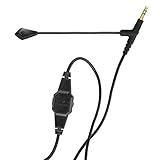
- Premium Voice Quality: A first-class mic for communication and gaming, with improved voice clarity and reduced background noise
- Versatile Use: Suitable for working from home and gaming applications
- Detachable Design: Detachable for maximum compatibility and optimal use; flexible boom for microphone positioning
- Durable Construction: Robust thanks to a reinforced but lightweight cable and a 24-carat gold-plated connector
- Convenient Controls: A clip-on controller with a Mute button and a volume wheel for easy adjustments
- 3.5 mm connection: Reseat the plug firmly. A loose plug or incorrect TRRS wiring can affect microphone routing, especially when using an adapter or console controller.
- USB connection: Try another USB port and avoid an unreliable hub while testing.
- Bluetooth: Disconnect and pair the headset again. A computer may select a different Bluetooth audio or microphone profile than the one you intended.
- Detachable or retractable boom: Confirm that it is fully inserted or extended as required by the headset design. Check its hardware mute position.
- Cross-device test: Test the headset on another computer, console, or phone with a compatible connection. If the same microphone echoes everywhere, the headset, boom, cable, adapter, or receiver becomes more suspect. If it works elsewhere, focus on the original device’s routing or software.
A damaged cable, faulty USB adapter, incompatible analog cable, or failing microphone can produce symptoms that resemble feedback. However, do not assume the headset is defective until you have tested another connection or device.
Independent reader supportYour contribution helps us test, update, and keep practical guides available for everyone.When to replace the headset
Consider replacement only when the echo persists after muting external speakers, selecting the correct input and output, lowering microphone level, disabling unwanted monitoring, and testing another connection or device. A new headset will not fix an incorrectly selected microphone or a TV that is still playing chat audio.
Do these 3 things before closing this tab:
1Fix the driver behind crashes, sound loss and screen glitches2Repair Windows errors before they cause bigger problems3Scan for outdated or missing drivers - takes under a minuteIf the hardware is genuinely faulty or the current model lacks useful microphone controls, compare a gaming headset with microphone that is compatible with your console or PC. Check whether it supports the connection you need—3.5 mm, USB, wireless receiver, Bluetooth, or a console-specific wireless link—and whether its companion software exposes input gain, mic monitoring, or sidetone controls.
Best Value
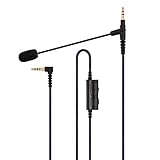
- DESIGN INFO - 3.5mm male to 3.5mm male audio cable adapter with Upgraded Flexible, Detachable Boom Mic which also enables rotary Volume Control and Mute Switch. SteelFlex Arm for perfect microphone positioning.
- INPUT COMPATIBILITY - Devices supporting 3.5mm audio output such as gaming PS4 / Xbox One / Play Station 5 / Xbox Series X/S controller, PC, Laptop, iPhone and Android Phone.
- OUTPUT COMPATIBILITY - Fit V-MODA Crossfade M-100, LP, LP2, M-80, V-80 & most headphones with a 3.5mm input port like SONY MDRXB950BT, MDRXB650BT, MDR1000X, MDR100ABN, MDR-1RBT, MDR-10R, MDR-10RBT, MDR-1A, MDR-1R headphone.
- FLEXIBLE PURPOSES - This audio cord replacement instantly upgrades your headphones into a professional headset for gaming, business, skype voip, podcasting and taking calls on the go.
- NOTE - There is a Dual 3.5mm Y-adapter included for devices requiring separate mic/headphone inputs.
For a detachable microphone or cable, compatibility is model-specific. Match the connector, wiring, mounting system, console support, and microphone controls before buying a replacement part. A generic cable or boom may fit physically but still fail to carry the microphone signal correctly.
A short diagnostic checklist
- TV and monitor speakers muted
- Headset selected as both microphone and output device
- Headset volume temporarily lowered
- Microphone level, sensitivity, boost, or gain reduced
- Boom extended, positioned near the mouth, and not hardware-muted
- Mic monitoring, sidetone, or “Listen to this device” reduced or disabled if you hear yourself
- Windows, Discord, or console microphone test completed
- Another USB port, cable, pairing, or device tested
If the echo disappears when external speakers are muted, it was almost certainly playback leakage. If lowering the microphone level fixes it, excessive input gain was helping the microphone capture playback. If only one app produces the problem, reset that app’s voice settings and verify its device selections. If the echo follows the headset across multiple devices, investigate the cable, adapter, microphone, receiver, or headset hardware.
Frequently Asked Questions
Mute the TV, monitor speakers, soundbar, and other external speakers first. Then select the headset for both audio output and microphone input, lower the microphone level or sensitivity, and test again. Speaker playback entering the microphone is the most common explanation for this symptom.
Other players hear their own voices when I use my gaming headset. What should I do?
Quick wins for a faster PC:
Scan for outdated or missing drivers - takes under a minuteDriver Scan →Repair Windows errors before they cause bigger problemsFix Now →You may be hearing mic monitoring, sidetone, or local microphone playback rather than a chat echo. Turn down mic monitoring or sidetone on the headset or in its companion app. On Windows, also check whether a recording-device setting such as “Listen to this device” is routing the microphone back to you.
Why do I hear my own voice in my gaming headset?
Open Settings > Sound > Microphone > Adjust Microphone Level and move the microphone-level fader two to four notches to the left. Then confirm the headset under Settings > Sound > Audio Output > Output Device, and make sure the relevant audio is set to Output to Headphones.
How do I stop echo on PS5?
It can help with some software or room-noise problems, but it cannot reliably remove sound physically leaking from speakers into the microphone. In Discord, verify the input and output devices first, then test Echo Cancellation, Noise Suppression, Noise Reduction, Automatic Gain Control, and input sensitivity one at a time.
Can Discord Echo Cancellation fix gaming-headset echo?
Only after testing speaker muting, device routing, microphone level, monitoring settings, another port or cable, and another device. If the echo follows the headset across multiple devices, the microphone, cable, adapter, receiver, or headset may be defective.
Should I buy a new headset if it keeps echoing?
The Bottom Line
The highest-probability fix is simple: mute the TV or speakers, route both input and output through the headset, lower the microphone level—by two to four notches on PS5 and PS4—and reduce mic monitoring or sidetone if you hear yourself. Test outside the affected app before replacing hardware.
Quick Recap
Product prices and availability are accurate as of the date/time indicated and are subject to change. Any price and availability information displayed on Amazon at the time of purchase will apply.




