If you press Play on Fallout: New Vegas and no game window appears, start by checking the game files in the storefront where you installed it, updating your graphics driver, and confirming the PC meets the game’s requirements. Then follow the branch for what you actually see: a launcher that will not open, a crash, or a “Failed to initialize renderer” message. No single cause or guaranteed fix is established for every PC.
First identify where the launch fails
Note which app you use to start the game—Steam, Epic Games Launcher, or Xbox App—and what happens after you select Play. That distinction matters because file verification and install locations differ by storefront.
| # | Preview | Product | Price | |
|---|---|---|---|---|
| 1 |
|
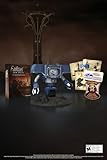
Fallout New Vegas: 15th Anniversary Bundle - PC | $135.78 | Buy on Amazon |
| 2 |

|
Fallout new vegas | $39.95 | Buy on Amazon |
| 3 |
|
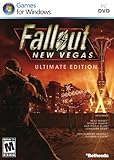
Fallout: New Vegas Ultimate Edition | $40.30 | Buy on Amazon |
| 4 |
![Fallout New Vegas [DVD-ROM] [Windows Vista | Windows 7 | Windows XP]](https://m.media-amazon.com/images/I/519U+KAfbdL._SL160_.jpg)
|
Fallout New Vegas [DVD-ROM] [Windows Vista | Windows 7 | Windows XP] | $33.92 | Buy on Amazon |
| 5 |

|
Fallout 3 - PC Game of the Year Edition | $11.00 | Buy on Amazon |
- No response: You select Play, but no game window appears.
- Launcher issue: The game’s launcher does not open, or the launcher opens but starting the game returns you to it.
- Crash or black screen: The game window appears briefly, goes black, or closes.
- Renderer error: An error explicitly says “Failed to initialize renderer.” Use the dedicated steps below for that message.
Make one change at a time and try launching again after each one. This makes it easier to identify what affected the result.
Try the general fixes first
Check requirements and graphics drivers
Bethesda’s first recommendation for a game that will not start after selecting Play is to ensure the PC meets Fallout: New Vegas’s minimum system requirements. The Steam listing gives the game’s legacy minimum operating-system requirement as Windows 7, Vista, or XP; that listing does not guarantee the game will run on every current Windows configuration. Separately, Steam says its client has supported Windows 10 and later since January 1, 2024. Check the Steam listing for the game’s requirements and Steam’s Windows client support policy.
#1 Best Overall
- Welcome back to New Vegas and enjoy your stay with this 15th Anniversary Bundle. A must-have for every Courier.
- The anniversary set combines iconic memorabilia from the Mojave Wasteland with the Ultimate Edition of the game.
- Explore vast expanses of desert wastelands from small towns to the New Vegas strip. Choose sides in the upcoming war and forever change lives of New Vegas inhabitants. Enjoy finely tuned real-time combat mechanics with the V.A.T.S. targeting system, Hardcore mode, and streamlined companion commands.
- In a huge, open world with unlimited options you can see the sights, choose sides, or go it alone.
- Joined by Victor the Securitron, the 15th Anniversary Bundle will bring the spirit of this desert oasis right to your home.
Install an appropriate current graphics driver, unless you match Bethesda’s narrow warning: its crash guidance says some AMD RX Series users may be unable to launch with AMD Adrenalin Edition 24.4.1 and recommends rolling back from that exact version if affected. Confirm both the GPU and installed driver version before considering a rollback; this is not a general instruction for AMD users. Bethesda’s PC crash troubleshooting guidance.
Verify the installation in its storefront
Use the verification feature in the app where the game is installed, rather than relying on instructions for another storefront. Verification checks the installed game files, but Bethesda notes that some local configuration files may not be changed by the process. A report that one or more files failed to validate does not by itself prove verification failed.
Rank #2
- Steam: In your Library, right-click Fallout: New Vegas and choose Properties. Open Installed Files and select Verify integrity of game files.
- Epic Games Launcher: Open your Library, use the game’s menu, and select Manage > Verify. Bethesda lists
C:Program FilesEpic GamesFalloutNewVegasas the default game executable directory; your installation may be elsewhere. Bethesda’s Epic launch troubleshooting steps. - Xbox App: Use the Xbox App’s available repair or verification option for the installation and check the actual install location. The Bethesda instructions cited here do not provide a specific Xbox App verification path.
Test controller, security software, and GPU selection
- Disconnect any plugged-in controller for one launch attempt. Reconnect it afterward if there is no change.
- If your security software has blocked Fallout: New Vegas or its launcher, review its alert or quarantine history. Only add the official game or launcher files you trust as exclusions, and only when there is evidence the security product blocked them.
- On a laptop or multi-GPU PC, assign
FalloutNV.exeto the intended high-performance GPU in your graphics or Windows graphics settings. Bethesda notes that power-saving features can switch a game to integrated graphics. For a test, connect the laptop to power or select a performance profile.
Bethesda’s launch guidance also recommends updating DirectX from Microsoft’s official source, trying a clean boot if other checks fail, and checking Game DVR or Game Mode. Avoid downloading replacement DLL files from third-party sites. See Bethesda’s launch troubleshooting guidance.
If the launcher opens but the game does not, or the game crashes
Regenerate the local configuration file
Bethesda’s general PC launch guidance recommends deleting Fallout.ini from DocumentsMy GamesFalloutNV so the game can create a fresh configuration file. Back up the file first if you want to preserve your current settings. Then retry the game and, if needed, verify the installation in your storefront. Bethesda’s general PC launch guidance.
What’s actually slowing this PC down?
Pick the symptom - the matching free tool is one click away.
Rank #3
- Beyond the Wasteland: The world of New Vegas is more expansive than ever. Each new distinct area presents a fresh set of branching-quests, remarkable personalities and more chances to play the Savior or the Pariah to the natives of New Vegas.
- Dead Money: Lured into a trap masquerading as the Sierra Madre Casino, you are thrown into a high stakes game where you'll have to work with three other lost souls if you want to survive.
- Honest Hearts: An expedition into Utah's Zion National Park goes horribly wrong and you become embroiled in a war between tribes and put into a conflict between a New Canaanite missionary and the mysterious Burning Man.
- Old World Blues: Transported to the Big MT research crater, you are enlisted by the Think Tank to save them from their own science experiments that have gone horribly out of control.
- Lonesome Road: Ulysses, the original Courier Six, contacts you and promises to answer why he refused to deliver the Platinum Chip at the start of Fallout: New Vegas, but only if you make one last journey into the treacherous canyons of the Divide.
Try compatibility settings carefully
Bethesda’s launch guidance also recommends trying Windows 7 compatibility mode and administrator access for the game. The exact compatibility menu can vary across Windows versions, so its labels may not match older instructions. Bethesda’s crash guidance separately says to check that Steam itself is not set to run in compatibility mode. Change only the relevant setting, then test again. Bethesda launch guidance and Bethesda crash guidance.
If you see “Failed to initialize renderer”
Bethesda describes this as a graphics startup error: “Failed to initialize renderer is a generic error where the game is unable to startup the graphics card to play the game.” Start by choosing your monitor’s native resolution in the Fallout: New Vegas launcher. If that does not help, use Bethesda’s Steam-specific configuration reset:
Rank #4
- ESRB Rating: Mature 17+
- Exit Steam completely.
- In
DocumentsMy GamesFalloutNV, back up and then removeFallout.iniandFalloutNVPrefs.ini. - Run Steam as administrator, then verify Fallout: New Vegas’s files through Steam.
- Launch the game and check whether the renderer message remains.
This sequence comes from Bethesda’s renderer-error instructions for Steam. Bethesda’s renderer troubleshooting article.
Independent reader supportYour contribution helps us test, update, and keep practical guides available for everyone.If none of these steps works
When contacting Bethesda Support, include information that helps distinguish a storefront problem from a Windows, driver, or configuration issue:
Recommended Free Tools
Best Value
- Fallout 3: Game of The Year Edition
- The storefront and whether its launcher opens.
- The exact symptom or error text, including whether the game window appears before closing.
- Your Windows version, GPU model, and graphics-driver version.
- Whether the installation is modded, and whether the issue occurs with mods disabled.
- Relevant Windows Error Reporting details, if available.
Bethesda’s launch guidance discusses a specific FalloutNV.exe APPCRASH and mentions amdvlk64.dll; that reference does not establish that the DLL is responsible for every crash. Share the exact report rather than assuming a cause. Bethesda’s launch support article.
Quick Recap
Product prices and availability are accurate as of the date/time indicated and are subject to change. Any price and availability information displayed on Amazon at the time of purchase will apply.



