The Tool Desk
Outbyte Driver Updater FREEScan for outdated or missing drivers - takes under a minuteDriver Scan →Outbyte PC Repair FREERepair Windows errors before they cause bigger problemsFix Now →Start by identifying where you use the headset. PS VR2 troubleshooting on a PlayStation 5 follows a different connection and controller path from PS VR2 on a Windows PC with Sony’s PlayStation VR2 PC adapter. On PS5, begin with Sense-controller pairing or reset steps and reposition the cinematic-mode screen when necessary. On PC, check the adapter’s USB, DisplayPort, power and USB-C connections before changing tracking, Bluetooth or SteamVR settings.
The guide below separates those paths, then moves from the least invasive checks to resets and support escalation. It covers a headset that will not connect, tracking that drifts or fails, Sense controllers that will not pair, a blurry or black-looking image, frame stutter and problems after the computer wakes from sleep. Work through only the section for your platform so that a Windows Bluetooth fix is not mistaken for a PS5 repair.
As an Amazon Associate I earn from qualifying purchases.
Choose the correct troubleshooting path first
Use this quick distinction before unplugging anything:
| Where you use PS VR2 | Start here | What not to mix in |
|---|---|---|
| PlayStation 5 | Use the official PS VR2 troubleshooting flow for the exact symptom. Re-pair or reset Sense controllers when they are the problem; hold Options to reposition the cinematic-mode screen. | Do not apply PC-adapter, Windows Bluetooth or SteamVR instructions to a direct PS5 setup. |
| Windows PC | Check the PlayStation VR2 PC adapter, USB 3.0, DisplayPort 1.4, power, USB-C and PlayStation VR2 App status before working on tracking or image quality. | Do not assume a PS5 controller-pairing procedure will solve PC Bluetooth tracking. |
A cinematic-mode screen that is off-center is a positioning issue, not proof that the display panel or optics are broken. Conversely, repositioning the screen cannot repair a genuinely blank panel, a failed connection or an optical fault.
#1 Best Overall

- Expand PC VR Content Ecosystem:Once connected to a PC, PS VR2 supports not only SteamVR games but also educational programs, simulation software, creative applications, and more – breaking free from console-only limitations and offering a wider range of VR experiences.
- Simple Plug‑and‑Play Setup:This adapter uses the same IC module as the official version. No technical expertise or complicated steps are required – just follow the manual to connect the adapter to your PS VR2 and PC, perform a few simple software settings, and you are ready to enjoy VR with minimal setup effort.
- Stable Power Supply for Seamless Performance:The adapter delivers a regulated DC 5.1V output, guaranteeing a steady and reliable power source for PS VR2 when used with a PC. This stable power prevents device malfunctions, screen flickering, or performance degradation caused by insufficient or fluctuating voltage, ensuring uninterrupted and stable VR sessions.
- High‑Definition Transmission for Visual Immersion (Updated with 4K60Hz):Equipped with a DisplayPort (DP) interface, the adapter enables 4K resolution and 120Hz high‑refresh‑rate video transmission, fully leveraging the PS VR2’s display capabilities. The resulting visuals are crisp, vivid, and lifelike, greatly enhancing your sense of presence in virtual environments.
- Ultra‑Fast Response for Lag‑Free Interaction:Leveraging the USB 3.0 high‑speed interface, the adapter ensures rapid transmission of large data volumes. In VR applications, player inputs and sensor data from the headset and controllers are synchronized in real time, effectively reducing latency and delivering instant feedback – so every move feels natural and responsive.
Record the symptom before changing anything: whether the headset powers on, whether both controllers are affected, whether the problem occurs only in one game, and whether it started after moving from PS5 to PC. That short checklist prevents repeated resets and makes a support conversation more useful.
PS5: pair or reset the Sense controllers
Pair each controller for the first time
- Turn on the PS5.
- Connect one Sense controller to the console with the included USB cable.
- Press the controller’s PS button.
- Repeat the process for the other controller.
Sony states that a Sense controller pairs with one PS5 at a time. If a controller was previously paired elsewhere, pairing it by cable to the target console is the reliable first step. The controllers charge individually, so connect the controller that needs power rather than expecting both to charge from a single connection. Sense-controller device-software updates are delivered with PS5 system-software updates; updating is worthwhile, but it is not a guarantee that every connection fault will disappear.
Pair one controller completely before connecting the second. If only one side fails, test that controller on its own rather than repeatedly pairing both at once. A controller that has no response at all may need charge time before the PS button can be recognized.
Windows Errors? Fix Them Before They Spread
Repair common Windows errors and clear accumulated junk for a smoother, more stable PC - no reinstall needed.Free scan · no reinstallOutdated Drivers Are Slowing You Down
One free scan finds every outdated or missing driver and matches the right update for your exact hardware.Free scan · exact hardware matchReset a controller that will not connect
- Turn off the PS5 completely.
- Find the small reset button on the back of the affected Sense controller.
- Press that button with a pin or similar thin tool.
- Connect the controller to the PS5 with a USB cable.
- Press the controller’s PS button and wait for the console to recognize it.
Reset only the controller that is misbehaving first. If one controller works and the other does not, that difference helps isolate the fault to pairing, charge or the individual controller rather than the headset. Do not push objects into openings other than the designated rear reset button, and do not open the controller.
Recenter the cinematic-mode screen
When the virtual screen in cinematic mode is too far to one side or behind you, hold Options on the Sense controller to reposition it. This changes the screen’s location in your view; it does not fix a black display, missing video signal or damaged optics.
If the screen recenters correctly but later drifts, note whether the issue affects only cinematic mode or also the VR game view. A cinematic-only position issue should stay in this recentering workflow; a missing image in every mode points back to the headset connection or requires Sony’s support flow.
Windows PC: make the physical connection correct
PC use requires Sony’s PlayStation VR2 PC adapter and a separate connection chain. Perform the sequence with the computer available and the headset switched off until the final step.
Do these 3 things before closing this tab:
1Repair Windows errors before they cause bigger problems2Fix the driver behind crashes, sound loss and screen glitches3Clear out junk files and repair common Windows errorsRank #2

- Expand the library of games to play on your PSVR2. Third party product with official IC module, works just the same as official.
- Browse, buy and play thousands of virtual reality games on Steam. Discover multiplayer open worlds, survival horrors and stealth action games, plus sports sims, quirky puzzlers and free-to-play epics – explore Steam’s huge range of virtual reality games to expand your PSVR2 experience.
- Connect the PSVR2 PC adaptor to your PSVR2 and a Windows PC, download the SteamVR App and the free PSVR2 App from Steam, and find your next favourite virtual reality game.
- Plug the adapter into a Windows PC USB 3.0 Type-A port.
- Connect the adapter to the PC’s DisplayPort using a separately sold DisplayPort 1.4 cable.
- Connect the supplied AC adapter and power cord to the PC adapter.
- Connect the headset’s cable to the adapter’s USB-C port.
- Turn on the headset.
Sony’s setup instructions describe the adapter and headset indicators turning white when the units are powered and connected. A missing indicator, a connection error in the PlayStation VR2 App or a headset that never appears should send you back through every plug and port in that order. Check both ends of every cable; a connector that looks inserted can still be loose enough to interrupt video or USB data.
Use supported ports and cables
- Use a direct USB 3.0 Type-A connection for the adapter. For a “Check USB Connection” error, try another USB 3.0 port, preferably without an intervening hub.
- Use a DisplayPort 1.4 cable from the adapter to the PC. The cable is separate from the adapter and is not interchangeable with an HDMI lead.
- Do not use HDMI-to-DisplayPort conversion or USB-C-to-DisplayPort conversion. Sony identifies those conversions as unsupported for this adapter.
- Check the PC requirements and install current graphics drivers before treating a software error as a headset failure.
USB 3.0 is a requirement for the adapter’s data connection, not merely a suggestion to try after other ports fail. If a desktop has several USB 3.0 ports, test another direct port rather than moving immediately to a hub or front-panel extension. Keep the DisplayPort path separate from the USB path: replacing one cannot compensate for a missing or unsupported connection in the other.
Check the graphics-card arrangement
On a desktop with both motherboard video outputs and a discrete graphics card, Sony notes a specific failure mode: a monitor connected to the motherboard’s onboard DisplayPort while the VR adapter is connected to a separate graphics card can stop some games from starting. Connect the monitor to the external graphics card instead, then restart the headset and the PC if the game still does not launch.
This is especially worth checking when the adapter appears in Windows but a particular game refuses to start. It is a graphics-routing issue, not evidence that the headset’s cameras or controllers need replacement.
Recommended Free Tools
Restart after a persistent connection error
In the PlayStation VR2 App, inspect the connection status and follow its cable or port guidance. If the error remains after checking compliance and trying another USB 3.0 port, turn off both the headset and the PC, then start them again. This restart is a recovery step, not a substitute for a missing power, USB or DisplayPort connection.
After restarting, verify the adapter and headset indicators before launching SteamVR. Starting a game while the app still reports a missing connection can obscure the original error and make diagnosis harder.
PC tracking: fix the room before changing software
Headset tracking and Sense-controller tracking are separate problems on PC. The headset uses its cameras and the play-area map; the controllers use Bluetooth. Diagnose them independently.
Rank #3
![Warrky PSVR2 PC Adapter, PSVR2 Accessories, [Aluminum Shell, Nylon-Braided]](https://m.media-amazon.com/images/I/41LaulD8SgL._SL160_.jpg)
- [PSVR2 PC Adapter] Setup for PSVR2 Headset. Based on but beyond official. Plug in and enjoy solid connection stability. Seamlessly integrate with your PC for the ultimate gaming experience. Enhance your gaming and entertainment with the reliability of our superior IC. Maximize compatibility with your PC for flawless performance.
- [Expand Your Game Library] Unlock new adventures on Steam with this PSVR2 PC adapter. Connect your PSVR2 to your PC and break through the game limitations of your current PSVR2 setup. Discover a wide range of games available on PC with more possibilities. Make movies and VR content look incredible on the headset in 3D on "Bigscreen".
- [Exquisite Design] Features a unique and user-friendly design. Experience uninterrupted gaming with our aluminum case, designed to outperform others in heat dissipation and prevent overheating. The nylon braided cable jacket offers worry-free usage, eliminating concerns of fraying, heating, or kinking.
- [What You Get] PSVR2 PC Adapter*1. DisplayPort 1.4 Cable*1. 15W Official Standard Power Supply*1. User Manual*1. All WARRKY products are backed by Online Technical Support. Feel free to consult and you will get a prompt and effective response within 18 hours!
When headset position drifts or the play area will not scan
- Open the PlayStation VR2 App and delete the existing play-area data.
- Clean the headset’s tracking cameras with a soft, dry cloth intended for lens cleaning. Do not use a wet cloth or abrasive material.
- Move out of direct sunlight and improve the room’s general lighting.
- Run play-area setup again and scan the entire room, including the ceiling and floor.
- If the room has large plain walls, add visible features such as posters or pictures so the cameras have more visual detail to track.
Bright, changing glare and featureless surfaces make visual tracking harder. A complete scan is important: mapping only the walls can leave the headset without enough reference when you look up or down. Delete the old map before rescanning so an inaccurate boundary is not reused.
What’s actually slowing this PC down?
Pick the symptom - the matching free tool is one click away.
Keep the room’s lighting steady while scanning and playing. If tracking improves after adding visual features or changing the light, the original symptom was environmental rather than a failed headset camera. Do not treat a soft cleaning cloth as a repair accessory; it only removes obstruction from the camera lenses.
When only the Sense controllers lose tracking on PC
- Update the PC’s Bluetooth drivers.
- Place an external Bluetooth adapter in a USB 2.0 port, away from USB 3.0 devices and cables that can create interference.
- If the adapter is hidden behind the computer, use a USB 2.0 extension cable to move it into clearer view.
- Charge the controller before testing; a low battery can complicate troubleshooting.
- Turn off other Bluetooth devices temporarily.
- Remove objects and body positions that obstruct the line between the controller and the Bluetooth adapter.
- Use 5 GHz Wi-Fi if the PC is on Wi-Fi, reducing competition in the 2.4 GHz band.
- Turn off the PS5 while using the controllers on PC if they were previously paired with that console.
Third-party Bluetooth adapters vary in compatibility, and Sony does not guarantee that every adapter will work. If the controller is visible in Windows but behaves erratically in VR, test the placement, interference and adapter path before assuming the headset’s tracking cameras are defective. Change one variable at a time: first move the adapter, then remove competing Bluetooth devices, then retest with a charged controller.
PC display problems: blurry, low-quality or unstable images
First verify the signal path
A blurry or missing PC image can originate in the same physical chain as a connection error. Reseat the USB 3.0, DisplayPort, power and USB-C connections, confirm that the PC meets the required specifications and check that the graphics driver is current. Do not use unsupported DisplayPort conversions. On a desktop, confirm that the adapter and monitor are connected to the intended graphics card as described above.
Separate a soft image from a totally absent image. A missing image or black headset view requires connection and power checks first. If the picture appears but looks soft or performance is uneven, continue to SteamVR quality and motion settings instead of repeatedly resetting the controllers.
Free tools Windows power users keep installed
One-click scans. No signup required.
Lower SteamVR load when the image is soft or frames stutter
Once the physical connection is sound, Sony recommends reducing SteamVR image-quality settings. Lowering the render scale can reduce the workload that causes an unstable or degraded view. Sony also recommends disabling Motion Smoothing when it contributes to visual artifacts or uneven presentation. These are Windows PC and SteamVR measures; they are not settings for a direct PS5 connection.
Make a small change, launch the same application and compare the result. If lowering image quality removes stutter, the connection may be functioning while the PC is struggling to render the selected settings. If the image remains black or the adapter disappears, return to the cable, port and driver checklist.
Rank #4
![Warrky PSVR2 PC Adapter, PSVR2 Accessories [Aluminum Shell, Upgraded IC]](https://m.media-amazon.com/images/I/41Wxu8lG+nL._SL160_.jpg)
- [PSVR2 PC Adapter] Setup for PSVR2 Headset. Based on but beyond official and bring the wonderful game world directly to your sight. Plug in, connect and enjoy solid connection stability while gaming. Seamlessly integrate with your PC for the ultimate gaming experience. Enhance your gaming and entertainment with the reliability of our upgraded technology. Maximize compatibility with your PC for flawless performance.
- [Exquisite Design] Features a unique and user-friendly design. Experience uninterrupted gaming with our aluminum case, designed to outperform others in heat dissipation and prevent overheating. The nylon braided cable jacket offers worry-free usage, eliminating concerns of fraying, heating, or kinking.
- [Expand Your Game Library] Unlock new adventures on Steam with this PSVR2 PC adapter. Connect your PSVR2 to your PC and break through the game limitations of your current PSVR2 setup. Discover a wide range of games available on PC with more possibilities. Make movies and VR content look incredible on the headset in 3D on "Bigscreen".
- [Compatibility] Compatible with PSVR 2 Headset, AR Glasses, Portable Monitor. *Note: This adapter is not compatible with PS4/5,PS5 Pro.
- [What You Get] PSVR2 PC Adapter*1. DisplayPort 1.4 Cable*1. 15W Official Standard AC Power Supply*1. User Manual*1. All WARRKY products are backed by Online Technical Support. Feel free to consult and you will get a prompt and effective response within 18 hours!
Turn off Windows hardware-accelerated GPU scheduling for frame stutter
For persistent frame stutter, turn off hardware-accelerated GPU scheduling in Windows’ advanced graphics settings, then restart if Windows requests it. Change one setting at a time so you can identify whether the scheduling option, SteamVR quality level or another driver change affected the result.
What to do after the PC wakes from sleep
Resuming a SteamVR game after the computer sleeps can produce an error. Sony recommends avoiding PC sleep during play. If the error has already occurred, use this order:
- Turn off the headset.
- Turn off the monitor.
- Turn the monitor on.
- Turn the headset on.
Then relaunch the SteamVR game. This sequence re-establishes the monitor and headset signal order without changing play-area data or controller pairing. If sleep-related errors recur, leave the PC awake for the duration of a VR session rather than repeatedly deleting play-area data.
Independent reader supportYour contribution helps us test, update, and keep practical guides available for everyone.Use the symptom to choose the next intervention
| Symptom | Most relevant checks | Escalate when |
|---|---|---|
| Sense controller will not pair on PS5 | Pair by included USB cable and press PS; if needed, power off the PS5, press the rear reset button, reconnect by USB and press PS. | The controller still will not respond after reset and a known-good cable. |
| Cinematic screen is misplaced on PS5 | Hold Options on the Sense controller. | The panel is blank or the image itself is optically faulty; recentering is not a display repair. |
| PC adapter is not detected | Direct USB 3.0 Type-A, DisplayPort 1.4, supplied power, adapter USB-C to headset, App status, drivers and another USB 3.0 port. | The full supported chain fails after a complete power restart. |
| Headset tracking drifts on PC | Delete play-area data, clean cameras, avoid sunlight, improve lighting and rescan ceiling, floor and walls. | Tracking remains unreliable in a well-lit, feature-rich room with clean cameras. |
| PC Sense controllers drop out | Update Bluetooth drivers, move the adapter to USB 2.0, improve line of sight, charge controllers, remove other Bluetooth devices and use 5 GHz Wi-Fi. | Behavior persists with interference removed and the PS5 turned off. |
| PC image is poor or frames stutter | Secure connections, verify requirements and drivers, lower SteamVR image quality, disable Motion Smoothing and test hardware-accelerated GPU scheduling off. | Artifacts or signal loss continue after software and cable checks. |
When to contact PlayStation Support
Stop troubleshooting and contact PlayStation Support for suspected hardware problems with PS VR2 on PC. For PS5 issues that are not covered by the controller and cinematic-screen steps here, use the official PS VR2 troubleshooting page and its symptom-specific support flow. Do not open the headset, promise a user-serviceable repair or treat a generic PC-cleanup utility as a Sony-approved fix: the documented causes in this guide are connection hardware, room conditions, Bluetooth behavior and VR software settings.
Before contacting support, note your platform, the exact on-screen error, which indicator lights appear, the cable and port arrangement, whether another controller works, and which steps already changed the symptom. That information helps distinguish a headset fault from a PC adapter, graphics, Bluetooth or room-tracking problem.
Which purchases are actually relevant?
Only the PC connection path establishes a possible hardware purchase. PC users need Sony’s PlayStation VR2 PC adapter, and Sony specifies a separately sold DisplayPort 1.4 cable for the adapter-to-PC link. Neither item is a universal cure for PS5 tracking, controller pairing or display problems. The optical cleaning guidance calls for a class of soft, dry lens-cleaning cloth rather than a particular product. Common PS5 recentering and controller-reset steps do not require a new accessory.
Do not buy an HDMI converter or USB-C-to-DisplayPort converter as a workaround; Sony identifies those connection types as unsupported. Likewise, a different Bluetooth adapter may change compatibility, but Sony does not guarantee third-party adapters. Confirm the supported port and cable path before spending money.
Best Value
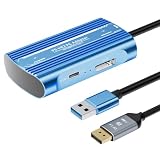
- Expand PC VR Content Ecosystem:Once connected to a PC, PS VR2 supports not only SteamVR games but also educational programs, simulation software, creative applications, and more – breaking free from console-only limitations and offering a wider range of VR experiences.
- Simple Plug‑and‑Play Setup:This adapter uses the same IC module as the official version. No technical expertise or complicated steps are required – just follow the manual to connect the adapter to your PS VR2 and PC, perform a few simple software settings, and you are ready to enjoy VR with minimal setup effort.
- Stable Power Supply for Seamless Performance:The adapter delivers a regulated DC 5.1V output, guaranteeing a steady and reliable power source for PS VR2 when used with a PC. This stable power prevents device malfunctions, screen flickering, or performance degradation caused by insufficient or fluctuating voltage, ensuring uninterrupted and stable VR sessions.
- High‑Definition Transmission for Visual Immersion (Updated with 4K60Hz):Equipped with a DisplayPort (DP) interface, the adapter enables 4K resolution and 120Hz high‑refresh‑rate video transmission, fully leveraging the PS VR2’s display capabilities. The resulting visuals are crisp, vivid, and lifelike, greatly enhancing your sense of presence in virtual environments.
- Ultra‑Fast Response for Lag‑Free Interaction:Leveraging the USB 3.0 high‑speed interface, the adapter ensures rapid transmission of large data volumes. In VR applications, player inputs and sensor data from the headset and controllers are synchronized in real time, effectively reducing latency and delivering instant feedback – so every move feels natural and responsive.
Frequently Asked Questions
Why is my PS VR2 tracking not working on PC?
Delete the existing play-area data in the PlayStation VR2 App, clean the headset cameras with a soft, dry lens cloth, avoid direct sunlight, improve lighting and rescan the entire room, including the ceiling and floor. Plain walls may need visible features such as posters or pictures.
How do I reset PS VR2 Sense controllers?
Turn off the PS5, press the small reset button on the back of the affected controller with a pin or similar tool, connect it to the PS5 by USB, then press the PS button. For first pairing, connect each controller by the included USB cable and press PS.
Why won’t my PS VR2 connect to my PC?
Use a direct USB 3.0 Type-A port, a separately sold DisplayPort 1.4 cable, the supplied power adapter and the adapter’s USB-C connection to the headset. Check the PlayStation VR2 App, graphics drivers and another USB 3.0 port. HDMI and USB-C DisplayPort conversions are unsupported.
Why do PS VR2 controllers keep disconnecting on PC?
Update Bluetooth drivers, put an external adapter in USB 2.0 away from USB 3.0 interference, improve line of sight with an extension cable if needed, charge the controller, turn off other Bluetooth devices, use 5 GHz Wi-Fi and turn off the PS5 while testing.
How do I recenter the PS VR2 cinematic screen?
Hold the Options button on a Sense controller. This repositions the virtual screen; it cannot repair a blank display, missing signal or damaged optics.
How can I fix a blurry PS VR2 PC image or frame stutter?
First secure every connection and confirm PC requirements and current graphics drivers. Then lower SteamVR image-quality settings, disable Motion Smoothing if it causes artifacts, and test Windows hardware-accelerated GPU scheduling turned off for persistent stutter.
What should I do if PS VR2 fails after my PC wakes from sleep?
Avoid putting the PC to sleep during VR sessions. After an error, turn off the headset and monitor, turn the monitor on, then turn the headset on and relaunch the SteamVR game.
Do I need to buy anything to fix PS VR2 tracking on PS5?
Common PS5 controller pairing, controller reset and cinematic-screen repositioning steps do not require a new accessory. For Windows PC, Sony specifies the PlayStation VR2 PC adapter and a separately sold DisplayPort 1.4 cable.
The Bottom Line
Separate PS5 and Windows PC troubleshooting from the start. On PS5, pair or reset the affected Sense controller and use Options to recenter cinematic mode. On PC, verify Sony’s complete USB 3.0, DisplayPort 1.4, power and USB-C chain, then correct room tracking, Bluetooth placement and SteamVR settings. If the supported setup still fails after a full restart, contact PlayStation Support rather than attempting an unapproved repair.
Quick Recap
Product prices and availability are accurate as of the date/time indicated and are subject to change. Any price and availability information displayed on Amazon at the time of purchase will apply.




