Xbox does not currently document a console-wide setting or app that adds a custom crosshair to every game. Your practical options are to use the game’s own reticle settings or enable a crosshair built into your monitor or TV. These are different features: the game draws its reticle in the game, while a compatible display draws an overlay on the HDMI image.
Xbox’s accessibility tools include features such as Magnifier, High Contrast, Night mode, and color filters, but not a platform-wide custom-crosshair control. Microsoft instead recommends that individual games offer choices such as crosshair colors and designs. Xbox accessibility features and Microsoft’s accessibility guidance support that distinction.
As an Amazon Associate I earn from qualifying purchases.
Check the game’s own crosshair settings first
This is the best option when available because the reticle can respond correctly to weapons, recoil, spread, aiming states, scopes, and the game’s interface.
- Launch the game and open Settings or Options from the main menu or pause menu.
- Check Accessibility, Gameplay, HUD, Interface, Display, Reticle, and Crosshair.
- Look for settings such as reticle visibility, color, outline, opacity, size, thickness, center dot, dynamic reticle, or enemy and friendly colors.
- Apply the change and test it in a practice range, training mode, or safe area.
There is no universal Xbox button sequence because every game organizes these controls differently. If the reticle vanishes, check that Crosshair or Reticle is enabled, turn off any “hide HUD” option, and remember that some weapons, vehicles, scopes, or modes use separate aiming displays.
#1 Best Overall

- INCREASED ACCURACY - Mixed height combo for faster target acquisition and increased precision on the right, as well as better control and maneuvering on the left
- IMPROVES COMFORT & GRIP - Non-slip, proprietary rubber compound offers exceptional grip and requires less force which reduces wrist, hand and thumb fatigue
- ONE HIGH-RISE (CONCAVE) THUMBSTICK - That adds 10.0 mm for increased accuracy on right analog
- ONE MID-RISE (CONCAVE) THUMBSTICK - On the left analog for enhanced control with in-game movement while adding a nominal height of 6.5 mm
- VERSATILE - The added grip and comfort works well across your entire library of games and protects stock thumbsticks from wear and tear *Packaging May Not Reflect Updated Compatibility
Use your gaming monitor’s built-in crosshair
If the game has no reticle customization, your monitor may be able to draw one independently of the Xbox. This is a display feature, not an Xbox feature: the monitor receives the Xbox’s HDMI signal and adds its own on-screen graphic.
- Connect the Xbox to the monitor through HDMI.
- Open the monitor’s physical button, joystick, or on-screen display menu.
- Look under Game, Gaming, Game Assist, GamePlus, Crosshair, or Aim Point.
- Select a reticle design and adjust its color, position, or other available options.
- Exit the menu and check that it remains visible during gameplay.
- Disable it from the same menu when it becomes distracting or is not permitted.
Check the exact model’s manual. “Gaming monitor” does not automatically mean “monitor with a crosshair.” Some displays offer only a few preset shapes, while others may offer more choices or a dynamic reticle. Most do not let you upload an arbitrary custom image.
ASUS GamePlus example
On supported ASUS monitors, the feature is called GamePlus. ASUS’s general instructions use this type of process:
The Tool Desk
Outbyte PC Repair FREERepair Windows errors before they cause bigger problemsFix Now →Outbyte Driver Updater FREEScan for outdated or missing drivers - takes under a minuteDriver Scan →Rank #2

- Custom designed joysticks to perfectly fit for PS5, for PS4, for PS4 Slim, for PS4 Pro controller. Work exactly like the original thumbsticks
- Unique replacement to add much more personality to your controller. The replacement thumb sticks will make your controller distinct when playing with friends, no more boring standard color
- Made of premium PC & TPE plastic material, durable and practical. Ideal replacement for your broken or cracked controller thumbsticks
- A variety of colours thumbsticks are available, you can combine eXtremeRate replacement accessories to customize your controller
- Easy to install, requires internal fitting, the screwdriver tool included can help you easily open the shell and install the gaming parts. Get the installation video guide by searching "eXtremeRate Thumbsticks for PS5" or "EiWmjR87CS4" on YouTube
- Open the monitor’s OSD using the Image or GamePlus control.
- Go to OSD → System Setup → GamePlus → On.
- Press the GamePlus hotkey.
- Select Crosshair and choose a design.
Menu locations, hotkeys, and available designs vary by model. ASUS documentation describes four crosshair types on some displays, while particular newer manuals document six choices or dynamic options. Do not assume every ASUS monitor has the same features. See ASUS’s GamePlus support guide and the manuals for the ROG XG27AQDMG and VG27AQM5A.
Will a monitor crosshair work with Xbox?
Usually, a compatible monitor can overlay its reticle on an Xbox game because the display adds the graphic after receiving the HDMI video. Compatibility still depends on the display. The feature may be unavailable in particular picture modes or HDR modes, may be fixed to the center, or may provide only preset shapes.
Some displays also restrict individual Game Assist functions in HDR or special modes. Consult the model-specific manual rather than assuming that every crosshair behaves the same way.
Rank #3

- Custom designed joysticks to perfectly fit for Xbox Series X/S, for Xbox Core controller (Model 1914) , for Xbox One standard (Model 1537/1697), for Xbox One X/S (Model 1708), for Xbox One Elite V1 (Model 1698) controller; Not compatible with Xbox Elite Series 2 and other controllers. Work exactly like the original thumbsticks
- Unique replacement to add much more personality to your controller. The replacement thumb sticks will make your controller distinct when playing with friends, no more boring standard color
- Made of premium PC & TPE plastic material, durable and practical. Ideal replacement for your broken or cracked controller thumbsticks
- The black color looks great; Would be awesome if you combine it with the custom shell from eXtremeRate (You can find these shells in our store.)
- Easy to install, requires internal fitting, the screwdriver tool included can help you easily open the shell and install the gaming parts
What if you play on a TV?
Check the TV’s gaming menu for names such as Game Assist, Aim Point, or Crosshair. Most ordinary TVs do not include an aiming reticle. Game Mode normally reduces processing and input latency; it does not necessarily add a crosshair.
Free tools Windows power users keep installed
One-click scans. No signup required.
If your TV has no aiming-point feature, the Xbox has no standard console setting that can create one over every game. Avoid using tape or marker on the screen: it can obstruct the picture or damage the display and is not a genuinely customizable solution.
Can you install Crosshair X, Crosshair V2, or Game Bar on Xbox?
Not as a general Xbox-console solution. Crosshair applications and Windows Game Bar are designed for Windows workflows, not for installation as a system-wide overlay on an Xbox console. A Windows PC playing through the Xbox app, cloud gaming, or remote play is a different setup from an Xbox connected directly to a TV or monitor.
Rank #4
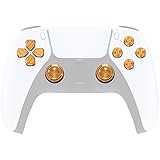
- Custom metal thumbsticks, dpad and ABXY buttons are specially designed for PS5 controller, not fits for other controllers.
- Made of high-quality aluminum metal material, durable and practical. Ideal replacement for your old, broken or worn original buttons, give your controller a new look
- Texture action abxy buttons and dpad maximize your surface contact with your thumbs, giving you better control while reducing hand and thumb fatigue
- Required customers to take apart the controller to replace these buttons; Required customers handy with controller installation; Get the installation video guide by searching "eXtremeRate Metal Buttons for PS5 Controller" on Youtube
- Package Includes: 2 x metal thumbsticks, 1 x metal action ABXY buttons, 1 x metal dpad button, 1* cross screwdriver, 1* open shell tool. Note: the controller and other parts are not included
Windows overlay software may also behave differently in full-screen games and could conflict with game or tournament rules. Do not treat a PC crosshair app as an Xbox accessory or assume that an overlay is allowed in competitive play. Microsoft’s Windows gaming documentation concerns Windows, not a native Xbox-console crosshair feature.
Independent reader supportYour contribution helps us test, update, and keep practical guides available for everyone.Troubleshooting
The game has no crosshair option
- Search Accessibility, HUD, Interface, Gameplay, and Display.
- Check whether the option appears only in a match, practice range, or vehicle-specific menu.
- Confirm that you are using the current console version and install available game updates.
- If no setting exists, check the monitor or TV’s OSD.
The monitor has no crosshair setting
- Confirm the exact model number.
- Open the full OSD rather than only the quick picture menu.
- Search the manual for “crosshair,” “aim point,” “GamePlus,” “Game Assist,” or “reticle.”
- Check whether the current picture mode disables the feature.
- Do not assume a firmware update can add it unless the manufacturer says so.
The reticle is off-center
Use the display’s Game Assist controls if the model supports repositioning, or reset the monitor’s OSD settings. Also verify that the Xbox output resolution and aspect ratio match a supported display mode. Some built-in reticles are permanently fixed at the center.
Recommended Free Tools
The reticle disappears in HDR
Some monitors restrict GamePlus functions in HDR or other special picture modes. This is model-specific, so check the manual and test the feature with the display mode you actually use.
Best Value

- HIGH QUALITY: 2 metal thumbsticks are made of high quality stainless steel metal, perfect fit, very durable and not easy to wear out.
- PERFECT COMPATIBILITY: Perfectly compatible with Xbox Elite Series 2 and Elite Series 2 Core controllers. These grips can be remapped to other buttons or functions to enhance the game control experience.
- RUN SMOOTHER: Enhance your gaming experience with our carefully crafted Xbox controller kits. They work perfectly with the official Xbox Elite Series 2 and Elite 2 Core controllers. It improves force, sensitivity and precision with pulse triggers for more feedback and a fully immersive gaming experience.
- GREAT GAMING FEEL: With the joystick, players can more easily trigger specific buttons or commands without taking their finger off the joystick or trigger.
- CONVENIENT AND SIMPLE: You don't need to disassemble the joystick, just place the metal paddle replacement into the correct hole and start gaming without any tools! Every step is very simple and convenient.
A crosshair is stuck on the Xbox Home screen
If it appears on the dashboard, in every game, or in other apps, it is probably coming from the TV or monitor rather than the Xbox game. Open the display OSD and disable Crosshair, Aim Point, GamePlus, or Game Assist. If necessary, power-cycle the display, reset its gaming-assistance settings, test another HDMI input, and check whether another connected device is generating an overlay.
Is an external crosshair allowed?
Check the specific game’s rules, tournament regulations, and accessibility policies before using a monitor overlay or Windows software. Do not assume that an external reticle is always permitted or always detected by anti-cheat systems. When possible, the game’s own accessibility and HUD settings are the safest route.
Which option should you use?
| Situation | Best option |
|---|---|
| The game supports reticle customization | Use the in-game settings. |
| The game has no reticle setting, but the monitor has GamePlus or Game Assist | Use the monitor OSD. |
| You use an ordinary TV | Check the TV manual once; most models will not have this feature. |
| You want to upload a completely custom image | Xbox has no documented system-wide method, and monitor overlays are usually preset. |
| You play competitively | Check the rules before using an external overlay. |
Buying a monitor solely for a crosshair is usually poor value. If you are already shopping for a display, treat the feature as a bonus and compare resolution, refresh rate, VRR, HDR, HDMI connectivity, size, ergonomics, warranty, and Xbox compatibility. For example, ASUS product pages list GamePlus on displays such as the ROG Strix XG27UCSR and ROG Strix XG43UQ Xbox Edition, but those are broader gaming-display purchases, not necessary Xbox crosshair accessories.
Bottom line
Start with the game’s own Accessibility, HUD, or Gameplay settings. If the game cannot customize its reticle, check whether your monitor or TV has a built-in Crosshair, Aim Point, Game Assist, or GamePlus feature. Xbox itself does not currently document a system-wide custom-crosshair setting, and Windows overlay apps should not be confused with Xbox-console support.
Quick Recap
Product prices and availability are accurate as of the date/time indicated and are subject to change. Any price and availability information displayed on Amazon at the time of purchase will apply.




