Outdated Drivers Are Slowing You Down
One free scan finds every outdated or missing driver and matches the right update for your exact hardware.Free scan · exact hardware matchPC Slower Than It Used to Be?
A free scan shows the junk files, broken settings and background clutter dragging Windows down - then fixes them in one click.Free scan · Windows 10 & 11The original, cartridge-based Nintendo Entertainment System (NES) does not plug directly into a Smart TV’s HDMI port. If your NES has composite AV output, connect it directly to a composite input or use a retro-gaming scaler to convert the signal to HDMI. If it has only RF output, use an RF connection, a compatible older display, or a console modification.
This guide is for the original NES—not the NES Classic Edition, which has built-in HDMI and uses a different setup procedure.
Before you buy a cable, identify your NES
Look at the back and side of the console and, if possible, photograph the connectors. The word “NES” on a listing is not enough to determine which cable you need.
- Front-loader (“toaster”): has a cartridge door on top. Many units have composite AV output, often alongside an RF connection, although exact revisions vary.
- Top-loader NES-101: has an exposed cartridge slot on top. Many North American units provide RF output but not the same composite connection found on composite-capable front-loaders.
- PAL and Japanese models: may use different connectors, power requirements, video standards, and channel frequencies. Do not assume a North American cable or power adapter is suitable.
If the console has only RF, a composite cable cannot create a composite signal. You will need the RF method, a qualified video-output modification, or a replacement cartridge-compatible console.
#1 Best Overall

- AV to HDMI Converter: Converts analog RCA composite (Yellow, White, Red) input to HDMI 720P/1080P output, displayed on HDTV/Monitor, which bring back your old and cherish memories. Notice: NOT support HDMI Converts to RCA.
- RCA to HDMI Converter Kit: Contain all necessary cables you need, such as Male RCA cable, HDMI cable and micro USB Power cable, no need to buy extra cable, more convenient to use. In addition, cables can be detached for other uses. Easier to use and more cost-effective.
- Widely Used: Widely applied to PSOne, PS2, PS3, Xbox, N64, Wii, SNES, STB, VHS, VCR, DVD Players and other devices with standard composite AV input. Support PAL, NTSC3.58, NTSC4.43, SECAM, PAL/M, PAL/N standard TV formats input.
- Plug to Play: Setuact RCA to HDMI Adapter, no extra drivers need, just plug and play, easy to use. Please hook up the USB power cable (included) to 5V power source during use the Composite to HDMI Converter.
- Package&After-sales Service: Package Include: 1*RCA to HDMI Converter, 1*RCA Cable(3.3ft/1m), 1*HDMI Cable(3.3ft/1m), 1*USB Power Cable(2.6ft/0.8m), (adapter not included), 1*User Manual. We provide 18 months after-sales service quality guarantee, 24h friendly customer service.
Check your Smart TV’s inputs
Your TV may have one or more of these:
- HDMI: the normal route when using a scaler or converter.
- Composite AV: usually yellow for video and red/white for right and left audio.
- 3.5-mm AV input: requires the TV manufacturer’s specific breakout adapter. Similar-looking cables may use different wiring.
- Shared component/composite input: some TVs use a green component socket for composite video, but the input may need to be selected or configured in the TV menu.
- Antenna/cable coaxial input: used for RF, if the tuner still supports the NES’s analog signal.
Yellow composite video is not automatically interchangeable with red, green, and blue component video. If the labeling is unclear, consult the TV manual for “AV,” “composite,” or “external input.” Menu names vary by manufacturer.
What you need
For a direct composite connection
- Original NES with composite output
- Compatible NES AV cable and RCA leads
- Correct NES power adapter
- Controller and a known-good cartridge
- TV composite input or the TV maker’s AV breakout adapter
For an HDMI connection
- NES with composite output and its compatible AV cable
- Retro-gaming scaler or AV-to-HDMI converter
- HDMI cable
- USB power cable or power adapter for the scaler, if required
A purpose-built scaler such as the RetroTINK-2X Pro is designed for legacy console signals and modern displays. Its official page listed a price of $139.99 on August 18, 2026; prices and stock can change. The 2X Pro manual identifies composite, S-video, and component inputs, but you should confirm the exact model’s supported inputs before buying.
For an RF connection
- Compatible NES RF switch or RF adapter
- Coaxial cable
- TV with an antenna/cable input and a tuner that supports the relevant analog signal
Method 1: Connect the NES directly to composite AV
- Turn off the NES and TV. Switch both devices off before connecting or disconnecting cables.
- Connect the AV cable. If the console uses a proprietary Nintendo AV connector, connect that end to the NES. Connect the yellow plug to the TV’s composite video input and the red and white plugs to the right and left audio inputs.
- Handle mono audio correctly. Some NES setups provide only one audio channel. Use the TV’s left/mono input if available. Otherwise, sound may come from only one speaker. Do not expect stereo audio from a mono NES output.
- Connect the correct power adapter. Match the console’s required voltage, polarity, plug size, and regional mains standard. Do not substitute a random adapter simply because its plug fits.
- Insert a known-good cartridge. Insert it straight into the console and use the normal loading mechanism on a front-loader. Avoid repeatedly blowing into cartridges; properly cleaning the contacts is safer.
- Turn on the TV and NES.
- Select the TV input. Press the remote’s Input, Source, or equivalent button and choose AV, Composite, Video, or the label assigned to the shared input.
You should see the NES startup screen or game image. The Smart TV home screen is not the NES input; selecting the physical input receiving the console signal is essential.
For the most natural presentation, choose 4:3 or Original aspect ratio. Enable Game Mode if available and disable aggressive motion smoothing. The image will remain soft compared with a modern console because the original NES produces an analog, low-resolution signal.
Do these 3 things before closing this tab:
1Repair Windows errors before they cause bigger problems2Scan for outdated or missing drivers - takes under a minute3Clear out junk files and repair common Windows errorsMethod 2: Connect the NES through an HDMI scaler
This is the preferred general solution when the TV has HDMI but no usable composite input, or when you want a more suitable retro-gaming conversion than a basic video box typically provides.
Rank #2

- Composite to HDMI Converter: Converts analog AV composite (Yellow, White, Red) input to HDMI 720P/1080P (60HZ) output, displayed on smart TV, Projector or HD Display, which bring back your old and cherish memories.
- Plug to Play: This HDMI Converter no extra drivers need, just plug and play,easy to use. Please hook up the USB Power Cable (included) to 5V power source during use. Note: The Video Converters only support converts AV to HDMI, can't converts HDMI to AV.
- Widely Used: This composite to hdmi adapter is widely applied to PS1, PS2, PS3, Xbox, N64, Wii, STB, VHS, VCR, DVD Players and other devices with standard composite AV input. Note: It can only be used when PS2 is set to RGB output.
- Wide Compatibility: This Video Audio Converter Adapter supports source formats of PAL, NTSC3.58, NTSC4.43, SECAM, PAL/M, PAL/N standard TV. Provide advanced signal processing with great precision, colors, resolutions, and details. Important Note: This converter can't improve video quality!
- Attention & Package: Please ensure to connect this av hdmi converter to power source to make it work. Package include: 1*AV to HDMI Adaptor, 1*USB Power Cable(adapter not included), 1*User Manual.
- Turn off the NES and TV.
- Connect the NES AV cable to the scaler’s composite input.
- Connect the scaler’s HDMI output to an available HDMI input on the TV.
- Connect the scaler’s USB power cable or power adapter.
- Insert the cartridge and turn on the NES.
- Turn on the TV and select the matching HDMI input.
- Select composite as the scaler’s input if it has multiple modes.
- Use the scaler’s normal compatible line-doubling or output mode.
The HDMI cable carries the scaler’s converted output; it does not carry a native HDMI signal from the NES. A scaler improves display compatibility and may provide a cleaner, more responsive presentation, but it cannot turn the original game into native high-definition graphics.
A generic AV-to-HDMI converter can be a cheaper option. For example, Hyperkin lists its NuScope AV-to-HD converter at a $19.99 MSRP, but compatibility, picture quality, 240p handling, and latency can vary. A low-cost box may display an image while still adding undesirable processing delay. Avoid unnecessary HDMI switches, AV receivers, capture cards, or multiple conversion stages when input response matters.
Method 3: Connect an RF-only NES
Use RF only when the console lacks composite output or no other practical option is available.
- Turn off the NES and TV.
- Connect the NES RF output to the RF switch or compatible coaxial adapter.
- Connect the adapter to the TV’s antenna/cable input.
- Set the RF switch to channel 3 or 4, matching the setting on the console or switch.
- Insert a cartridge and power on the NES.
- Open the TV’s channel-tuning menu.
- Choose antenna/air rather than cable if the TV asks for a signal type.
- Run a channel scan or manually tune the selected channel.
- Select channel 3 or 4.
Do not assume every modern Smart TV can tune an NES RF signal. Many newer televisions no longer handle old analog RF signals like a CRT did, and compatibility depends on the TV model, region, and tuner. If the TV cannot find the signal, the tuner—not necessarily the NES—may be the problem. RF also generally produces a noisier, less convenient picture than composite or a dedicated scaler.
What if your NES is a top-loader?
If your top-loader has only RF output, plugging in yellow, red, and white cables will not work. The console must actually output composite video.
Rank #3
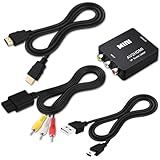
- 『Compatibility』This Nintendo 64/SNES/GameCube AV cable (6FT) delivers crystal-clear video(yellow) and stereo audio (red/white) through RCA connectors, exclusively compatible with Nintendo 64, Super Nintendo, GameCube and Super Famicom consoles - please verify your model before purchase.
- 『RCA to HDMI Converter』1080P Mini RCA to HDMI Converter Adapter Supporting PAL/NTSC for TV/PC/ PS3/ STB/Xbox VHS/VCR/Blue-Ray DVD Players.AV to HDMI converter no need any drivers, just plug to play.Please remember to hook up the USB power cable (included) to 5V power source to make it work.
- 『N64 AV Cable』The Video and Audio Cable are compatible with many TV games, suitable for Nintendo 64, GameCube, Super Nintendo SNES etc. (Support TV with RCA or HDMI Input.) Paired with the HDMI converter, it smoothly turns RCA output into HDMI input, perfect for connecting retro game consoles to modern displays.
- 『4K HDMI Cable 6 FT』The 4K HDMI cable supports ultra HD 4K@60Hz with 18Gbps bandwidth, backward compatible with HDMI 1.4/2.0 devices, perfect for modern gaming and home theater setups with plug-and-play simplicity.
- 『Simple 3-step Setup』Connect your console to the converter using the AV cable, link to your TV with the HDMI cable, power via USB, then switch to the correct HDMI input for instant HD retro gaming.
Your choices are:
- Use the RF procedure above.
- Have a qualified repair service install a composite or other video-output modification.
- Use a compatible older display.
- Use a replacement cartridge-compatible HDMI console.
A modification involves model-specific electronics and may require soldering. Do not follow a generic board-level guide without confirming the exact revision.
Troubleshooting by symptom
No picture or “No signal”
- Confirm the TV is on the correct AV or HDMI input.
- If using a scaler, confirm it is powered and set to composite.
- Reseat every cable at both ends.
- Make sure the yellow plug is in a composite video socket, not an audio or component-only socket.
- Test the TV’s AV breakout adapter if one is required.
- Try another HDMI port and HDMI cable when using a scaler.
- Try another cartridge.
- Clean the cartridge and console contacts correctly rather than relying on repeated blowing.
- Confirm whether the NES is RF-only.
- Test another display or determine whether the TV supports the console’s regional signal standard.
These checks mirror the useful general principles in Nintendo’s blank-screen troubleshooting, although Nintendo’s page itself concerns the NES Classic Edition.
Recommended Free Tools
Audio but no video
Check that the yellow plug is connected to the correct composite video socket, test another video cable, verify any shared component/composite setting, and consider a fault in the NES video output or converter.
Video but no audio
Check the red and white connections, confirm that the TV is not muted or routing audio elsewhere, and try the TV’s left/mono input if the NES provides only one audio channel.
Rolling, flickering, or black-and-white image
Possible causes include an NTSC/PAL mismatch, an incompatible regional console or television, a converter that cannot lock onto the signal, or a poor RF connection. A converter will not necessarily solve every regional-format problem.
Rank #4

- 【HDMI Cable Included】Nintendo 64/ Game Cube/SNES to HDMI converter,Support 720P/1080P Convert on HDTV.
- 【Easy to Use】Plug and play with HDMI adapter,no screen lag.Note: External power supply required.
- 【Clear and Smooth Picture Quality】For legacy systems to run on newer tvs,better gaming experience.
- 【Note】No sound or blue screen appears, please check if the connection is successful.
- 【Customer Service】 We have undergone strict testing before leaving the factory to ensure normal use. If you have any questions, you can contact us.
The image is stretched
Set the TV and scaler to 4:3, Original, or an equivalent setting. Avoid Wide or Zoom modes unless you specifically prefer a stretched image. Exact labels vary by TV software.
The Tool Desk
Outbyte Driver Updater FREEScan for outdated or missing drivers - takes under a minuteDriver Scan →Outbyte PC Repair FREERepair Windows errors before they cause bigger problemsFix Now →Severe input lag
Enable the TV’s Game Mode, use a purpose-built retro scaler, and remove unnecessary devices from the signal path. A scaler can minimize its own processing delay, but it cannot eliminate latency created by the television.
The NES works on a CRT but not the Smart TV
That usually points toward an input, scaling, display-compatibility, or signal-standard issue rather than proving the console is dead. Try direct composite if available, a dedicated scaler, another modern display, and the TV’s Game Mode.
Independent reader supportYour contribution helps us test, update, and keep practical guides available for everyone.Which connection should you choose?
| Method | Best for | Main trade-off |
|---|---|---|
| Direct composite | Lowest cost and simplest setup | Many TVs omit composite or process it poorly |
| Retro scaler | Original hardware with an HDMI-only TV | Costs more than a generic converter |
| Generic AV-to-HDMI | Budget users who already have composite output | Picture quality, signal handling, and latency vary |
| RF | RF-only consoles | Poorest convenience and possible tuner incompatibility |
| Video modification | Top-loader owners who want original hardware and modern output | Requires a qualified service and model-specific work |
Replacement-console alternative
If preserving the original console is not important, the Hyperkin RetroN 2 HD is a separate replacement console that accepts NES, Super NES, and Super Famicom cartridges and outputs 720p over HDMI. Hyperkin’s official store listed it at $79.99 on August 18, 2026, with included controllers and an aspect-ratio switch. It is not an adapter for the original NES, and cartridge compatibility, timing, controllers, and behavior may differ from authentic Nintendo hardware.
Likewise, do not buy an HDMI cable intended for the NES Classic Edition. Nintendo’s listed HDMI cable is for products including the Switch, NES Classic Edition, and Super NES Classic Edition—not the original cartridge-based NES.
Best Value
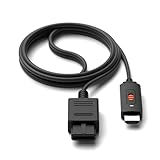
- ※Convert N64 Video signal to HDMI signal, make it easy to connect the Game console to TV.
- ※Plug and play with HDMI adapter,no screen lag.No additional power supply required.
- ※N64 HDMI Adapter Support 16:9/ 4:3 Switchover.
- ※N64 to HDMI Adapter Provide advanced signal processing with great precision, colors, resolutions and details.
- ※Note: N64/ Game Cube/SNES to HDMI converter,Support 16:9 Convert on HDTV.
Frequently Asked Questions
Can I plug an original NES directly into HDMI?
No. The original NES needs composite or RF conversion before a TV’s HDMI input can use its signal.
Will the NES Classic Edition HDMI cable work with the original NES?
No. The NES Classic Edition and original NES use different hardware and connection methods.
Can I use a Nintendo Switch AV cable?
Do not assume so. Connector shape alone does not establish wiring or compatibility; use a cable specifically confirmed for your NES revision.
Will a scaler reduce input lag?
A purpose-built scaler is designed for low-latency retro conversion, but television processing can still add lag. Game Mode remains important.
Will original cartridges work in the RetroN 2 HD?
Hyperkin describes the RetroN 2 HD as compatible with NES, Super NES, and Super Famicom cartridges, but it is replacement hardware rather than an authentic NES. Compatibility may differ from original Nintendo hardware.
Quick Recap
Product prices and availability are accurate as of the date/time indicated and are subject to change. Any price and availability information displayed on Amazon at the time of purchase will apply.



