To install mods on a Path of Titans community server, stop the server, add each mod’s in-game Mod ID as an EnabledMods= entry in GameUserSettings.ini, save the file, and restart. The server checks for current versions and downloads the required files automatically. Players who join then download and install the enabled mods automatically; they do not copy files manually.
Custom maps use a second setting in Game.ini. Add the map’s exact internal name as ServerMap=, and remember that only one map mod can be active at a time.


As an Amazon Associate I earn from qualifying purchases.
The Tool Desk
Outbyte Driver Updater FREEFix the driver behind crashes, sound loss and screen glitchesFind Drivers →Outbyte PC Repair FREERepair Windows errors before they cause bigger problemsFix Now →What server mod installation changes
A Path of Titans server does not normally use a separate mod installer or a folder of files that you assemble by hand. The supported workflow is configuration-based: you identify a mod in the game’s Mod Browser, place its Mod ID in the server configuration, and let the server retrieve the current version when it starts.
This matters because the server configuration is authoritative. A client can have a mod installed locally, but that does not activate the mod on your server. Conversely, when a server advertises an enabled mod, joining players are offered the matching download automatically. The player-facing modding guidance states that mods are downloaded and installed on joining, so players do not need a separate manual file-copy step.
#1 Best Overall
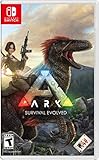
- Capture and Tame Dinosaurs: Discover over 100 different dinosaurs and prehistoric creatures on the island, finding ways to tame them into useful additions for your tribe's dyno herd
- Survive Above All: Hunger, thirst, basic safety, and protecting yourself from the weather are all part of the game
- Harvest, Hunt and Build: Cut down trees and turn them into a basic home, which you can quickly expand into a Jurassic estate. Hunt for meat, scavenge for plants (or start your own garden!)
- Customize Everything: An extensive crafting system invites you to mix and match materials scavenged from the island, while also modifying the colors, textures, shapes, and styles
- Explore the Island: Solve the mystery of The ARK as you explore this massive island, discovering Explorer's Notebooks (filled with clues!) throughout
Community servers can be self-hosted or run through a Game Server Provider. Alderon Games recognizes both models, and both can use community gameplay and map mods. The file paths and control-panel labels vary by host, but the configuration sections and keys are the same.
Decide what you are installing first
Identify the mod type before editing anything. Type affects whether several mods can run together and whether every platform can join.
Mod types and stacking rules
| Mod type | Typical purpose | Can it stack with another mod? | Important limitation |
|---|---|---|---|
| Skin | Cosmetic appearance changes | Generally stackable | Check the author’s platform notes and any stated conflicts. |
| Creator-mode item | Additional buildable or creator-mode content | Generally stackable | Use the exact Mod ID shown in the game. |
| Creature | New playable or server-available creatures | Generally stackable | Confirm that the mod supports the platforms represented by your community. |
| Stat-change | Changes to creature statistics or balance | Only when the mods do not edit the same creatures | Two mods changing the same creature can conflict; test them separately before combining them. |
| Map | A separate playable world | Not stackable with another map mod | Only one map can run at a time, and some maps may not support mobile players. |
“Generally stackable” does not mean conflict-free. A skin, creature, or creator-mode item can still have an author-documented incompatibility. Stat-change mods need special care because two otherwise valid mods may overwrite the same creature data.
Check platform support before choosing a map
Map mods deserve a platform check before you announce a server. The hosting documentation warns that some maps are graphically intensive for mobile hardware; mobile players may be unable to join those servers. Creature and skin mods are generally more mobile-compatible, but the mod author’s own platform notes should take precedence.
Choose a hosting model
- Self-hosting: You edit the server’s files directly and control the operating system, backups, and restart process.
- Game Server Provider: You use the provider’s file manager or configuration editor and its restart controls. The provider may label the same files differently, so locate the Path of Titans configuration directory rather than assuming a particular panel layout.
Whichever model you use, make sure you can stop the server, edit its files, and perform a clean restart. The documented setup requirement is explicit: the server must be stopped while server files are being edited.
Find a mod’s correct Mod ID
Do not guess an ID and do not download arbitrary files from elsewhere. The documented server workflow is ID-based, and the server retrieves the mod itself.
What’s actually slowing this PC down?
Pick the symptom - the matching free tool is one click away.
- Launch Path of Titans and open the in-game Mod Browser.
- Select the mod you intend to use.
- Record the displayed Mod ID exactly, including every letter, number, underscore, and suffix.
- Read the mod author’s notes for map requirements, supported platforms, and known conflicts.
- Repeat this process for every mod you plan to enable.
The Mod ID is not necessarily the mod’s display name. Treat the displayed identifier as case-sensitive configuration data. If you later suspect that a mod is not loading, reopen the Mod Browser and compare the stored value with the current displayed ID rather than trying a similar-looking name.
Install ordinary gameplay, creature, skin, and item mods
The following procedure applies to non-map mods, including skins, creator-mode items, creatures, and stat-change mods.
Rank #3

- 18 HIGHLEY DETAILED MINIATURES - Your favorite character comes to life in this true-to-the-story board game experience.
- DANE OR SAXON - Pivet through the conflicts and ensure you are aligned with the winning faction. Betrayal is your strongest asset.
- MODERN DESIGN - Authored by the award winning John D Clair. Also known for Mystic Vale among other great titles.
- BASED OF THE HIT NETFLIX SERIES - Relive all the show's best moments, and play out your own fight for Britain.
- DESTINY IS ALL - With twists and turns and epic battles The Last Kingdom Board Game will leave you wanting more and more.
- Stop the server. Use the stop control in your host panel or stop the dedicated-server process. Do not edit a live configuration file.
- Open the configuration directory. Navigate to
PathOfTitans/Saved/Config/<OS>Server/GameUserSettings.ini. On Windows, the operating-system folder is namedWindowsServer. Other systems use a different OS-folder name. - Locate or create the mod section. Find the section header
[PathOfTitans.Mods]. If the section is absent, add that exact header in the INI file. - Add one entry per mod. Each enabled mod gets its own
EnabledMods=line. Use the Mod ID from the in-game Mod Browser.
[PathOfTitans.Mods]
EnabledMods="UGC_M_DYV7XYEGX2_SK"
EnabledMods="UGC_M_DYV0XMY7GX_SK"- Save the file. Preserve the section spelling, the quotation marks, and the separate line for each ID. Avoid replacing several IDs with a comma-separated value.
- Restart the server. On restart, the server checks for current versions, downloads required mods, and enables them. A first start can take longer while content is retrieved.
- Verify in a controlled join. After the restart has completed, join with a test account or ask one player to connect. Confirm that the expected mod content is present before opening the server to a larger group.
The two IDs in the example are formatted examples of the required syntax. They are not a recommendation of particular mods; always replace them with the IDs you actually selected in the Mod Browser.
Install a modded map
A map uses the same ID-based activation process plus a map setting in Game.ini. The map name is not the Mod ID, and confusing the two is a common reason for a server that starts without the custom world.
Outdated Drivers Are Slowing You Down
One free scan finds every outdated or missing driver and matches the right update for your exact hardware.Free scan · exact hardware matchWindows Errors? Fix Them Before They Spread
Repair common Windows errors and clear accumulated junk for a smoother, more stable PC - no reinstall needed.Free scan · no reinstall- Stop the server before making either configuration change.
- Enable the map mod in
PathOfTitans/Saved/Config/<OS>Server/GameUserSettings.iniunder[PathOfTitans.Mods], using the map mod’s Mod ID on its ownEnabledMods=line. - Open
Game.iniin the same Path of Titans configuration area. - Add the session section and map key:
[/Script/PathOfTitans.IGameSession]
ServerMap=TheGrimExpanse- Replace the example name. Substitute
TheGrimExpansewith the exact map name supplied by the mod author. Use the author’s internal map name, not merely the title shown in a workshop or browser listing. - Save both files and restart. The server needs the enabled map mod and the matching
ServerMapvalue. - Allow extra loading time. Large maps can take several minutes to initialize. A slow first load is not, by itself, proof that the map failed.
Only one map can run at a time. If more than one map mod is enabled, remove the additional map entries and test with a single map. Other mod categories may remain enabled if they are compatible with that map and with one another.
What players have to do
Players do not need to find the server’s mod files, copy them into a folder, or repeat your INI edits. When they join a server with mods activated, the game automatically downloads and installs the required mods before allowing the connection to proceed.
Rank #4

- AWARD-WINNING STRATEGY GAME – Winner of the Best Card Game award at UK Games Expo. A fast-paced mix of action, strategy, and mayhem that keeps players engaged from start to finish.
- EASY TO LEARN, QUICK TO PLAY – Learn the rules in minutes and jump straight into the action. Each game takes around 45 minutes, with endless replay value for both casual and competitive players.
- COMPETITIVE VIKING ADVENTURE – Take command as a fearless Viking Chief. Build your clan, raid rival bays, collect treasures, and outsmart opponents to claim ultimate Viking glory.
- INCLUDES MINI-EXPANSION FOR EXTRA VARIETY – Add new layers of challenge and strategy with an included mini-expansion. Perfect for players who enjoy deeper gameplay options.
- PERFECT FOR FAMILY GAME NIGHTS – Designed for 2–5 players ages 9 and up. Compact, travel-friendly box makes it easy to bring Viking Raiders anywhere for family gatherings, parties, or game nights.
There are still two practical player-facing conditions:
- They need a supported platform. A map that is too graphically intensive for mobile may prevent mobile players from joining, even though the server configuration is correct.
- They need to wait for the download and installation. The first connection can take longer than a later connection because the content must be obtained locally.
The server owner remains responsible for publishing the correct server information and keeping the enabled Mod IDs and map name valid. Automatic client installation does not repair a mistyped ID or an invalid map setting on the server.
Independent reader supportYour contribution helps us test, update, and keep practical guides available for everyone.Plan a mod list that will remain stable
Start with the smallest useful set, test it, and add one change at a time. This makes a conflict identifiable instead of leaving several simultaneous causes.
Use stacking rules as a design constraint
- Combine skin, creator-mode item, and creature mods when each author supports the target platforms.
- Combine stat-change mods only when they affect different creatures. If two alter the same creature, test them independently or choose one.
- Use one map mod at a time. A second map cannot be loaded alongside the first.
Separate content compatibility from platform compatibility
A mod can be technically stackable and still be unsuitable for your audience. For example, a map may coexist correctly with a creature mod while remaining inaccessible to mobile players because of graphical demands. Check both dimensions before you advertise the server’s ruleset.
Best Value
Keep a change record
Record each selected Mod ID, its display name, the author’s stated platform support, and the date you enabled it. If a later update causes a problem, you can remove the most recent change without discarding the entire configuration. This record is especially useful when several stat-change mods are involved.
Recommended Free Tools
Troubleshoot a server that does not load its mods
Work through the checks in this order so that a simple configuration error is eliminated before you investigate compatibility.
The server starts, but no mod content appears
- Confirm the server was fully stopped before the edit and restarted after the file was saved.
- Check that the section header is exactly
[PathOfTitans.Mods]. - Make sure every mod has its own
EnabledMods=line and that each value is the exact Mod ID shown in the Mod Browser. - Reopen the Mod Browser and compare the IDs character by character. Do not substitute a display name or a URL.
One mod works and another does not
- Remove the questionable entry temporarily and restart to isolate it.
- Check the author’s notes for platform restrictions or a conflict with another enabled mod.
- If it is a stat-change mod, determine whether another enabled mod edits the same creature.
The custom map does not load
- Verify that the map mod itself is enabled under
[PathOfTitans.Mods]. - Confirm that
ServerMapis inside[/Script/PathOfTitans.IGameSession]inGame.ini. - Compare the value with the map author’s exact internal name, including capitalization and punctuation.
- Remove any second map mod; only one map can be active.
- Wait several minutes on the first start if the map is large before declaring it failed.
Mobile players cannot join
Check the map author’s platform notes first. Some maps are too graphically intensive for mobile hardware. Test with a known mobile-compatible server configuration, or choose a map whose author explicitly supports the platforms you need. Creature and skin mods are generally more mobile-compatible, but their individual notes still apply.
The configuration keeps reverting
Stop the server again, make the edit in the host’s actual Path of Titans configuration directory, save, and restart. Managed hosts can expose multiple file locations or generated settings pages; ensure you are editing the file the server instance actually uses, not a local copy or an unrelated template.
Maintenance after installation
Mod installation is not a one-time file copy. Keep the server’s configuration readable and make changes deliberately.
Free tools Windows power users keep installed
One-click scans. No signup required.
- Back up before changes: Save a copy of
GameUserSettings.iniandGame.inibefore changing the mod list or map. - Change one variable at a time: Add or remove one mod, restart, and test before making another change.
- Recheck author notes after updates: A mod author may change a map’s internal name, platform support, or compatibility guidance.
- Communicate platform limits: State clearly if the selected map may exclude mobile players.
- Keep the list minimal: Every additional mod adds another compatibility relationship to test, especially when stat data overlaps.
If you need to return to a known-good state, stop the server, restore the backed-up configuration, and restart. Because players download enabled content automatically, removing a mod from the server configuration is also the correct way to stop advertising it to new joiners.
Quick Recap
Quick reference
| Goal | File | Setting | Value source |
|---|---|---|---|
| Enable a creature, skin, item, stat, or map mod | PathOfTitans/Saved/Config/<OS>Server/GameUserSettings.ini |
[PathOfTitans.Mods] and one EnabledMods="..." line per mod |
Mod ID displayed in the in-game Mod Browser |
| Select a custom map | Game.ini |
[/Script/PathOfTitans.IGameSession] and ServerMap=... |
Exact internal map name supplied by the map author |
| Allow players to connect | No player-side file edit | Join the configured community server | The game downloads enabled mods automatically |
Product prices and availability are accurate as of the date/time indicated and are subject to change. Any price and availability information displayed on Amazon at the time of purchase will apply.




