Recommended Free Tools
Install Squad server mods with SteamCMD, copy each Workshop download into SquadGame/Plugins/Mods/, then restart and verify the startup log. The dedicated server uses Steam app ID 403240; Squad’s Workshop uses app ID 393380. Stop the server before downloading, deleting, or replacing mod files.
Prefer not to run the server on your own PC? Godlike.Host offers hosted Squad servers with free DDoS protection and up to three free backups a day.
What you need before installing a mod
Squad mods are Workshop packages, not files installed through a separate retail mod installer. A dedicated server therefore needs three things: a working Squad server installation, SteamCMD access, and the numeric Workshop ID of every mod you want to run.

As an Amazon Associate I earn from qualifying purchases.
What’s actually slowing this PC down?
Pick the symptom - the matching free tool is one click away.
- A dedicated-server installation: The normal Squad server app ID is
403240. The Public Testing server uses a different app ID,774961; do not use that ID for a normal production server. - SteamCMD: Steam Support documents SteamCMD as the installation and update tool for Steam game servers. You can run it on Windows or Linux.
- A Workshop ID: Open the mod’s page in the Squad Steam Workshop (app ID
393380) and record the numeric ID in its URL. Workshop items can contain maps, factions, game modes, weapons, or other content. - Administrative access: You need permission to stop the server, run SteamCMD, copy files into the server directory, and edit the server configuration.
- A maintenance plan: A mod that worked on one Squad build may be incompatible after a game update. Keep a record of the IDs you installed and check them after every server patch.
Back up your server configuration before making changes. The configuration directory is under SquadGame/ServerConfig/; preserve this directory when updating the server or replacing a container.
Find the correct Workshop ID
Read the numeric ID from the Workshop page
Search the Squad Workshop for the mod and open its item page. The page URL contains a numeric id value. Copy that number exactly; a title, collection ID, or Steam app ID is not a substitute for the item’s own Workshop ID.
#1 Best Overall

- Durable Carbon Steel: Rack mount screws and cage nuts are made of high-quality carbon steel with a black finish for high strength and dependable durability.
- Easy Installation: Clear metric threads and uniform pitch for better grip. Nylon washers help secure screws and protect equipment surfaces.
- Organized Storage: All parts are packed in a portable storage box for easy organization and access.
- Wide Compatibility: Fits most square-hole racks and cabinets—ideal for server racks, network cabinets, equipment enclosures, and A/V gear.
- 20-Set Kit: Includes 20 mounting screws with nylon washers (M6 x 20 mm) and 20 square cage nuts—40 pieces in total—meeting daily install and replacement needs.
Use the Workshop app ID 393380 in SteamCMD commands. This identifies Squad content and is separate from the dedicated-server app ID 403240.
Check what the mod contains
Read the item description for required companion mods, supported game versions, maps, factions, and server-side instructions. A mod can download successfully and still fail to load if it targets a different Squad release or depends on another Workshop item.
Do these 3 things before closing this tab:
1Repair Windows errors before they cause bigger problems2Scan for outdated or missing drivers - takes under a minute3Clear out junk files and repair common Windows errorsKeep an installation list
For more than one mod, write down each numeric ID, its display name, dependencies, and the date you last updated it. This makes it possible to identify a stale or incompatible package instead of deleting the entire mod library when one item causes a startup failure.
Install or update the Squad dedicated server with SteamCMD
Choose a server root
Use a short, stable path for the server, such as C:serverssquad_server on Windows. On Linux, choose a directory owned by the account that runs the service. Avoid moving the server after you create scripts that refer to its absolute path.
Install the server app
Run SteamCMD and install app ID 403240 into the chosen server root. The same process updates the server when a new Squad build is released. SteamCMD authentication and installation details vary by operating system, but the target app and destination must remain the same.
Do not install Workshop content into a separate game-client directory and assume the server will discover it. The server ultimately loads the package copied into its own SquadGame/Plugins/Mods/ directory.
Stop the service before changing files
Shut down the Squad process cleanly and confirm that it has exited before running an update script. The Squad Wiki’s operational guidance is explicit: “While running the update script, the squad server must not be running.” An active process can lock files, retain old package data, or leave a partially replaced mod.
Download a Workshop mod with SteamCMD
Windows command
With the server stopped, run a command equivalent to the following. Replace <mod ID> with the numeric Workshop ID and adjust the SteamCMD path if necessary:
%STEAMCMD% +login anonymous +force_install_dir "C:serverssquad_server" +workshop_download_item 393380 <mod ID> +quit393380 is the Squad Workshop app ID. +force_install_dir selects the server root, and +workshop_download_item tells SteamCMD to fetch the specified Workshop item. The command ends with +quit so a scripted update can finish without leaving SteamCMD open.
Where SteamCMD puts the download
The initial Workshop download appears below:
<server root>steamappsworkshopcontent393380<mod ID>On Linux, the same structure uses forward slashes:
<server root>/steamapps/workshop/content/393380/<mod ID>The numeric folder is the package you must copy. Do not copy the entire 393380 directory as one mod, and do not rename the numeric folder if the server’s update procedure expects the Workshop ID.
Confirm that SteamCMD completed
Check SteamCMD’s output for a completed download and inspect the numeric folder for files. If the folder is missing, verify the Workshop ID, the app ID, the force-install path, network access, and write permissions before attempting the server copy.
Copy the mod into the server’s plugin directory
Create the destination if necessary
Inside the server root, the destination is:
<server root>/SquadGame/Plugins/Mods/On Windows, that is commonly C:serverssquad_serverSquadGamePluginsMods. Create the Mods directory if it does not exist, preserving the spelling and capitalization used by the server installation.
Rank #3
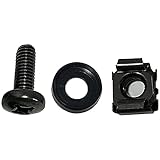
- High quality cabinet cage nuts and screws
- Package includes: cage nuts x 100pcs screws x 100pcs Washers x 100pcs
- Material: Metal Zinc-plated
- Size: M6 x 16
- Fit all square hole racks server rack or cabinet
Replace an existing version safely
For an update, remove the old folder for that same numeric ID first, then copy the refreshed Workshop folder into Plugins/Mods. The documented Windows update pattern deliberately deletes the old <mod ID> directory before copying the new content, preventing files removed by the mod author from surviving as stale leftovers.
- Stop the Squad server and verify the process is no longer running.
- Run SteamCMD to download the current Workshop item.
- Delete
<server root>/SquadGame/Plugins/Mods/<mod ID>if it exists. - Copy
<server root>/steamapps/workshop/content/393380/<mod ID>into<server root>/SquadGame/Plugins/Mods/. - Check that the resulting destination is exactly
.../Plugins/Mods/<mod ID>, not.../Plugins/Mods/<mod ID>/<mod ID>. - Start the server and inspect the boot log.
Install several mods
Repeat the download and copy operation for each Workshop ID. Keep each numeric folder separate. If a mod description lists dependencies, install those dependencies as well and update all related packages together after a Squad patch.
Start the server and verify that the mod loaded
Use the startup log as the first check
After restarting, read the server’s startup output. The documented boot sequence prints the standard maps and then the added modded maps. Seeing the expected modded maps is a practical indication that the package reached the correct directory and was recognized by the current server build.
Test the actual content
A map appearing in the log does not prove every faction, weapon, or game mode works. Join from a client running the same compatible Squad version and test the content the mod provides. Check map rotation, layer selection, faction availability, and any required server settings.
Interpret a failed load
- No modded maps in the log: Check the destination path, numeric folder name, and whether the copy created an extra nested directory.
- Startup errors immediately after a game update: Treat version incompatibility as the leading possibility. Check the mod’s current status and remove the package until an updated release is available.
- Only part of a mod works: Look for required companion Workshop items or a separate configuration instruction in the mod description.
- Old behavior remains after an update: Stop the server, delete the old numeric folder, recopy the freshly downloaded folder, and start again.
Enable mods through Server.cfg
Locate the configuration file
Squad server configuration files live under SquadGame/ServerConfig/. A hosting guide documents adding Workshop IDs in SquadGame/ServerConfig/Server.cfg with Mods= entries.
Confirm syntax for your build
The exact formatting of Mods= can change with server builds and hosting wrappers. Before deploying several IDs, compare the syntax required by the current build or your provider’s current guide. Do not assume that a line copied from an older tutorial, a collection URL, or a client launch option is valid server configuration.
Rank #4

- Threaded hole hardware kit - 50 each #12-24 screws
- Fastens equipment to threaded hole rack mount rails
- Compatible with all #12-24 threaded hole racks
Keep configuration and files consistent
A configuration entry cannot replace the physical package. Download the Workshop item, copy its numeric folder into SquadGame/Plugins/Mods/, and then use the supported Mods= syntax to make the server select it. Back up Server.cfg before editing and change one setting at a time so a syntax error is easy to isolate.
Docker deployment: persist the server outside the container
Bind-mount the configuration and server data
Containers are replaceable by design. The Squad installation guide gives /home/steam/squad-dedicated/ as the container path and recommends mounting a host directory there. Without a bind mount, replacing the container can erase refined configuration, downloaded mods, and other server state.
Choose a host directory, mount it to /home/steam/squad-dedicated/, and keep ServerConfig, Plugins/Mods, and the SteamCMD Workshop cache in that persistent location. Ensure the container user can read and write the mounted files.
Free tools Windows power users keep installed
One-click scans. No signup required.
Use a documented MODS array when provided
The CM2Walki container README describes a bash MODS array. Its IDs can be taken from Workshop URLs or from numeric folders under steamapps/workshop/content/393380. Follow the image’s current variable names and startup procedure rather than inventing a different environment variable; container images do not all expose the same interface.
Update without losing state
- Stop or recreate the container according to its documented procedure.
- Update the image or run its SteamCMD update mechanism while the Squad process is stopped.
- Confirm that the host bind mount still points to
/home/steam/squad-dedicated/. - Verify that the Workshop download and destination mod folders exist on the host.
- Start the replacement container and inspect its startup log for standard and modded maps.
Manual copy, configuration-driven setup, or managed hosting?
| Method | Control | Repeatability | Persistence | Main burden | Failure visibility |
|---|---|---|---|---|---|
| Manual SteamCMD and file copy | Highest; you control paths and files | Low unless scripted | Native Windows or Linux filesystem | SteamCMD updates, deletion of stale files, compatibility checks, ports and firewall | Direct filesystem inspection and server logs |
| Server.cfg or provider configuration | Moderate; selection is configuration-driven | Higher after syntax is confirmed | Depends on the host’s storage | Build-specific syntax and keeping entries aligned with installed folders | Configuration validation plus startup logs |
| Docker with a bind mount | High when the image exposes the needed settings | High for repeatable container replacement | Host directory mounted at /home/steam/squad-dedicated/ |
Container permissions, image-specific variables, persistent storage | Container logs plus host filesystem |
| Managed game-server hosting | Lower than self-hosting | Often higher through provider tooling | Provider-managed; verify backup and persistence behavior | Provider-specific controls, mod compatibility, and support limitations | Provider panel and server logs |
Choose manual installation when you need direct access to files and scripts. Use a configuration-driven or container approach when several servers must receive the same mod list repeatedly. Managed hosting reduces administration, but you still need to verify that the provider supports Workshop downloads, persistent mod storage, and the current Mods= syntax.
Ports, firewalls, and local-network testing
Mod files can be installed correctly while players remain unable to connect. Internet-hosted servers need the required port forwarding and firewall access for the server’s configured ports. Open only the ports the Squad server configuration requires and apply the rule to the correct protocol and network interface.
Best Value

- 【Wide Application】 XOOL M6 Rack Mount Screw Kit is great for mounting your rack server cabinets, server shelves, A/V device enclosures, and more. These M6 cage nuts and screws are universally compatible with all square-hole racks and cabinets. Easily mount your equipment using this convenient kit, which comes with everything you'll need to get the job done. These self-locking cable ties are perfect for computer, appliance and electronic cord organization, wire management and storage.
- 【Superb Quality】 The cage nuts and screws is made of high quality Carbon Steel. The Carbon Steel material features strength and offers good corrosion resistance in bad environment like high temperature, cold weather, and high humidity areas. They have superior rust resistance and the excellent of oxidation resistance, which can ensure long time using and prolong screws and nuts lifespan. Wear resistant feature make the cage nuts and screws more durable and solid.
- 【Standard Metric】 Our M6 screws and cage nuts accord with standardized metric system. And the average error is less than 0.01mm. The screw thread is very sharp, clean and accurate without burr. The compact and force uniform screw thread is not easy to out of shape and slid in the process of rolling and installation. The deep and clear flat cross head can make your working more easily and improve your work efficiency.
- 【Safety and Eco-Friendly】 XOOL M6 screws and cage nuts use high quality Carbon Steel raw material, which is environmental protection and non-poisonous. In the process of using, there are no toxic substances releasing, which will ensure your safety. After heat treating, carbon steel has good mechanical properties of ductility, hardness, yield strength, or impact resistance.
- 【Thoughtful Design】 We add self-locking Nylon cable ties on our package. The CABLE TIES is good for home, office, garage, workshop and more. And the screw is very easy to insert with hand.
If the server and game client are on the same network, the Squad installation guide notes that NAT loopback may be required. Without NAT loopback, players inside the LAN may fail to reach the server through its public address even though internet players can connect. Test from both sides of the network before changing mod files in response to a connectivity problem.
The Tool Desk
Outbyte Driver Updater FREEFix the driver behind crashes, sound loss and screen glitchesFind Drivers →Outbyte PC Repair FREERepair Windows errors before they cause bigger problemsFix Now →Maintenance after Squad updates
Update in a controlled order
- Announce maintenance and stop the running server.
- Update the dedicated server app with SteamCMD using app ID
403240. - Download each required Workshop item again with app ID
393380. - Delete each corresponding old folder under
SquadGame/Plugins/Mods/. - Copy the refreshed numeric folders into the destination.
- Review
Server.cfgand any containerMODSsetting for obsolete IDs or syntax. - Start the server and inspect the boot log before opening it to players.
Handle incompatibility instead of forcing a load
A current hosting guide warns that a mod may not support the current Squad version. If the server begins failing after a game update, remove or quarantine the suspect mod and start with the remaining known-good set. Do not mix an old copied folder with a newly downloaded folder, and do not keep retrying a package that the author has not updated for the current build.
Keep rollback material
Back up Server.cfg, your launch parameters, the mod ID list, and the last known-good server configuration. Preserve a previous mod folder only outside the active Plugins/Mods/ directory; leaving duplicate numeric folders in the live path can make troubleshooting ambiguous.
Common mistakes and precise fixes
| Symptom | Likely cause | Fix |
|---|---|---|
| SteamCMD downloads nothing | Wrong Workshop ID, wrong app ID, or invalid destination | Use the item’s numeric ID with 393380, verify +force_install_dir, and check write permissions. |
| Files exist but the server ignores the mod | Copied to the wrong directory or nested the folder twice | Place the numeric folder directly under SquadGame/Plugins/Mods/ and compare the path character by character. |
| Updated files do not change behavior | Stale files remain in the old folder | Stop the server, delete that mod ID directory, download again, and copy the fresh folder. |
| Server crashes or errors after a Squad patch | Mod is incompatible with the new build | Remove the mod, confirm compatibility, and reinstall only an updated release. |
| Players cannot connect from the internet | Missing port forwarding or firewall rule | Forward the configured ports and permit them through the host firewall. |
| LAN players cannot connect through the public address | NAT loopback is unavailable | Enable NAT loopback on the router or test with the server’s local address. |
| Docker update erases settings | Configuration was stored only inside the container | Bind-mount a host directory to /home/steam/squad-dedicated/ and keep configuration and mods there. |
A repeatable update script pattern
Once one manual installation works, automate the same order: stop the server, run SteamCMD for every ID, remove the matching destination folder, copy the refreshed folder, and start the server. Keep the server stopped for the entire download-and-replacement phase. Log each ID and command result so you can identify which package failed.
Do not make a script silently ignore SteamCMD errors or copy an incomplete directory. A successful process exit, an existing numeric source folder, and a startup log showing the expected modded maps are three separate checks. Retain those checks even when a hosting panel or container performs the automation for you.
Crashes, No Sound, or Screen Glitches?
Random freezes, missing sound and display glitches usually trace back to one bad driver. Find and replace yours safely.Free scan · under a minutePC Slower Than It Used to Be?
A free scan shows the junk files, broken settings and background clutter dragging Windows down - then fixes them in one click.Free scan · Windows 10 & 11Final installation checklist
- Dedicated server installed or updated with app ID
403240. - Correct Workshop item IDs recorded from Squad Workshop app
393380. - Server stopped before every SteamCMD download and file replacement.
- Workshop content found under
steamapps/workshop/content/393380/<mod ID>. - Each numeric folder copied directly to
SquadGame/Plugins/Mods/. - Old matching folders removed before refreshed copies are installed.
Server.cfgor containerMODSsettings checked against the current build.- Docker data persisted through a bind mount to
/home/steam/squad-dedicated/. - Startup log checked for standard maps followed by the expected modded maps.
- Mod compatibility, firewall rules, port forwarding, and NAT loopback tested after updates.
Frequently Asked Questions
Can I install a Squad Workshop mod while the server is running?
No. Stop the server before SteamCMD downloads, deletion of the old folder, and copying the refreshed package. Restart only after the replacement is complete.
Which Steam app IDs do I use?
Use 403240 for the normal Squad dedicated server and 393380 for Squad Workshop content. Public Testing uses server app ID 774961.
Why does my mod download but not appear in Squad?
Check that the numeric Workshop folder is directly under SquadGame/Plugins/Mods/, not under an extra nested directory, then review the startup log for modded maps.
Will a mod keep working after a Squad update?
Not necessarily. Mod compatibility can break when Squad changes. Re-download the package, remove stale files, and verify that its current release supports the server build before enabling it.
Quick wins for a faster PC:
Fix the driver behind crashes, sound loss and screen glitchesFind Drivers →Repair Windows errors before they cause bigger problemsFix Now →Scan for outdated or missing drivers - takes under a minuteDriver Scan →Quick Recap
Product prices and availability are accurate as of the date/time indicated and are subject to change. Any price and availability information displayed on Amazon at the time of purchase will apply.




