To make your own Minecraft skin, design a flat PNG texture in a skin editor, preview it on a 3D player model, then apply it using the method for your edition and device. Java Edition uses the Launcher’s Skins tab; Bedrock can use its built-in Character Creator or, where supported, an imported classic skin pack. Those routes are different, and custom PNG imports are not available on every platform.
Choose your edition and device first
Before you draw, check whether you play Java Edition or Bedrock Edition and which device you use. Java’s documented import path is through Minecraft Launcher. Bedrock separates its item-based Character Creator from the classic skin system, and the availability of custom imports depends on platform. Minecraft’s Character Creator FAQ says custom skins do not sync between Bedrock devices and games and that console imports are not planned; because that FAQ uses some legacy platform labels, check the current options in your game before starting a pack.


A skin is a flat, unwrapped PNG texture that gets mapped onto the player model. The texture can look like a confusing collection of colored squares when viewed flat, which is why a 3D preview is useful. Minecraft explains the format and edition-specific options in What is a Minecraft Skin?
Pick an editor and plan a simple design
You can use a general image editor, but a dedicated skin editor can make it easier to understand which face or limb you are painting. Microsoft Learn’s Commonly Used Tools lists several options; it does not rank them as a tested best-to-worst list.
#1 Best Overall

- Walkie Talkies for Kids: Two way radios featuring cool graphics and design inspired by Minecraft
- Static Free and Extended Range: Send messages with the push of a button while you play walkie talkie games with friends or family. Up to 750 foot range in ideal conditions.
- Kid-Friendly Controls: Easy to use push to talk button makes these kids walkie talkies fun for children aged 3 and up
- Durable and Lightweight: Take these Minecraft toys anywhere – ideal for both indoor and outdoor games
- Perfect Gift: Makes a great gift for any special occasion. Visit the ekids brand store to explore more cool kids toys!
| Option | Best for | Tradeoff |
|---|---|---|
| 2D image editor | People comfortable editing images who want to work directly with a PNG. | The unwrapped texture can be hard to interpret without a model preview. |
| Blockbench Skin Editor | Editing in 2D or 3D, with tools such as mirror painting and color palettes. | Its features may be more than you need for a first, simple skin. |
| PMCSkin3D | Browser-based 2D, 3D, or split-screen editing with brush options. | Tool features and availability vary. |
| Aseprite | Pixel-art work in a dedicated application. | It is a purchasable application; a paid editor is optional for making a skin. |
| McSkin3D or LookatMySkin | McSkin3D focuses on skin editing and viewing; LookatMySkin previews a skin on a 3D model with pose and zoom controls. | They serve different roles, so check whether you need an editor, a previewer, or both. |
Start with a small palette and a few recognizable features—such as a jacket, hairstyle, or contrasting shoes—rather than trying to add tiny details everywhere. Use a template for the player model you intend to use, save the finished texture as a PNG, and rotate the preview to inspect the front, back, sides, and limbs. The official workflow establishes the unwrapped PNG format, but does not specify a universal pixel resolution; use the template or current guidance for your target editor and edition instead of assuming one size fits every workflow.
Apply a PNG skin in Java Edition
Minecraft’s official Java route is to upload the PNG from the Launcher. The model selection matters: choose the matching arm style so the skin lines up as intended.
Rank #2
- Open Minecraft Launcher and select Minecraft: Java Edition.
- Open Skins, then select New Skin.
- Enter a name, then select Classic/Wide or Slim to match the model you designed for.
- Use the browse control to choose your saved PNG and upload it.
- Select Save and Use.
The preview may look odd while the texture is still flat or misaligned. Check the mapped player model before saving if the editor or Launcher preview shows a mismatch. See Minecraft’s official skin guide for its Launcher steps.
Choose a Bedrock route: Character Creator or classic pack
Build a character from available items
For a built-in, item-based look, open Dressing Room → Create Character → Character and assemble the appearance from the available features and items. This is not the same as importing a custom PNG. Minecraft says Character Creator has five character slots; its appearance items are visual customization, with Marketplace outfits and items available to buy or download and some unlockable through achievements. The Character Creator is not available in Java Edition, according to the Minecraft FAQ.
Rank #3

- SIZE AND MATERIAL: This travel water bottle has a 19-ounce capacity, measuring 8.75 inches tall and 4.4 by 2.83 inches wide. It's made from durable, food-grade, 18/8 stainless steel. Hand washing is recommended and it should not be microwaved.
- VACUUM INSULATED: The water bottle has vacuum insulation to keep drinks cold for up to 20 hours. The double-wall construction also prevents condensation from forming on the outside, eliminating messy water rings.
- HYGIENIC SPOUT COVER: Keep the spout clean in the house or while you're traveling--the spout cover protects contact surfaces and has a flip-up lock to keep it closed, preventing leaks and spills. When it's time to drink, the action lid allows one-handed operation, and the spout easily pops up at the push of a button.
- FEATURES: The leak-proof water bottle has a screw-on lid that prevents splashes and mess, and fits in most car cup holders for convenient travel. The drinking straw can be removed for cleaning and the spout is comfortable to drink from.
- LIFESTYLE: Staying hydrated is an important part of being healthy! With artwork featuring Minecraft Creepers, this Zak Designs bottle makes drinking water fun for any fan.
Import a classic skin pack
A custom classic Bedrock skin pack is a more technical option than Java’s single-PNG Launcher upload. Microsoft Learn’s Change Your Look: An Introduction To Skin Packs describes a pack containing a PNG texture, manifest.json, skins.json, and a language file such as texts/en_US.lang. The manifest uses generated UUIDs. Follow the tutorial’s JSON structure and filenames; simply placing a PNG in a folder is not enough to create a recognized pack.
- Prepare the PNG and the pack metadata and language files using the tutorial’s structure.
- Package the folder contents as a ZIP archive, then rename the extension to
.mcpack, as the tutorial directs. - Open the
.mcpackfile to launch Minecraft and import the pack. - When prompted, choose Classic Skin, then select and equip the imported skin.
If Minecraft does not recognize the imported pack, the tutorial recommends checking whether Only Allow Trusted Skins is toggled off under Settings → General. Menu availability and custom-import support can depend on the current platform and game version.
Rank #4
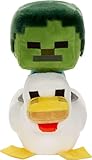
- Minecraft fans can create snuggles and stories with plush figures inspired by favorite characters from the video game universe!
- Each soft doll is 8 inches tall and made with a mix of premium fabrics, making them fun to hold and cuddle.
- They wear their iconic costumes so they're easily recognizable and ready for gaming adventure!
- Pixelated details give them an extra element of collectability!
- The selection of Minecraft plush makes a fun video-themed gift for kids and collectors ages 3 years old and up (each sold separately, subject to availability)
What to expect across devices
Do not assume a skin created or imported on one device will appear on another. Minecraft’s FAQ states that custom skins do not sync between Bedrock devices and games and describes custom imports as possible on Windows 10 and mobile but not planned for consoles. Those statements are from an FAQ that contains older platform terminology, so treat them as guidance to verify your device’s current in-game menus—not as a guarantee that every present-day device behaves identically. For the current route, check the edition-specific steps in Minecraft’s skin guide and your platform’s available Dressing Room or import options.
Quick Recap
Best Value
Common first-skin problems to check
- The texture looks like random blocks: that is the unwrapped PNG layout. Use a 3D preview to see how the pieces map to the player.
- Arms or details look wrong: confirm the editor template and Java Launcher model choice match—Classic/Wide or Slim.
- The file will not upload or import: confirm it is saved as PNG for a skin texture, or that a Bedrock pack has the required metadata and
.mcpackpackaging. - You cannot find a custom import option: check the edition and device. Bedrock Character Creator is an item-based alternative, not a PNG importer, and custom import support is not universal.
Product prices and availability are accurate as of the date/time indicated and are subject to change. Any price and availability information displayed on Amazon at the time of purchase will apply.
What’s actually slowing this PC down?
Pick the symptom - the matching free tool is one click away.




