PC Slower Than It Used to Be?
A free scan shows the junk files, broken settings and background clutter dragging Windows down - then fixes them in one click.Free scan · Windows 10 & 11Outdated Drivers Are Slowing You Down
One free scan finds every outdated or missing driver and matches the right update for your exact hardware.Free scan · exact hardware matchHold M1 or M2, then press Up on the D-pad. That is ASUS’s default shortcut for opening the Windows on-screen keyboard on the ROG Ally. You can also open it from Command Center, the Windows taskbar, or by tapping a text field.
The ROG Ally has no built-in physical keyboard. In this guide, “keyboard” means Windows’ on-screen keyboard, including the controller-friendly Gamepad Layout Keyboard available on supported Windows 11 configurations.
As an Amazon Associate I earn from qualifying purchases.
Ways to open the ROG Ally’s on-screen keyboard
Fastest method: M1 or M2 plus D-pad Up
- Press and hold either rear macro button, M1 or M2.
- While holding it, press Up on the D-pad once.
In other words: hold M1/M2 + press D-pad Up. Hold the rear button first; pressing Up before M1 or M2 may not trigger the shortcut. This is ASUS’s default mapping, so it may not work if the button or its secondary function has been remapped. ASUS documents the shortcut here.
What’s actually slowing this PC down?
Pick the symptom - the matching free tool is one click away.
Use Command Center
- Press the Command Center button.
- Select Keyboard.
Command Center tiles can be rearranged or customized. If Keyboard is not visible, edit the Command Center layout and add or move the control. The exact layout can vary between Armoury Crate SE versions.
#1 Best Overall

- 【65% Compact Design】GEODMAER Wired gaming keyboard compact mini design, save space on the desktop, novel black & silver gray keycap color matching, separate arrow keys, No numpad, both gaming and office, easy to carry size can be easily put into the backpack
- 【Wired Connection】Gaming Keybaord connects via a detachable Type-C cable to provide a stable, constant connection and ultra-low input latency, and the keyboard's 26 keys no-conflict, with FN+Win lockable win keys to prevent accidental touches
- 【Strong Working Life】Wired gaming keyboard has more than 10,000,000+ keystrokes lifespan, each key over UV to prevent fading, has 11 media buttons, 65% small size but fully functional, free up desktop space and increase efficiency
- 【LED Backlit Keyboard】GEODMAER Wired Gaming Keyboard using the new two-color injection molding key caps, characters transparent luminous, in the dark can also clearly see each key, through the light key can be OF/OFF Backlit, FN + light key can switch backlit mode, always bright / breathing mode, FN + ↑ / ↓ adjust the brightness increase / decrease, FN + ← / → adjust the breathing frequency slow / fast
- 【Ergonomics & Mechanical Feel Keyboard】The ergonomically designed keycap height maintains the comfort for long time use, protects the wrist, and the mechanical feeling brought by the imitation mechanical technology when using it, an excellent mechanical feeling that can be enjoyed without the high price, and also a quiet membrane gaming keyboard
Use the Windows taskbar
Tap the keyboard icon near the lower-right corner of the Windows taskbar. If it is hidden, open the taskbar’s additional icons or enable the touch-keyboard icon in Windows taskbar settings. Labels and placement can differ slightly after Windows updates.
Tap a text field
Windows may open the keyboard automatically when you tap a search box, browser address bar, login field, or another text-entry box. If it does not appear, use the M1/M2 shortcut or Command Center.
How to type with the ROG Ally controller
On supported Windows 11 builds, Windows can display a Gamepad Layout Keyboard. It is designed for controller navigation:
Rank #2

- Mini portable 60% compact layout: MK-BOX is a 68 keys mechanical keyboard have cute small size, but with separate arrow keys and F1-F12, Fn function keys you need, can use it for gaming or work while saving space.
- Mechanical red switch: characterized for being linear and smoother, slight key sound has no paragraph sense with minimal resistance, but fast action without a tactile bump feel which makes it easier to tap the keyboard.
- Classic charming blue LED backlit: Customize multiple illuminated LED light effects, supports about 16 backlight modes, press Fn + Ins can control it, FN + ←/→ control backlight speed, FN + ↑/↓ control backlight brightness.
- Full anti-ghosting keyboard: all 68 keys are no conflict, black grey red mash up design, ergonomic suspension double-color injection keycap, double kickstand feet adjustable typing angle and detachable usb cable, both practical and beautiful.
- Extensive compatibility: MageGee MK-Box mechanical keyboards use USB 2.0 connector making it compatible with Windows (2000, XP, ME, Vista, 7, 8), Linux and Mac, plug and play, no drivers or software required.
- D-pad: Move between keys.
- A: Select or press the highlighted key.
- B, X, and Y: Perform the functions shown by the current keyboard interface.
- Touchscreen: Tap keys directly.
When this layout is active in the foreground, ASUS says normal cursor input can be temporarily disabled. The right stick may therefore stop moving the mouse. That is expected keyboard behavior rather than automatically indicating a faulty stick or controller. Use the D-pad and face buttons, or close the keyboard to return to normal cursor navigation.
ASUS identifies this Gamepad Layout Keyboard behavior for Windows 11 version 24H2, build 26100.3624 or later, with update KB5053656 and Armoury Crate SE v2.1.10.0 or later. ASUS lists KB5053656 as released on March 27, 2025. These requirements apply to that controller-oriented keyboard behavior—not necessarily to opening the traditional Windows on-screen keyboard. See ASUS’s current compatibility details.
Default ROG Ally M1/M2 shortcuts
The following combinations are the default mappings documented in the original ROG Ally (RC71) manual. They are not guaranteed permanent mappings: Armoury Crate SE profiles, control modes, firmware, and software updates can change them.
Rank #3

- True Full-Size Typing: 105 keys, 0.65in keycaps, a number pad, function row, and navigation keys deliver a desktop-style typing experience for travel, office, and remote work
- Tri-Fold Travel Design: The keyboard folds to 8.46 x 4.68 x 0.78 in, with internal aluminum hinges tested for 10,000+ folds and a no-clip design for quick setup
- 3-Device Bluetooth Switching: Bluetooth 5.1 connects up to three devices and switches with one button, helping you move between laptop, tablet, and phone without breaking workflow
- USB-C Rechargeable Standby: Recharge with the included USB-C cable and rely on auto-sleep standby up to 150 days, so the travel keyboard is ready when your work moves
- Quiet Scissor-Switch Keys: Low-profile scissor switches reduce typing noise in coffee shops, open offices, and shared rooms while keeping each keystroke comfortable and controlled
| Combination | Default action |
|---|---|
| Hold M1 or M2 + D-pad Up | Show the keyboard |
| Hold M1 or M2 + D-pad Down | Open Task Manager |
| Hold M1 or M2 + D-pad Left | Show the desktop |
| Hold M1 or M2 + D-pad Right | Open Task View |
| Hold M1 or M2 + A | Take a screenshot |
| Hold M1 or M2 + B | Open Windows Notification Center |
| Hold M1 or M2 + X | Open projection settings |
| Hold M1 or M2 + Y | Start or stop screen recording |
Read the RC71 user manual for the documented default combination set.
Recommended Free Tools
Desktop Mode controls are different
Opening the Windows keyboard is separate from the Ally’s control mode. In the default Desktop Mode configuration:
- Right stick: Move the mouse cursor.
- RB: Left-click.
- RT: Right-click.
- A: Commonly acts as Enter.
- B: Commonly acts as Escape.
Gamepad Mode passes controller input to games, while Desktop Mode makes the controls behave more like a mouse and keyboard in Windows. A game-specific profile can override either behavior. A controller shortcut that works on the desktop may therefore behave differently inside a game, and opening the Windows keyboard does not guarantee that a game will accept keyboard input in its chat or text-entry interface.
Rank #4

- 🌟【60% Keyboard: 61 Keys Compact Design】Ultra-compact layout with 61 keys that free up your desktop, leaving more space for mouse movements. Especially,there is a long detachable Type-C cable on the right side of the keyboard, ensuring safe transport in your travel bag. For FPS gamers who are focused on speed & secure connection,this 60% keyboard is proper to pick.( 💙Simply Press Fn+Space key to switch to direction keys for efficient operates)
- 🌟【Mechanical keyboard: Responsive Blue Switches】CACKBIRD gaming keyboard features blue mechanical keys that give a satisfyingly "click" sound and tactile resistance with each keystroke, so you can be confident with every move you make.This keyboard is more comfortable to type on since it features deeper key travel,greater feedback,and more space between keys.Great for gamers, office workers, copywriters, programmers and editors.( 💙 Include a keycaps puller for cleaning or other needs.)
- 🌟【Rainbow LED Backlit Accompanies Your Night】18 LED Rainbow Backlight Effects,5 brightness levels & speeds,1 customization mode.Exchange lighting mode for every mood and environment--making your gaming experience one-of-a-kind.Moreover,this gaming keyboard features double injection ABS engineered keycaps that bring crystal clear uniform backlight to greatly improve your typing accuracy at night.
- 🌟【Ergonomic Design & Full keys Anti-ghosting】All keys can work simultaneously,thus you can fully enjoy your game without program errors.Our Keyboard with the scientific stair-up keycaps design and stable foldable kickstands brings maximum comfort,keeping your hand in the most natural state to minimize hand fatigue after longtime use and help you minimize typos.
- 🌟【Strong Compatibility】Plug and play,no drivers or software required.Work perfectly for Windows 10/8/7/XP, Mac OS, and Windows VISTA.
Remap or disable the keyboard shortcut
Remap controls in Armoury Crate SE
- Open Armoury Crate SE.
- Open the relevant Game Profile or its control-mode configuration.
- Choose Gamepad Mode or Desktop Mode, depending on where you want the mapping.
- Select M1, M2, or the button combination you want to change.
- Assign the desired action, keyboard key, mouse function, or combination.
- Save or apply the profile.
ASUS’s mapping categories include gamepad functions, actions, keyboard keys, numpad keys, mouse functions, and combination keys. Menu names and placement may change between Armoury Crate SE releases. ASUS’s mapping FAQ explains the available controls.
Stop accidental M1/M2 shortcuts
- Open Armoury Crate SE and choose the relevant Game Profile.
- Select M1 or M2.
- Deselect Set as Secondary Function.
This stops the rear button from acting as a modifier for combinations such as M1/M2 + D-pad Up. It also disables other secondary-button shortcuts for that profile.
When M1 + Up does not open the keyboard
- Repeat the sequence: Hold M1 or M2 first, then press D-pad Up. Try both rear buttons.
- Test Command Center: Open Command Center and choose Keyboard. If this works, the issue is likely the M1/M2 mapping or active profile.
- Test the taskbar icon: This checks the Windows keyboard independently of the rear-button shortcut.
- Focus a text field: Try Windows Search, File Explorer’s address bar, or a browser address bar.
- Check the active Game Profile and control mode: A game-specific profile may have changed M1, M2, or D-pad secondary functions.
- Update Armoury Crate SE and Windows: ASUS lists Armoury Crate SE v2.1.10.0 or later for the supported Gamepad Layout Keyboard configuration.
- Reinstall Armoury Crate SE if Desktop Mode controls disappeared: ASUS says Armoury Crate enables the Ally’s controller-as-mouse behavior in Desktop Mode. If it was uninstalled, use the touchscreen to download and reinstall it from ASUS support.
If the keyboard opens but the cursor stops moving, first check whether the Gamepad Layout Keyboard is active. On supported configurations, that temporary cursor limitation is expected; close the keyboard when you need right-stick mouse control.
Best Value
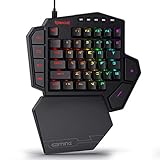
- 7 Onboard Macro Keys for Instant Combos - Bind multiple commands to each of the 7 keys (28 total across 4 profiles), so MMO and MOBA ability rotations fire with a single press instead of fumbling for a full keyboard.
- Swap Switches Without Soldering - The upgraded socket accepts almost any 3-pin or 5-pin switch, so you can tune the feel of your off-hand keypad to match your main board.
- USB Pass-Through Port, Detachable Wrist Rest - Plug your mouse or headset directly into the keypad for a cleaner desk, and unclip the magnetic wrist rest whenever you want a smaller footprint.
- 16.8 Million Colors, 5 RGB Modes - Vibrant lighting effects let your off-hand setup match the rest of your battlestation.
- Pro Software for Even Deeper Customization - Record your own macro sequences and design custom lighting effects, so the keypad adapts to your exact keybinds.
ROG Ally, Ally X, and ROG Xbox Ally differences
The original ROG Ally (2023) is the RC71 series. The ROG Ally X (2024) is the RC72 series, and the newer ROG Xbox Ally models are in the RC73 series. ASUS groups RC71, RC72, and RC73 devices in its current information about the Gamepad Layout Keyboard, but shortcut mappings and Armoury Crate SE menus can vary by model, firmware, Windows build, and profile.
The eight-shortcut table above is specifically verified against the original RC71 manual. Do not assume every combination is identical on an Ally X or ROG Xbox Ally without checking the manual for that model. ASUS provides a separate ROG Ally X support and manual page.
Physical keyboard alternative
A USB, Bluetooth, or dock-connected keyboard can be more convenient for long passwords, file names, chat, productivity work, BIOS access, or recovery tasks. It is optional, however: the M1/M2 shortcut and Windows alternatives are sufficient for ordinary text entry and Windows navigation.
Free tools Windows power users keep installed
One-click scans. No signup required.
Frequently Asked Questions
Why does the cursor stop moving after I open the keyboard?
On supported Windows 11 configurations, the Gamepad Layout Keyboard takes control of navigation while it is in the foreground. Use the D-pad and face buttons to type, then close the keyboard to restore normal mouse-style cursor control.
Does the keyboard shortcut work on the ROG Ally X?
ASUS includes the RC72 Ally X among the devices supported for its current Gamepad Layout Keyboard behavior, but profiles, firmware, and Armoury Crate SE versions can differ. The full eight-combination table is specifically verified for the original RC71 manual, so check the RC72 manual for model-specific mappings.
Quick Recap
Product prices and availability are accurate as of the date/time indicated and are subject to change. Any price and availability information displayed on Amazon at the time of purchase will apply.




