Do these 3 things before closing this tab:
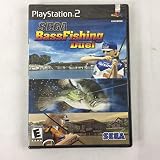
1Clear out junk files and repair common Windows errors2Fix the driver behind crashes, sound loss and screen glitches3Repair Windows errors before they cause bigger problemsIf your PS2 game is SEGA Bass Fishing Duel, start with Training: it teaches the basic fishing flow, then guides you through choosing a spot, casting and fishing. The title “Bass Master Fishing” does not exactly match the PS2 manual available for this guide, so check the name printed on your disc or shown on the title screen before using these controls. The steps below are for SEGA Bass Fishing Duel, not every bass-fishing game on PS2.
Start a game and choose a mode
- At the title screen, use the directional button to highlight NEW GAME or CONTINUE, then press Start.
- At the main menu, use the directional button to highlight a mode and press Circle. For a first game, choose TRAINING; the manual describes it as instruction in the basic fishing flow.
- Choose a lake or river, then use the directional button to select a fishing area. Lake Eagle is the only stage available initially, according to the manual.
The other listed modes are Free Fishing, Tournament, Character, Data Book, VS CPU, VS 2P, and Load/Save/Options. Free Fishing lets you choose conditions; Tournament is a bass tournament; VS CPU is a duel against the computer. VS 2P offers Normal Duel, Time Duel, and Sudden Death.
| # | Preview | Product | Price | |
|---|---|---|---|---|
| 1 |

|
Sega Bass Fishing Duel - PlayStation 2 | $8.64 | Buy on Amazon |
| 2 |
|
Sega Bass Fishing Duel (Renewed) | $24.64 | Buy on Amazon |
| 3 |

|
Double Bass Solo 1 | $31.25 | Buy on Amazon |
| 4 |

|
Double Bass Solo 2 | $28.25 | Buy on Amazon |
Move the boat and pick a fishing spot
Use the left analog stick to steer the boat and increase or decrease its speed. At the spot where you want to fish, use the same stick to adjust your casting direction. Circle toggles the fish-finder and map; it also handles other area and catch-list actions as indicated on screen.
How to cast and select a lure
- From the fishing spot, press Circle to advance to the casting-method choices.
- To choose a lure, press Triangle to open lure selection, then follow the on-screen prompts.
- Select an overhead, sidearm, or backhand cast.
- Press L1 to cast. While casting, press Down on the directional button or left stick to adjust cast strength.
Read the fishing screen and pause
Follow the on-screen instructions and watch the line-tension gauge while fishing. The manual’s screen guide also identifies line length, the fish-finder, depth and temperature, boat speed, and casting direction. Press Start to pause.
#1 Best Overall
What controller do you need?
The documented controller is the DUAL SHOCK 2 analog controller. The available manuals do not establish compatibility with specialized fishing-rod peripherals, so do not assume a rod controller will work. For the game’s documented controls and menus, see the SEGA Bass Fishing Duel for PlayStation 2 manual and the Games PS2 SEGA BASS FISHING DUEL user manual.
Quick Recap
Rank #4
Rank #3
Rank #2
Product prices and availability are accurate as of the date/time indicated and are subject to change. Any price and availability information displayed on Amazon at the time of purchase will apply.




