The usual way to play Steam games on an Android phone or tablet is to stream them from your computer with Valve’s Steam Link app. The PC runs the game, while Android receives the video and audio and sends your controls back. For the best first test, connect the PC to your router with Ethernet, connect Android to 5 GHz Wi-Fi, and pair a physical controller.
What you need
- A Windows, macOS, or Linux computer that can run the Steam game. The computer does the actual rendering; your Android device receives the video and audio and sends your controller input back.
- Steam installed and running on that computer, signed in to the account that owns the game.
- An Android phone or tablet with the Steam Link app. Valve lists Android 5.0 and newer as supported, but check the current Google Play listing and your device’s compatibility rather than treating the minimum version as a guarantee of good performance.
- A reliable home network. For the first test, connect the gaming PC to the router with Ethernet and connect the Android device to the router’s 5 GHz Wi-Fi network.
- A controller, preferably. Touch controls work for some games, but a physical gamepad is much better for action, racing, platform, and console-style games.
How Steam games run on Android
Steam Link does not install the Windows version of a Steam game on your phone or tablet. Instead, it streams the game from your computer. The PC runs the game and encodes the picture and sound; Steam Link displays that stream on Android while sending your touch or controller input back to the PC in real time.
As an Amazon Associate I earn from qualifying purchases.
That means the quality of the experience depends on more than the Android device. The gaming PC, router, Wi-Fi interference, distance from the router, display settings, and network path can all affect sharpness, stuttering, and input response. It is best to think of Steam Link as remote play from your own computer, not native Android gaming or a cloud-gaming service.
Set up Steam Link on an Android phone or tablet
1. Install Steam Link
Open Google Play on the Android device, search for Steam Link, and install the app published by Valve Corporation. The app is Valve’s official route for streaming a Steam library to Android phones, tablets, and compatible TVs.
#1 Best Overall

- 1TB NVMe SSD
- 1280 x 800 HDR OLED display with premium anti-glare etched glass, 7.4" Diagonal display size up to 90Hz refresh rate
- Wi-Fi 6E
- 50Whr battery; 3-12 hours of gameplay (content-dependent)
- Carrying case with removable liner
2. Prepare the gaming PC
- Install or update the regular Steam client on the computer that will run the games.
- Sign in to the Steam account that owns the games.
- Leave Steam open while pairing and playing.
- If possible, connect the computer directly to the router with an Ethernet cable instead of using Wi-Fi.
The PC must stay powered on and able to run the game. Closing Steam, putting the computer to sleep, or losing the network connection will stop the stream.
3. Pair Steam Link with the computer
- Open Steam Link on Android.
- Allow the app to search for computers running Steam.
- Select your gaming PC when it appears.
- Follow the on-screen pairing instructions. Steam Link may display a code that you must enter or confirm on the computer.
- After pairing, choose the computer and open the Steam interface shown by Steam Link.
For this first setup, keep the phone or tablet and PC connected to the same home network. Same-network pairing removes internet-routing problems and makes it easier to identify whether a fault comes from Steam, the computer, the router, or Android.
4. Connect a controller
You can use Steam Link’s touch controls, but they are not a good substitute for a gamepad in most action games. A controller is especially useful when a game expects analog-stick movement, triggers, several simultaneous buttons, or precise aiming.
The Tool Desk
Outbyte Driver Updater FREEFix the driver behind crashes, sound loss and screen glitchesFind Drivers →Outbyte PC Repair FREEClear out junk files and repair common Windows errorsFree Scan →To pair a Bluetooth controller using Android’s standard menus:
Rank #2

- 512 GB NVMe SSD: Fast storage for quicker game load times and space for larger game libraries.
- OLED Display: 1200x800 resolution with deep contrasts and vibrant colors for a captivating visual experience.
- Custom AMD APU: Power-efficient Zen 2 CPU and RDNA 2 GPU for desktop-level gaming performance.
- Expandable Storage: Add more space with a microSD card slot, ensuring you can bring even more games with you.
- Versatile Controls: With built-in thumbsticks, trackpads, and touchscreen controls, you have full control over your gaming experience.
- Put the controller into Bluetooth pairing mode.
- Open Settings on Android.
- Go to Connected devices and choose Pair new device (the wording can vary by manufacturer).
- Select the controller when it appears and confirm pairing.
Wired controllers can also work through a compatible USB cable or adapter. Test the buttons and sticks in Android or another compatible game before starting a demanding Steam title. Individual behavior can vary by handset, Android version, controller mode, firmware, USB port, and phone case.
5. Start with a simple test game
Choose a game that already supports a controller and does not depend heavily on precise mouse-and-keyboard input. Check three things before changing settings:
- the picture remains stable;
- controls respond when expected; and
- audio stays synchronized with the action.
Once local streaming works, you can try more demanding games or remote play away from home.
Choosing a controller for Steam Link
You do not need to buy a controller if you already own a compatible Bluetooth gamepad. Android supports wired and Bluetooth controllers, and a conventional controller is often the most flexible choice for a tablet placed on a desk or stand.
Rank #3
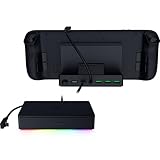
- FULLY LOADED 6 PORT DESIGN — Go beyond normal handheld gaming. Play on the big screen with HDMI 2.0, add more controllers or devices with three USB A ports, and enjoy stable wired performance with a 1 GB ethernet port
- ADJUSTABLE HINGE — Use the dock as a display stand for a smartphone or tablet; plug in essential peripherals, adjust it to the desired (45 / 75) view angle, and get back to it
- LIGHTWEIGHT, PORTABLE, AND DURABLE — Made for gamers on the go, the dock’s collapsible design is simple to set up and pack up, while its solid aluminum chassis is geared to withstand the wear and tear of travel
- 100 W POWER DELIVERY WITH PASSTHROUGH CHARGING — Enjoy zero device downtime and maximize gameplay; conveniently charge and continue gaming thanks to passthrough charging with 100 W power delivery
- POWERED BY RAZER CHROMA RGB — Pick the perfect Razer Chroma RGB lighting to get into the gaming mood; switch colors and cycle through several striking effects via a dedicated button
For a phone: an attachable USB-C controller
A telescoping controller that grips the phone turns the handset into a handheld-style setup. The Razer Kishi V2 USB-C is one example: Razer describes it as an Android-compatible USB-C controller with clickable sticks, triggers, and a pass-through USB-C port. Verify your exact phone model before buying. The USB-C port must be positioned where the controller expects it, and a protective case may need to be removed. Physical fit and USB behavior are not universal across Android phones.
Another attachable option is the Backbone One for Android. Its USB Type-C connection requires a compatible handset, so check the manufacturer’s current compatibility information and confirm that your case, port placement, and phone dimensions will work.
For a tablet: Bluetooth controller and stand
A tablet is usually easier to use with a normal Bluetooth controller and a stand. This avoids the size and port-clearance limits of a telescoping phone controller. The 8BitDo Ultimate 2C Wireless Controller is documented as compatible with Android and Windows; for Android, its listed connection method is Bluetooth. Do not assume that the included 2.4 GHz adapter is the Android connection method—the documented modes distinguish Android Bluetooth from Windows 2.4 GHz and wired modes.
What’s actually slowing this PC down?
Pick the symptom - the matching free tool is one click away.
Improve Steam Link streaming quality
Use this network arrangement for your first and most reliable test:
- Gaming PC: connected to the router by Ethernet.
- Android device: connected to the router’s 5 GHz Wi-Fi band.
- Location: keep the phone or tablet within a reasonable range of the router.
- Network activity: pause large downloads, backups, and high-bandwidth video streams while testing.
5 GHz Wi-Fi can reduce congestion compared with 2.4 GHz, but it does not guarantee smooth play. Walls, distance, interference, router performance, and the host PC still matter. If Steam Link provides quality or bandwidth controls, reduce the stream resolution or bitrate when the connection cannot keep up. Also check whether the PC is struggling to run the game locally; streaming cannot compensate for a game that is already performing poorly on the host.
What common symptoms suggest
| Symptom | Things to check |
|---|---|
| Stuttering or dropped frames | Host performance, Ethernet connection, 5 GHz signal strength, wireless interference, other network traffic, and stream quality settings. |
| Input delay | Wireless congestion, the distance and quality of the network path, display processing, Bluetooth interference, and controller behavior. |
| Blurry video | Bandwidth limits, dynamic quality adjustment, resolution scaling, stream settings, and the host display configuration. |
| Audio delay or dropouts | Stream stability, Android audio routing, Bluetooth headphones, and the game’s audio settings. |
These are troubleshooting possibilities rather than guaranteed diagnoses. Change one variable at a time so you can tell which adjustment helped.
If Steam Link cannot find the PC
- Confirm that Steam is open and signed in on the host computer.
- Confirm that the PC and Android device are on the same home network. Do not use a guest network for the initial test.
- Check the router for client isolation, guest-network separation, or similar settings that prevent devices from communicating with one another.
- Review the host computer’s firewall permissions if the PC is still invisible. Only allow the required Steam or Steam Link communication; do not disable security permanently as a first resort.
- Restart Steam Link and Steam after confirming the network connection.
If the stream is choppy
- Connect the host PC to the router with Ethernet.
- Move the Android device closer to the router.
- Use 5 GHz Wi-Fi when it is available and has a strong signal.
- Stop large downloads and other high-bandwidth activity.
- Lower the stream resolution or bitrate if Steam Link exposes those controls.
- Run the game directly on the PC and check whether it is already dropping frames before streaming.
If the controller does not work
- Check whether Android lists the controller as connected in Bluetooth or wired-device settings.
- Put the controller in the correct connection mode; some models support multiple modes.
- Test it in another Android-compatible game or controller test screen.
- Check the game’s own controller settings and Steam Input configuration.
- For an attachable controller, remove a thick case and make sure the USB-C connector seats fully.
- Update controller firmware only with the manufacturer’s official software or instructions.
Moonlight and Sunshine: an advanced alternative
If you want an alternative Android streaming client, Moonlight can work with Sunshine on the gaming PC. Sunshine is the host software; Moonlight is the Android client. This is a useful option for readers who want more control over the host and client setup, but Steam Link is the simpler default for a Steam-focused beginner.
Rank #4

- Comprehensive Protection: Individually Protected Independent cabin for your Steam Deck, ROG Xbox Ally X (2025) , ROG Xbox Ally (2025), ROG Ally, ROG Ally X, PlayStation Portal or Switch. Efficiently protect the screen from scratch by other sharp devices such as keys, metal goods, etc
- Large Storage: Multiple-layer space that meets different demand, including unique cabin for Steam Deck, Steam Deck OLED & ROG Ally. Separated rooms for different sizes of goods such as JSAUX Steam Deck docking station, powerbank, AC adapter, cellphones, USB C cables, Switch, etc
- Unigue Design: The anti-sloshing belt will keep your bag closely fit with your body while riding or running. The two-side resistance band will prevent your goods from pouring out when open totally the carrying case bag
- Durable Fabric & Fashion Appearance: JSAUX Steam Deck case bag is made of premium durable oxford fabric. The hard shell is made of EVA material with a fashionable appearance
- What You Get: JSAUX BG0105X Carrying Case is compatible with ROG Xbox Ally X (2025) / ROG Xbox Ally (2025) / Steam Deck / ROG Ally / ROG Ally X / PS5 Portal / Switch 2 / Switch , with an 18-Month worry-free period and 24/7 friendly client consultation, if you have any questions, we will resolve your issue within 24 hours
The basic Moonlight and Sunshine workflow is:
- Install Sunshine on the gaming computer.
- Open Sunshine’s configuration interface and create its administrative account.
- Install Moonlight on Android.
- With both devices on the same network, select the Sunshine host in Moonlight.
- Enter the PIN shown by Moonlight into Sunshine when prompted.
- Select Steam or another application configured in Sunshine.
Sunshine’s documented host support includes modern AMD, NVIDIA, and Intel GPUs and Windows 10/11, with additional macOS and Linux support described in its requirements. Moonlight’s setup guidance recommends a mid- to high-end wireless router, 5 GHz Wi-Fi 5 or Wi-Fi 6 for the client, and a wired PC-to-router connection. Confirm current requirements before installing because host and GPU support can change.
Independent reader supportYour contribution helps us test, update, and keep practical guides available for everyone.Can you play from outside your home?
Yes, remote play away from home is possible, but troubleshoot it only after local streaming works. An internet connection adds more variables: upload capacity at home, download capacity at the Android device, latency, carrier or hotel-network restrictions, and router configuration.
Moonlight’s documentation discusses automatic configuration, port forwarding, overlay-network options, and other advanced approaches for internet streaming. Pair and test the devices on your home network first. Do not casually expose an administrative interface or forward ports without understanding the security implications. If you choose an overlay network, follow that service’s current documentation rather than copying an old router tutorial.
Recommended Free Tools
What will work best for different games?
| Game type | Recommended control method |
|---|---|
| Turn-based strategy, visual novels, menus | Touch controls may be sufficient. |
| Action, racing, platform games | Use a physical controller. |
| Mouse-heavy strategy, simulation, and management games | A controller may be usable, but a Bluetooth mouse and keyboard or a larger tablet setup may be more practical. |
| Competitive games requiring very low latency | Expect streaming to feel different from local play; test carefully before relying on it. |
Bottom line
Install Valve’s Steam Link app on Android, keep Steam running on a capable computer, pair the devices on the same home network, and use a controller for games designed around physical controls. Ethernet for the PC and 5 GHz Wi-Fi for the phone or tablet provide the best starting point, but neither guarantees perfect latency or image quality. Try Steam Link locally first; consider Moonlight and Sunshine only if you need an alternative host-and-client setup.
Best Value
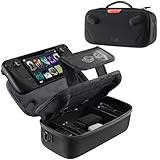
- Upgraded Design for Steam Deck: Fits Steam Deck and Steam Deck OLED. JSAUX designed this next gen carrying case for handheld gamers, built to keep your console and essentials protected for commuting, travel, and gaming on the go
- Dual Layer Storage: Upper layer stores your Steam Deck and microSD cards. Lower layer fits a charger, power bank, cables, dock, earbuds, and more. Removable hook and loop divider lets you customize the layout and keep everything organized. Note: Accessories not included
- Charge Ready Cable Port: Built in cable port lets you connect to your power bank for on the go charging while the case is open. Includes a right angle USB C to USB C cable to help reduce bending at the connector. Note: Power bank not included
- Visible Details for Daily Carry: The center panel folds into a stand for desk mode play. A recessed top groove helps reduce joystick pressure. Secure straps help keep your Steam Deck in place, and the comfortable carry handle makes grab and go travel easy
- Everyday Protection Inside Out: Durable exterior helps resist daily wear and light splashes, while the soft padded lining cushions bumps and helps prevent scuffs and minor scratches during travel
Frequently Asked Questions
Can Steam Link install Steam games directly on Android?
No. Steam Link streams the game from a computer running Steam. The Windows or Linux game is not installed and rendered natively on the Android phone or tablet.
Do I need a controller to use Steam Link on Android?
A controller is optional, and Steam Link includes touch controls. However, a physical controller is strongly recommended for action, racing, platform, and other games designed for analog sticks, triggers, and multiple buttons.
How do I reduce lag and stuttering in Steam Link?
Start with the PC connected to the router by Ethernet and the Android device connected to 5 GHz Wi-Fi. Keep the device near the router, stop large downloads, and lower stream quality or bitrate if those controls are available.
Quick wins for a faster PC:
Scan for outdated or missing drivers - takes under a minuteDriver Scan →Repair Windows errors before they cause bigger problemsFix Now →Can I use Steam Link away from home?
Yes, but local pairing should work first. Playing from outside home introduces additional latency, bandwidth, firewall, and router issues, and advanced setups may involve port forwarding or an overlay network.
The Bottom Line
The practical answer: you stream Steam games from a computer to Android rather than installing the PC games on the phone. Steam Link is the easiest official route; use Ethernet for the host PC, 5 GHz Wi-Fi for Android, and a physical controller for most action-oriented games.
Quick Recap
Product prices and availability are accurate as of the date/time indicated and are subject to change. Any price and availability information displayed on Amazon at the time of purchase will apply.




