
You can play Fortnite two-player on the same screen using Local Multiplayer, also called split-screen or couch co-op, on PlayStation and Xbox consoles. Connect a second controller, sign in with a supported second console account, and link that player’s Epic Games account when prompted. Then choose an experience that supports local players; the feature is not available on every mode or platform.
What you need for Fortnite split-screen
- A PlayStation or Xbox console. Epic lists PC, Nintendo Switch, and mobile devices as unsupported for Local Multiplayer.
- A second controller connected to the console.
- A separate console account for the second player. Guest and Quick Play accounts are not supported.
- A second Epic Games account to link when prompted.
- A stable internet connection. Local Multiplayer is couch co-op, but it is not an offline mode.
Epic’s split-screen setup guide describes the feature and its platform requirements.
As an Amazon Associate I earn from qualifying purchases.
How to start a two-player Fortnite session
- Start Fortnite on your PlayStation or Xbox and go to the Lobby.
- Connect the second controller.
- Use the second controller to select the other player’s console account. Do not choose a Guest or Quick Play account.
- Follow the on-screen prompt to link that player’s Epic Games account.
- Once the second player appears in the Lobby, enter a supported experience. Local Multiplayer starts automatically when the match begins.
Linking the second player’s Epic account gives that player access to their own Locker outfits, Battle Pass, Quests, and other progress.
Recommended Free Tools
Which Fortnite modes support two players?
Local Multiplayer is not available in every Fortnite experience. In Discover, look for the “Great for Local Multiplayer” row, or open an experience’s Game Details and check for the “Local Players” tag. Epic lists Creative, Limited Time Modes, Save the World, Ranked, and Solos as unsupported.
#1 Best Overall

- Now Including Hall Effect Modules – Say goodbye to stick drift with contact-free magnetic sensors in the thumbsticks giving you smoother control, enhanced precision, and increased longevity
- Code for Bonus Virtual Item Included – Moon Bounce Emote
- 2 Types of Glow – Bring the spirit of the arcade to your controller with a glow in the dark effect and a reaction when a UV light is applied giving off a fluorescent glow
- Advanced Gaming Buttons – Get an edge over the competition with two mappable buttons you can program on-the-fly, mid-game—no system settings to configure
- 3-Way Trigger Locks – Set the travel distance of the triggers with three different positions to pull off quicker actions in your favorite FPS games or go full throttle in a high-end race car
Epic’s support page gives LEGO Fortnite Odyssey, LEGO Fortnite Brick Life, Battle Royale, and Zero Build as examples of experiences that can be played in Local Multiplayer. Check the tag or row for the specific experience you want to play, since compatibility is experience-dependent.
What to expect while playing split-screen
- The local multiplayer session is active during matches, not while you are in the Lobby or navigating submenus.
- If either player leaves the match or disconnects, the local multiplayer session ends.
- Players cannot share inventory.
- Both players need to use the same language settings.
- Split-screen cannot be used during tournament events. Epic says only one player may use a game device during those events.
These restrictions and supported experiences are listed in Epic Games Player Support’s Local Multiplayer guidance and its tournament split-screen guidance.
Rank #2
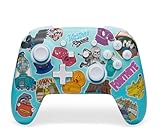
- Works with Nintendo Switch 2. C button not available
- Bonus Fortnite virtual item included (Googly Glider)
- Wireless controller with Bluetooth 5.0 technology
- Rechargeable lithium-ion battery: Up to 30 hours per charge*
- Two mappable Advanced Gaming Buttons
Fix common split-screen problems
PlayStation: the second-player option is missing or split-screen will not start
- Check that both controllers are connected.
- Confirm each player is using a separate, correctly linked Epic Games account.
- Verify that the selected game mode supports split-screen.
- Update Fortnite and the PlayStation system software.
- Restart the console.
These are the steps recommended in Epic’s PlayStation troubleshooting guide.
Free tools Windows power users keep installed
One-click scans. No signup required.
Xbox: split-screen is not working
Clear the Xbox console cache. If that does not fix the problem, restart the console, following Epic’s Xbox troubleshooting steps.
Quick Recap
Rank #3

- Code for Bonus Virtual Item Included – Tooth Pick Pickaxe
- Hall Effect Thumbsticks and Triggers – Contact-free magnetic sensors in the thumbsticks and triggers provide a more fluid pro-level feel to help with precision and longevity
- Low Latency Wireless – Play wirelessly on Xbox Series X|S, Xbox One, and Windows 10/11 using the included Wireless USB Adapter
- Advanced Gaming Buttons – Get an edge over the competition with 4 mappable buttons that you can program on the fly, mid-game—no system settings to configure
- 3-Way Trigger Locks – Set the travel distance of the triggers with three different positions to pull off quicker actions in your favorite FPS games or go full throttle in a high-end race car
Product prices and availability are accurate as of the date/time indicated and are subject to change. Any price and availability information displayed on Amazon at the time of purchase will apply.

