The reliable pattern is simple: install Coolify on a fresh Linux VPS, deploy Ollama from Coolify’s service catalog or as a Docker Compose resource, mount /root/.ollama on persistent storage, and size the server for the model rather than for Coolify alone. CPU-only deployment needs only the official ollama/ollama image. NVIDIA and AMD acceleration are possible, but require host GPU drivers, container-runtime configuration, and the appropriate device mappings.
Antihost offers Linux VPS plans with full root access, unlimited traffic on a 1 Gbps port and a 14-day free trial.
What you need before deploying
Coolify is the management layer; Ollama is the model-serving process. Coolify connects to your selected server over SSH and handles Docker operations there. The VPS still needs enough compute, memory, storage, networking, and (for acceleration) compatible GPU access.
As an Amazon Associate I earn from qualifying purchases.
Choose a suitable server
- Operating system: use a supported Linux VPS or dedicated server. A newly provisioned machine minimizes conflicts with existing Docker installations, firewall rules, and services.
- SSH access: have root access or a sudo-capable account that Coolify can use. Confirm that your provider permits the SSH configuration required by Coolify.
- Architecture: verify the CPU architecture and that the Ollama image and any GPU backend you plan to use support it.
- Storage: reserve space for the operating system, Coolify, Docker layers, logs, and every model you intend to keep. Model downloads are not temporary cache files; they remain on disk until you remove them.
- Network: check bandwidth, transfer limits, region, and latency for the people or applications that will call the API.
- GPU availability: if you need CUDA or ROCm, confirm that the provider offers GPU passthrough or a dedicated GPU and allows the required device access inside containers.
Coolify’s documentation suggests Hetzner as one provider to consider, but provider availability, pricing, regions, and GPU offerings change. Select a host based on the workload and region you actually need.
Coolify’s own baseline is not an Ollama sizing guide
Current Coolify self-hosted documentation states a baseline of 2 CPU cores, 2 GB RAM, and 10 GB of free disk space. That is the control-plane requirement for Coolify itself, not a guarantee that a model will load or respond acceptably. Ollama’s model memory needs are substantially higher.
#1 Best Overall

- Real Boost Clock- 1882 Mhz Memory Detail- 12288 Mb Gddr6.
- Real-Time Ray Tracing In Games For Cutting-Edge, Hyper-Realistic Graphics.
- Dual Fans Cooling Offer Higher Performance Cooling And Much Quieter Acoustic Noise.
- Package weight - 2.1 Lbs
How much RAM and disk does Ollama need?
Use the model you plan to run as the starting point. Ollama’s current quickstart recommends at least 8 GB of RAM for 7B models, 16 GB for 13B models, and 32 GB for 33B models. Leave additional headroom for the operating system, Coolify, Docker, concurrent requests, context size, and temporary allocation during loading.
| Example model | Published model size | What the figure means |
|---|---|---|
| Llama 3.2 3B | 2.0 GB | Download size listed in Ollama’s current quickstart table |
| Llama 3.1 8B | 4.7 GB | Download size listed in Ollama’s current quickstart table |
| Llama 3.1 70B | 40 GB | Download size listed in Ollama’s current quickstart table |
| Llama 3.1 405B | 231 GB | Download size listed in Ollama’s current quickstart table |
A model file’s size is not the same as the server’s total RAM requirement. Runtime memory, the context window, multiple loaded models, and simultaneous requests can push usage above the download figure. The 70B and 405B examples also show why a small “Ollama VPS” can be unsuitable even when Coolify runs comfortably.
What’s actually slowing this PC down?
Pick the symptom - the matching free tool is one click away.
Plan persistent storage, not just RAM
Keep the Ollama data directory, /root/.ollama, on a named Docker volume or a host-backed persistent volume. A container replacement, redeploy, or image update should not force you to download every model again. Choose storage with enough capacity for current models plus growth, and monitor free space because failed downloads and Docker layers can consume the remaining margin.
Prepare SSH access and firewall rules
- Log in to the new server as root or as a sudo-capable user.
- Apply the operating system’s security updates and confirm that you can reconnect over SSH after the updates.
- Create or verify the SSH key and account that Coolify will use. Do not remove your only working administrative path until a second login has been tested.
- Allow SSH and only the application ports you genuinely need. Coolify’s automated flow expects its dashboard to be reachable on port
8000initially. - Decide whether Ollama should be private, reachable only from an application network, or published through a reverse proxy. Apply that decision in the firewall and provider network controls before exposing the endpoint broadly.
The dashboard and any public Ollama endpoint should sit behind the intended network controls and reverse proxy before general Internet exposure. A VPS firewall is only one layer; also review cloud security groups, private-network rules, and the listening interfaces of your containers.
Install Coolify on the VPS
Run the documented installer
From the server’s shell, run Coolify’s automated installation command:
curl -fsSL https://cdn.coollabs.io/coolify/install.sh | bashFollow the terminal output until the installer finishes. The exact prompts and post-install messages can change as Coolify releases new versions, so use the address and instructions printed by your installation rather than assuming a fixed hostname.
The Tool Desk
Outbyte PC Repair FREEClear out junk files and repair common Windows errorsFree Scan →Outbyte Driver Updater FREEFix the driver behind crashes, sound loss and screen glitchesFind Drivers →Create the first administrator and protect the secrets
- Open the Coolify dashboard at the address shown by the installer, using port
8000during the initial setup if that is what your installation reports. - Create the first administrator account immediately. Do not leave the first-run page accessible while postponing account creation.
- Back up
/data/coolify/source/.env. Coolify stores installation secrets there; keep the backup encrypted and restrict who can read it. - In the dashboard, register or select the server on which Ollama will run and verify that the SSH connection succeeds before creating the application.
Deploy Ollama from Coolify
Use the one-click service
In a current Coolify installation, open the project and environment where you want the service, choose the service catalog, and select the Ollama service. The label and navigation can vary by Coolify version, but the objective is the same: create an Ollama container on the selected server and attach persistent storage.
Rank #2

- Chipset: NVIDIA GeForce RTX 3060
- Video Memory: 12GB GDDR6
- Memory Interface: 192-bit
- Output: DisplayPort x 3 (v1.4a) / HDMI 2.1 x 1.Avoid using unofficial software
- Digital maximum resolution: 7680 x 4320
Before deploying, review the generated configuration. Confirm that the data directory is mounted to /root/.ollama, that the service is attached to the intended network, and that no public route is created unless you need one.
Use a Docker Compose resource instead
A Compose resource gives you explicit control over the image, volume, ports, and (when applicable) GPU reservation. The official CPU-capable image is ollama/ollama. A minimal CPU deployment can use this pattern:
services:
  ollama:
    image: ollama/ollama
    restart: unless-stopped
    volumes:
      - ollama-data:/root/.ollama

volumes:
  ollama-data:
In Coolify, paste the Compose definition into a Docker Compose resource, choose the target server, and deploy. Add a port mapping only when another service or a controlled external client must reach Ollama. Keeping the service on an internal Docker network is safer for a private application.
Verify persistence before downloading large models
- Deploy the container with the volume attached.
- Open a shell through Coolify or Docker and confirm that
/root/.ollamais writable. - Restart or redeploy the container.
- Check that the volume is still mounted and that files created there remain present.
Do this test with a small model or an empty directory first. Discovering a missing volume after downloading a 40 GB model is an expensive mistake.
CPU-only deployment
CPU mode is the least complicated option: it does not require a vendor driver, a container toolkit, or special device mappings. It is appropriate for small models, low request volume, development, and workloads where response latency is less important than operational simplicity.
Pull a small model first, verify that inference works, then move to a larger model only after checking memory and disk headroom. Ollama’s Docker documentation gives this example for running a model inside the container:
docker exec -it ollama ollama run llama3.2When using Coolify, replace the container name with the name assigned to your service if it differs. The command downloads the model into the mounted Ollama data directory, so the model survives a container restart when persistence is configured correctly.
PC Slower Than It Used to Be?
A free scan shows the junk files, broken settings and background clutter dragging Windows down - then fixes them in one click.Free scan · Windows 10 & 11Outdated Drivers Are Slowing You Down
One free scan finds every outdated or missing driver and matches the right update for your exact hardware.Free scan · exact hardware matchRank #3

- NVIDIA Ampere Streaming Multiprocessors
- 2nd Generation RT Cores
- 3rd Generation Tensor Cores
- Powered by GeForce RTX 3060
- Integrated with 12GB GDDR6 192-bit memory interface
NVIDIA GPU acceleration
Coolify’s documented GPU example was tested with an NVIDIA RTX 3060 12 GB and recommends at least 32 GB of system RAM for that setup. The graphics card is optional; many VPS deployments remain CPU-only.
Install and validate the host components
- Install a compatible NVIDIA driver on the VPS host.
- Install the NVIDIA Container Toolkit.
- Configure Docker to use the NVIDIA runtime as required by the toolkit documentation.
- Restart Docker if the toolkit’s configuration requires it, then verify that the host still accepts Docker commands.
- Run the GPU visibility test:
docker run --gpus all ubuntu nvidia-smiThe test should display the GPU and driver information from inside a container. If it cannot see the GPU, Ollama will not be able to use that NVIDIA GPU. Fix the host driver, toolkit, runtime, or provider passthrough before troubleshooting the Ollama container.
Add a GPU reservation to Compose
Attach the GPU to the Ollama service with a Compose device reservation. This example requests all available NVIDIA GPUs:
services:
  ollama:
    image: ollama/ollama
    restart: unless-stopped
    volumes:
      - ollama-data:/root/.ollama
    deploy:
      resources:
        reservations:
          devices:
            - driver: nvidia
              count: all
              capabilities: [gpu]

volumes:
  ollama-data:
Use the reservation in the Compose resource that Coolify deploys, then redeploy after the host runtime is ready. GPU memory limits the model sizes that can be loaded entirely or partly on the card; system RAM still matters for the operating system, Coolify, model loading, and any layers that remain on the CPU.
AMD GPU acceleration
For AMD hardware, Ollama’s Docker instructions use the ROCm image and expose the required device nodes. Change the image to ollama/ollama:rocm and map both /dev/kfd and /dev/dri:
services:
  ollama:
    image: ollama/ollama:rocm
    restart: unless-stopped
    volumes:
      - ollama-data:/root/.ollama
    devices:
      - /dev/kfd
      - /dev/dri

volumes:
  ollama-data:
The host must expose those devices and provide a compatible ROCm environment. If either device is absent or inaccessible to Docker, the container will fall back, fail to start, or run without the expected acceleration. Validate the provider’s AMD support before committing to this configuration.
Pull a model and test the service
Start with a deliberately small model
- Deploy Ollama with persistent storage.
- Run a small model such as Llama 3.2 3B, listed at 2.0 GB in Ollama’s current quickstart table.
- Send a short prompt and watch the container logs, host RAM, disk usage, and (for GPU deployments) GPU utilization.
- Stop the container, start it again, and confirm that the model is still available without a second full download.
- Only then pull a larger model, checking the published model size and your remaining capacity first.
Check GPU use instead of assuming it
A running container does not prove that inference is using the GPU. For NVIDIA, run nvidia-smi on the host while a model is generating. Confirm that the Ollama process causes GPU memory or utilization to change. If the earlier docker run --gpus all ubuntu nvidia-smi test failed, resolve that failure first; Ollama cannot bypass an invisible device.
Do these 3 things before closing this tab:
1Clear out junk files and repair common Windows errors2Scan for outdated or missing drivers - takes under a minute3Repair Windows errors before they cause bigger problemsRank #4
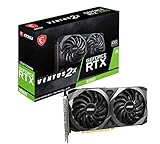
- Strong performance thanks to NVIDIA Ampere with NVIDIA GeForce RTX 3060, 12GB GDDR6, ray tracing and DLSS support
- Display outputs: DisplayPort v1.4a x 3 / HDMI 2.1 x 1
- DUAL FAN COOLING Two fans, combined with a huge heatsink, make the VENTUS series quiet and powerful
- Award winning MSI TORX Fan 3.0 design for high static pressure and effective cooling
- MSI Dragon Center: With just a few clicks, performance can be monitored and optimized in real time
Test from the same network as the client
A local shell test proves that the container works, but not that your game server, web application, or remote client can reach it. Test through the actual Docker network, private address, or reverse-proxy route you intend to use. Verify DNS, firewall rules, TLS termination, and request timeouts before switching production traffic.
Independent reader supportYour contribution helps us test, update, and keep practical guides available for everyone.Operate Ollama safely after deployment
Monitor the limits that cause most outages
- Disk: track model growth, Docker image layers, logs, and free space. A full filesystem can prevent new downloads and destabilize unrelated services.
- RAM: watch for swapping, out-of-memory kills, and repeated container restarts when loading larger models or serving concurrent requests.
- GPU memory: check allocation and utilization during real inference. A 12 GB card cannot be treated as equivalent to a larger card simply because both are NVIDIA GPUs.
- Restarts: inspect Coolify and Docker logs after every unexpected restart. Repeated restarts usually indicate memory pressure, invalid device configuration, or a storage problem.
- Backups: back up the persistent volume or host path containing
/root/.ollamaif redownloading models is unacceptable. Also protect Coolify’s/data/coolify/source/.envbackup.
Pin versions when reproducibility matters
Floating image tags make updates convenient but can change the runtime underneath a production workload. Pin an Ollama image version and document the Coolify version when reproducible behavior matters. Before upgrading, confirm current Ollama and Coolify documentation because image tags, minimum requirements, GPU backends, and provider support can change.
Control exposure
Keep Ollama private unless an external client truly requires access. Prefer a private Docker or VPS network, then place a reverse proxy in front of any intentionally public endpoint. Restrict ingress to known applications or addresses, use TLS where traffic leaves the private host, and avoid opening broad port ranges simply because Docker is running.
Troubleshooting by symptom
The Coolify dashboard will not open
- Confirm the server is running and that port
8000is allowed during initial setup. - Check provider security-group rules as well as the host firewall.
- Review the installer output and Coolify logs for the actual listening address and port.
- Once the dashboard works, put it behind the planned reverse proxy and tighten direct exposure.
The model disappears after redeploying
The container was probably deployed without a persistent volume or the volume was mounted at the wrong path. Confirm that the same named or host-backed volume is mounted to /root/.ollama on every deployment. Download a small test model, redeploy, and verify it remains before restoring large production models.
Recommended Free Tools
Ollama runs out of memory
- Compare the model class with Ollama’s baseline guidance: 8 GB RAM for 7B, 16 GB for 13B, and 32 GB for 33B models.
- Account for the operating system, Coolify, Docker, context size, concurrent requests, and other services on the VPS.
- Stop unused models and services, reduce concurrency, or move to a larger-memory host.
- Do not infer suitability from download size alone; runtime allocation can be higher.
The NVIDIA GPU is not detected
- Run
docker run --gpus all ubuntu nvidia-smi. - If it fails, repair the host driver, NVIDIA Container Toolkit, Docker runtime, or provider passthrough.
- If it succeeds, verify the Compose reservation uses the
nvidiadriver and includescapabilities: [gpu]. - Redeploy the resource and inspect logs while running a model.
The AMD container does not accelerate
Confirm that the service uses ollama/ollama:rocm, that both /dev/kfd and /dev/dri are mapped, and that those devices exist and are accessible on the host. Provider-level restrictions can prevent ROCm access even when the Compose file is correct.
Downloads are slow or fail midway
Check the VPS region, available bandwidth, disk I/O, free space, and provider transfer limits. A partially downloaded model can consume substantial storage, so remove failed artifacts only after confirming which files belong to an incomplete download. Retry with a small model to separate a general network problem from a model-size or storage problem.
CPU VPS or GPU VPS?
Choose CPU-only when simplicity, predictable administration, and small models matter more than latency. Choose a GPU-backed VPS when the provider can expose a compatible device and your model workload justifies the additional operational steps. Compare candidates using the same model and quantization, because meaningful tokens-per-second or latency figures require a test on the exact hardware, workload, and concurrency.
| Decision factor | What to verify before choosing |
|---|---|
| Monthly cost | Compute, GPU, storage, transfer, backups, and any overage charges |
| Model capacity | System RAM for CPU layers and GPU VRAM for accelerated layers |
| Storage | Persistent capacity and I/O for model downloads, updates, and backups |
| Provider support | GPU availability, passthrough, drivers, and device access inside Docker |
| Network | Region, bandwidth, transfer limits, and private-network options |
| Administration | SSH/root access, firewall controls, monitoring, snapshots, and restore procedures |
| Complexity | CPU needs only the image and volume; GPU adds drivers, toolkit, runtime, and device configuration |
A practical deployment checklist
- Fresh Linux server selected for the intended model workload.
- Working SSH key and a tested administrative account.
- Coolify baseline met: 2 CPU cores, 2 GB RAM, and 10 GB free disk before Ollama capacity is added.
- RAM and disk sized for the model class, runtime overhead, and growth.
- Firewall and provider rules expose only SSH, the initial Coolify dashboard port, and deliberately published application routes.
- Coolify installed with the documented command and first administrator created.
/data/coolify/source/.envbacked up securely.- Ollama deployed with the official image or the ROCm image for AMD.
/root/.ollamamounted on persistent storage.- Small model downloaded and retained through a restart test.
- NVIDIA host validation passed with
docker run --gpus all ubuntu nvidia-smi, when applicable. - Logs, disk, RAM, GPU utilization, backups, and upgrade procedures documented.
The Bottom Line
For most VPS users, start with CPU-only Ollama in Coolify, a persistent /root/.ollama volume, and enough RAM for the model class rather than Coolify’s small control-plane minimum. Add NVIDIA or AMD acceleration only after the provider, host drivers, Docker runtime, and device mappings have been validated independently.
Free tools Windows power users keep installed
One-click scans. No signup required.
Quick Recap
Product prices and availability are accurate as of the date/time indicated and are subject to change. Any price and availability information displayed on Amazon at the time of purchase will apply.




