The safest way to set up a retro handheld is to identify its exact model, operating system, and firmware revision before formatting a card, installing custom software, or copying games. Retroid, Miyoo, MiyooCFW, and ANBERNIC devices use different storage formats, folder layouts, installers, and shutdown procedures.
Record those details, back up the supplied card, complete the stock first boot, and then follow the current instructions for your particular device. The procedures below use the Retroid RP2, supported Miyoo models running Onion, Miyoo Custom Firmware, and ANBERNIC updates as examples of how much the correct process can vary.
As an Amazon Associate I earn from qualifying purchases.
1. Identify the handheld before changing anything
Read the model name from the case, box, Settings screen, or system information page. Record the hardware revision, installed operating system, firmware version, and the capacity of the inserted microSD card. Two devices that look alike can require different images or card layouts.
- Model: write the complete designation, including a revision or regional suffix if shown.
- Operating system: note whether the device boots Android, a Linux-based stock interface, Onion, MiyooCFW, or another system.
- Firmware revision: capture the version number before downloading an update.
- Storage configuration: note whether one card contains the operating system and games or whether the handheld uses separate cards.
- Source of instructions: use the manufacturer manual or support portal and the custom-firmware project’s supported-device list.
Retroid’s cited Getting Started material is specifically for the RP2. Onion’s fresh-install documentation applies only to supported Miyoo models, and ANBERNIC publishes separate packages by model and memory/card configuration. A firmware file for a similar-looking handheld is not evidence that it is compatible.
#1 Best Overall

- Kids Friendly Design: This P30S handheld game console is specially designed for kids. It has a stylish arcade - like appearance. The body fits a child's hand, and the game settings also cater to kids psychology, thus being very attractive.
- Excellent Gaming Experience: Equipped with a 3.0 - inch high - definition screen and excellent speaker sound, it provides an excellent visual and auditory experience for video games. This handheld game console is small and lightweight, convenient for kids to use and carry. Its ergonomic design ensures a comfortable grip, allowing children to fully enjoy the games.
- Rich Collection of Classic Games: This retro handheld game console contains 220 interesting kids video games, including various types such as entertainment, sports, and adventure games, just like those found in many retro game consoles. While playing these games, kids can cultivate skills such as hand - eye coordination, thinking, and problem - solving.
- Convenient Rechargeable and Long - lasting Battery: The video game console is equipped with an 860mAh lithium - ion battery. It ensures that kids can play games without interruption, because there is no need for frequent battery replacement, which is very suitable for playing portable games outdoors. It is a great addition to the world of handheld games for children and can bring more fun to them.
- Absolutely Surprising Gift: Our handheld game toy is a surprising gift for kids, teenagers, and even adults. It is the best gift for birthdays, Christmas, Halloween, and Thanksgiving. Customer satisfaction is our top priority. Our customer support team will serve you wholeheartedly.
2. Back up the supplied card
Before formatting, partitioning, updating, or replacing a card, make a complete computer copy of every visible file and folder. Retroid’s RP2 instructions warn that the included card contains files required by RetroidOS. Preserve that card image or folder copy even if you plan to use a larger card or a different frontend.
- Power the handheld completely off using its normal shutdown command.
- Remove the card only after the screen is off and activity lights have stopped.
- Insert it into a computer with a compatible card reader.
- Copy the entire card to a clearly named backup folder. Keep hidden files and folders if your operating system offers that option.
- Open several copied files to confirm that the transfer completed, then safely eject the card.
Do not format the original RP2 card first and hope that the operating system can be recreated later. If a card is failing, copy what you can before attempting repairs and keep the original untouched while you test a replacement.
3. Complete the first boot before customizing
Android-based handhelds
On an Android handheld such as the RP2 described in the Retroid guide, finish the initial Android setup and connect to Wi-Fi before deciding whether to use the stock launcher, RetroidOS, or another frontend. Menus and labels in the legacy RP2 documentation are model-specific, so treat them as an example rather than a universal Android recipe.
Do these 3 things before closing this tab:
1Fix the driver behind crashes, sound loss and screen glitches2Clear out junk files and repair common Windows errors3Scan for outdated or missing drivers - takes under a minuteAllow the system to reach its home screen, verify that the touchscreen, buttons, analog sticks, audio, and display work, and check the firmware version. This gives you a known-good baseline before adding emulators or changing storage.
Supported Miyoo devices using Onion
Onion’s fresh-install flow starts with a prepared card. You extract the supplied package folders to the card’s root, insert the card, boot the handheld to start installation, and then select systems and applications in Package Manager. Use that sequence only on a Miyoo model listed as supported by the Onion project.
4. Decide between stock software, a custom firmware, and a frontend
Stock software is usually the lowest-risk starting point because it matches the files shipped for the device. A custom firmware or alternate frontend can improve organization and add features, but it introduces another compatibility layer and a recovery process.
| Decision factor | Questions to answer |
|---|---|
| Hardware support | Is this exact model and revision listed as supported? |
| Existing library and saves | Will the new software read the current ROM folders and save-state locations? |
| Installation and recovery | Can you restore the backed-up card if the installation fails? |
| Emulator compatibility | Does the desired system use a compatible emulator or core? |
| Storage requirements | What filesystem, partition layout, and card arrangement does the project require? |
There is no universal winner. Keep the original backup, follow the project’s supported-device list, and avoid interrupting a firmware flash. If the documentation does not list your model, stay with the stock system until the manufacturer or project provides an explicit package.
PC Slower Than It Used to Be?
A free scan shows the junk files, broken settings and background clutter dragging Windows down - then fixes them in one click.Free scan · Windows 10 & 11Crashes, No Sound, or Screen Glitches?
Random freezes, missing sound and display glitches usually trace back to one bad driver. Find and replace yours safely.Free scan · under a minuteRank #2
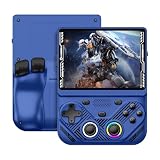
- 【Portable Dual System&RGBOX Dual Systems & RK3562 Chip Performance】 EmuELEC&RGBOX Dual Systems with Powerful RK3562 Chip: Experience seamless gaming with flexible dual-system support. Powered by the advanced Rockchip RK3562 quad-core Cortex-A53 2.0GHz processor and 2+4GB RAM, this console delivers fast, responsive performance, smooth multitasking, and enhanced capabilities for a wide range of emulators.
- 【4.3-Inch IPS Full HD Display】 4.3-Inch HD IPS Fully Laminated Display: Immerse yourself in crystal-clear visuals on the vibrant 4.3-inch IPS screen with a sharp 1024x768 HD resolution. The fully laminated display and anti-glare finish ensure excellent color reproduction and wide viewing angles, significantly reducing eye strain for comfortable extended gameplay. Whether playing classic 2D titles or fifth-generation 3D games, every frame is rendered with stunning clarity and detail.
- 【RG43V Pro Compatible with More retro games】NEW Upgrade RG43V Pro handheld game console, 64GB support Supports over 30 game formats, including open-source games and games in related formats, RG43V Pro Supports 2D&5-generation 3D games and ported games, which can be played immediately after addition. RGBOX can also access the RGBOX APP via a WiFi downloader to play over 22,000 classic retro game for a richer gaming experience, Built-in WiFi 6 Supports Dual-Band 2.5G & 5G Wi-Fi enables wireless local multiplayer for head-to-head battles or co-op play with friends – no extra accessories needed.
- 【All-in-One Multi-Function Game Console】 Precise Controls with Dual 3D Joysticks & Immersive Audio: Take command with dual 3D joysticks featuring a confirmation key and responsive mechanical buttons, including Hall linear triggers for precise analog control. The built-in vibration motors provide tactile feedback, while the joystick ambient lights offer 7 customizable color combinations to enhance your gaming atmosphere. Rich, dynamic audio is delivered through the hi-fi BOX cavity speaker or a private 3.5mm headphone jack.
- 【Fast Charging & Expandable Storage】 4000mAh Battery, Expandable Storage & Multiple Output Options: Enjoy up to 8 hours of gameplay on a single charge thanks to the powerful 4000mAh polymer lithium battery, with convenient USB Type-C fast charging. Expand your storage up to 1TB via the TF card slot. Connect to a larger screen with the HDMI output for TV play, or use the TYPE-C port for OTG, charging, and DP output, offering versatile connectivity for any gaming setup.
5. Prepare the card using the device’s documented format
Filesystem requirements are not interchangeable. Onion’s documented fresh-install process specifies FAT32. The RP2 RetroidOS instructions describe using an exFAT replacement card and copying the original files into the expected directory structure. These are different workflows, not two names for a universal rule.
| Route | Documented storage detail | Important qualification |
|---|---|---|
| Onion fresh install | FAT32 card for the documented installation flow | Applies to supported Miyoo hardware and the Onion package only. |
| Retroid RP2 with RetroidOS | exFAT replacement card, with original card files copied into the expected structure | Specific to the RP2 instructions; do not apply it automatically to another Retroid model. |
| Other stock or custom systems | Follow the model’s current instructions | The cited material does not establish a universal filesystem or capacity. |
Use a card reader that supports the card’s size and connector. Format only after the backup is verified, copy files to the required root location, and safely eject the card from the computer. Power the handheld off before inserting or removing storage whenever the device instructions require it.
6. Install Onion on a supported Miyoo model
Onion’s fresh-install guide provides a model-specific sequence. Read the current supported-device list first, then:
- Back up the card and prepare it as FAT32 according to the project instructions.
- Extract the Onion package without nesting the package inside an extra top-level folder.
- Copy the package folders to the root of the card.
- Keep the package’s update folder in place. The Onion documentation states: “Despite its name, the
.tmp_updatefolder must stay on your SD card.” - Insert the card into the powered-off handheld and boot it so the installer can run.
- Open Package Manager after installation and select the systems, emulators, and applications you actually need.
- Shut down, remove the card safely, and use a computer to add your game files to the resulting folder structure.
Do not mix Onion folders with a different Miyoo firmware layout. If the handheld does not start the installer, turn it off, restore the backed-up card, and recheck the model, filesystem, package extraction, and root-level folder placement.
7. Configure RetroidOS on the RP2
The RP2 guide describes RetroidOS as an optional route after the Android first boot. Its import process differs from Onion and from ordinary Android emulator setup.
- Prepare the replacement exFAT card only after backing up the original RP2 card.
- Copy the original card’s required files into the directory structure expected by RetroidOS.
- Place game files in
/games/download/. - On the handheld, open External games management.
- Select each imported title and assign the emulator that should launch it.
- Test a title, confirm the controls, and check whether saves are written where expected.
The RP2 documentation notes limitations around compressed and multi-file games. Do not assume that every archive, disc image, or split game will import correctly; extract or reorganize files only when the relevant emulator documentation permits it.
8. Add ROM and BIOS files legally
Use only game images and firmware files you are legally entitled to use. This guide does not direct you to unauthorized ROM or BIOS downloads.
Rank #3

- 【Game Console with Linux Stylem】Comes with 64G TF Card Preloaded 5570 Classic Games,Support users to download games in relevant 15 kinds of games formats.
- 【supports 5G WIFI Bluetooth 2.4G Wireless Gamepad and Wired Gamepad Connection】 HDMI and TV output function makes the small screen become big screen in seconds, and the joystick connection supports multiplayer games, so you and your friends can enjoy the game together.
- 【3200 mAh Li-polymer battery and 3.5 INCHES OCA IPS screen】you can use for 6-7 hours, support fast charging with USB Type-C cable, With 3.5-inch IPS full viewing angle, zero distance OCA full-fit screen,the screen resolution is 640*480,Sharper picture quality and more saturated colours.
- 【Chip upgrade】with quad-core ARM Cortex-A53, Quad-core PowerVR SGX544MP GPU,makes have the characteristics of low power consumption and high performance. the Ram of the is LPDDR4 1GB, the larger the RAM running memory, the faster the system response time will be.
- 【Ideal gifts】Dimensions of Handled game :12.8cm*8.1cm *2.2cm,is a good size in the hand and is suitable for carrying aroundis a great gift for boyfriend, husband, brother, son, father and friends for birthday, Father's Day, Christmas, Valentines Day, Thanksgiving Day etc. Get lots of compliments on how it’s interesting or practical.
Onion folder placement
On Onion, place each game in the matching system subfolder inside Roms. BIOS files belong in BIOS only when the selected emulator requires them. BIOS filenames and regional requirements differ by emulator or core, so consult that emulator’s documentation instead of copying every BIOS file into every folder.
Recommended Free Tools
After copying, boot the handheld and use the documented refresh or reindex action so the frontend scans the card. If a game is absent, check its extension, folder name, card mount, and whether the selected Package Manager system was installed.
RetroidOS import
RetroidOS uses the RP2 import path described above rather than Onion’s Roms and BIOS layout. Keep the two structures separate when moving between devices or frontends; copying an Onion directory tree to RetroidOS will not automatically create an importable library.
9. Configure controls, emulators, and the library
Start with one title for which you have rights. Confirm that the frontend displays the game, launches the intended emulator, and responds to every button, stick, trigger, and menu command.
- Check the button mapping in the emulator that actually opened, not only in the frontend.
- Test directional input, both analog sticks, shoulder buttons, start/select, and any hotkey used for saving or exiting.
- Save changes through the emulator’s own configuration workflow.
- Create a test save and a save state, then reload each one.
- Verify that exiting returns to the frontend without forcing a power loss.
The RP2 guide reports that controls are already configured in its RetroidOS and Android emulators. That observation belongs to that model and software combination; it is not a guarantee for another handheld, firmware revision, or emulator build.
10. Update firmware only with the exact package
Check the manufacturer’s current update listing immediately before installing anything. Verify the model, hardware variant, memory configuration, and card arrangement against the package name. ANBERNIC’s System Update page illustrates why: it lists separate packages by model and includes a warning that some 16 GB packages prevent SD expansion or ROM installation on the card after the operating system is installed.
- Read the complete model-specific update notes.
- Confirm that the package matches the device’s variant and storage configuration.
- Back up the card and any saves again.
- Charge the handheld and use reliable power during the update.
- Do not remove the card, press buttons, or interrupt the flash until the process reports completion.
- Boot the device, verify the firmware version, and test a game before restoring a large library.
Firmware numbers, files, and warnings can change. Treat the manufacturer’s listing and support portal as the authority at the time you update rather than relying on an old download or a package intended for a neighboring model.
Rank #4
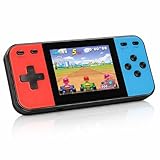
- 【Kids Friendly Design】This retro handheld game console is specially designed for kids, with a stylish arcade-like appearance and a compact body that fits children's hands perfectly. Every game is thoughtfully created for children, bringing nonstop joy and excitement that keeps young gamers fully entertained.
- 【Lots of Classic & Enjoyable Games】As an emulator handheld, this retro device comes with 240 fun kids' video games, including entertainment, sports and adventure types—just like classic retro gaming console handheld. While playing, kids can enhance hand-eye coordination, thinking and problem-solving skills.
- 【Fun Gaming Experience】Equipped with a 3.0-inch high-definition screen and quality speakers, this handheld game console offers an immersive visual and auditory experience. Small, lightweight and ergonomically designed, this hand held game console is easy to hold and carry, letting kids fully enjoy their gaming time.
- 【Rechargeable, Long-Lasting & Ultra-Portable】Powered by an 1200mAh rechargeable lithium battery, this kids' game console supports long hours of fun and uninterrupted play, with no need for frequent battery changes. Lightweight and easy to carry, it's perfect for gaming on the go or playing at home. It's a wonderful little gaming partner that brings endless joy to every child!
- 【Ideal Surprising Gift】This handheld gaming console is a wonderful surprise gift for kids, teens and even adults, perfect for birthdays, Christmas, Halloween and Thanksgiving. As a popular gaming console, it brings joy to recipients. We prioritize customer satisfaction, with our team ready to serve you wholeheartedly.
11. Shut down without corrupting the card
Use the operating system’s shutdown command instead of pulling the card or holding the power button while data is being written. Miyoo Custom Firmware version 2.0.0 documents writes every five seconds and advises waiting at least five seconds after saving or using a proper shutdown. Its menu path and timing apply to that firmware; another handheld may use a different procedure.
For MiyooCFW, wait after saving, open the system menu, choose the documented shutdown option, and wait for the screen to go dark before removing storage. The project also recommends avoiding the card supplied with some consoles or unbranded cards because its documentation considers them more susceptible to corruption. Treat that as the project’s recommendation, not as a measured failure-rate claim for every card.
Quick wins for a faster PC:
Repair Windows errors before they cause bigger problemsFix Now →Fix the driver behind crashes, sound loss and screen glitchesFind Drivers →Clear out junk files and repair common Windows errorsFree Scan →12. Troubleshoot by symptom
The handheld no longer boots after a card change
- Power off completely and reinsert the card.
- Confirm that the card uses the filesystem required by the exact firmware.
- Check that package folders are at the card root rather than inside an extra directory.
- Restore the verified backup to the original card or a known-compatible replacement.
- Do not flash a package for a similar-looking model.
The frontend shows no games
- Confirm that the card is mounted and readable by the handheld.
- Check the system-specific folder name and file extension.
- Run the frontend’s refresh or reindex command.
- In RetroidOS, confirm that titles were placed in
/games/download/and assigned through External games management. - Check whether the required system or emulator was enabled in Onion Package Manager.
A game reports a missing BIOS
Determine whether that emulator actually requires a BIOS, identify the exact filename and region expected by its documentation, and place it in the documented BIOS path. A random BIOS collection or an incorrectly named file will not satisfy a core that checks for a specific image.
Controls work in menus but not in a game
Open the emulator’s input configuration, select the handheld’s physical controller if necessary, map every required control, save the profile, and relaunch the title. Frontend navigation and in-game mappings can be separate.
Saves disappear or the card reports corruption
Stop using the card until you have copied recoverable files. Recheck the shutdown procedure, wait after saving, inspect the card with the computer’s file tools, and restore from the backup if required. Avoid repeatedly removing power while the system is writing.
13. A practical setup checklist
- Exact model, revision, operating system, and firmware recorded.
- Original card copied before formatting or replacement.
- First boot, charging, display, audio, and controls tested.
- Manufacturer and custom-firmware support pages checked for the exact model.
- Filesystem and folder layout taken from the correct instructions.
- Legally owned game files copied to the proper system folders.
- BIOS files added only where the selected emulator requires them.
- Frontend refreshed and one game launched successfully.
- Save and save-state behavior tested.
- Firmware update package verified against model and storage configuration.
- Shutdown procedure followed before every card removal.
14. Keeping the setup maintainable
Keep the original card backup, a text note with the firmware version, and a list of emulator settings alongside your game-library backup. When changing frontends, copy saves separately and verify their location rather than assuming that two systems use the same path. Add one change at a time, test it, and retain the previous working card until the new arrangement has survived several boots and saves.
Free tools Windows power users keep installed
One-click scans. No signup required.
A compatible microSD card and card reader can make backups and transfers easier, but the handheld determines the acceptable filesystem, capacity, and card arrangement. Confirm those requirements before buying or formatting storage.
Quick Recap
Product prices and availability are accurate as of the date/time indicated and are subject to change. Any price and availability information displayed on Amazon at the time of purchase will apply.




