Quick answer: Plug the Logitech Extreme 3D Pro directly into your PC, press Windows + R, run joy.cpl, select the joystick, and use Properties > Test to check every axis and button. Then bind the controls in your game. Basic Windows setup normally does not require Logitech G HUB or a new Logitech driver.
What you need
- The Logitech Extreme 3D Pro and its attached USB cable.
- A Windows 10 or Windows 11 PC with an available USB port.
- A game that supports generic joysticks, flight sticks, or DirectInput controllers.
The joystick is wired, so there is no Bluetooth pairing step. For initial setup, connect it directly to the computer rather than through an unpowered hub, dock, KVM switch, or adapter. A USB extension cable or powered hub can be tested later if necessary.
As an Amazon Associate I earn from qualifying purchases.
Logitech’s current Extreme 3D Pro support page currently lists no product downloads, FAQs, or documents. It also says several older Logitech utilities are no longer supported. Treat the device primarily as a standard Windows USB game controller.
Outdated Drivers Are Slowing You Down
One free scan finds every outdated or missing driver and matches the right update for your exact hardware.Free scan · exact hardware matchPC Slower Than It Used to Be?
A free scan shows the junk files, broken settings and background clutter dragging Windows down - then fixes them in one click.Free scan · Windows 10 & 11Connect the joystick
- Place the joystick on a stable, flat surface.
- Leave the stick, twist grip, and throttle near their neutral or centered positions.
- Plug the USB cable directly into the PC. On a desktop, a rear motherboard port is preferable for troubleshooting.
- Wait several seconds for Windows to detect and initialize the generic HID/game-controller device.
Centering the controls before connection is a sensible precaution recommended in Logitech-related manual material, but it is not a guaranteed requirement for every Windows installation. If Windows does not react, continue with the detection steps below.
#1 Best Overall

- PINPOINT HALL EFFECT PRECISION - Experience drift free accuracy that never degrades over time thanks to Thrustmaster's patented H.E.A.R.T magnetic sensor technology, giving you the reliable and consistent control you need for every flight simulator joystick session, from delicate landings to intense dogfights, so your inputs always translate perfectly into the cockpit.
- FULLY AMBIDEXTROUS ERGONOMIC DESIGN - Fly comfortably whether you are left handed or right handed with three removable and swappable components that let you tailor this pc joystick to your dominant hand, ensuring hours of fatigue free flying with a grip that feels custom built just for you, no matter which flight sim controller setup you prefer.
- 16 BUTTONS PLUS HAT SWITCH - Command every function at your fingertips with 16 action buttons featuring braille style physical identification so you never need to look away from the screen, plus an 8 way point of view hat switch that gives you instant situational awareness in any flight simulator controller scenario you encounter.
- FOUR INDEPENDENT AXES WITH RUDDER - Take full control of pitch, roll, yaw, and throttle using four independent axes including a built in twist rudder, eliminating the need for separate pedals and giving you a complete experience that handles every maneuver in your favorite joystick for flight simulator titles with smooth responsiveness.
- CUSTOMIZABLE PROFILES WITH TARGET SOFTWARE - Load or create detailed button mapping profiles for every game in your library using Thrustmaster's powerful T.A.R.G.E.T programming software, so your flight stick is always perfectly configured whether you are exploring space sims, combat missions, or civilian aviation with fully personalized controls.
Test it in Windows with joy.cpl
- Press Windows + R.
- Enter
joy.cpland press Enter. - Select Logitech Extreme 3D Pro, or the recognized game-controller entry representing it.
- Click Properties.
- Open the Test tab.
Microsoft and Logitech both document the Windows Game Controllers interface as the place to test controller input. The exact labels can vary slightly between Windows versions and device entries.
| Control | What to test | Typical use |
|---|---|---|
| Main stick, left/right | Move smoothly across the X axis | Roll or ailerons |
| Main stick, forward/back | Move smoothly across the Y axis | Pitch or elevator |
| Twist grip | Rotate left and right | Yaw or rudder |
| Throttle slider | Move from one endpoint to the other | Engine throttle |
| Hat switch | Press in all directions | View, trim, or camera |
| Buttons | Press every numbered button | Weapons, brakes, gear, or menus |
A working controller should appear consistently, its axes should move without major jumps, and each button should register reliably. A small amount of center variation can be normal on an older potentiometer-based joystick. Severe movement while untouched, an axis that never reaches its endpoints, or a missing axis indicates a configuration or hardware problem.
For identification in Device Manager, Logitech compatibility documentation associates this model with hardware ID VID_046D&PID_C215. That identifier helps distinguish it from similar Logitech devices; it does not prove that current Logitech software supports it.
Recommended Free Tools
Calibrate the Extreme 3D Pro only when necessary
- Run
joy.cpl. - Select the joystick and choose Properties.
- Open Settings.
- If Windows provides a Calibrate button, select it.
- Follow the wizard, leaving the controls centered when prompted and moving the stick, twist grip, and throttle through their requested ranges.
- Finish the wizard, apply the result, and retest on the Test tab.
Not every Windows installation or device entry exposes a calibration wizard. Some users see only Test and About. In that case, do not assume the joystick cannot work; test it in the game and use the game’s own dead-zone and sensitivity settings.
Testing and calibration are different. The Test tab shows whether Windows receives input. Calibration changes how Windows interprets the controller’s center and range. Logitech explains that controller behavior can differ between raw USB input, Windows, Logitech software filters, and the game itself. A stick can therefore test correctly in Windows while still being misconfigured in-game.
Do not repeatedly recalibrate a functioning stick just to remove minor center noise. Calibration may change the stored range and make a game’s configuration worse. First determine whether the fault appears in the physical movement, the Windows Test page, or only inside the game.
Configure it in your game
- Open the game’s Options, Settings, or Controls menu.
- Choose Joystick, Flight Stick, HOTAS, or Game Controller.
- Select the Extreme 3D Pro if the game lists multiple controllers.
- Bind each major axis manually if automatic setup does not work.
- Save the profile and test it in training, free flight, or another low-risk mode.
Games may use different names for the same controls: pitch may be called elevator, roll may be called ailerons, and twist may be called rudder or yaw.
Rank #2

- 【With Vibration Function】This flight stick is ONLY for PC/Computer and ONLY compatible with Windows 7/8/10/11 (Mac/Apple computers/Apple devices/PS3/PS4/PS5/Xbox One/Switch not supported).PXN2113 PRO gaming joystick for pc will never let you down with realistic fly experience. Compatible with many flight joystick pc games: World of Tanks,World of Warplanes,War Thunder,Assault Horizon,Microsoft Flight Simulator,X Plane 10,etc. Vibration Switch is at the bottom,please switch to“ON”.If less than 20%,you will almost not feel the vibration.Please set the vibration strength in the driver to 50% or higher for this joystick pc flight simulator.
- 【Immersive Fly Experience for Your Flying Dream】You can make the right moves with rapid fire trigger,4 axis controlling,8-Way hat switch and 12 programmable buttons of this computer joystick for gaming pc flight.Advanced software,Support various custom adjustment and keyboard mapping,enjoy exciting joystick flight simulator controls for pc games now! Not only a game, but also a dream of flying!
- 【FAQ】:Q1:Why doesn't it work on my pc/Xbox? A: It is ONLY for PC and Windows 7/8/10/11(Not for Mac/Apple devices/Xbox).Please turn on pc First and then connect with this joystick.If not,some pc may not identify it. Q2: How to install the driver? A: No need to install the driver and can play games directly.If you need driver,please find "Installation" section in manual or follow below steps: 1:Visit PXN official website→Support→Driver→Find PXN-2113PRO driver to download. 2:Extract the driver and install. 3:Plug joystick into PC USB port,pc will identify new hardware and install automatically. 4:Play games or set the joystick in driver.The drive can test and calibrate the pc flight joystick.
- 【Comfortable to Hold, Agile to Operate】This usb joystick for pc is with a solid and smooth feeling,very comfortable.Four power-grip suction cups at the bottom of this pc joystick for flight simulator pc games,they can fix firmly and easily when the table is smooth.Precise throttle control,Ergonomic design,Single hand control full function with this flight joystick for pc games.(Note:Force Feedback/Minecraft/Asphalt 8/Ace Combat 7 not supported).This Flight simulation pc controller with Friendly and Easy-to-Reach Customer Service.If any problem,please contact us directly(Contact Seller),Fengying will reply within 12 hours.
- 【Setup Guide for Microsoft Flight Simulator】For PXN 2113 flight sim joystick pc setup in Microsoft Flight Simulation,please refer to below images and follow below steps: Step 1: Launch the game and click"MENU.FLOWBAR_ OPTIONS",select“MENU.OPTIONS CONTROLS". Step 2: Except the keyboard and mouse mode, also have joystick mode in game.Please click“GENERIC USB JOYSTICK" to map the key. (Note:The joystick should be plugged into PC before this setting). Step 3: For function settings,take “INPUT.KEY_ _SWITCH_ CAMERA"as an example,scroll down to select“Select an input",click No.12 button,finally click“VALIDATE”to save.
| Joystick control | Good starting assignment |
|---|---|
| Forward/back movement | Pitch/elevator |
| Left/right movement | Roll/ailerons |
| Twist grip | Yaw/rudder |
| Throttle slider | Engine throttle |
| Trigger | Primary weapon or brake |
| Thumb button | Secondary weapon or target selection |
| Hat switch | View or camera |
| Base buttons | Landing gear, flaps, trim, brakes, autopilot, or menus |
Set dead zones and sensitivity only after confirming that the raw axes work. If an axis moves in the wrong direction, use the game’s Invert, Reverse, or Negative Axis option. Do not modify the wiring or install a driver just to reverse an axis.
Fix throttle and twist-rudder problems
Throttle
- Confirm that the slider moves across its full range in
joy.cpl. - Bind it as an analog axis, not as two digital buttons.
- Reverse it in the game if idle and full throttle are exchanged.
- Choose the game’s appropriate 0–100%, full range, or similar throttle mode.
- Some games interpret the slider’s center as zero rather than its lower endpoint. Adjust the game’s throttle range or axis mode accordingly.
If the throttle is erratic in the Windows Test tab, calibration may help temporarily. Persistent noise or a missing range usually points to wear or an internal fault.
Twist rudder
- Twist the handle left and right in the Test tab and confirm that it moves a separate axis.
- Bind that axis to rudder or yaw, not camera or roll.
- Use a small dead zone if the handle does not return perfectly to center.
- If the axis is permanently pegged or missing, suspect a hardware failure.
Does it work with Logitech G HUB?
Do not make G HUB the default setup path. Basic operation normally uses Windows’ built-in controller support and joy.cpl. Logitech’s current support page does not provide a current Extreme 3D Pro download package or establish guaranteed G HUB support.
Older Logitech documentation refers to Logitech Gaming Software 5.10 and lists the Extreme 3D Pro under identifier C215. That is legacy, unsupported software information—not confirmation that current LGS or G HUB will configure the joystick on a modern Windows installation. Avoid unofficial driver mirrors and random executable downloads. If Logitech officially exposes a legacy file for your region, verify that it comes directly from Logitech and understand that support may be limited.
Free tools Windows power users keep installed
One-click scans. No signup required.
When Windows does not detect the joystick
- Unplug the joystick and restart Windows.
- Reconnect it to a different USB port, preferably a rear motherboard port on a desktop.
- Avoid hubs, docks, KVM switches, and adapters during testing.
- Check whether Windows plays a USB connection sound.
- Run
joy.cplagain. - Test the joystick on another computer if possible.
Then open Device Manager and inspect Human Interface Devices, Sound, video and game controllers, and Universal Serial Bus controllers. Look for an unknown USB device, a warning icon, or duplicate/malfunctioning controller entry.
Unplugging and reconnecting, restarting the computer, removing a clearly malfunctioning or duplicate entry so Windows can redetect it, installing pending Windows updates, and trying another computer are reasonable next steps. Installing G HUB is not an established fix for this model.
If it fails on multiple computers and multiple USB ports, likely causes include a damaged USB cable, failed connector, internal electronics failure, or age-related wear. If the device appears but one axis is missing, the sensor or potentiometer for that control may have failed.
Rank #3
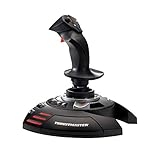
- INSTANT PLUG AND PLAY SETUP - Stop wasting time with complicated installations and start flying in seconds because this USB joystick is recognized immediately by your system with zero driver headaches, letting you jump straight into your favorite flight simulator, space sim joystick adventure, or combat flight stick scenario without any frustrating delays or technical setup.
- PRECISE ADJUSTABLE RESISTANCE CONTROL - Feel total command over every maneuver with an extremely precise flight joystick featuring adjustable resistance that lets you fine tune stick tension to match your flying style, whether you are executing gentle banking turns in a flight simulator controller session or engaging in intense dogfights that demand razor sharp responsiveness.
- SOLID WEIGHTED STABILITY BASE - Never worry about your flight stick sliding or tipping during critical moments thanks to a heavily weighted base that keeps your joystick for pc firmly planted on your desk, giving you the confidence to make aggressive inputs during turbulent helicopter controller scenarios or high speed combat engagements without any unwanted movement.
- BUILT IN THROTTLE AND RUDDER TWIST - Enjoy a complete flight control system in one device with an ergonomic integrated throttle lever for smooth speed management and a rotating handle with a built in locking system that delivers flawless rudder control, eliminating the need for separate rudder pedals or a standalone flight throttle while saving valuable desk space.
- FULLY PROGRAMMABLE BUTTONS AND PRESETS - Customize every aspect of your gaming joystick experience using twelve reprogrammable buttons, an exclusive mapping button, and a preset button with internal memory that stores your configurations, so you can instantly switch between flight sim stick profiles for different joystick for flight simulator games and aircraft types.
When Windows detects it but the game does not
Windows detection does not guarantee game compatibility. The game may not support DirectInput joysticks, may prefer Xbox/XInput controllers, may have joystick input disabled, or may be using another controller as Player 1. Steam Input or another controller layer can also translate or suppress the device.
What’s actually slowing this PC down?
Pick the symptom - the matching free tool is one click away.
- Close the game.
- Connect the joystick and confirm it in
joy.cpl. - Launch the game again.
- Enable joystick or flight-stick input.
- Bind every axis manually.
- Temporarily disconnect other controllers.
- If using Steam, test with Steam Input disabled or adjust the game’s controller support setting.
- Reset the game’s controller profile if Windows input is correct but the game’s bindings remain wrong.
Some older games recognize the Extreme 3D Pro automatically, while newer games may require manual binding or may not accept generic DirectInput devices at all. Compatibility depends on the individual game’s input system; “works in Windows” and “works in every game” are different claims.
Independent reader supportYour contribution helps us test, update, and keep practical guides available for everyone.Fix drift, jitter, and range problems
- Center drift: the axis does not remain centered while untouched.
- Jitter: the value fluctuates rapidly instead of staying still.
- Dead zone: a game setting that ignores small movements near center.
- Range problem: the axis cannot reach minimum or maximum.
- Nonlinear response: sensitivity changes across the axis.
Use this order:
- Observe the suspect axis in the Windows Test tab.
- If Windows is stable but the game is not, adjust the game’s dead zone and sensitivity.
- If Windows is unstable, try the Windows calibration wizard once if it is available.
- If minor drift remains, increase the in-game dead zone modestly.
- If the required dead zone becomes large, regard that as evidence of hardware wear rather than a software success.
Software calibration can correct stored center or range data; it cannot repair a physically worn potentiometer. Logitech’s controller calibration guidance is useful when the Windows and game layers appear to disagree.
Should you keep it or replace it?
Keep using the Extreme 3D Pro if it appears reliably in joy.cpl, all major axes work, drift is minor, and your games support generic DirectInput devices. Its built-in throttle and twist rudder make it a practical low-cost single-stick controller.
Consider replacing it if it is not detected on multiple computers, the twist or throttle is severely erratic, the required dead zone is large, or you need more precise centering, modern configuration software, more cockpit controls, or a stronger upgrade path.
Alternatives
- Thrustmaster T.16000M FCS: a comparable single-stick alternative with HallEffect sensing for pitch and roll, 16 action buttons, four axes, and an ambidextrous design. The official U.S. page showed $79.99 and out-of-stock status when checked for this research; price and availability are region- and date-specific.
- Thrustmaster T.16000M FCS HOTAS: a stick-plus-separate-throttle option for flight and space simulators with many throttle controls. The indexed U.S. catalog showed approximately $169.99 when checked, but live pricing and stock can differ.
- VKB Gladiator NXT EVO: a more substantial enthusiast upgrade with a modern control layout and stronger upgrade path. Check the exact model, hand, edition, region, shipping, and current price before buying.
Buying a new HOTAS will not fix a Windows configuration problem. Establish that the Logitech is genuinely defective or unsuitable for your games before replacing it.
FAQ
Does the Extreme 3D Pro work on Windows 11?
Windows may recognize it through generic USB/HID game-controller support, but Logitech’s current support page does not provide a current driver package. Individual games and legacy Logitech software can behave differently, so verify the device in joy.cpl.
Rank #4

- REALISTIC FLIGHT SIMULATOR CONTROL - Experience true hands-on flying with a precision HOTAS joystick and throttle system designed for immersive flight simulator gameplay. Ideal for flight simulation.
- ERGONOMIC FLIGHT STICK DESIGN - Comfortable flight stick joystick with adjustable resistance, responsive trigger, hat switch, and multiple programmable buttons for smooth aircraft control during takeoff, landing, and combat maneuvers.
- DETACHABLE THROTTLE FOR VERSATILE SETUPS - Modular design allows the flight stick and throttle to be used together on a desk or separately on your lap, ideal for cockpit, desk, or casual flight simulator setups.
- PLUG & PLAY FOR PC & CONSOLE - Easy USB connection delivers instant compatibility with Windows PC and Xbox Series X|S. This flight simulator controller requires no complex setup and works seamlessly with most popular flight sim software.
- ADAPTED FOR ALL FLIGHT SIMULATION TYPES – Adjustable joystick resistance and ergonomically placed buttons deliver precise control across all aircraft categories. Ideal for commercial aviation, combat jets, and helicopters, making it perfect for both beginner pilots and seasoned flight sim enthusiasts.
Do I need Logitech drivers?
Usually not for basic Windows detection, testing, and in-game binding. Legacy profile features may have depended on Logitech Gaming Software, but current Logitech support does not present a modern download path.
Why does it appear in Windows but not my game?
The game may lack DirectInput joystick support, prefer XInput, have joystick input disabled, select another controller, or have stale bindings. Relaunch the game with the joystick connected, enable joystick input, bind axes manually, and test without other controllers.
How do I calibrate it?
Run joy.cpl, open the controller’s Properties, look under Settings, and select Calibrate if available. The option is not exposed on every Windows/device entry.
Why is the twist rudder drifting?
Check the twist axis in the Windows Test tab. A small amount of noise may be manageable with a modest dead zone. Severe or persistent drift, especially when calibration does not help, may indicate a worn potentiometer or internal fault.
Can I use it with Steam?
It may work in games that support generic DirectInput devices. If Steam Input interferes, test with Steam Input disabled or adjust the game’s controller support settings, then bind the joystick inside the game.
Is it still worth using?
Yes, if Windows detects all axes and buttons and your games accept it. Replace it when hardware wear, compatibility limitations, or the need for more controls outweighs its low-cost convenience.
Quick wins for a faster PC:
Fix the driver behind crashes, sound loss and screen glitchesFind Drivers →Repair Windows errors before they cause bigger problemsFix Now →Scan for outdated or missing drivers - takes under a minuteDriver Scan →The Bottom Line
Bottom line: Start with joy.cpl, not G HUB. If Windows sees the stick, twist axis, throttle, hat switch, and buttons, configure them manually in the game. If the joystick fails across multiple PCs, or drift requires a very large dead zone, replacement is more sensible than repeated calibration.
Quick Recap
Product prices and availability are accurate as of the date/time indicated and are subject to change. Any price and availability information displayed on Amazon at the time of purchase will apply.




