To set up the original Wii on a smart TV, connect a Wii AV Cable to the TV’s yellow video, white left or mono audio, and red right-audio inputs, then select the matching AV source. If the TV has HDMI only, use a third-party Wii-to-HDMI adapter because a standard HDMI cable cannot connect directly to the Wii.
Before connecting anything, confirm that the console is the original Wii rather than a Wii U. The Wii U has a separate HDMI-capable television setup, while the Wii mini follows a narrower rule: Nintendo says the Wii mini is compatible only with Wii AV Cables. The official Wii connection guidance covers the console and cable compatibility.
As an Amazon Associate I earn from qualifying purchases.
Key takeaways
- The original Wii cannot connect directly to a television with a standard HDMI cable because Nintendo says, “The Wii console is not compatible with HDMI.”
- Composite AV is the simplest direct connection: yellow carries video, white carries left or mono audio, and red carries right audio.
- Component video is another direct supported option, using green Y, blue Pb/Cb, red Pr/Cr, plus separate white and red audio plugs.
- The Wii mini supports Wii AV Cables only, so a Wii Component Video Cable is not suitable for that model.
- An HDMI-only smart TV requires a third-party Wii-to-HDMI adapter or converter between the console and television.
Which Wii model are you connecting?
This guide is primarily for the original Nintendo Wii. Check the console before choosing a cable: the original Wii and Wii mini use Wii AV connections, while the Wii U has a separate HDMI-capable setup documented by Nintendo’s Wii U television instructions.
The Tool Desk
Outbyte Driver Updater FREEScan for outdated or missing drivers - takes under a minuteDriver Scan →Outbyte PC Repair FREERepair Windows errors before they cause bigger problemsFix Now →The Wii mini has a stricter accessory rule. Nintendo states that the Wii mini is compatible only with Wii AV Cables, so use the composite AV method below for a Wii mini and do not buy a component cable for it.
#1 Best Overall

- Controllers are original OEM (not 3rd party)
- Tested and works well. Nice condition
What ports does your smart TV have?
Look along the back, side, bottom, or behind a removable input panel on the television. Identify the socket labels before connecting anything.
| TV connection | Ports required | What you need | Best use |
|---|---|---|---|
| Composite AV | Yellow video, white audio, red audio | Wii AV Cable | Simplest direct setup; also compatible with Wii mini |
| Component video | Green Y, blue Pb/Cb, red Pr/Cr, white audio, red audio | Wii Component Video Cable | Direct analog connection when the TV has component inputs |
| HDMI only | One available HDMI input | Third-party Wii-to-HDMI adapter or converter | TVs with no composite or component inputs |
Use sockets marked “Input” or “In.” Nintendo’s connection guidance warns against using ports marked “Output” or “Out.” Some smart TVs still include legacy AV or component inputs, but not every modern television does.
How do you connect the original Wii with the AV cable?
The Wii AV Cable is the standard composite setup and needs no signal conversion when the television has matching yellow, white, and red inputs.
What’s actually slowing this PC down?
Pick the symptom - the matching free tool is one click away.
- Turn off the television before making the connections.
- Insert the Wii AV Multi Out plug into the AV Multi Out connector on the back of the Wii.
- Connect the yellow plug to the television’s yellow video input.
- Connect the white plug to the television’s white left-audio or mono-audio input.
- Connect the red plug to the television’s red right-audio input.
- Turn on the television and the Wii.
- Press the TV remote’s Input, Source, or similar button and select the AV input used by the cable.
Nintendo’s official color mapping is yellow for video, white for left or mono audio, and red for right audio; the Nintendo AV-cable instructions also identify labels such as Input, Input Select, EXT, AUX, AV, and TV/Video that may appear in the television menu.
Rank #2

- Bundle Includes: Wii Console, 2 Wii Remotes, 2 Nunchuks, 2 Wii Remote Jackets, Sensor Bar, Wii AC Adaptor, Wii AV Cable And Controller Charging Dock
- Two Included Rechargable Batteries For Your Controller
- Plays two disc formats in a single, self-loading media bay
- Built-in Wi-Fi Access For Easy Connection To Internet
- Thorough cleaning, carefully tested and guaranteed. Comes with a 90-day Amazon Certified Refurbished guarantee
Where do the red, white, and yellow Wii cables go?
Yellow goes to the TV’s video input, white goes to left or mono audio, and red goes to right audio. Connect each plug by its function and color, not merely by placing all plugs into nearby sockets.
If the television has a combined 3.5 mm or proprietary AV input instead of three full-size RCA sockets, it may require the television manufacturer’s specific breakout adapter. The Wii AV cable still supplies the yellow, white, and red signals, but the TV-side connector must match the television’s documented input.
How do you connect the Wii with component video?
Use a Wii Component Video Cable only when the television has component inputs. Component video separates the picture into three video signals and uses two additional plugs for audio.
Crashes, No Sound, or Screen Glitches?
Random freezes, missing sound and display glitches usually trace back to one bad driver. Find and replace yours safely.Free scan · under a minutePC Slower Than It Used to Be?
A free scan shows the junk files, broken settings and background clutter dragging Windows down - then fixes them in one click.Free scan · Windows 10 & 11- Insert the cable’s Wii-side plug into the Wii AV Multi Out connector.
- Connect the green video plug to Y.
- Connect the blue video plug to Pb or Cb.
- Connect the red video plug to Pr or Cr.
- Connect the white audio plug to left or mono audio.
- Connect the separate red audio plug to right audio.
- Turn on the TV and Wii, then select the matching component input with the TV remote.
Component cables have two red plugs with different jobs: the red video plug belongs in Pr/Cr, while the red audio plug belongs in the right-audio input. The Nintendo component-video instructions document this layout and note that component cables are sold separately.
Rank #3
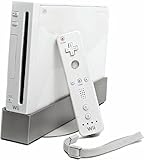
- Bundle Includes: Wii Console, Wii Remote, Nunchuk, Wii Remote Jacket, Sensor Bar, Wii AC Adaptor, Wii AV Cable
What if the smart TV has HDMI inputs only?
The original Wii has no native HDMI output, so a regular HDMI cable cannot connect the Wii directly to an HDMI port. Nintendo’s exact guidance is: “The Wii console is not compatible with HDMI.” See Nintendo’s HDMI compatibility explanation.
When the television has no composite or component input, use a third-party Wii-to-HDMI adapter or converter. The adapter is an intermediary device: it accepts the Wii’s AV signal and outputs HDMI for the television. Connect the Wii to the adapter according to the adapter’s input marking, connect an HDMI cable from the adapter’s output to the TV, power the adapter if its instructions require external power, and select the HDMI source used.
This connection category is necessary because the Wii itself is not HDMI-compatible. Adapter quality, latency, resolution behavior, power requirements, and current model availability vary, so this guide does not identify a specific adapter as universally best or claim Nintendo endorsement.
Quick wins for a faster PC:
Scan for outdated or missing drivers - takes under a minuteDriver Scan →Repair Windows errors before they cause bigger problemsFix Now →Fix the driver behind crashes, sound loss and screen glitchesFind Drivers →Why is there no picture from the Wii?
No picture usually means the TV is on the wrong source, a plug is in the wrong socket, or the Wii-side connector is not fully inserted.
Rank #4
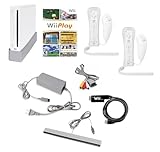
- Includes: Wii console (white), console stand, 2 genuine Wii remotes with silicone sleeve and safety strap, 2 nunchuks, AV cables, AC adapter, sensor bar, HDMI adatper for modern TVs. Choose your option for 1 or 2 sets of controllers.
- Wii Play Game: 9 Classic Mini-Games Enjoy fan favorites like Tanks!, Table Tennis, and Fishing.
- Fully cleaned, inspected and tested for proper operation. Ships with all necessary cables and accessories — just plug in and play.
- Note on Online Features – Support has been discontinued for online play, WiiConnect24, and other internet-based services. All included games function fully offline and do not require internet connectivity.
- Confirm that the Wii AV Multi Out plug is fully seated in the console.
- Check that every colored plug is connected to a TV input, not an output.
- Match the TV source to the physical input used: AV, AUX, EXT, TV/Video, component, or the numbered HDMI port.
- Try each similarly named AV or composite source if the television displays more than one.
- Inspect the cable and plugs for visible damage or bent connectors.
- For component video, verify green is connected to Y, blue to Pb/Cb, and the red video plug to Pr/Cr.
- Remember that the component red video plug and red right-audio plug are separate connectors even though both are red.
- For an HDMI converter, verify its power, Wii-side input, TV-side HDMI output, and any required input-selection switch.
If the TV reports “No Signal” after the wiring is checked, select the source again while the Wii is powered on. If composite works but component does not, the issue is likely the component wiring, the selected component source, or the cable rather than the HDMI capability of the Wii.
Independent reader supportYour contribution helps us test, update, and keep practical guides available for everyone.Which Wii-to-TV connection should you choose?
Choose the direct connection that matches the ports on the television. Composite AV is the easiest documented method, component is a supported direct alternative, and HDMI conversion is needed only when the TV lacks both legacy input types.
| Situation | Recommended path | Important limitation |
|---|---|---|
| TV has yellow, white, and red AV inputs | Wii AV Cable | Select the matching composite source |
| TV has green, blue, and red component inputs plus white/red audio | Wii Component Video Cable | Not compatible with Wii mini |
| TV has HDMI inputs but no AV or component inputs | Third-party Wii-to-HDMI adapter | Requires signal conversion; adapter performance is model-dependent |
| Console is a Wii U | Follow the separate Wii U setup | Do not use this original-Wii procedure as a substitute |
Frequently Asked Questions
Can I use an HDMI cable with the original Wii?
The original Wii does not work with a standard HDMI cable because the console is not HDMI-compatible. Use the Wii AV Cable, a supported Wii Component Video Cable, or a third-party Wii-to-HDMI adapter when the TV has HDMI inputs only.
Where do the red, white, and yellow Wii cables go?
Connect yellow to the TV’s video input, white to left or mono audio, and red to right audio. Then select the matching AV, AUX, EXT, or TV/Video source on the television.
Best Value

- Built-in Wi-Fi Access For Easy Connection To Internet
- Features A Processing Chip From IBM And Graphics Chip From ATI
- Replacement console only no cables or accessories included
- Plays two disc formats in a single, self-loading media bay
What cable do I need to connect a Wii to a newer TV?
Use a Wii Component Video Cable only with a television that has green Y, blue Pb/Cb, and red Pr/Cr component inputs plus white and red audio inputs. The Wii mini is compatible only with Wii AV Cables, so component is not suitable for the Wii mini.
Why is there no picture from my Wii?
Select the TV source that matches the physical port used, check that the Wii AV Multi Out plug is fully inserted, and make sure the colored plugs are connected to inputs rather than outputs. With component video, check that the two red plugs have not been confused: one is Pr/Cr video and one is right-channel audio.
The Bottom Line
For the original Wii, connect the Wii AV Cable to yellow video, white left/mono audio, and red right audio, then select the matching TV input. If the smart TV has HDMI only, use a third-party Wii-to-HDMI adapter; a standard HDMI cable alone will not work.
Quick Recap
Product prices and availability are accurate as of the date/time indicated and are subject to change. Any price and availability information displayed on Amazon at the time of purchase will apply.




