Quick wins for a faster PC:
Repair Windows errors before they cause bigger problemsFix Now →Scan for outdated or missing drivers - takes under a minuteDriver Scan →To start a 2.4 GHz wireless gamepad, plug its matching USB receiver into a supported device, switch the controller to the correct mode if needed, then power it on using the model’s documented control. There is no universal button sequence: the controller’s model, receiver, host compatibility, and manual determine the exact steps.
Start with the receiver and host
- Identify the controller model. Check the label, packaging, or manual, then confirm that the game system or computer is supported. A 2.4 GHz receiver does not make a controller universally compatible. For example, 8BitDo’s Ultimate C Windows instructions specify Windows 10 (1903) or later; that requirement applies to that model’s documented setup, not every gamepad. 8BitDo Ultimate C Windows setup.
- Connect its matching receiver. Insert the controller’s supplied 2.4 GHz USB receiver into a supported USB port on the host. Do not assume another controller’s receiver will work.
- Select a mode if the controller has a switch. Use the mode required by your host or game, as described in that model’s manual. On PC, 8BitDo’s Ultimate 2.4g FAQ specifies XInput with the switch set to X and DInput with it set to D. These labels and settings are product-specific. 8BitDo Ultimate 2.4g FAQ.
- Power on the controller using its documented control. The cited 8BitDo Ultimate C Windows procedure says to hold X and Home. Amkette’s EvoFox Elite X2 instructions instead say to press the EvoFox button after inserting its receiver. Do not copy either sequence to a different model. EvoFox Elite X2 support.
- Check the connection indicator. Follow the light behavior described in your controller’s manual. In the cited 8BitDo procedure, the status LED stays solid once Windows recognizes the controller; the EvoFox instructions describe a solid green first LED when its receiver connection succeeds. Indicator colors and meanings are not universal.
- Test input in the host or game. If the controller connects but controls do not behave as expected, check the model’s supported input mode and the game’s controller settings.
If the gamepad does not connect
No connection light
- Make sure the receiver is fully inserted into a supported USB port.
- Confirm the controller is powered on and, if applicable, set to the correct mode.
- Use the manual’s indicator description rather than assuming a particular light color means connected.
The controller powers on but is not recognized
- Check the exact model’s host compatibility and mode requirements. For instance, the cited 8BitDo Ultimate C Windows instructions specify Windows 10 (1903) or later, while the Ultimate 2.4g FAQ distinguishes XInput and DInput on PC.
- For a Nintendo Switch setup, consult the model’s Switch-specific instructions rather than applying PC steps. The 8BitDo FAQ describes a separate setup and says that, in that setup, NFC (amiibo), motion control, IR, HD rumble, and wake-up are not supported.
Wireless still does not work
Check whether your particular model supports wired operation. The 8BitDo FAQ describes USB cable use on PC, and the EvoFox Elite X2 instructions describe USB-C wired mode. These examples do not mean every 2.4 GHz controller supports a wired fallback.
You need to pair a replacement receiver
Use only a receiver the manufacturer identifies as compatible with your exact controller, and follow that model’s re-pairing procedure. The EvoFox support page documents a procedure for its Elite X2 and a new dongle; its pairing steps should not be applied to other controllers.
Before choosing or replacing a controller
- Confirm the controller supports your host and the games you want to play.
- Check which input modes it offers and whether your host or game requires a particular one.
- Verify that the matching receiver is included, or that the manufacturer confirms a replacement receiver works with your exact model.
- Check the manual for wired operation if you want a fallback; USB connection support varies by controller.
For other 8BitDo models, the manufacturer lists product manuals and support resources at 8BitDo Support.
Quick Recap
Best Value
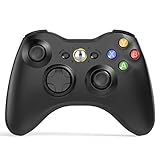
- 【Wide Compatibility】wireless controller perfectly compatible with Xbox 360/Slim, PC Windows 10/8/7.(Note: The controller is not compatible Xbox One S/X/Xbox Series X/S).
- 【Ergonomic Design】Grips's contours have been designed to fit your hands more comfortably to hold for a long time, 30ft wireless control provides more freedom and comfortable control state.
- 【Great Performance】: High sensitivity wireless Controller features of two Vibration feedback motors, two pressure-point triggers, and an 8-way arrow button help players complete control of the gaming world, providing them immersive feeling just like on the battlefield. The guide button in the middle of the wireless gamepad brings quick access to your game libraries, music, and digital movies.
- 【Ergonomics Design】: The asymmetrical grip and contour design of the joystick perfectly fits your hands, delivering a supper comfy holding. All buttons are very easy to press and won't hamper your performance. Better more, all buttons respond immediately which ensure fantastic tactile feedback for maximum comfortable gaming experience.
- 【Play where you want】2.4 GHz wireless connection with up to a 30-foot range means you have more room to move..
Rank #4

- With broad game support, the Logitech Gamepad F310 works with old standbys to today's biggest titles, so it's easy to set up and use with your favorite games.
- Profiler software allows the gamepad to be programmed to perform keyboard and mouse commands for games without gamepad support.* * Requires software installation.
- A familiar control layout that doesn't require a learning curve to be able to use, with all the same buttons as on an Xbox 360.
- The unique floating D-pad rests on four switches-instead of a single pivot point-making it responsive to quick changes in direction.
- The six-foot cord lets you lean back and play a comfortable distance from your PC monitor.
Rank #3
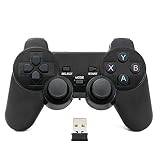
- Brand new and high quality.
- Wireless Game Controller for PC.
- 2.4GHz wireless.
- Powered by 2* AAA battery.
- This controller can't be used on the Raspberry Pi.
Rank #2

- 1.【Widely compatible】:2.4G wireless game controller is compatible with Playstation 3 and PC Windows 7/8/10 wireless controllers. Plug and play. No installation required. To use on PC, You need to insert the USB into the USB port of your computer. One USB port can connect two game controllers and use them at the same time.
- 2.【connection method】NOTE:First, Press the power button on the controller, connect the USB receiver to the computer, and press the game controller "MODE" button. The game controller LED will begin to flash quickly. Once the first controller is connected, the LED will begin to flash slowly. Once the LED changes from flashing to stable, the second controller will be successfully connected.
- 3.【With vibration function】:The wireless controller has built-in dual motors and supports dual vibration function. In supported games, the handle will vibrate when driving a car, hitting, shooting, falling, etc., bringing you more fun and a more immersive gaming experience.
- 4.【6-axis gyroscope】:The wireless game remote controller supports 6-axis motion sensing function, and you can freely control the game by moving and adjusting the horizontal direction of the handle. Bring you a different gaming experience,
- 5. 【Built-in high-performance battery】:The wireless game remote is equipped with a large 400mAh battery capacity, which can provide 4~6 hours of ultra-long gaming time, and the game controller can be fully charged in 1.5 hours. When not playing games, the controller will automatically enter sleep mode to save power.
#1 Best Overall

- The 2.4 GHz wireless connection uses a tiny Plug-and-Forget Nano-receiver that stays in your USB port, even on laptops, for fast data transmission with minimal delays, dropouts, or interference.
- With broad game support, the Logitech Wireless Gamepad F710 works with old standbys to today's biggest titles, so it's easy to set up and use with your favorite games
- Profiler software allows the gamepad to be programmed to perform keyboard and mouse commands for games without gamepad support.* Requires software installation
- Dual vibration motors let you feel every hit, crash and explosion in games that support vibration feedback for a more realistic and immersive experience
- A familiar control layout that doesn't require a learning curve to be able to use, with all the same buttons as on game console controllers
Product prices and availability are accurate as of the date/time indicated and are subject to change. Any price and availability information displayed on Amazon at the time of purchase will apply.
Independent reader supportYour contribution helps us test, update, and keep practical guides available for everyone.



