Do these 3 things before closing this tab:
1Clear out junk files and repair common Windows errors2Fix the driver behind crashes, sound loss and screen glitches3Repair Windows errors before they cause bigger problemsTo move an existing Core Keeper world, copy its numbered .world.gzip file into the destination server’s DedicatedServer/worlds folder while the server is stopped, then set the server’s World Index to the number in the filename. For example, 3.world.gzip must be selected with world index 3. Back up the world first and keep that backup until you have connected and checked the imported map.
Prefer not to run the server on your own PC? Godlike.Host offers hosted Core Keeper servers with free DDoS protection and up to three free backups a day.
What the upload changes—and what it does not
A Core Keeper world is stored as a numbered compressed file. The file contains the shared world state: terrain, explored areas, buildings, defeated bosses, dropped items and other progress associated with that map. Moving that file lets a dedicated server continue the same world instead of generating or opening a different one.
As an Amazon Associate I earn from qualifying purchases.
The transfer does not automatically move every player’s character save. Character data is stored on the client side in a separate location, so each player may need to connect with the character already present in their own game installation. If a player appears to be missing items, equipment or a character after the server move, check the client-side character files rather than uploading another copy of the world.
Uploading can overwrite the destination server’s existing world file. Treat the operation as a replacement, not a merge: progress in the destination copy that is not present in the uploaded file will not be added to it.
#1 Best Overall

- DISCOVER 50+ GAMES — Explore a curated library of more than 50 games playable across XBOX consoles, PC, and supported devices, with new favorites ready to discover.
- PLAY ACROSS YOUR FAVORITE DEVICES — Enjoy included games across supported XBOX consoles, PC, and other compatible devices for more ways to play wherever you are.
- PLAY TOGETHER ONLINE — Connect with friends and communities with online console multiplayer included with XBOX Game Pass Essential.
- STREAM WITH XBOX CLOUD GAMING — Enjoy up to 5 hours of cloud playtime per month and stream supported games to compatible devices with XBOX Cloud Gaming.
- EARN REWARDS WHILE YOU PLAY — Earn Rewards points by playing games, completing eligible activities, and shopping in the Store with your XBOX Game Pass membership.
Before you touch the server
Create a Core Keeper backup
- Open Core Keeper’s main menu on the computer that contains the world.
- Press
Ctrl+Alt+B. The game createsCoreKeeperSaves.zipon the desktop. - Copy that ZIP file to another safe location, such as a second drive or removable storage. Do not rely on the only copy remaining on the desktop.
- Keep the original
.world.gzipfile as well. Do not rename it until the transfer has been verified.
The ZIP is a recovery point for the local save. The original numbered world file is also useful because it preserves the exact filename and index you intend to use.
Collect the details you need
- The numbered world filename you intend to upload, such as
0.world.gzipor3.world.gzip. - Access to the destination server’s SFTP connection or file manager, or access to the host machine and its persistent Docker volume.
- Permission to stop and start the server. Replacing a save while the process is running can leave the file partially written or cause the server to continue using the old data.
- The destination’s configured World Index, sometimes exposed as a startup option named
-world. - The server’s data path if it was changed with the
-datapathargument.
Find the world file on the client
Windows Steam installation
On Windows, open File Explorer and paste this path into the address bar:
%USERPROFILE%AppDataLocalLowPugstormCore KeeperSteam<SteamID>worlds
Replace <SteamID> with the user-specific folder shown on your computer. The folder contains numbered files with the pattern number.world.gzip. The first world slot is commonly 0.world.gzip, but do not assume that every save uses slot zero. The number before .world.gzip is the world index.
If several worlds are present, use the game’s world list and recent file dates to identify the one you want. Copy the file to a temporary folder before uploading so you have an untouched local copy.
Rank #2

- System: Intel Core i5-13400F 2.5GHz 10 Cores | Intel B760 Chipset | 16GB DDR5 | 1TB PCIe 4.0 NVMe SSD | Windows 11 Home
- Graphics: NVIDIA GeForce RTX 5060 8GB Graphics | 1x HDMI | 2x DisplayPort
- Connectivity: 1 x USB-C 3.2 | 2 x USB-A 3.2 | 6 x USB-A 2.0 | 1 x LAN | WiFi 6 | Bluetooth 5.3 | 7.1 Channel Audio
- Tempered Side Case Panel | Custom RGB Lighting | Keyboard and Mouse
- 1 Year Parts & Labor Warranty, Free Lifetime Tech Support
Linux client
On a Linux Steam installation, the corresponding folder is:
$HOME/.config/unity3d/Pugstorm/Core Keeper/Steam/<SteamID>/worlds
Use the same filename rule: the number in 3.world.gzip is the index that must be selected on the server. Linux and Windows save folders are different, so do not paste the Windows path into a Linux file manager or assume that a cloud-synchronized game folder is the dedicated-server data directory.
Check the file before transfer
- Confirm the file ends in
.world.gzip. Do not unzip it; the server expects the compressed world file. - Make sure the number is visible at the beginning of the filename.
- Check that the file size is plausible compared with the other worlds in the same folder. A zero-byte or partially copied file should not be uploaded.
- Keep the extension exactly as shown. Changing it to
.gzip, adding a second extension or allowing a file manager to append.txtcan prevent the server from recognizing it.
Stop the destination server first
Stop the dedicated server before replacing any world file. This is required for both managed hosting panels and a self-hosted process. A running process can hold the old save open, write over your upload during shutdown, or leave an incomplete file when the replacement occurs.
Managed hosting panel
- Open the server control panel.
- Choose Stop and wait until the status shows that the process is fully offline, not merely restarting.
- Open the panel’s file manager or note the SFTP credentials supplied for the server.
Windows dedicated server
Close the dedicated-server process using its normal stop procedure. Wait for the process to exit before opening the save directory. If the server runs as a service, stop that service through the service manager and verify that no Core Keeper server process remains before copying files.
Free tools Windows power users keep installed
One-click scans. No signup required.
Rank #3

- Intel Core i7 14700F, NVIDIA GeForce RTX 5070 12GB, 32GB DDR5 RGB 4800MHz 16x2 1TB NVMe SSD, WIFI Ready, Windows 11 Home
- Connectivity: 6 x USB 3.1 | 1x RJ-45 Network Ethernet 10/100/1000 | Audio: On board audio
- Special Add-Ons: Tempered Glass RGB Gaming Case | 802.11AC Wi-Fi Included | 16 Color RGB Lighting Case | Free iBUYPOWER Gaming Keyboard & RGB Gaming Mouse | No Bloatware | AI Workstation PC ready
Docker deployment
Stop the container before changing the save. The important distinction is between the container’s temporary filesystem and the persistent volume mounted for server data. The upload must go into the persistent volume’s DedicatedServer/worlds directory; copying a file only into an ephemeral container layer can make it disappear when the container is recreated.
Upload the world to a managed server
Use SFTP
- With the server stopped, connect to the host using the SFTP client and credentials supplied by the host.
- Browse to the server’s
DedicatedServer/worldsdirectory. Hosting panels can place this directory at different levels, so follow the path displayed for your particular instance rather than assuming a universal root. - Upload the selected numbered
.world.gzipfile. - If you are replacing a world with the same index, preserve the old destination file outside the active folder first, or download it as a backup. Do not delete the only copy until the imported world has been tested.
- Wait for the transfer to finish completely, then compare the uploaded filename with the local filename. SFTP clients normally show a completed status; do not start the server while a transfer is still in progress.
Use the provider’s file manager
- Open the server’s file manager while the server remains stopped.
- Enter the directory named
DedicatedServer, then open itsworldssubfolder. - Choose the upload control and select the local
.world.gzipfile. - Wait for the panel to report a completed upload. If the panel silently renames the file, edit the name back to the original numbered form without changing the extension.
- Leave unrelated configuration files untouched. Only replace the world file you have identified.
There is no single directory layout shared by every host. If the panel does not show DedicatedServer/worlds, check its server-file documentation or the path displayed in the startup configuration. Uploading into a similarly named cache, backup or log folder will not import the world.
Copy the world on a self-hosted Windows server
The usual Windows dedicated-server data location is:
%USERPROFILE%AppDataLocalLowPugstormCore KeeperDedicatedServer
The Tool Desk
Outbyte Driver Updater FREEFix the driver behind crashes, sound loss and screen glitchesFind Drivers →Outbyte PC Repair FREERepair Windows errors before they cause bigger problemsFix Now →Open its worlds subfolder and copy the numbered .world.gzip file there after stopping the server. If a file with the same index already exists, move the destination copy to a separate backup folder before replacing it. Keep the filename unchanged.
Rank #4
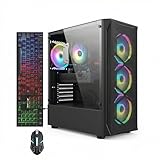
- This Gaming PC Desktop is well-suited for a variety of tasks including gaming, study, business, photo and video editing, streaming, day trading, crypto trading, and so on,ideal for Home, Office, School work
- This high-performance Gaming Computer Desktop is capable of running a wide range of popular PC games for pc gamer, including Fortnite, Call of Duty Warzone, Escape from Tarkov, GTA V, World of Warcraft, LOL, Valorant, Apex Legends, Roblox, Overwatch, CSGO, Battlefield V, Minecraft, Elden Ring, Rocket League, The Division 2, and Hogwarts Legacy with 60+ FPS
- PC Gaming System: This gaming computer desktop is loaded with Intel Core i7 up to 3.9GHz | 16GB Memory | 512GB Solid State Drive | Genuine Windows 11 Home 64-bit
- Gaming Desktop Connectivity: This gaming pc comes with RGB Fan x 4 | 1x RJ-45 | Wi-Fi 6 | Bluetooth 5.0 | Radeon RX 580 8G | HDMI | DisplayPort
- Gaming Computer Special Feature: This gaming pc equips with RGB Gaming Mouse & Keyboard |1 Year parts & labor | Free lifetime tech support,ARGB lighting that brings your gaming setup to life, with easy plug-and-play setup that gets you started in minutes. Built for long-lasting performance, it holds up well over time, while secure packaging ensures it arrives in perfect condition. Backed by reliable customer support for quick issue resolution
A server can use a different location when it is started with -datapath. In that case, the active save is beneath the directory supplied to that argument, normally in its DedicatedServer/worlds subfolder. Copying into the default AppData location will have no effect if the running server points somewhere else. Check the server shortcut, startup script or service definition for -datapath before deciding which folder is active.
Copy the world into a Docker deployment
- Stop the Core Keeper container and wait until it is no longer running.
- Identify the host directory or named volume mounted to the container’s dedicated-server data path. The mount configuration is the authoritative location; the container’s internal path alone does not tell you where persistent files live on the host.
- Inside that persistent storage, open
DedicatedServer/worlds. - Back up the existing destination world file, then copy the numbered
.world.gzipfile into the directory. - Check ownership and permissions if the container runs as a non-root user. The server process must be able to read the file and write its save data.
- Start the container again only after the copy is complete and the filename has been checked.
Do not copy the file into a temporary shell session inside a running container and assume it is permanent. Recreating or updating the container can remove changes made outside the mounted persistent volume.
Recommended Free Tools
Set the World Index to match the filename
The server chooses a world by index, not by searching for the newest file. Read the number immediately before .world.gzip and enter that number in the server’s World Index setting or equivalent -world startup option.
| Uploaded filename | Required index | What the server opens |
|---|---|---|
0.world.gzip |
0 |
The file named 0.world.gzip |
1.world.gzip |
1 |
The file named 1.world.gzip |
3.world.gzip |
3 |
The file named 3.world.gzip |
For example, uploading 3.world.gzip while leaving World Index set to 0 tells the server to open 0.world.gzip instead. You may then see a newly generated map or the previous destination world, which can make a successful upload look as if it failed.
If the panel uses a text field, enter only the number. If it exposes a command-line field, use the equivalent -world 3 form for a file named 3.world.gzip. Save the configuration before starting the server.
Best Value

- This Gaming PC Desktop is well-suited for a variety of tasks including gaming, study, business, photo and video editing, streaming, day trading, crypto trading, and so on,ideal for Home, Office, School work
- This high-performance Gaming Computer Desktop is capable of running a wide range of popular PC games for pc gamer, including Fortnite, Call of Duty Warzone, Escape from Tarkov, GTA V, World of Warcraft, LOL, Valorant, Apex Legends, Roblox, Overwatch, CSGO, Battlefield V, Minecraft, Elden Ring, Rocket League, The Division 2, and Hogwarts Legacy with 60+ FPS
- PC Gaming System: This gaming computer desktop is loaded with Intel Core i7 up to 3.9GHz | 16GB Memory | 512GB Solid State Drive | Genuine Windows 11 Home 64-bit
- Gaming Desktop Connectivity: This gaming pc comes with RGB Fan x 6 | 1x RJ-45 | Wi-Fi 6 | Bluetooth 5.0 | GeForce RTX 3050 6G | HDMI | DisplayPort
- Gaming Computer Special Feature: This gaming pc equips with RGB Gaming Mouse & Keyboard |1 Year parts & labor | Free lifetime tech support,ARGB lighting that brings your gaming setup to life, with easy plug-and-play setup that gets you started in minutes. Built for long-lasting performance, it holds up well over time, while secure packaging ensures it arrives in perfect condition. Backed by reliable customer support for quick issue resolution
Start the server and verify the import
- Start the server after the file transfer and index change are complete.
- Wait for the panel, service or container to report that the server is ready. Starting immediately can produce a connection failure even when the save is correct.
- Connect from Core Keeper using the server’s normal address and password.
- Check several unmistakable features: the base layout, nearby terrain, explored areas, storage contents and a known progression point such as a defeated boss or opened biome.
- Ask another player to connect if multiplayer access is part of the move. Their character should appear from their own client-side save; the shared map should match the uploaded world.
- Keep
CoreKeeperSaves.zip, the original world file and any downloaded destination copy until everyone confirms that the map and progress are correct.
If the expected terrain appears, the transfer is complete. Make a fresh backup of the now-active server world before making further changes.
Quick wins for a faster PC:
Repair Windows errors before they cause bigger problemsFix Now →Fix the driver behind crashes, sound loss and screen glitchesFind Drivers →Troubleshoot a server that opens the wrong world
| Symptom | Likely cause | Fix |
|---|---|---|
| A new or empty map loads | World Index does not match the uploaded filename. | Stop the server, read the number in the filename and set the index to that exact number. |
| The old destination map still loads | The upload went to the wrong directory, or the server is using a custom -datapath. |
Inspect the active startup configuration and place the file in that location’s DedicatedServer/worlds folder. |
| The file is not listed or is ignored | The extension or filename was changed, or the transfer is incomplete. | Restore the exact number.world.gzip name, finish the transfer and verify that the file is not zero bytes. |
| The server fails after replacement | The file may be incomplete, corrupted or unreadable by the server account. | Stop the server, restore the previous destination backup, confirm permissions, then recopy the original file. |
| The map is correct but a player lacks a character or items | Character data is client side and was not transferred with the world. | Have the player connect from the client installation containing the correct character save; do not replace the world again. |
| The world works until the Docker container is recreated | The file was copied into ephemeral container storage instead of the persistent volume. | Stop the container and copy the file into the host directory or named volume mounted for DedicatedServer/worlds. |
The panel cannot find DedicatedServer/worlds |
The host uses a different file layout or hides the directory behind a managed path. | Use the panel’s documented server root or request the active save path from the host; do not guess between similarly named folders. |
Choosing a transfer method
The world file itself is the same whether you run the server on your own machine, in Docker or through a managed panel. The operational differences are control over the filesystem, convenience and recovery.
| Deployment | Control | Transfer route | Main recovery consideration |
|---|---|---|---|
| Self-hosted Windows | Direct access to files, startup arguments and services. | Copy into the active DedicatedServer/worlds folder, or the folder selected by -datapath. |
You are responsible for stopping the process, preserving the old file and checking permissions. |
| Managed hosting panel | Less control over the host filesystem, but a guided panel and SFTP access. | Upload through SFTP or the provider’s file manager. | Directory names differ between hosts; verify the active path before replacing anything. |
| Docker | Portable configuration and repeatable deployment, with storage controlled by mounts. | Copy into the persistent volume’s DedicatedServer/worlds directory while the container is stopped. |
A copy made only inside ephemeral container storage can vanish during recreation. |
For occasional imports, a panel’s file manager is usually the shortest path. SFTP is preferable when the panel’s upload control is limited or the file is large. Self-hosting and Docker provide the most control over paths and startup options, but they also make you responsible for backups, permissions and persistent storage.
Frequently overlooked details
The index is not a slot you can choose independently
World Index and the filename are a pair. Renaming a file changes which index the server must open; changing only the setting points the server at another file. Keep the original number unless you intentionally rename the file and update the setting at the same time.
Stopping is part of the file operation
Do not upload over a live save because players are still connected or because the panel shows an automatic restart in progress. Wait for a fully stopped state, perform the copy, then start manually. This prevents the server from writing a newer state over your imported file.
What’s actually slowing this PC down?
Pick the symptom - the matching free tool is one click away.
A backup is useful only if it is outside the replacement path
Leaving the only backup in the same directory and then deleting or overwriting that directory does not protect the save. Store CoreKeeperSaves.zip and the original world file separately, and retain a copy of the destination world before replacement.
Client and server platforms can differ
The client lookup paths above identify Steam saves on Windows and Linux. The dedicated server uses its own DedicatedServer data directory, so copying a file back into the client folder on the host does not make it available to the server. Always distinguish the source client’s Steam<SteamID>worlds directory from the server’s DedicatedServerworlds directory.
Quick Recap
Final transfer checklist
- Backup:
CoreKeeperSaves.zipexists on the desktop and in a second safe location. - Source: You identified the intended numbered
.world.gzipfile. - Destination stopped: The panel, process or container is fully offline.
- Correct directory: The upload is in the active
DedicatedServer/worldsfolder, including any custom-datapathlocation. - Persistent storage: Docker files are in the mounted volume, not only inside the container.
- Matching index: The World Index or
-worldvalue equals the number before.world.gzip. - Verification: You connected and checked recognizable terrain and progress before deleting any backup.
Product prices and availability are accurate as of the date/time indicated and are subject to change. Any price and availability information displayed on Amazon at the time of purchase will apply.




