What’s actually slowing this PC down?
Pick the symptom - the matching free tool is one click away.
Yes—Xbox Cloud Gaming supports a physical mouse and keyboard, but only in supported games and compatible clients. The most reliable setup is a mouse and keyboard connected to a Windows PC, Chromebook, Mac, or other computer running the latest Microsoft Edge or Google Chrome. Open xbox.com/play, choose a game marked for mouse and keyboard, launch it, enter full-screen mode, click inside the stream, and press a key or move the mouse to capture input.
Support is not universal. A game having mouse-and-keyboard controls on PC does not prove that its Xbox or cloud version supports them. Xbox determines compatibility at the game and platform level, so check the current Xbox mouse-and-keyboard cloud gallery before troubleshooting.
As an Amazon Associate I earn from qualifying purchases.
What you need before starting
- A Microsoft account.
- An Xbox Cloud Gaming-supported title. Subscription games require an eligible Game Pass plan; Xbox currently lists Game Pass Essential, Premium, and Ultimate as providing cloud access. Selected free-to-play games can be streamed with a free Microsoft account in supported regions.
- A supported device and client. Edge or Chrome on a computer is the clearest official route. The Xbox app on Windows PC is also supported.
- A physical mouse and keyboard connected to the local device running the stream. They are not connected directly to the remote Xbox server.
- A stable internet connection. Xbox lists 10 Mbps download speed as a minimum and 20 Mbps as recommended for PCs, consoles, and tablets. Use 5 GHz Wi-Fi or wired Ethernet where possible; bandwidth alone cannot guarantee low input latency.
Xbox’s cloud gaming requirements page also warns that game availability, features, and peripheral support can vary by region, subscription plan, platform, and time.
Outdated Drivers Are Slowing You Down
One free scan finds every outdated or missing driver and matches the right update for your exact hardware.Free scan · exact hardware matchWindows Errors? Fix Them Before They Spread
Repair common Windows errors and clear accumulated junk for a smoother, more stable PC - no reinstall needed.Free scan · no reinstallHow to find games that support mouse and keyboard
Use one of these methods rather than relying on a game’s PC feature list:
#1 Best Overall

- Compact 87-Key Design----There are no additional number keys, and there is more desktop space for you to move the mouse to meet your needs in the office or at home. You will be happy with the space savings. Small gaming keyboard size: 13.5*5.5*1.2 inches
- Rainbow LED Keyboard----There are 2 lighting modes and 3 levels of brightness for you to choose from. Press light key: Static backlight/turn off; FN and light key: Dynamic backlight. Fn and PgUp: Adjust brightness plus; Fn and PgDn: Adjust brightness reduction. Please note that this keyboard backlight cannot be changed to one color
- HIGH PERFORMANCE MEMBRANE KEYBOARD----12 multimedia keys to facilitate your gaming operation or work efficiency. Interchangeable WASD keys and locking WIN key function improve your gaming performance. With 19 anti-collision keys, every click won't be lost, ensuring smooth typing
- Wired Gaming Mouse----The USB wired gaming mouse has a high-precision sensor and low-friction PTFE feet to give you precise and smooth control. Four levels of DPI (dots per inch) can be easily switched (800/1600/2400/3200). 6 buttons (2 side buttons). Long press the DPI button to switch between 7-color breathing/red light. Gaming mouse size: 5.23*2.75*1.57 inches
- Delicate Mouse Pad----Size: 10.12 x 8.16 inches, provides a large space for mouse movement. It’s made of high-quality materials, a smooth and delicate fabric provides comfortable wrist support, and the rubber on the bottom ensures that the mouse pad doesn't slip off
- Open the current Xbox Cloud Gaming mouse-and-keyboard gallery.
- In the Xbox app on Windows, open Cloud Gaming and look for the Play with mouse and keyboard collection or a mouse-and-keyboard badge. Xbox’s interface labels can change as the app is updated.
- Check the game’s Xbox Cloud Gaming product page for its supported-input indicators.
Xbox reported more than 190 cloud games with mouse-and-keyboard support in its April 30, 2026 update. That is a dated snapshot of a changing catalog, not a permanent number, so the current gallery is the authoritative place to check a particular game. Xbox’s initial 2024 examples included Sea of Thieves, Halo Infinite, Grounded, Deep Rock Galactic, Gears Tactics, The Sims 4, Quake, and Terraria. Later Xbox updates added games such as Company of Heroes 3, Transport Fever 2, Assassin’s Creed Shadows, Planet Zoo: Console Edition, Smite 2, The First Descendant, and Roadside Research. These examples are not a complete or permanently current list.
Native support depends on the Xbox implementation of the game. Microsoft’s developer guidance for Xbox Cloud Gaming explains why a console title that implements mouse-and-keyboard support can carry that input through cloud streaming—but the feature still has to be implemented and exposed for that title.
Official setup in Edge or Chrome
This is the recommended procedure for a Windows PC, Mac, Chromebook, or other desktop-class device. Windows has the clearest support because it can use either a browser or the Xbox PC app.
- Connect the mouse and keyboard. Plug them into the computer, or pair them before opening the cloud session. Test both in another application. Wired USB devices are the safest starting point. Xbox confirms wired USB mice and keyboards for selected games and apps, but does not guarantee every Bluetooth or wireless peripheral.
- Open Microsoft Edge or Google Chrome. Install the latest available version. Xbox’s original cloud mouse-and-keyboard rollout specifically named Edge and Chrome.
- Go to xbox.com/play. Sign in with the Microsoft account that owns the game or has the required Game Pass access.
- Select a compatible game. Use the mouse-and-keyboard gallery, collection, or badge. Do not choose a title solely because its PC version supports mouse and keyboard.
- Launch the stream. Wait until the game has loaded rather than testing input only on the Xbox Cloud Gaming menus.
- Enter full-screen mode. Use the cloud player’s full-screen button. On Windows,
F11can also put the browser window into full-screen mode, although the exact behavior varies by operating system and keyboard. - Click inside the game stream. This gives the stream focus and allows it to capture pointer input. If the mouse still moves the desktop or browser instead of the game, click the video area again.
- Activate mouse-and-keyboard capture. Press a keyboard key or move the mouse. In Microsoft’s documented cloud-streaming input model,
F9typically enters or exits keyboard-and-mouse capture. On a laptop, tryFn+F9if the function row is assigned to media or system controls. - Check the game’s own input settings. Look for Mouse and Keyboard, Input Device, Control Scheme, Key Bindings, or Aiming Input Device. Configure sensitivity and bindings there. Xbox Cloud Gaming generally does not provide one universal remapping layer for native input.
Microsoft’s game-streaming documentation describes clicking the stream and using F9 to enter or leave mouse-and-keyboard mode. The shortcut may be remappable in supported clients, and a browser or client update can change the surrounding controls.
Rank #2
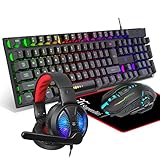
- Premium and Stylish Gaming Combo — Guided by loyalty to user friends needs, we strives to making the gaming keyboard mouse combo upgrade appearance more handsome and the performance more powerful
- Ergonomic Gaming Keyboard Mouse — The 104 keys keyboard in kit is very light and thin.The floating design make it easy to clear.Just that popular and fashionable game mouse will give you perfect feel
- RGB Gaming Bundle — The gaming keyboard can switch between three color modes.And there 7 colours circular breathing LED gaming mouse.The cool colorful light can eliminate the fatigue caused by work and make you feel very comfortable. Better LED lights to buy for your Gaming Setup
- Lightweight Gaming Headset with Microphone — Rgb beam,high imitation protein earpad,40mm driver and high definition microphone that will give you best sound quality, strong noise isolation.Retractable headband design with synthetic leather-wrapped ear-cushions allows you to play for hours in complete comfort
- Universal Compatibility — Plug and play, no driver needed. Easy to use.Gaming keyboard and mouse are compatible with Windows 2000/Vista/Win7/Win8/Win10/MAC/Linux.Headphone is compatible PS4, PS4 Pro,XBOX ONE/S/X, Nintendo Switch,Microsoft adapter, Windows PC, Laptop, tablets, mobile.For notebooks,game consoles etc, it depends on the port to decide whether to purchase an additional interface or converter
Using the Xbox app on Windows PC
- Open the Xbox app on Windows and sign in.
- Open the Cloud Gaming section.
- Find the Play with mouse and keyboard collection, or look for the relevant mouse-and-keyboard badge on an individual game.
- Launch the game.
- Click inside the stream, use full-screen mode if necessary, and press a key or move the mouse.
- Open the game’s input or control settings to verify the active device and change bindings.
The Xbox PC app was one of the official clients included in the rollout. The collection name and location can change, so use the current badge or collection rather than following an old screenshot. See Xbox’s June 2024 announcement for the original collection-based rollout.
Switching between mouse and keyboard and a controller
Xbox supports switching input methods during play in supported sessions:
- Press a keyboard key or move the mouse to activate mouse-and-keyboard input.
- Press the Xbox button on a connected controller to switch back to controller input.
- Use
F9to enter or release mouse capture when the pointer is trapped or not being delivered to the game.
Some games may retain controller button prompts even after accepting mouse and keyboard. Prompts are therefore not a perfect compatibility test. Test actual movement, aiming, typing, and menu navigation instead.
What “native” mouse-and-keyboard support means
Native support means the cloud game receives mouse and keyboard events as mouse and keyboard input. Where the game implements the feature properly, it can provide keyboard prompts, key-binding options, mouse sensitivity controls, and true mouse aiming.
Rank #3

- 🌟【60% Keyboard: 61 Keys Compact Design】Ultra-compact layout with 61 keys that free up your desktop, leaving more space for mouse movements. Especially,there is a long detachable Type-C cable on the right side of the keyboard, ensuring safe transport in your travel bag. For FPS gamers who are focused on speed & secure connection,this 60% keyboard is proper to pick.( 💙Simply Press Fn+Space key to switch to direction keys for efficient operates)
- 🌟【Mechanical keyboard: Responsive Blue Switches】CACKBIRD gaming keyboard features blue mechanical keys that give a satisfyingly "click" sound and tactile resistance with each keystroke, so you can be confident with every move you make.This keyboard is more comfortable to type on since it features deeper key travel,greater feedback,and more space between keys.Great for gamers, office workers, copywriters, programmers and editors.( 💙 Include a keycaps puller for cleaning or other needs.)
- 🌟【Rainbow LED Backlit Accompanies Your Night】18 LED Rainbow Backlight Effects,5 brightness levels & speeds,1 customization mode.Exchange lighting mode for every mood and environment--making your gaming experience one-of-a-kind.Moreover,this gaming keyboard features double injection ABS engineered keycaps that bring crystal clear uniform backlight to greatly improve your typing accuracy at night.
- 🌟【Ergonomic Design & Full keys Anti-ghosting】All keys can work simultaneously,thus you can fully enjoy your game without program errors.Our Keyboard with the scientific stair-up keycaps design and stable foldable kickstands brings maximum comfort,keeping your hand in the most natural state to minimize hand fatigue after longtime use and help you minimize typos.
- 🌟【Strong Compatibility】Plug and play,no drivers or software required.Work perfectly for Windows 10/8/7/XP, Mac OS, and Windows VISTA.
That is different from a virtual-controller workaround. A browser extension or utility can translate keyboard and mouse actions into virtual Xbox-controller inputs. This may make a controller-only game playable with a keyboard, but the game sees a controller rather than native mouse-and-keyboard input. Mouse movement may behave like an analog stick, with less precise aiming and different limits.
Third-party tools such as Better xCloud’s mouse-and-keyboard feature document both native input and virtual-controller modes. The project warns that virtual-controller use in online games could be treated as cheating or XIM-like input by a game and may create enforcement or ban risk. Do not use controller emulation competitively unless you have checked the relevant game’s rules. It is also not a guarantee that every title, browser, or operating system will work.
Platform and client differences
| Platform or client | What to expect |
|---|---|
| Windows PC browser | Best-documented route. Use Edge or Chrome, full-screen the stream, click inside it, and use F9 if capture does not start. |
| Xbox app on Windows | Official client with a mouse-and-keyboard collection or badges. It is Windows-only, and labels can change. |
| Mac | Try Chrome first for native mouse-and-keyboard streaming. Xbox lists Safari for general cloud gaming, but the mouse-and-keyboard rollout specifically centered on Edge and Chrome, so Safari should not be treated as an equivalent native-input route. |
| Chromebook | Test with Chrome. The local operating system may recognize the devices while the stream still needs focus and pointer capture. |
| Android | A physical mouse and keyboard may work at the operating-system level, but native cloud input depends on the specific browser or app and game. Do not assume it behaves like Windows Chrome. |
| iPhone and iPad | Safari may support general cloud streaming, but native mouse-and-keyboard gameplay and pointer capture are more variable. Treat it as client- and title-dependent rather than guaranteed. |
| Smart TVs and Fire TV | Controller-first. Xbox lists selected TV and Fire TV devices for cloud gaming, but platform-specific peripheral support can be limited. |
| Xbox consoles | Keep this separate from the desktop-browser procedure. Xbox has tested and documented input features in particular contexts, but an Insider test or selected-app support is not proof of universal retail cloud mouse-and-keyboard availability on every console. |
| Steam Deck and other handhelds | The browser or client and the operating system’s input layer both matter. Use a supported browser, connect the peripherals before launching, and prefer the Windows Xbox app where that platform supports it. |
Xbox’s general cloud-gaming page lists Windows PCs, Apple and Android devices, Xbox consoles, selected TVs, Fire TV, Meta Quest, and other supported devices. Those general device listings should not be read as a promise that native mouse-and-keyboard gameplay is identical on all of them.
Do these 3 things before closing this tab:
1Scan for outdated or missing drivers - takes under a minute2Repair Windows errors before they cause bigger problems3Fix the driver behind crashes, sound loss and screen glitchesTroubleshooting: when mouse and keyboard do not work
| Symptom | Likely cause | What to do |
|---|---|---|
| Neither device does anything | The game is unsupported, the client is not compatible, or the stream has no focus. | Confirm the game appears in the current mouse-and-keyboard gallery. Use Edge or Chrome on a computer, click the stream, press F9, and restart the session after reconnecting the devices. |
| The keyboard works but the mouse does not | Pointer capture has not started, or the browser is not in the expected full-screen state. | Use the player’s full-screen button, click the stream, move the mouse, and press F9. Try the other supported browser if the problem continues. |
| The mouse moves the desktop instead of the game | The browser still owns the pointer. | Click inside the game video area. Use the stream’s capture control or F9; releasing and recapturing the pointer can also clear a stuck state. |
| Controller prompts remain visible | The game has not switched its interface, or it continues to display controller prompts while accepting mouse and keyboard. | Press a key, move the mouse, and inspect the game’s input settings. Test whether movement and aiming work rather than relying only on the icons. |
| The game works on a local PC but not in the cloud | The PC version and Xbox/cloud version expose different input implementations. | Check the Xbox cloud gallery. PC support alone is not evidence of Xbox Cloud Gaming support. |
| A controller is required at launch | The title may require a controller for an initial menu, sign-in screen, agreement, or other game-specific step. | Use a controller for setup if available, try the Xbox app, or play the PC version locally. Native gameplay support does not guarantee that every startup screen accepts mouse and keyboard. |
| Bluetooth devices are unreliable | Pairing, power management, operating-system support, or browser access may be interfering. | Connect the devices before opening the session. Test a wired USB mouse and keyboard or a 2.4 GHz receiver. |
| Touch controls appear | A touch device or client may be exposing touch or mouse-emulation behavior rather than native mouse input. | Disable touch emulation if the client offers that option. Do not confuse touch controls or a virtual controller with native support. |
F9 does nothing |
The keyboard uses a function-row modifier, the shortcut was remapped, or the client/browser has claimed the key. | Try Fn+F9, inspect the client’s shortcut settings, or use the stream’s on-screen capture control. |
| The feature used to work and then stopped | A browser update, lost focus or permissions, changed game support, or a client regression. | Update the browser, sign out and back in, reconnect the devices, reload the stream, and test a second game known to support native input. |
| Input feels delayed or sluggish | Cloud latency, Wi-Fi interference, server distance, or excessive in-game sensitivity. | Use Ethernet or 5 GHz Wi-Fi, close bandwidth-heavy applications, reduce sensitivity, and compare the experience with local PC play. A sufficient download speed does not eliminate latency. |
Microsoft’s community troubleshooting guidance also emphasizes full-screen mode, selecting the stream, and recapturing the pointer. Exact player controls can change between client versions.
Rank #4

- 【65% Compact Design】GEODMAER Wired gaming keyboard compact mini design, save space on the desktop, novel black & silver gray keycap color matching, separate arrow keys, No numpad, both gaming and office, easy to carry size can be easily put into the backpack
- 【Wired Connection】Gaming Keybaord connects via a detachable Type-C cable to provide a stable, constant connection and ultra-low input latency, and the keyboard's 26 keys no-conflict, with FN+Win lockable win keys to prevent accidental touches
- 【Strong Working Life】Wired gaming keyboard has more than 10,000,000+ keystrokes lifespan, each key over UV to prevent fading, has 11 media buttons, 65% small size but fully functional, free up desktop space and increase efficiency
- 【LED Backlit Keyboard】GEODMAER Wired Gaming Keyboard using the new two-color injection molding key caps, characters transparent luminous, in the dark can also clearly see each key, through the light key can be OF/OFF Backlit, FN + light key can switch backlit mode, always bright / breathing mode, FN + ↑ / ↓ adjust the brightness increase / decrease, FN + ← / → adjust the breathing frequency slow / fast
- 【Ergonomics & Mechanical Feel Keyboard】The ergonomically designed keycap height maintains the comfort for long time use, protects the wrist, and the mechanical feeling brought by the imitation mechanical technology when using it, an excellent mechanical feeling that can be enjoyed without the high price, and also a quiet membrane gaming keyboard
A quick diagnostic checklist
- Is the target game listed in the current Xbox mouse-and-keyboard gallery?
- Are you using Edge or Chrome on a computer?
- Do the mouse and keyboard work in another local application?
- Were they connected before the cloud game launched?
- Is the stream in full-screen mode?
- Did you click inside the stream?
- Did you try
F9orFn+F9? - Did you check the game’s own input and key-binding settings?
- Does another supported game work on the same device?
- Is the problem specific to one title, one browser, or one client?
What to do if the game is unsupported
- Use native Xbox Cloud Gaming support where available. This gives the game the correct input type and is the safest option for online play.
- Try the Xbox app on Windows instead of the browser. The app can expose the supported collection or badge differently.
- Use an Xbox controller. Controller input remains the most broadly compatible option across the cloud catalog.
- Install the PC version locally. If the game has a PC release with mouse-and-keyboard support, local installation normally provides more consistent input and latency, but it requires suitable hardware and the relevant game access.
- Consider a virtual-controller utility only as a last resort. It is third-party, not native input, may have pointer-lock and platform limitations, and can create policy or enforcement risks in online games.
Another cloud provider may offer a PC version of a game with true mouse-and-keyboard input, but that involves a different library, account, subscription, region, and licensing arrangement. It is an alternative—not a way to make Xbox Cloud Gaming support every title.
Is Xbox Cloud Gaming still in beta?
Older setup guides often call it “Xbox Cloud Gaming (Beta)” because the mouse-and-keyboard rollout began under that name in 2024. Xbox described Cloud Gaming as out of beta in its February 25, 2026 update. The current service name does not change the central limitation: native mouse-and-keyboard input remains title- and client-dependent.
Frequently Asked Questions
Does a game’s PC mouse-and-keyboard support guarantee that it works on Xbox Cloud Gaming?
No. The cloud session runs the Xbox version, and the Xbox implementation must support the input. Check the current Xbox mouse-and-keyboard gallery or badge instead of the PC feature list.
Can I use Safari for Xbox Cloud Gaming with a mouse and keyboard?
Safari is listed for general Xbox Cloud Gaming, but Xbox’s mouse-and-keyboard rollout specifically named Edge and Chrome. For the most reliable native-input setup, use Edge or Chrome on a computer; Safari support for native mouse capture should be treated as uncertain.
Best Value

- 🎮𝐀𝐥𝐥-𝐢𝐧-𝐎𝐧𝐞 𝐆𝐚𝐦𝐢𝐧𝐠 & 𝐎𝐟𝐟𝐢𝐜𝐞 𝐂𝐨𝐦𝐛𝐨 - 𝐔𝐧𝐛𝐞𝐚𝐭𝐚𝐛𝐥𝐞 𝐕𝐚𝐥𝐮𝐞: Experience premium features without the premium price. This complete wired set includes a full-size RGB backlit keyboard AND a high-precision gaming mouse, offering everything you need for gaming, work, or study. Perfect for first-time gamers, students, and budget-conscious users seeking a durable and responsive upgrade from basic peripherals.
- ✨𝐅𝐮𝐥𝐥𝐲 𝐂𝐮𝐬𝐭𝐨𝐦𝐢𝐳𝐚𝐛𝐥𝐞 𝐑𝐆𝐁 & 𝐌𝐚𝐜𝐫𝐨𝐬 - 𝐘𝐨𝐮𝐫 𝐂𝐨𝐧𝐭𝐫𝐨𝐥, 𝐘𝐨𝐮𝐫 𝐒𝐭𝐲𝐥𝐞: Dive into your gameplay with dynamic lighting. The keyboard features 6 vibrant backlight modes, and the mouse boasts 10 lighting effects. Easily customize colors, brightness, and patterns using the intuitive software (downloadable at redragon.com). Record complex command sequences with the 5 dedicated macro keys for a competitive edge in any game.
- 🔇𝐐𝐮𝐢𝐞𝐭, 𝐂𝐨𝐦𝐟𝐨𝐫𝐭𝐚𝐛𝐥𝐞 & 𝐑𝐞𝐬𝐩𝐨𝐧𝐬𝐢𝐯𝐞 𝐓𝐲𝐩𝐢𝐧𝐠 𝐄𝐱𝐩𝐞𝐫𝐢𝐞𝐧𝐜𝐞: Designed for marathon sessions. The soft-touch membrane keys provide satisfying feedback while remaining remarkably quiet—ideal for shared spaces, late-night gaming, or office use. The included ergonomic wrist rest reduces fatigue, and the anti-ghosting keyboard ensures every key press is registered instantly, even during intense action.
- ⚙️𝐏𝐥𝐮𝐠, 𝐏𝐥𝐚𝐲, 𝐚𝐧𝐝 𝐏𝐞𝐫𝐬𝐨𝐧𝐚𝐥𝐢𝐳𝐞 - 𝐄𝐚𝐬𝐲 𝐒𝐞𝐭𝐮𝐩, 𝐋𝐚𝐬𝐭𝐢𝐧𝐠 𝐒𝐞𝐭𝐭𝐢𝐧𝐠𝐬: Get straight to the fun with true plug-and-play compatibility for Windows 10/11. Your personalized lighting and DPI settings are saved directly to the hardware, meaning they stay the way you set them, even after restarting your PC. Adjust the mouse sensitivity on-the-fly (800-7200 DPI) with a dedicated button for precision in any task.
- ✅𝐑𝐞𝐥𝐢𝐚𝐛𝐥𝐞 𝐏𝐞𝐫𝐟𝐨𝐫𝐦𝐚𝐧𝐜𝐞 & 𝐄𝐧𝐡𝐚𝐧𝐜𝐞𝐝 𝐂𝐨𝐦𝐩𝐚𝐭𝐢𝐛𝐢𝐥𝐢𝐭𝐲: Built to last and work seamlessly. We’ve listened to feedback to ensure reliable performance. This combo is rigorously tested for durability and offers wide compatibility with major PCs and laptops. It’s the trusted, feature-packed kit that delivers excitement for young gamers and reliable functionality for everyday users.
Why does the game still show Xbox controller buttons when my keyboard works?
Some games retain controller prompts even while accepting mouse and keyboard. Press a key, move the mouse, and test actual movement or aiming. Check the game’s input settings if the controls remain unresponsive.
Can I use a browser extension to play unsupported games with a mouse and keyboard?
Some third-party tools emulate an Xbox controller, but that is not native mouse-and-keyboard support. Mouse movement may act like an analog stick, and online games may treat controller emulation as prohibited or XIM-like input. Check the game’s rules before using such a tool.
The Bottom Line
For the best chance of success: connect a wired USB mouse and keyboard to a computer, use the latest Edge or Chrome, open xbox.com/play, choose a title from the current mouse-and-keyboard gallery, launch it in full-screen mode, click the stream, and press a key or use F9 to capture input. If the game is not listed, its PC support does not change that limitation—use a controller, play the PC version locally, or consider third-party emulation only with its technical and online-policy risks understood.
Quick Recap
Product prices and availability are accurate as of the date/time indicated and are subject to change. Any price and availability information displayed on Amazon at the time of purchase will apply.




