Rocket League has three ways to communicate: preset Quick Chat, typed text, and voice chat. Open Settings > Chat to configure them, then use Settings > Controls > View/Change Bindings to check or change the keys and buttons. Choose the chat type and audience that fit: typed messages sent during a match are not visible to players on other platforms, while Quick Chat is.
Choose the chat type for your message
| Chat type | What you send | Audience and visibility |
|---|---|---|
| Quick Chat | Preset messages, which you can customize | Visible to everyone in the match, including players on other platforms |
| Typed text | A message you write using a keyboard or on-screen input | Use Match, Team, or Party Text Chat to select the audience. Epic says typed in-match messages are visible only to players on your platform. |
| Voice chat | Live voice through your microphone | Configure voice chat and its options in the Chat settings; check that you are in the intended Team or Party voice channel. |
How to set up Quick Chat
- From the main menu, open Settings > Chat.
- Use the Quick Chat dropdown to turn it on or off.
- Select View/Change Quick Chat to edit the preset messages assigned to each slot.
- To change the keys or buttons, open Settings > Controls > View/Change Bindings and adjust the Quick Chat groups: Information/Post Game, Compliments, Reactions, and Apologies.
Quick Chat sends a preset rather than free-form text. It is the in-match option to use when communicating with players on other platforms.
How to send typed text to the right audience
Open Settings > Chat to configure Match Chat and Party Chat. Match Chat controls messages for the match audience; Party Chat controls messages for your party. The controls menu lists separate bindings for Text Chat (everyone in the match, subject to platform visibility limits), Team Text Chat (teammates), and Party Text Chat (party members).
- Open Settings > Controls > View/Change Bindings.
- Find the binding for the audience you want: Text Chat, Team Text Chat, or Party Text Chat.
- Use that binding in the game and send your message.
Party text chat works with friends across platforms. Epic’s Cross-Platform FAQ lists U as the PC Party Chat key; console bindings may differ, so check the in-game Controls menu for your platform. A typed match message may appear to send successfully but still be invisible to opponents or teammates using another platform.
#1 Best Overall

- Durability: The A10 Headset features durable headband anodized aluminum wrapped in a damage resistant polycarbonate blend so your headset will withstand wins, losses, and everything in between
- Comfort: Extended comfort memory foam ear-cushions keep you from fatigue so you can play as long as you want in complete comfort
- Communication: With the omnidirectional mic featuring flip-up mute functionality and in-line Volume Control, you and your teammates will always hear each other clearly and accurately
- Sound Quality: Tuned for Gaming, the A10 features immersive and accurate audio the way sound developers intended. Low latency and precise voice communication mean you're always in sync
- Compatibility: PS5, PC/MAC, XBOX SERIES X|S, NINTENDO SWITCH, VR, STREAMING
How to enable voice chat and Push to Talk
Turn voice chat on
- Open Settings > Chat > View Voice Chat Settings.
- If prompted the first time, choose whether to enable voice chat.
- Adjust the voice-chat options. To disable voice chat, choose Off in its dropdown.
- To change the voice-chat binding, open Settings > Controls > View/Change Bindings.
Use Push to Talk
- Open Settings > Chat and enable Push to Talk.
- Go to Settings > Controls > View/Change Bindings.
- Find Voice Chat (Push to Talk) and assign a key or button.
Epic describes open mic as the default. With Push to Talk, voice is activated using the assigned control.
Limit chat, mute players, or report them
If you want preset messages without typed text, Epic recommends setting both Match Chat and Party Chat to Allow Text Chat with Nobody (Off). You can also manage individual interactions in the player menus:
Rank #2

- Extended wireless range up to 15m (50ft) through the 2.4 GHz wireless signal.
- On-device audio balancing between voice chat and game audio on Xbox or PC
- Console specific USB transmitter for easy cross-platform compatibility.
- Built-in battery provides more than 15 hours of battery life and can be recharged through the USB-C port.
- Quick and easy mute functionality with the flip-to-mute microphone.
- Mute a player from the in-match Friends List, in the Voice Channels tab.
- Block a player through the Friends List or the player-report flow.
- Report a player from the in-match, post-match, or Recent Players screens.
Why chat options may be missing
Parental controls
If options for chatting with everyone are unavailable, Epic says parental controls may be restricting them. A parent or guardian can review the Epic account’s Social Permissions and set Epic Voice Chat Permissions and Epic Text Chat Permissions to Everyone where permitted, then restart Rocket League. Children should not bypass parental controls.
Cabined Accounts and age restrictions
A Cabined Account may not have voice chat until a parent or guardian completes the account setup and permission steps. Epic notes that some age groups may remain unable to use certain features even after parental consent. Separately, Epic’s Push to Talk support page says voice chat defaults to Nobody when an account indicates the user is under 18, and children under 10 are limited to Friends Only. These restrictions can explain why a setting is unavailable.
Free tools Windows power users keep installed
One-click scans. No signup required.
Quick Recap
Best Value

- 【MULTI-PLATFORM GAMING HEADSET】Mpower is a multi-platform gaming headset, which can connect to PS4 / XBOX ONE ( 2015 Version ) / Laptop / VR/ Mobile Devices via the 3.5mm audio+mic combined jack. The conversion cable with dual 3.5mm audio and mic jacks is for connecting to PC.
- 【EXCELLENT STEREO AUDIO】Mpower is equipped with 50mm speakers and makes the stereo sound powerful. The retractable and flexible microphone picks up your voice clearly and the big leather earmuffs provide an extreme noise-cancellation function.
- 【SUPERIOR USING EXPERIENCES ON MOBILES AND CONSOLES】Convenient in-line control is easy to adjust while gaming. The compatible L-shape jack at the end of cable makes it easy to put the hands in the right position with comfortable posture while playing mobile games.
- 【COMFORTABLE TO WEAR】The ear muffs are padded with skin-friendly leather, which feels extremely soft.This comfortable earmuffs and headband are breathable and skin-friendly to wear for a long while.
- 【Perfect After-sales Service】 Please kindly know that all the products would be checked or tested before shipping out to ensure a good shopping experience. We promised to bring the best quality gaming headset to our customers. We offer 18 months after-sale service to our customer.
Rank #4
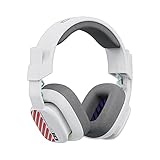
- Enhanced sound quality: ASTRO Gaming A10 Gen 2 Headset for PlayStation 5, PlayStation 4, Nintendo Switch, PC, Mac features custom-tuned 32mm dynamic drivers so you can always hear your game and teammates with clarity and precision
- Flip-to-mute mic: Integrated boom microphone that can be flipped up to mute for privacy and down for crystal-clear comms via a 6.0 mm unidirectional mic
- In-line volume control: This PlayStation headset features a removable headphone cable with in-line volume control, letting you adjust audio without pausing the game
- Built to last: An ultra durable headband and sturdy construction offers reliable performance that transcends the standard gaming headset for PlayStation PS5/PS4
- Comfortable over-ear headset: Ergonomical and robust circumaural construction with a closed back design; optimal for long sessions
Rank #3

- Up to 15m wireless range: Removing the boundaries of wires, the 2.4 GHz wireless signal provides a range of up to 15m
- Cross-platform connectivity: With our new USB transmitter, you can easily connect cross-platform between console and PC; separately sold console-specific USB transmitters allow for cross-console compatibility using the same headset
- 15+ hours battery life: Enjoy anxiety-free marathon gaming sessions with more than 15 hours of battery life; recharge the headset using the included USB-C to USB-A cable
- Flip-to-mute microphone: Be in charge of your full audio experience with the flip-to-mute uni-directional microphone which delivers clear and accurate communication with easy mute functionality
- EQ presets: Choose between 3 different audio presets to make sure you have the best equalizer settings for the game you’re playing
What to check if voice chat does not work on PC
- Make sure the headset and microphone are connected, and check the headset’s physical mute switch.
- In Chat settings, confirm the selected input and output devices are the ones you intend to use.
- Check that you are in the intended Team or Party voice channel.
- Try another headset to help identify a hardware problem.
- Check the default sound devices in Windows and Rocket League server status.
Official support references
- Rocket League Quick Chat setup
- Rocket League text chat setup
- Rocket League voice chat setup
- Push to Talk setup
- Rocket League Cross-Platform FAQ
- Mute, block, or report players
- Chat restrictions and parental controls
- Cabined Account voice chat setup
- PC voice chat troubleshooting
Product prices and availability are accurate as of the date/time indicated and are subject to change. Any price and availability information displayed on Amazon at the time of purchase will apply.




