
RetroArch is available on Apple TV 4K and Apple TV HD from the tvOS App Store. Install the official app, pair a Bluetooth controller, transfer legally obtained game files over your network, and select the appropriate libretro core. Before you build a library, configure cloud synchronization or another backup: tvOS may reclaim RetroArch’s cache storage, including saves and save states.
RetroArch works on Apple TV 4K and Apple TV HD through the tvOS App Store. For most people, the App Store version is the best place to start because it is easier to install and does not require periodic sideload renewal. You will need a compatible Bluetooth or MFi game controller, legally obtained game files, and BIOS files for systems whose cores require them.
The most important warning is storage: tvOS treats RetroArch’s storage as cache space that it may reclaim. That can include ROMs, save files, and save states. Do not treat the Apple TV as the only permanent copy of your game library or progress. Configure RetroArch Cloud Sync where available, and keep an external backup of important saves.
As an Amazon Associate I earn from qualifying purchases.
Recommended Free Tools
What you need
- Apple TV 4K or Apple TV HD with access to the App Store. Apple TV (3rd generation) cannot install new apps because it has no App Store.
- RetroArch for tvOS, installed from the App Store.
- A Bluetooth or MFi-compatible game controller. The Siri Remote can navigate RetroArch’s menus, but it is not a normal game controller for gameplay.
- Legally obtained game content, such as personal dumps where permitted by local law, public-domain software, homebrew, or publisher-authorized releases.
- BIOS or firmware files only when the selected core requires them.
- A computer on the same network if you plan to transfer files using RetroArch’s web server or WebDAV.
If you are buying hardware specifically for this setup, an Apple TV 4K is the current host-device option to consider. You will also need the normal Apple TV television setup, including a suitable HDMI connection. Neither a particular Apple TV model nor a particular HDMI cable guarantees that every RetroArch core will perform equally well.
1. Check your Apple TV model
RetroArch requires an Apple TV model with the App Store. That means Apple TV 4K and Apple TV HD are relevant for this guide. Apple TV (3rd generation) cannot download RetroArch or other new apps because it does not have an App Store.
#1 Best Overall
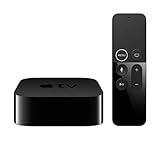
- Dolby Digital Plus 7.1 surround sound for immersive, room-filling sound - 1080p HD high-quality video for fluid, crisp video
- Apple A8 chip gives a big boost to audio, video, and graphics, for even better game and app experiences than ever before
- Smooth, easy voice search by asking the Siri Remote - Use AirPlay to share photos, videos, and more from your device on your TV
- Apple Original shows and movies from Apple TV+ - Watch the latest hits from Disney+, Amazon Prime Video, HBO Max, and more
- More ways to enjoy your TV with Apple Arcade, Apple Fitness+, and Apple Music - Private listening using up to two sets of AirPods
Libretro’s current tvOS sideload documentation identifies tvOS 13 or later as the supported target for its tvOS builds. For the App Store version, use the compatibility information shown by the RetroArch listing on your particular Apple TV as the practical authority. The exact menus and available cores can change with RetroArch and tvOS updates.
2. Install RetroArch from the tvOS App Store
- Open the App Store on Apple TV.
- Search for RetroArch.
- Select the app, then choose Get or the download button.
- Open RetroArch after installation.
Libretro announced worldwide App Store availability for RetroArch on May 15, 2024. The App Store listing identifies Apple TV as a supported platform and lists systems supported by the official build, including NES, SNES, Game Boy, Game Boy Advance, Nintendo 64, PlayStation, PSP, Sega systems, arcade platforms, DOS, ScummVM, and others.
Crashes, No Sound, or Screen Glitches?
Random freezes, missing sound and display glitches usually trace back to one bad driver. Find and replace yours safely.Free scan · under a minutePC Slower Than It Used to Be?
A free scan shows the junk files, broken settings and background clutter dragging Windows down - then fixes them in one click.Free scan · Windows 10 & 11That list describes supported cores or systems, not a promise that every game will run perfectly on every Apple TV. Performance depends on the Apple TV model, the core, the game, the display, and whether the core benefits from capabilities unavailable to App Store apps.
App Store version versus sideloading
The App Store build is the sensible choice for most users. A sideloaded build may offer additional cores or capabilities related to dynamic recompilation and JIT, but it requires a separately signed IPA and can require periodic renewal depending on the signing method.
Apple-platform cores must be packaged and code-signed with the application. In practice, you generally cannot copy arbitrary desktop core files into the App Store version and expect RetroArch to load them.
The App Store build cannot use JIT because Apple does not permit App Store apps to use it. Some demanding cores may therefore be unavailable, may perform worse, or may not work as intended. This matters particularly for systems and cores that depend heavily on dynamic recompilation. If a demanding system fails, switching cores may help, but there is no universal setting that makes every system compatible.
Quick wins for a faster PC:
Scan for outdated or missing drivers - takes under a minuteDriver Scan →Clear out junk files and repair common Windows errorsFree Scan →Fix the driver behind crashes, sound loss and screen glitchesFind Drivers →3. Pair a proper game controller
The Siri Remote is useful for navigating RetroArch’s menus as an LRUD device, but Libretro specifically does not treat it as a normal gameplay controller. For actual games, pair a Bluetooth game controller for Apple TV instead. This is the most important accessory for a usable Apple TV RetroArch setup.
Apple documents support for MFi-compatible controllers, Sony DualShock 4 and DualSense controllers, Bluetooth Xbox Wireless Controllers, the Xbox Elite Wireless Controller Series 2, and Xbox Adaptive Controllers. Compatibility can vary by controller revision and firmware, so check that a controller supports Bluetooth rather than relying only on a USB connection.
- Put the controller into Bluetooth pairing mode according to its manufacturer’s instructions.
- On Apple TV, open Settings > Remotes and Devices > Bluetooth.
- Select the controller when it appears under available devices.
- Launch RetroArch and wait for it to detect the controller.
Apple TV 4K and Apple TV HD support up to four Bluetooth game controllers simultaneously, or one controller when a Bluetooth audio accessory is also connected. Apple TV also provides controller profiles and button-customization options through its controller settings.
RetroArch adds another layer of configuration. It can use one controller mapping at the frontend, another mapping for a particular core, and a further remap for an individual game. Do not assume that the physical A and B buttons mean the same thing on Nintendo, PlayStation, Xbox, and generic controllers.
What’s actually slowing this PC down?
Pick the symptom - the matching free tool is one click away.
4. Complete the first-run RetroArch setup
The first launch may look sparse, with missing artwork or presentation assets. Before transferring a large library, update the resources that the installed build makes available.
- Open Online Updater.
- Choose Update Core Info Files.
- Choose Update Assets.
- Choose Update Databases.
- Choose Update Overlays and Update GLSL Shaders if those options are available.
- Open Settings > Directory and note the paths for System/BIOS, save files, save states, and content or file-browser directories.
Menu names can vary with the RetroArch version and menu driver. If a label differs slightly, use the equivalent option visible in your installed app rather than following an old screenshot literally. Knowing the configured directories is especially important on tvOS because it tells you where to upload BIOS files and where to look when backing up saves.
5. Transfer legally obtained games to Apple TV
Apple TV does not provide the same general-purpose Files-app workflow available on iPhone or iPad. RetroArch’s tvOS build provides two practical network-transfer methods: its built-in web server and WebDAV.
Rank #2

- 4K High Dynamic Range (Dolby Vision and HDR10) for stunning picture quality
- Dolby Digital Plus 7.1 surround sound
- A10X Fusion chip for ultra-fast graphics and performance
- Voice search by asking the Siri Remote
Option A: RetroArch’s built-in web server
This is usually the simplest option for uploading a few files or creating a basic folder structure.
Do these 3 things before closing this tab:
1Repair Windows errors before they cause bigger problems2Fix the driver behind crashes, sound loss and screen glitches3Clear out junk files and repair common Windows errors- Start RetroArch on Apple TV.
- Open its file-transfer or web-server function and note the local web address displayed by RetroArch.
- On a computer connected to the same network, open that address in a web browser.
- Use the web interface to create folders such as
roms,bios, or folders organized by system. - Upload your legally obtained game files and any required firmware files.
- Return to RetroArch and use Load Content to browse to the uploaded files.
If the address does not open, check that the computer and Apple TV are on the same network, that the web server is still running, and that the address was entered exactly as shown. Guest Wi-Fi networks and router client-isolation settings can prevent devices from reaching one another.
Option B: WebDAV
RetroArch versions newer than 1.19.1 document a built-in WebDAV server on port 8080. On macOS, Finder can connect through Go > Connect to Server using an address in this form:
http://appletv.local:8080Replace appletv.local with the Apple TV’s actual hostname or IP address if that name does not resolve. WebDAV is useful when you want to copy multiple folders rather than upload individual files through a browser.
WebDAV does not make Apple TV storage permanent. Files copied through WebDAV remain in the tvOS storage area that the operating system may reclaim. Use it as a transfer method, not as your only archive.
6. Load a core and launch a game
A libretro core is the emulator or game engine that runs a particular system or content type. RetroArch needs a compatible core before it can launch most game files.
- Choose Load Core and select an installed core appropriate to the system, or choose Load Content first and let RetroArch offer compatible cores.
- Choose Load Content.
- Browse to the folder containing the uploaded game file.
- Select the file.
- If RetroArch lists multiple compatible cores, choose the one appropriate to the system and content.
For a small library, manually loading content is often the least complicated approach. You do not need to build a playlist before playing a game.
7. Build playlists and add artwork
Playlists become useful when you have a larger collection. RetroArch’s strict scanner compares files with its databases, commonly using a CRC checksum for cartridge-style files or a disc serial for many disc-based files.
A game can be playable but absent from a strict playlist if its dump, filename, revision, or format does not match the database entry. Missing from a playlist does not automatically mean that the file is bad.
- Return to Online Updater and update Core Info Files and Databases.
- Open Playlists > Import Content, or the equivalent content-import option shown in your build.
- Select the folder containing your legally obtained games.
- Try a strict scan first.
- If known-good content is omitted, launch it manually or use a loose scan.
- Optionally run Playlist Thumbnails Updater to download artwork for matching entries.
Loose scanning is helpful for playable files that do not match the database, but it may produce less accurate names, system assignments, or artwork. Manually created playlist entries may also need names that match the thumbnail repository’s conventions if you want automatic artwork.
8. Add BIOS files when a core requires them
Some cores require BIOS or firmware files; others do not. The correct filename, location, region, and checksum are specific to the core. Do not assume that a file is valid merely because its name looks correct.
Rank #3

- Upgrade your TV, instantly – Fire TV Stick HD is our fastest HD streaming stick ever, with a streamlined navigation that jumps straight to your movies, shows, and live TV. Take your entertainment on the go with the new ultra-portable profile. And watch it all come to life with crisp Full HD and Wi-Fi 6 support.
- The newest Fire TV experience (2026) – Our biggest update to Fire TV has a new, modern design that gets you to your entertainment fast. Browse dedicated content categories, pin more of your favorite apps, and get personalized recommendations from Alexa+. Spend less time scrolling, and more time watching.
- All your apps in one place – Prime Video, Netflix, YouTube, Disney+, Apple TV, HBO Max, Hulu, Peacock, Paramount+, and thousands more. It’s easy to find what to watch from hundreds of thousands of movies and TV episodes, including free, ad-supported content. Subscription fees may apply.
- Our most portable stick – Thin and light, without extra clutter. Connects directly to your TV's HDMI port without blocking other ports.
- Easier than ever to set up – Now with Direct Power, it's powered by your TV with the included USB-C cable and eliminates the need for a wall adapter.
- Check the documentation for the core you are using.
- Confirm that the BIOS belongs to the correct system and region.
- Open Settings > Directory > System/BIOS and note the configured directory.
- Upload the file there, or into a core-specific subfolder if that core’s documentation requires one.
- Match the required filename and extension exactly.
- Verify the cryptographic checksum when the core documentation provides one.
- Restart or reload the core and try the content again.
A BIOS error can be caused by the wrong region, an incorrect filename, a bad dump, an incorrect directory, or a core that expects a different firmware revision. Changing random filenames is less reliable than checking the core’s required hash and path.
9. Configure controls and hotkeys
RetroArch separates frontend controls from the controls passed to a running core. Start with the global controller mapping, then create a core-specific or game-specific remap only when necessary.
- Open Settings > Input.
- Confirm that the controller is assigned to Player 1.
- Configure menu navigation if RetroArch did not map it correctly.
- Launch a game and open the Quick Menu.
- Open Controls or the remapping option.
- Adjust the layout for the current core.
- Save the remap for the core or for the individual game.
- Set a convenient menu-toggle or hotkey combination before relying on save states, rewind, or other shortcuts.
Test the menu-toggle combination before starting a long session. A controller can appear to work in the frontend while having an unusable in-game mapping, particularly when switching between controller layouts designed for different consoles.
10. Save games—and protect them from tvOS storage reclamation
RetroArch supports both ordinary in-game save files and emulator save states. They are not interchangeable:
- In-game saves are created by the game itself and are generally the more portable form of progress.
- Save states are snapshots associated more closely with the selected core and content environment. They may not transfer reliably between different emulators or even between different cores.
On Apple TV, both types of data are at risk if they remain only in RetroArch’s local storage. Libretro warns that tvOS can delete cached files without warning, including saves and save states.
Use this protection strategy:
- Prefer normal in-game saves whenever possible.
- Use save states for convenience, not as the sole copy of progress.
- Enable RetroArch Cloud Sync if the installed tvOS build exposes it.
- Consider the iCloud or CloudKit backend on Apple platforms, or a WebDAV backend if you understand its server and credential requirements.
- Periodically export or copy important save files through the web server or WebDAV workflow.
- Keep a backup on a computer or other storage that tvOS cannot reclaim.
Cloud Sync is not a substitute for understanding where RetroArch is writing files. Confirm the configured save and save-state directories first, and make sure synchronization has completed before deleting or replacing local data.
Free tools Windows power users keep installed
One-click scans. No signup required.
11. Improve picture quality and input response
Begin conservatively. The television’s own image processing can add noticeable input delay, while aggressive RetroArch features can increase resource use or cause instability with some cores.
- Turn on the television’s Game picture mode.
- Start with RetroArch’s default video settings.
- Try integer scaling for a sharper pixel-art image where the display and game make it practical.
- Add a lightweight shader only after confirming that the core runs reliably.
- Try run-ahead cautiously. It can reduce perceived latency in suitable cases, but it increases resource use and may not work well with every core.
- Use wired Ethernet for transfers or synchronization problems when your Apple TV model includes an Ethernet port. Wi-Fi is sufficient for many households, so Ethernet is optional rather than a RetroArch requirement.
These are starting points, not measured performance guarantees. The right balance depends on the Apple TV model, core, game, controller connection, and television.
Common Apple TV RetroArch problems
RetroArch cannot find the game
First confirm that the upload completed and that the file is in a directory RetroArch can browse. Check that the selected core supports the file type. If the game is absent only from a playlist, try Load Content manually or use a loose scan; strict database matching can omit otherwise playable files.
“Failed to load libretro core” appears
Apple-platform cores are signed executables. An unsigned or incorrectly packaged core cannot load. If you installed RetroArch from the App Store, use the cores supplied by that official build rather than copying arbitrary desktop core files into the app.
The Siri Remote does not work during gameplay
This is expected. It is suitable for LRUD-style menu navigation, not normal game-controller input. Pair a supported Bluetooth or MFi controller through Settings > Remotes and Devices > Bluetooth.
Rank #4

- LOCAL 4K MEDIA PLAYBACK: Enjoy smooth playback of your personal video, music, and photo collection directly from USB flash drives, SD cards, SSDs, or external hard drives. Simply connect your storage device and start enjoying your personal media collection
- AUTO PLAY & RESUME PLAYBACK: Automatically starts playback when powered on and remembers the last playback position for both videos and music, allowing you to continue exactly where you left off with every use
- WORKS WITH NEW & OLDER DISPLAYS: Connect easily to modern TVs through HDMI or older televisions, monitors, and projectors using AV output. Designed for reliable compatibility and simple setup
- VERSATILE ENTERTAINMENT APPLICATIONS: Suitable for home entertainment, personal media libraries, RV travel, classrooms, offices, and local display applications. Enjoy smooth playback wherever your media collection goes
- WIDE FORMAT & STORAGE SUPPORT: Supports popular video formats including MKV, MP4, AVI, MOV, TS, MPG, VOB, and M2TS with H.264 and H.265 (HEVC) decoding. Compatible with FAT32, exFAT, and NTFS file systems for flexible media storage
A demanding system runs poorly or will not launch
The App Store version cannot use JIT, and some cores need dynamic recompilation or benefit substantially from it. Verify the game file and any required BIOS, try another available core, and reduce demanding video features. Do not assume that a system listed by the App Store will run equally well on every Apple TV model.
Save files or save states disappear
tvOS may have reclaimed RetroArch’s cache storage. Restore the files from Cloud Sync or a backup, then enable ongoing synchronization or export saves regularly. If there is no backup, the deleted data may not be recoverable from the Apple TV itself.
Playlist artwork is missing
Run the asset and database updates, then use Playlist Thumbnails Updater. If the content was manually scanned or added, check that its playlist name and entry name match the naming expected by the thumbnail database.
The Tool Desk
Outbyte PC Repair FREEClear out junk files and repair common Windows errorsFree Scan →Outbyte Driver Updater FREEFix the driver behind crashes, sound loss and screen glitchesFind Drivers →Legal note about ROMs and BIOS files
RetroArch provides the frontend and emulator cores; it does not provide copyrighted game files or console firmware. Obtain game files and BIOS files through lawful means applicable in your jurisdiction. Possible lawful sources include personal dumps made from media you own where local law permits that practice, public-domain or openly licensed homebrew, and publisher-authorized releases.
The legality of personal copying, format shifting, and BIOS extraction varies by country and region. This guide does not recommend ROM-download sites or claim that making a personal copy is legal everywhere. Check the law where you live and use only content you are entitled to use.
The practical Apple TV RetroArch setup
Install the App Store build on an Apple TV HD or Apple TV 4K, pair a real Bluetooth controller, transfer legally obtained content over the local network, select the appropriate core, and add only the BIOS files that core actually requires. Then configure Cloud Sync or maintain an external save backup before building a large library. That last step matters more on Apple TV than it does on many other RetroArch platforms because tvOS can reclaim the app’s cache storage without warning.
Frequently Asked Questions
Can you install RetroArch on any Apple TV?
RetroArch is available through the tvOS App Store on Apple TV 4K and Apple TV HD. Apple TV (3rd generation) cannot install it because that model has no App Store.
The Tool Desk
Outbyte PC Repair FREERepair Windows errors before they cause bigger problemsFix Now →Outbyte Driver Updater FREEScan for outdated or missing drivers - takes under a minuteDriver Scan →Can I play RetroArch games with the Siri Remote?
No. The Siri Remote can navigate RetroArch menus as an LRUD device, but it is not a normal game controller. Pair a supported Bluetooth or MFi-compatible controller through Settings > Remotes and Devices > Bluetooth.
How do I get games onto RetroArch on Apple TV?
Yes. RetroArch can transfer files through its built-in local web server, and versions newer than 1.19.1 document a WebDAV server on port 8080. The Apple TV and computer must be on the same network.
Will RetroArch saves remain permanently on Apple TV?
It can. tvOS may reclaim RetroArch’s cache storage without warning, including game files, save files, and save states. Use Cloud Sync where available and keep external backups of important progress.
Does Apple TV RetroArch support every emulator equally well?
Some systems and cores may be unavailable or perform worse in the App Store build because Apple does not allow App Store apps to use JIT. A sideloaded build may offer different capabilities but requires additional signing and maintenance.
The Bottom Line
Best approach: use the App Store version of RetroArch, pair a Bluetooth controller instead of relying on the Siri Remote, transfer content through the built-in web server or WebDAV, and back up saves because tvOS may delete cached files. Expect core availability and performance to differ from desktop RetroArch, especially because the App Store build cannot use JIT.
Quick Recap
Product prices and availability are accurate as of the date/time indicated and are subject to change. Any price and availability information displayed on Amazon at the time of purchase will apply.

