Yes—but there is not one SCUF app for every controller. The main SCUF App is a mobile configuration app for the SCUF Omega and is available on iPhone and Android. Other SCUF controllers use separate software, so the model name matters before you download anything.
Yes—but there is not one SCUF app for every controller. The main SCUF App is a mobile configuration app for the SCUF Omega and is available on iPhone and Android. It lets Omega owners remap controls, save profiles, tune sticks and triggers, calibrate the controller, adjust some PC settings, customize lighting, and update firmware.
As an Amazon Associate I earn from qualifying purchases.
Other SCUF controllers use different software: Valor uses the separate SCUF Valor Companion App, Envision uses Corsair iCUE on PC, and Nomad uses a Nomad-specific companion-app setup. Before downloading anything, identify the exact SCUF model.
Recommended Free Tools
Which app does your SCUF controller use?
| SCUF controller | Software | Platform and important notes |
|---|---|---|
| SCUF Omega | SCUF App | iPhone and Android; the primary mobile app for remapping, profiles, calibration, tuning, firmware, and other Omega settings. |
| SCUF Valor Pro | SCUF Valor Companion App | Microsoft Store app for Windows PC and Xbox. SCUF currently describes it as a beta, and firmware and calibration requirements vary by model. |
| SCUF Valor Wired | SCUF Valor Companion App | Supported versions include Hall Effect and TMR models, but SCUF says some units require a firmware update and joystick recalibration before use. |
| SCUF Envision and Envision Pro | Corsair iCUE | PC setup and advanced configuration are handled through iCUE rather than the main SCUF App. |
| SCUF Nomad | SCUF Nomad Companion App | The Nomad pairing flow prompts you to install the companion app if necessary. Existing SCUF-app installations may launch the Nomad setup automatically. |
| Older SCUF models | Model-specific support software or documentation | Do not assume compatibility with the current Omega app. Check the controller’s exact support page and firmware information. |
This model-by-model distinction is important. SCUF’s current comparison and support materials identify the Omega, Valor, Envision, and Nomad as having different software paths. The older Reflex line has been replaced by Omega, and the Instinct line has been replaced by Valor Pro; that does not automatically make the current apps compatible with every legacy controller.
#1 Best Overall

- With broad game support, the Logitech Gamepad F310 works with old standbys to today's biggest titles, so it's easy to set up and use with your favorite games.
- Profiler software allows the gamepad to be programmed to perform keyboard and mouse commands for games without gamepad support.* * Requires software installation.
- A familiar control layout that doesn't require a learning curve to be able to use, with all the same buttons as on an Xbox 360.
- The unique floating D-pad rests on four switches-instead of a single pivot point-making it responsive to quick changes in direction.
- The six-foot cord lets you lean back and play a comfortable distance from your PC monitor.
What is the SCUF App?
The SCUF App is the mobile configuration utility associated with the SCUF Omega. It is not primarily a game-streaming or game-launching app. Its purpose is to change how the controller behaves and to save those settings.
The app-store listings identify Corsair Memory, Inc. as the developer. The iPhone version is listed for iPhone, while the Android version is described for Android phones. The Omega manual directs owners to download the app through the Apple App Store or Google Play Store.
Because the software is model-specific, searching for “SCUF app” is not enough by itself. An Omega owner should look for SCUF App; a Valor owner needs SCUF Valor Companion App; and an Envision owner should install Corsair iCUE.
What can the Omega app do?
- Remap controls: Assign inputs to the Omega’s rear paddles, SAX side buttons, G-Keys, and other supported controls.
- Save multiple profiles: Keep different layouts or sensitivity configurations for different games and play styles.
- Tune thumbsticks: Adjust sensitivity, deadzones, response behavior, and calibration. Some Omega materials also describe response-curve and response-shape controls.
- Configure triggers: Adjust Instant Trigger behavior and trigger sensitivity where supported by the controller configuration.
- Update firmware: Install controller firmware updates through the app when SCUF provides them.
- Adjust lighting: In PC mode, customize Omega RGB lighting and the lightbar.
- Change additional Omega settings: Depending on the controller mode and available firmware, SCUF materials describe options such as SOCD settings for fighting games, microphone and volume controls, battery monitoring, and mobile connectivity.
- Maintain a Bluetooth connection: The app uses Bluetooth to communicate with and synchronize settings to the controller.
SCUF’s Google Play description says profiles are stored on the Omega rather than only on the phone. In practical terms, the intended result is that saved configurations remain associated with the controller when you move between supported devices, although the exact behavior can depend on the firmware and setting involved.
Rank #2
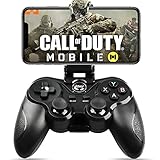
- 🎮NO SIMULATOR NEEDED – Adopt Key Mapping function (just download a APP), login and play game from the original game App instead other unauthorized platforms or simulators, never worry about your gaming account got banned by using OTHER controller.
- 🎮COD & APEX FULLY SUPPORT – The gamepad supports most controller supported Action/Racing/Fighting/Shooting/Athletics games from Android App store. Such as Call of Duty Mobile, APEX Legends Mobile, Summoners War, War Dragons, NBA 2K Mobile Basketball, NBA LIVE Mobile Basketball,Madden NFL Overdrive Football, MLB 9 Innings 18 and so on.
- 🎮COMPATIBLE MODELS - Requires Android 6.0+ version. Compatable with Samsung Galaxy S23/S23+/S23 Ultra, Galaxy S22 Ultra/S22+/S22, Galaxy S21/S21+/S21 Ultra, Galaxy S20/S20+, Samsung Galaxy S10+ S10 S9 S8 S7 Note 10+ 9 8 A9 C9, LG, Moto, Google, Nokia Lumia, Huawei, Xiao MI, Table [BUT do not support Android device with MediaTek CPU].
- 🎮LONG BATTERY LIFE - The bluetooth controller for android comes with 400mAh large capacity rechargeable battery enables you playing the games more than 18 hours after full charge. The holder for device can be adjustable from 2.16 - 3.66 in, support 4 - 7 inch phone screens.
- 🎮NOTICE – The gamepad is 100% compatible with COD/ Diablo Immortal, problem such as can not press 2 buttons simultaneously or key doesn't work with settings, it is due to your game setting problem, please contact us first, we will guide you to solve problem.
Is the SCUF App available on iPhone and Android?
Yes, for the Omega-oriented SCUF App. Apple lists it for iPhone, and Google Play lists an Android version. The app should be installed from the official marketplace listing rather than from an unofficial download site.
Do not interpret “mobile app” as “universal computer app.” The Apple listing says the app is designed for iPhone and is not verified for macOS, while the Android listing describes use from an Android phone. A Mac, Windows PC, or unsupported tablet may not provide the same installation or configuration experience.
PC users should instead follow the software path for their controller. Omega owners can use the mobile app for configuration and PC-specific options; Valor owners use the Microsoft Store companion app; and Envision owners use iCUE.
Do these 3 things before closing this tab:
1Repair Windows errors before they cause bigger problems2Scan for outdated or missing drivers - takes under a minute3Clear out junk files and repair common Windows errorsHow to set up the correct SCUF software
SCUF Omega
- Confirm that the controller is a SCUF Omega.
- On an iPhone, search the Apple App Store for SCUF App. On Android, search Google Play for the same name and verify that Corsair Memory, Inc. is listed as the developer.
- Enable Bluetooth on the phone and follow the app’s pairing instructions.
- Allow the app to detect the controller and check whether a firmware update is offered.
- Apply a profile, then test remapping, stick response, deadzones, and trigger behavior in a game or controller test.
- Calibrate the sticks if the app or the manual recommends it, especially after firmware changes or when the center position appears incorrect.
If you are considering the controller specifically because it has the current mobile configuration path, the SCUF Omega PS5 controller is the model directly associated with the main SCUF App. Confirm the current model, seller, platform compatibility, and firmware support before buying, since retail availability can change.
Rank #3

- Mapping Buttons: Enhance your gaming experience with two programmable mapping buttons on the back, allowing you to assign 2 functions for quick access to your most-used commands
- Precision Control with Adjustable Vibration: Customize the intensity to 30%, 70%, or 100% or turn it off entirely
- Turbo Function for Rapid Action: Dominate the competition with the turbo function, offering three speed settings at 5, 12, or 20 presses per second
- Ergonomic Design with 2m Cable: The 2-meter cable offers ample length for comfortable gaming, allowing you to sit back and enjoy your game
- Wide Compatibility: the RivalPlay wired controller is compatible with Win 7, 8, 10, and 11, offering plug-and-play functionality without the need for additional drivers
SCUF Valor
- Confirm whether you have a Valor Pro Wireless, Valor Wired with Hall Effect sticks, or Valor Wired with TMR sticks.
- Open the Microsoft Store on a supported Windows PC or Xbox console and search for SCUF Valor Companion App.
- Install the app and apply any required controller firmware.
- Calibrate the joysticks as directed by SCUF’s setup guide.
- Create profiles, map controls, and tune thumbsticks and triggers.
SCUF currently labels the Valor companion software as beta. That means features and behavior may change, and SCUF documents known issues and workarounds. Hall Effect Valor Wired units in particular require the specified firmware update and recalibration before the app can be used correctly.
For Xbox and PC buyers comparing hardware, a SCUF Valor Pro Wireless is relevant only if you are comfortable using the separate beta companion-app path rather than the main mobile SCUF App.
SCUF Envision
- Install Corsair iCUE through the official SCUF or Corsair software-download path.
- Connect the Envision controller to the PC with USB-C.
- Allow the required driver to install and restart the PC if iCUE or SCUF recommends it.
- Use iCUE to create profiles, remap buttons, launch applications from controller inputs, and adjust thumbstick response curves.
Envision also has onboard profile-remapping functionality, so some remapped controls can remain available without constantly opening iCUE. A SCUF Envision Pro therefore belongs in the iCUE ecosystem—not in the main Omega-focused SCUF App.
Quick wins for a faster PC:
Repair Windows errors before they cause bigger problemsFix Now →Scan for outdated or missing drivers - takes under a minuteDriver Scan →SCUF Nomad
- Begin the Nomad pairing process described in the Nomad manual.
- If the required software is not installed, follow the prompt to download the SCUF Nomad Companion App.
- If the SCUF app is already installed, allow the pairing process to launch the Nomad companion experience.
- Use the Nomad-specific app flow for the customization settings documented for that controller.
Nomad should be treated as its own companion-app experience. The available evidence does not establish that every Nomad feature is identical to every Omega feature, so do not assume that an Omega tutorial or profile will transfer directly.
Rank #4

- RGB Cool Lightning Bolt & Long Battery Life: Switch controller with lightening bolt style and 9-color LED looks really cool; 4 light modes: solid lights, breathing lights, RGB strobe led light and led off; Fully charged: 3-4 hours, Runtime: 10-15 hours
- Widly Compatible & One-key Pairing/Wake Up: The switch pro controller is compatible with Switch/Lite/OLED/PC Windows 7/8/10 (only wrok for pc under wired connection); 2 pairing ways; Support one key to wake up your switch console
- Programmable Button & 3 Speeds Turbo: Switch controllers has simplify complex skill operations with M1/M2 key; Support single and multiple mapping; 3 adjustable burst: 5 shots/s, 12 shots/s and 20 shots/s; Programming and Turbo will maximize game play
- Sensitive Motion Control & 4-Level Nice Vibration: 6-axis gyro sensor help you react quickly, enhance experience in sports games; Buttons and joysticks are responsive, no lag; Dual vibration motors with 4-level feedback: Strong, Medium, Weak and None
- Great Gift For All People: This cool switch controller will be great gifts for women, men, girl, boy, family and friends; Packing list: 1 X Wireless switch controller, 1 X Type-C cable, 1 X Detailed user manual, 1 X Cool gift box
Common mistakes and fixes
“The app cannot find my controller.”
- Check the model name first. You may be trying to connect a Valor or Envision through the Omega app.
- Confirm Bluetooth is enabled for an Omega mobile setup, and keep the controller close to the phone.
- Close other controller-management software that could be holding the connection.
- Restart the controller and phone, then repeat pairing.
- For Valor, use the Microsoft Store companion app and complete any required firmware update and calibration.
- For Envision, connect by USB-C and use iCUE rather than the mobile SCUF App.
“My sticks behave incorrectly after an update.”
Run the model-specific calibration procedure. This is particularly important for Valor Wired models, for which SCUF documents firmware and recalibration requirements. On an Omega, check the deadzone and sensitivity settings and recalibrate if the app offers that option.
“I installed an old Valor app and it is not working.”
Follow SCUF’s current Valor setup instructions. SCUF’s guide records version-specific setup information, including a requirement to redownload the app for installations that used an older version released before March 4, 2026. Because this is version-dependent, reinstall the current Microsoft Store version rather than relying on an old app package.
“Can I use the Omega app with a Reflex, Instinct, Vantage, or another older SCUF controller?”
Do not assume so. Current product pages and comparison material may discuss discontinued controllers or earlier app support, but that is not confirmation that the current Omega app supports them. Check the exact model’s SCUF support documentation, compatible firmware, and connection method before installing or updating anything.
What’s actually slowing this PC down?
Pick the symptom - the matching free tool is one click away.
What should you download?
- Omega: The mobile SCUF App from the Apple App Store or Google Play Store.
- Valor Pro or Valor Wired: The SCUF Valor Companion App from the Microsoft Store, followed by the applicable firmware and calibration steps.
- Envision or Envision Pro: Corsair iCUE on a PC, with the controller connected by USB-C during setup.
- Nomad: The Nomad Companion App installed through the pairing flow.
- Older models: The software and instructions specified for that exact controller by SCUF support.
Bottom line
There is a SCUF app, but it is not a universal app for the entire SCUF range. The main SCUF App is for the SCUF Omega on iPhone and Android. Valor uses a separate beta companion app for Windows and Xbox, Envision uses Corsair iCUE on PC, and Nomad uses a Nomad-specific companion flow. Match the download to the controller model before attempting to pair, update firmware, or calibrate the hardware.
Best Value

- Versatile compatibility: supports Xbox Series X/S, Xbox One X/S consoles and PC Win10 and above (including the game platform Steam).
- Precise control: features Hall joysticks and Hall triggers for a comfortable feeling, long service life and improved game accuracy.
- Plug and Play Convenience: Wired USB connection (removable) for easy setup and instant play without the need for additional drivers.
- Customizable experience: Includes 2 custom backbuttons that allow users to eliminate false triggers and improve their gaming experience.
- Impressive gameplay: Provides a pulsating vibration trigger and an asymmetric vibration grip motor for intense tactile feedback.
Frequently Asked Questions
Does every SCUF controller work with the SCUF App?
The main SCUF App is designed for the SCUF Omega and is available on iPhone and Android. It is not confirmed as a universal app for all SCUF controllers.
What app does the SCUF Valor use?
No. SCUF Valor controllers use the separate SCUF Valor Companion App, which SCUF currently labels as beta. The app is available through the Microsoft Store for supported Windows PC and Xbox setups.
Does SCUF Envision use the SCUF App?
No. SCUF Envision controllers use Corsair iCUE on PC for setup, profiles, mappings, and advanced configuration.
Free tools Windows power users keep installed
One-click scans. No signup required.
What can the SCUF App do?
The Omega app supports remapping, profiles, stick and trigger tuning, calibration, firmware updates, and some lighting and PC settings. Available controls can depend on the model mode and firmware.
The Bottom Line
Short answer: Yes. The main SCUF App supports the SCUF Omega on iPhone and Android, but other SCUF controllers use different software. Valor uses the beta SCUF Valor Companion App, Envision uses Corsair iCUE, and Nomad uses its own companion-app flow.
Quick Recap
Product prices and availability are accurate as of the date/time indicated and are subject to change. Any price and availability information displayed on Amazon at the time of purchase will apply.




