
jitlib.dll errors usually appear as “The program can’t start because jitlib.dll is missing from your computer,” “jitlib.dll was not found,” or “Error loading jitlib.dll. The specified module could not be found.” The file belongs to Jitter, Cycling ’74’s video, matrix-processing, and graphics technology used by Max and other Max-based applications.
The 60-second answer
Do not download jitlib.dll from a DLL website or copy it into C:WindowsSystem32.
As an Amazon Associate I earn from qualifying purchases.
First identify the program that fails. Then repair or reinstall that exact program from its official installer. For Max, reinstall the matching Max version. For a Max standalone, reinstall the standalone or obtain a corrected build from its developer. The legitimate file normally belongs in the application’s own installation tree, commonly a support folder, rather than in a Windows system directory.
PC Slower Than It Used to Be?
A free scan shows the junk files, broken settings and background clutter dragging Windows down - then fixes them in one click.Free scan · Windows 10 & 11Crashes, No Sound, or Screen Glitches?
Random freezes, missing sound and display glitches usually trace back to one bad driver. Find and replace yours safely.Free scan · under a minuteIf the file is present but Windows reports that its module cannot be found, the missing item may be a dependency such as the Microsoft Visual C++ runtime. Work through the fixes below in order.
#1 Best Overall

- Music Production and Beat Maker Essential -USB powered MIDI controller with 25 mini MIDI keyboard velocity-sensitive keys for studio production, virtual synthesizer control and beat production
- Total Control of your Production - Innovative 4-way thumbstick for dynamic pitch and modulation control, plus a built-in arpeggiator with adjustable resolution, range and modes
- Native Kontrol Standard (NKS) Integration - Akai Professional and Native Instruments have partnered to bring NKS support to the MPK Controller series, get ready to Kontrol straight from your MPK
- Choose Your Exclusive Complimentary NKS Bundle - Browse and control Native Instruments presets and sound libraries; select one of three curated Komplete 15 Select bundles: Beats, Band, or Electronic
- The MPC Experience - 8 backlit velocity-sensitive MPC-style MIDI beat pads with Note Repeat and Full Level for programming drums, triggering samples and controlling virtual synthesizer / DAW controls
What is jitlib.dll?
jitlib.dll is a Jitter component of Max/MSP. It is supplied with Max, Max standalones that use Jitter, and other creative applications or games built with Max and Jitter. It is not a Windows system file, general-purpose driver, or standard Windows runtime.
Cycling ’74 documents a current Max installation location similar to:
C:Program FilesCycling '74Max 9supportjitlib.dll
The exact folder depends on the Max version and the application that installed it. Older Max releases used their own application directories, and a standalone can keep a private copy inside its own folder.
Free tools Windows power users keep installed
One-click scans. No signup required.
Ableton Live and Max for Live content may include a private Max resource tree. Do not assume that every jitlib.dll error belongs to Ableton itself. Check the exact executable named in the error and repair that application.
There is no single verified public file size, hash, or version that applies to every Max and Jitter release. A DLL from one release may be incompatible with another.
Why the error appears
The most likely causes are:
- An incomplete Max or application installation
- A failed update or partial deletion
- A Max standalone packaged without its
supportfiles - Antivirus software quarantining the file
- A missing Microsoft Visual C++ dependency
- A 32-bit and 64-bit mismatch
- An application folder being moved
- Filesystem or disk corruption
- A damaged Windows component
Malware is possible with any unexpected file event, but a missing jitlib.dll does not by itself prove an infection.
Fix 1: Identify the application that owns the file
Before replacing anything, establish which program is failing.
Recommended Free Tools
Check the error window
Read the title bar and the first line of the error. It may identify Max, a standalone application, a game, or another creative program.
If the error appears during startup:
- Close the error.
- Right-click the program’s shortcut.
- Select Properties.
- Read the path in Target.
- Open that folder in File Explorer.
- Search the folder and its subfolders for
jitlib.dll.
You can also search from File Explorer:
- Open the suspected application folder.
- Click the search box.
- Enter
jitlib.dll. - Check whether the file is inside the application directory, a
supportfolder, or a private Max resource folder.
Do not use a copy found in an unrelated program to repair the failing one. Multiple Max versions and multiple Max-based applications can coexist, each requiring its own matching resources.
Rank #2

- Low-profile, multi-function control surface
- New track select and marker advance parameters
- Supports numerous software titles including major DAW programs
Fix 2: Repair or reinstall Max or the parent application
This is the most likely successful fix.
If Max itself fails
- Close Max and any Max-based applications.
- Open a browser and go to Cycling ’74’s official Downloads page.
- Download the Max installer matching the installed release and Windows architecture.
- Right-click the installer and select Run as administrator.
- Follow the installation prompts.
- Restart Windows.
- Open Max and test the patch or project that previously failed.
Use the archive when the affected project depends on an older Max release. Installing the newest Max release is not automatically a repair for every old patch, standalone, or third-party application.
If a normal reinstall does not restore the file, use Cycling ’74’s clean-install procedure:
- Back up projects, presets, and any files stored inside the Max folder.
- Open File Explorer and enter
%APPDATA%in the address bar. - Locate the relevant
Cycling '74folder. - Remove the Max-related application data specified by Cycling ’74’s clean-install instructions.
- Open Control Panel.
- Select Programs and Features.
- Uninstall Max.
- Restart Windows.
- Download a new official installer.
- Install Max again and restart once more.
Do not delete folders before backing up personal Max files. A clean install resets application data and is more disruptive than a standard reinstall.
If a third-party program or game fails
Repair or reinstall the program that displays the error, not just Max.
- Open Settings with Windows key + I.
- Select Apps and then Installed apps.
- Find the failing application.
- Select the three-dot menu.
- Choose Advanced options if available.
- Select Repair and test the program.
- If Repair is unavailable or ineffective, uninstall the application.
- Restart Windows.
- Install a fresh copy from the application developer.
For a traditional desktop application, open Control Panel > Programs and Features, select the program, and choose Repair if the installer provides that option.
If the program is a Max standalone, ask its developer for a complete build. A correct standalone should carry jitlib.dll and its related Jitter resources in its own support directory. Do not copy a random DLL into the folder manually.
Fix 3: Check the Microsoft Visual C++ runtime
“The specified module could not be found” does not always mean that jitlib.dll itself is absent. Windows can show that message when a dependency used by the DLL is missing.
Cycling ’74’s Windows standalone documentation identifies the Microsoft C Runtime Library as a dependency and specifically references Visual C++ 2013 for older standalones.
Use the runtime generation named by the application’s installer or documentation:
Rank #3
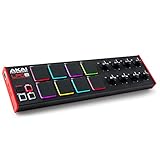
- Beat Maker Essential - 13" pad controller for music production with 8 RGB-backlit responsive MPC drum pads for triggering samples, loops, virtual instruments, and more
- Hands-On Control - 8 assignable Q-Link knobs for seamless mapping to DAW parameters, software instruments, and insert effect plugins for tactile control and precise mixing
- Customized Production - 4 programmable preset slots for instant recall of mappings for DAWs, virtual instruments, effects and more; Create, edit, load and manage all your presets from the computer
- Portable Design, Robust Build - Lightweight beat maker that adopts the sturdy build of standalone MPCs; The slim-line design stows easily in a laptop bag for hands-on production capability everywhere
- Versatile Performance - The Laptop Pad Controller is perfect for musicians, producers, DJs and other music creators on the go; The sleek design fits right in alongside your studio equipment
- Check the application’s readme, installer messages, or support instructions.
- Download the required package from Microsoft’s official Visual C++ Redistributable page.
- Install the architecture required by the application.
- Restart Windows.
- Launch the affected program again.
A 32-bit application requires the x86 runtime even when Windows itself is 64-bit. A 64-bit application requires x64. If you use both types of applications, installing both architectures can be correct.
The Tool Desk
Outbyte PC Repair FREERepair Windows errors before they cause bigger problemsFix Now →Outbyte Driver Updater FREEFix the driver behind crashes, sound loss and screen glitchesFind Drivers →Do not assume that the latest Visual C++ package replaces every older runtime. Older generations can remain side by side, so an older Max standalone may still require its documented runtime.
If the error names a specific Microsoft runtime DLL rather than jitlib.dll, this step becomes more important. If the error remains unchanged after the correct runtime is installed, return to repairing the parent application.
Fix 4: Check Windows Security quarantine
Antivirus software may remove or quarantine a genuine application file after an update or scan.
- Open Windows Security from the Start menu.
- Select Virus & threat protection.
- Select Protection history.
- Review recent detections.
- Open any entry that refers to the affected application or
jitlib.dll. - Confirm the file path and publisher before taking action.
Restore or allow the file only when all of these are true:
Quick wins for a faster PC:
Repair Windows errors before they cause bigger problemsFix Now →Scan for outdated or missing drivers - takes under a minuteDriver Scan →Clear out junk files and repair common Windows errorsFree Scan →- It came from the official Max or application installation.
- The path belongs to the program that is failing.
- The application was obtained from its developer.
- A current security scan does not identify a broader infection.
If the file came from an unknown archive or a DLL download site, do not restore it. Reinstall the parent application instead. Microsoft warns that allowing a malicious file can expose the device.
Fix 5: Check architecture and private application folders
Do not substitute a 32-bit DLL for a 64-bit process, or the reverse. Windows being 64-bit does not tell you which architecture the failing application uses.
Check the application’s documentation or installer. Then:
- Uninstall the affected application.
- Restart Windows.
- Download the matching build from the developer.
- Install it to its normal location.
- Test the application without manually copying files.
A standalone may intentionally keep a private jitlib.dll. A system-wide copy can create version conflicts and does not repair the standalone’s related Jitter resources.
Rank #4

- Mini Keys, Major Performance - 25-key MIDI controller keyboard with responsive keys to play with feel and dynamics; Enjoy expressive songwriting, composing, jamming, playing melodies, bass lines, and more
- Full Range Experience - Play every note with ease; Use the dedicated octave up and down buttons to transpose the range of your software instruments plus a sustain button for expressive performances
- Feature Packed - Use the built-in arpeggiator and clock for creative control of any of your sound sources like software instruments, synthesizers, or USB-enabled modular gear, all by one USB cable
- Customized Production - With 8 programmable preset slots you can instantly recall your mappings for DAWs, virtual instruments, and more; Create, edit, and manage all your presets from the computer
- Versatile Performance - The USB Studio MIDI controller is perfect for your songwriting, beat-making, and DJ remixes whenever you're inspired; The sleek design fits alongside your studio equipment
Fix 6: Update Windows and inspect drivers only when the evidence points there
A graphics driver problem can cause a Max or Jitter application to fail after jitlib.dll loads, but updating a display driver will not normally restore a missing application DLL.
First install pending Windows updates:
- Open Settings.
- Select Windows Update.
- Select Check for updates.
- Install available updates.
- Restart Windows and test the application.
If the error began after a display-driver change:
- Right-click Start.
- Select Device Manager.
- Expand Display adapters.
- Right-click the graphics device.
- Select Properties and open the Driver tab.
- Use Roll Back Driver if the problem began immediately after an update, or select Update Driver.
- Restart Windows.
Do not use Device Manager to hunt for jitlib.dll; it is not a Windows driver.
When manually checking dozens of device drivers is becoming guesswork, Outbyte Driver Updater can scan and show what is outdated; its free scan identifies the issue, while driver installation is handled by the full version. For a missing Jitter component, however, reinstalling the owning Max or application remains the definitive fix.
Fix 7: Repair broader Windows corruption
Use this step when several unrelated programs fail, Windows reports damaged components, or installation errors point beyond Max.
Do these 3 things before closing this tab:
1Fix the driver behind crashes, sound loss and screen glitches2Clear out junk files and repair common Windows errors3Scan for outdated or missing drivers - takes under a minute- Open Start.
- Type
Command Prompt. - Right-click Command Prompt.
- Select Run as administrator.
- Run:
DISM.exe /Online /Cleanup-Image /RestoreHealth
- Wait for it to finish.
- Then run:
sfc /scannow
- Restart Windows.
- Reinstall the affected Max or standalone application.
Microsoft recommends running DISM before SFC. These commands repair protected Windows components. They do not normally restore a third-party Jitter DLL.
Repeating DISM and SFC without knowing what changed can make troubleshooting tedious. Outbyte PC Repair can scan and show what is wrong; its free scan identifies problems, while repairs are handled by the full version. It is optional, and reinstalling the application that owns jitlib.dll remains the correct fix for this file.
If the repair commands report disk errors, check the drive’s health and back up important projects before continuing. System Restore may help when the failure began immediately after a system or software change, but it does not replace a complete Max installation.
Independent reader supportYour contribution helps us test, update, and keep practical guides available for everyone.Do not use System32 or regsvr32
jitlib.dll is not a Windows system DLL. Copying it to either of these locations is not an appropriate repair:
What’s actually slowing this PC down?
Pick the symptom - the matching free tool is one click away.
C:WindowsSystem32
C:WindowsSysWOW64
It can cause version conflicts, leave the actual application incomplete, and conceal a missing dependency.
Do not run:
regsvr32 jitlib.dll
regsvr32 is intended for DLLs that expose a registration entry point such as DllRegisterServer. There is no verified Cycling ’74 instruction to register jitlib.dll, and registration will not rebuild a missing Jitter installation.
Why random DLL downloads are unsafe
An isolated DLL download may have:
- The wrong Max or Jitter version
- The wrong architecture
- Missing related resources
- Unverified metadata or checksum information
- Malware or unwanted software
- A dependency problem that remains unresolved
Use the official Cycling ’74 installer, the affected application developer’s installer, or a corrected standalone build instead. The file should be restored as part of the application that shipped it.
Best Value

- Next-Gen Music Production and Beat Maker Essential - USB-powered MIDI keyboard controller with 25 mini velocity-sensitive keys, optimized for studio or beat production, piano-style performance, synth leads, sample triggering
- Real-Time Control and Navigation - 8x assignable 360° knobs, a vibrant full-color screen and push/turn encoder for hands-on access to settings, presets, and DAW functions, without reaching for a computer
- Iconic MPC Pads with RGB Feedback - 8 velocity- and pressure-sensitive MPC pads deliver an iconic finger-drumming experience, plus dynamic visual feedback to match your performance in studio or on the go
- Studio Instrument Collection Included - A powerful VST/AU and standalone virtual suite packing 1000+ pro-grade drums, keys, synths, bass, FX from AIR, Akai Pro and Moog, plus MPK Mini IV integrated controls
- Pre-Mapped DAW Integration - Get producing in under 15 minutes with Ableton Live Lite 12, Logic Pro, FL Studio and more; comes with an expanded DAW-mapped transport section for uninterrupted workflow
If the error still remains
Collect this information before contacting Cycling ’74 or the application publisher:
- The full error text
- The exact executable path
- The application and Max version
- Whether the process is 32-bit or 64-bit
- Whether
jitlib.dllexists in the application folder - Recent antivirus Protection History entries
- The result of the Visual C++ runtime check
- Installer, crash, or application logs
If jitlib.dll exists but the error says “specified module could not be found,” report that exact wording. It can indicate a missing dependency rather than a missing file.
FAQ
Is jitlib.dll a Windows file?
No. It is a Jitter component associated with Cycling ’74 Max and Max-based applications.
Should I put jitlib.dll in System32?
No. Keep it in the Max or application directory supplied by the official installer, commonly its support folder.
Can Max for Live need jitlib.dll?
Max for Live content may use private Max resources, but identify the exact failing application before repairing anything. Do not automatically blame Ableton Live.
Should I install Visual C++?
Only when the application requires it or the error indicates a runtime dependency. Use the architecture and runtime generation required by that application.
Will SFC restore jitlib.dll?
Normally no. SFC repairs protected Windows files, while jitlib.dll is an application component. Reinstall the owning Max or application.
Can I copy the DLL from another computer?
Not safely unless the application developer provides a matching, verified file for that exact build. Reinstalling the parent application is safer and restores related resources as well.
Quick Recap
Product prices and availability are accurate as of the date/time indicated and are subject to change. Any price and availability information displayed on Amazon at the time of purchase will apply.

