
What’s actually slowing this PC down?
Pick the symptom - the matching free tool is one click away.
There is no single universal Lenovo monitor driver. The correct download depends on the monitor’s exact model or machine-readable identifier and the Windows release installed on your PC. Start by recording both, then use Lenovo Support’s product page and its Drivers & Software area. Lenovo separates monitor driver packages from monitor firmware, so never substitute a firmware package for a driver or install either one for a different model.
This guide explains how to identify your display, select the right Lenovo package, install an executable or INF driver manually, use Microsoft Update Catalog safely, distinguish a driver from firmware, and recover when Windows refuses the update.
As an Amazon Associate I earn from qualifying purchases.
What a Lenovo monitor driver does
A Windows monitor driver is usually an INF package that tells the operating system which display model, supported modes and identification data are associated with a connected monitor. Windows can often show an image using a generic Plug and Play monitor entry, but the generic entry may not expose the model’s preferred identification or manufacturer-specific information. Installing the model-matched package replaces that generic description with Lenovo’s supported monitor information.
Quick wins for a faster PC:
Scan for outdated or missing drivers - takes under a minuteDriver Scan →Repair Windows errors before they cause bigger problemsFix Now →Fix the driver behind crashes, sound loss and screen glitchesFind Drivers →A monitor driver is not the same thing as a graphics-card driver. The graphics driver controls rendering through the GPU; the monitor INF identifies the physical display. If the problem concerns a graphics adapter, USB-C dock, HDMI adapter or DisplayPort adapter, the monitor package may not be the component that needs updating.
#1 Best Overall

- PUSH THE BOUNDARIES OF PRODUCTIVITY – The Lenovo L24-4e monitor elevates everyday productivity by making work brighter and easier. It’s stylish, easy on the eyes, and provides the immersive performance you need to succeed.
- REFRESHING PERFORMANCE FOR POWERFUL MULTITASKING – Match your screen to your workflow with the 100Hz refresh rate and zippy 4ms response time. Optimized to deliver seamless visuals while saving energy, the L24-4e monitor is a powerful multitasker.
- PERSONALIZED COMFORT – Adjust the display to reflect your unique posture with the easy-to-assemble tilt-stand. For more room on your desk, mount it to the wall with VESA mount support capability.
- STYLISH AESTHETIC – The immersive IPS panel seamlessly fits in the modern workplace with its 3-sided borderless display.
- CRAFTED FOR CLARITY – The large 23.8” FHD professional display equips you with all you need for clear, vibrant visuals and a smooth working experience.
Find the exact monitor model before downloading
Read the label or product documentation
Look on the rear or underside label, the original specification sheet, or the monitor’s support page for the model name and type or identifier. Record the complete string, including suffixes. Similar Lenovo displays can have different packages, and a package for a nearby model is not a safe substitute.
Check Windows when the label is inaccessible
- Open Settings > System > Display > Advanced display and select the relevant display. Note the model text Windows reports.
- Open Device Manager by right-clicking Start. Expand Monitors, double-click the display, and open the Details tab. In Property, inspect Hardware Ids if you need an identifier for catalog matching.
- If several screens are attached, use Identify in Advanced display so you do not install a package for the wrong panel.
Also record the Windows edition and release. Windows 11 24H2, 25H2 and 26H1 are distinct release targets in update catalogs, and a package listed for one release is not automatically appropriate for another. Windows 10 and Windows 11 packages can share a listing but still have separate notes and requirements.
Download from Lenovo Support
Open the product’s driver page
- Go to Lenovo Support and use Detect Product, or browse the product selector to the exact monitor model.
- Open Drivers & Software. Lenovo’s support instructions describe this as the route for downloading the latest driver and software.
- Choose Manual Update and set the installed Windows release. Lenovo also offers Scan Now under Automatic Update; use it only after confirming that the detected product is your monitor.
Lenovo’s driver list can be sorted by operating system, component, release date and severity, and it includes a keyword search box. These filters reduce the chance of selecting a package for another display family.
Choose the monitor driver category
Look for an entry under monitor, display or Display and Video Graphics. Lenovo’s model pages separately expose Advanced Firmware. A file in the firmware category is not a Windows monitor driver, even if both entries mention the same model.
Rank #2

- SMOOTH, SHARP, AND SUSTAINABLE – Elevate your workspace with the Lenovo L27-4e monitor. Its 27” FHD display boasts zippy refresh rates, seamless connectivity, and is designed for comfort, clarity, and convenience.
- IMMERSIVE DISPLAY – The 27” 3-sided NearEdgeless IPS panel boasts stunning color accuracy and a 178° wide viewing angle that’s perfect for immersing yourself in work or play.
- BRILLIANT BRIGHTNESS – Enjoy vivid colors with 99% sRGB coverage and 300 cd/m² brightness that is calibrated for brilliant consistency.
- SPEED MEETS SIMPLICITY – The 4ms response time and 100Hz refresh rate ensure that the L27-4e monitor runs like a dream.
- CRISP AND CLEAR IMAGES – The FHD display with 16:9 aspect ratio is carefully designed to render your work, games, and hobbies in true-to-life detail.
Read the package information
Before downloading, compare the model, supported Windows release, version, release date and severity. Open the readme or installation notes and check whether the package is an executable installer or a manual INF bundle, whether administrator rights are required, and whether a restart is specified. Lenovo advises checking the readme rather than assuming every package installs the same way.
Install an executable Lenovo package
- Save the download locally and keep the original filename so you can identify the version later.
- Right-click the file and choose Run as administrator when the instructions require elevated rights.
- Follow the installer’s prompts. Close applications if requested and do not disconnect the monitor while the package is being applied.
- Restart Windows when the readme or installer requires it. One Lenovo driver detail page lists version 6.14.16.0 for Windows 10 and Windows 11, released November 10, 2023, and instructs users to restart after installation.
- After Windows starts again, verify the installed entry in Device Manager and confirm that the monitor’s preferred resolution and refresh-rate options are available in Display settings.
Install an INF bundle through Device Manager
Some Lenovo downloads are not conventional installers. They contain INF, CAT and related files that Windows must associate with the monitor.
- Extract the downloaded archive to a known folder. Lenovo’s manual instructions refer to a path similar to
Monitor DriversWindows; use the folder supplied with your package. - Open Device Manager, expand Monitors, right-click the correct monitor and select Update driver.
- Choose Browse my computer for drivers (Lenovo’s wording is “Browse Computer to find the driver”). Select the extracted Windows folder.
- Keep Include subfolders enabled, then select Next. Windows will use a matching INF if the hardware identifier and operating-system rules agree.
- Restart if Lenovo’s notes request it. If Windows reports that the best driver is already installed, compare the package’s model and hardware identifiers before forcing anything; a generic or newer Windows-selected entry may already be the applicable match.
Use Microsoft Update Catalog when it offers a matching package
Microsoft Update Catalog can list Lenovo Monitor Driver Update packages, but catalog entries are tied to particular Windows releases and hardware identifiers. Treat the catalog as an alternative source, not proof that every Lenovo monitor should receive the newest-looking number.
| Catalog example | Windows scope shown in the listing | Last updated | Size | How to interpret it |
|---|---|---|---|---|
| Lenovo Monitor Driver Update 20.22.0.19 — Microsoft, 2026 | Windows 11 Client version 25H2 and later | July 29, 2026 | 19 KB | Dated example; install only when the hardware identifier and installed release match. |
| Lenovo Monitor Driver Update 6.14.32.0 — Microsoft, 2026 | Windows 11 24H2, 25H2 and 26H1 | April 21, 2026 | 53 KB | Dated example; the broad release range does not remove the hardware-identifier requirement. |
When both Lenovo Support and the catalog show a candidate, compare six fields: exact monitor identifier, Windows release compatibility, package version and date, whether it is a driver rather than firmware, the installation method, and whether Lenovo supplies a readme or restart instruction. Catalog listings and Lenovo support pages change over time, so recheck the current entry before installing.
Rank #3

- ELEVATE YOUR EVERYDAY VIEWING EXPERIENCE- The Lenovo L22-4e monitor packs a visual punch with its ergonomic features and excellent visual clarity. Experience zippy loading times, impeccable color accuracy, and great visual fidelity framed in a modern design.
- CRAFTED FOR CLARITY- Encased in a 3-sided borderless design for a modern flare, the 21.5” FHD display is the perfect way to elevate your office.
- STELLAR IMAGE FIDELTY- The 99% sRGB gamut and 1300:1 contrast ratio ensure your favorite media loads crisply and distortion-free every time.
- COMFORTABLE ON THE EYES- Whether you’re indulging in a movie marathon or working long hours, the L22-4e monitor keeps your eyes sharp. It reduces blue light emissions without causing color distortion for fatigue-free viewing.
- EMPHASIZE ERGONOMICS- Adjust the display to match your unique posture with the easy-to-assemble tilt-stand. For more room on your desk, mount it to the wall with VESA mount support capability.
Driver versus firmware: do not mix them
The practical distinction is straightforward: a Windows monitor driver or INF package identifies the display to Windows, while firmware changes behavior inside the monitor itself. Lenovo’s taxonomy reinforces this by listing Display and Video Graphics separately from Advanced Firmware.
Use firmware only when the Lenovo page is for the exact model and the firmware instructions explicitly match your connection method and operating system. Firmware updates can have their own sequencing, cable and power requirements. Do not use a firmware file because its version number looks newer than your driver, and do not interrupt a firmware procedure. If your question is simply how to make Windows recognize the monitor, start with the driver category.
Verify the update in Windows
- In Device Manager, open Monitors, double-click the display and select the Driver tab.
- Check the provider, driver date and version against the Lenovo package notes. The exact fields available depend on the package and Windows release.
- Open Settings > System > Display > Advanced display and confirm that the intended monitor is selected.
- Check resolution and refresh-rate choices. A monitor driver does not replace a GPU driver, so missing modes may still require troubleshooting the graphics adapter, cable, dock or display settings.
What to do when installation fails
The package says it is not applicable
Recheck the model suffix, Windows release and hardware IDs. A package for another Lenovo monitor can be rejected even when the product names look similar. If you used the catalog, search the listing’s supported hardware identifiers rather than relying on the word “Lenovo.”
Windows keeps the generic monitor entry
Confirm that the extracted folder contains the INF files and that Include subfolders was selected. In Device Manager, target the actual monitor entry, not the graphics adapter or a dock. Disconnecting other displays temporarily can make the correct entry easier to identify.
Rank #4
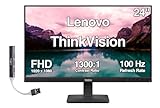
- [Immersive Viewing] Experience sharp visuals on the 23.8" IPS Full HD (1920 x 1080) display featuring a 3-side borderless design, 178° wide viewing angles, anti-glare screen, and 250-nit brightness for a clean, modern workspace.
- [Smooth Performance] A 100Hz refresh rate and up to 4ms response time (Extreme Mode) deliver fluid motion, smooth scrolling, and enhanced productivity for everyday computing and multimedia tasks.
- [Vibrant Colors] Enjoy exceptional image quality with 99% sRGB color gamut coverage, 16.7 million colors, and a 1300:1 contrast ratio for accurate color reproduction and clear content.
- [All-Day Eye Comfort] Low Blue Light, and flicker-free technology helps reduce eye strain and blue light exposure without compromising color accuracy, making long work sessions more comfortable.
- [Flexible Connectivity & Ergonomic Design] Connect easily with HDMI 1.4 and VGA ports, an adjustable tilt stand, and mount your monitor using the 100 x 100mm VESA-compatible design.
The installer completes but nothing appears to change
Some monitor drivers only update identification data, so the picture may look unchanged. Restart if required, then compare the Driver tab’s provider, date and version. If those fields did not change, the package may not match the connected monitor or Windows may have retained a newer applicable driver.
The screen goes blank or modes disappear
Wait for the installer to finish, then restart. If the issue began immediately after the update, open Device Manager, use the monitor’s Driver tab and select Roll Back Driver when Windows makes that option available. Reconnect the known-good cable and check the graphics adapter and dock drivers separately; a monitor INF cannot repair a failing adapter.
Several monitors are connected
Use Identify in Display settings and match each screen to its Device Manager entry before updating. Apply the package to the model it names. Do not assume that two displays from the same product line share one INF.
Quick Recap
Safety and maintenance checklist
- Download from Lenovo Support or a Microsoft Update Catalog listing that matches the monitor’s hardware identifier.
- Keep the complete model and Windows release with the downloaded file.
- Read the package notes, including restart, administrator and connection requirements.
- Never substitute Advanced Firmware for a monitor driver.
- Do not interrupt an installation or firmware procedure.
- Afterward, verify the provider, date and version in Device Manager.
- If the display problem persists, investigate the GPU driver, cable, dock, adapter or monitor hardware independently.
As an optional shortcut, Outbyte Driver Updater can scan more than 100 devices for outdated, corrupted or missing drivers, install official drivers, show current and recommended versions, create driver backups, restore them and schedule scans. It runs on Windows 11, 10, 8 and 7 and offers a 2-day free trial with no credit card before subscription; results vary, and manual model matching remains important.
Product prices and availability are accurate as of the date/time indicated and are subject to change. Any price and availability information displayed on Amazon at the time of purchase will apply.

