Lossless Scaling can make a Windows 11 Steam Deck look smoother, but it cannot create free native performance. The most reliable workflow is to render a game at a lower resolution, upscale it to the Deck’s display, and use LSFG frame generation only when the game already maintains a stable base frame rate.
Think of it as a smoothness and resolution-management tool—not a universal FPS fix. A stable 30 FPS game may produce a more fluid 60-frame presentation, but its simulation and input response still behave much closer to 30 FPS.
As an Amazon Associate I earn from qualifying purchases.
What Lossless Scaling actually changes
Lossless Scaling is a paid Windows utility available through Steam. It provides two separate functions:
The Tool Desk
Outbyte PC Repair FREEClear out junk files and repair common Windows errorsFree Scan →Outbyte Driver Updater FREEFix the driver behind crashes, sound loss and screen glitchesFind Drivers →- Upscaling: The game renders fewer pixels, then Lossless Scaling enlarges or reconstructs the image to the display resolution.
- Frame generation: LSFG creates intermediate frames between game-rendered frames.
Those generated frames can improve perceived motion fluidity, but they do not represent additional game simulation steps. An FPS counter may report 60 displayed frames while the game is still rendering and sampling input at a 30 FPS base rate.
#1 Best Overall

- Steam Deck & ROG Ally Carrying Case: This carrying case is designed for Steam Deck (OLED) , ROG Ally and ROG Ally X (2024), PlayStation Portal Remote Player, providing safe daily protection, sturdy and durable. Giving you convenient storage and portable travel.
- Newly Upgraded Large Capacity: Built-in expanded storage space can accommodate more accessories. You can put original AC charger, docking station, small power bank, headphones and other accessories at the same time. Plenty of space to easily place the Steam Deck or ROG Ally without removing the protective case. Keeps everything in order. Note: Accessories not included
- Multiple Protection: JSAUX ROG Ally X Case uses a thickened EVA shell to resist external extrusion, effectively preventing collisions and falls. With groove design, it will not press on the handle. The built-in fleece compartment protects the screen from scratches
- Double Zipper Design: The zipper is smooth and can be easily opened and closed when using. A good closure ensures that accessories will not fall out. Concealed chain, prevent rust and beautiful design
- Handable and Fixed: Reinforced handle, will not fall off. Velcro straps inside can secure the body. You can easily take this Steam Deck Case anywhere
Lossless Scaling includes LSFG, LS1, FSR, NIS, Integer, XBR and Anime4K scaling methods, plus Fixed and Adaptive frame-generation modes. The best setting depends on the game, source resolution, GPU headroom and your tolerance for latency or artifacts.
Is it worth using on a Windows 11 Steam Deck?
It is most useful when:
- The game is GPU-limited and holds a reasonably stable 30, 40 or 45 FPS.
- The game lacks an acceptable built-in upscaler or frame-generation option.
- You prefer smoother motion over minimum possible input latency.
- The game supports borderless fullscreen or windowed mode.
It is a poor fit when the CPU is already saturated, the base frame rate regularly collapses into the 20s, or the game’s native solution is visibly better. Fast competitive games, titles with severe camera movement, transparent effects or rapidly changing HUD elements can expose ghosting and warped-frame artifacts.
The advice applies to both the LCD and OLED Steam Deck. Valve says the OLED model was designed around the same performance specification as the LCD model, although the displays differ. Refresh-rate options, battery behavior and perceived smoothness can therefore vary without making the OLED a faster rendering device. See Valve’s LCD and OLED guidance.
Requirements and compatibility
- A Steam Deck with Windows 11 installed and updated.
- Current AMD graphics and chipset drivers appropriate for your Deck model and Windows installation.
- The Steam client and a purchased copy of Lossless Scaling.
- A game that runs in borderless fullscreen or windowed mode.
- Enough unused GPU capacity for scaling and, if enabled, frame generation.
- A way to monitor the game’s true base FPS, frame pacing, GPU usage and temperatures.
The Steam listing specifies Windows 10 version 2004 or newer as the minimum operating system, recommends Windows 11 version 24H2, and lists DirectX 11 and modern integrated graphics among its requirements. Exclusive fullscreen is generally not supported unless output is configured for a second display.
Lossless Scaling is not guaranteed to be compatible with every anti-cheat system. Before using it in an online game, check that game’s rules and accept that third-party capture or overlay software may create a risk.
Establish a baseline first
Do not enable Lossless Scaling immediately. First find out what the game can do normally:
- Launch the game without Lossless Scaling.
- Choose a sensible native resolution or the game’s internal-resolution scale.
- Play a demanding section rather than an empty hallway or menu.
- Record average FPS, one-percent lows if available, frame-time consistency, GPU usage, temperature and battery drain.
- Identify the bottleneck. High GPU usage suggests a rendering limit; low GPU usage with poor FPS often points to the CPU, the game engine or another system limit.
A stable 30 FPS baseline is usually a better candidate for 2x generation than an unstable 45 FPS baseline. Frame interpolation works best when consecutive source frames arrive consistently.
What’s actually slowing this PC down?
Pick the symptom - the matching free tool is one click away.
Windows 11 setup: step by step
1. Update Windows and the Deck drivers
Install available Windows updates and use graphics and chipset drivers intended for your specific Steam Deck model and Windows installation. Avoid mixing generic AMD packages with Deck-specific drivers unless the procedure is known to be supported. Record your Windows build and driver version so you can identify a later regression.
2. Install Lossless Scaling
Install the utility from its official Steam page. It is a separate paid Windows application, not a built-in Windows or Valve feature.
Rank #2
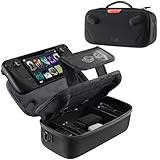
- Upgraded Design for Steam Deck: Fits Steam Deck and Steam Deck OLED. JSAUX designed this next gen carrying case for handheld gamers, built to keep your console and essentials protected for commuting, travel, and gaming on the go
- Dual Layer Storage: Upper layer stores your Steam Deck and microSD cards. Lower layer fits a charger, power bank, cables, dock, earbuds, and more. Removable hook and loop divider lets you customize the layout and keep everything organized. Note: Accessories not included
- Charge Ready Cable Port: Built in cable port lets you connect to your power bank for on the go charging while the case is open. Includes a right angle USB C to USB C cable to help reduce bending at the connector. Note: Power bank not included
- Visible Details for Daily Carry: The center panel folds into a stand for desk mode play. A recessed top groove helps reduce joystick pressure. Secure straps help keep your Steam Deck in place, and the comfortable carry handle makes grab and go travel easy
- Everyday Protection Inside Out: Durable exterior helps resist daily wear and light splashes, while the soft padded lining cushions bumps and helps prevent scuffs and minor scratches during travel
3. Use borderless fullscreen
Open the game’s display settings and select Borderless Fullscreen or Windowed. Do not begin with exclusive fullscreen: it is a common reason the capture path fails.
4. Lower the game’s rendering workload
Reduce the in-game resolution or internal render scale moderately. Do not immediately select the lowest possible resolution. Check small text, menus and HUD elements before proceeding.
Quick wins for a faster PC:
Scan for outdated or missing drivers - takes under a minuteDriver Scan →Repair Windows errors before they cause bigger problemsFix Now →Fix the driver behind crashes, sound loss and screen glitchesFind Drivers →If the game has a good built-in FSR, XeSS or other upscaler, test it separately first. An integrated solution often handles motion vectors, UI and presentation more cleanly than an external capture-based tool.
5. Configure scaling
Start Lossless Scaling, select the actual game window rather than its launcher, choose a scaling method and apply it. LS1 is a sensible general-purpose starting point. FSR or NIS may suit conventional 3D games depending on the source resolution. Integer and XBR are better starting points for pixel-art games, while Anime4K is aimed at anime-like or cartoon-style content.
These are starting associations, not guarantees. Compare readable text, moving geometry and HUD stability at the resolution you actually use.
6. Measure the base rate
Disable frame generation initially. Confirm that the game maintains its intended base FPS during real gameplay. If enabling scaling alone already causes a significant drop, lower the game’s resolution or settings, try a lighter performance model, or abandon the external scaler.
7. Enable LSFG at 2x
For the first frame-generation test, choose Fixed 2x. It is easier to reason about: a stable 30 FPS base aims at a 60-frame presentation, while a stable 40 FPS base aims at 80 displayed frames.
Use Adaptive later if your base rate varies but remains within a controllable range. Adaptive mode targets a specified output rate and can use fractional relationships rather than requiring a simple integer multiplier.
8. Protect the base frame rate
Lossless Scaling needs GPU resources of its own. If the Deck cannot provide them, the game’s original frame rate may fall. Test the result with GPU usage and frame-time data, not just the largest number shown by an overlay.
Rank #3
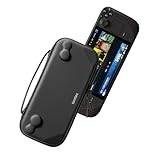
- Slim Steam Deck carrying case: Specially designed for Steam Deck/ Steam Deck OLED players to travel and carry. Super thin and lightweight. Whether it is commuting to work or long-distance travel, it is your best choice
- Super protection: The durable hard shell Protects your Steam Deck Console free from scratches, providing maximum protection for your Steam Deck against the knocks, bumps, and drops that might happen on the go
- Excellent design: The hard shell has raised areas, the accurate design perfectly fits the curves of the steam deck console, and prevents the joystick and buttons from being mis-touched; a built-in padded buffer avoids compression on shoulder buttons
- High quality: Made of splash-proof PU and felt hard shell material and equipped with heavy-duty YKK zippers, this Steam Deck travel case is portable, sturdy, and durable; to provide customers with the best experience from the details
- What you get: A slim Steam Deck carrying bag; Worry-free 12-month warranty, and friendly customer service. (Steam Deck and other accessories not included, for demonstration purposes only)
If the base rate drops after enabling LSFG, lower the game’s render resolution, reduce shadows or volumetric effects, try the lower-power performance model, or disable frame generation. A smooth-looking 60 displayed frames is not an improvement if the underlying game has become erratic.
Do these 3 things before closing this tab:
1Fix the driver behind crashes, sound loss and screen glitches2Repair Windows errors before they cause bigger problems3Scan for outdated or missing drivers - takes under a minute9. Match caps and refresh rates
Match the generated output to a practical display refresh rate where possible. Test the game’s own limiter and any external limiter separately instead of stacking several limiters without knowing which controls final cadence.
For example, a consistent 30 FPS base with 2x generation can be preferable to an unstable 45 FPS target. If output pacing is uneven, lower the target or return to native rendering.
10. Save a per-game profile
Lossless Scaling supports game profiles that can apply settings when a game executable is detected. Save separate profiles for demanding 3D games, lightweight games and pixel-art titles rather than forcing one universal preset.
Useful starting profiles
| Game type | Starting point | What to watch |
|---|---|---|
| Demanding single-player 3D game | Stable 30 FPS base, moderate resolution reduction, Fixed 2x | Input delay, ghosting and whether the base rate remains stable |
| Lighter 3D game | Stable 40 or 45 FPS base, Fixed 2x, higher image quality | Whether native 40/45 FPS already looks and feels better |
| Pixel-art or 2D game | Integer or XBR scaling; usually no frame generation | Hard edges, UI clarity and unwanted interpolation |
| Competitive or precision-focused game | Native rendering or the game’s own upscaler | Latency, anti-cheat policy and visual artifacts |
How to judge the result
Compare four things, in this order:
- Base FPS and frame pacing: Did the actual game-rendered rate stay stable?
- Responsiveness: Do camera movement and controls feel acceptable?
- Image quality: Are text, foliage, particles and thin geometry clean?
- Power and thermals: Did GPU load, temperature or battery drain become excessive?
Do not call the setup successful solely because an overlay reports a higher generated FPS. “60 FPS output” means 60 displayed frames; it does not equal the responsiveness of native 60 FPS.
Recommended Free Tools
Windows 11 settings that may help
Windows 11 includes Optimizations for windowed games. Microsoft says the feature moves compatible games from the legacy bitblt presentation model to the flip model and can enable features such as Auto HDR and variable refresh rate on supported displays. Microsoft also documents per-app graphics-performance preferences on systems with multiple GPUs.
These are supporting Windows features, not Lossless Scaling settings, and they will not materially improve every game. A single-GPU Steam Deck does not benefit from the multi-GPU selection workflow in the same way as a laptop with integrated and discrete graphics. Use Microsoft’s current support page for the exact Windows 11 labels and paths, which can change between builds.
Independent reader supportYour contribution helps us test, update, and keep practical guides available for everyone.Common problems and fixes
Lossless Scaling cannot detect the game
- Switch the game to borderless fullscreen.
- Restart the game after launching Lossless Scaling.
- Select the game window, not the launcher or an overlay.
- Temporarily disable other overlays.
- Test a simple borderless game to determine whether the issue is game-specific.
The screen is black or scaling has no visible effect
Confirm that the correct window is selected, the game is not exclusive fullscreen, and the output is configured for the Deck display. Revert to the baseline, restart both applications and apply one change at a time.
Base FPS falls when LSFG is enabled
This normally indicates insufficient GPU headroom. Lower resolution or GPU-heavy settings, select the lower-power performance model, use a lower multiplier, or disable frame generation. Lossless Scaling’s own listing warns that inadequate free GPU resources can reduce the original frame rate.
Free tools Windows power users keep installed
One-click scans. No signup required.
Rank #4

- Comprehensive Protection: Individually Protected Independent cabin for your Steam Deck, ROG Xbox Ally X (2025) , ROG Xbox Ally (2025), ROG Ally, ROG Ally X, PlayStation Portal or Switch. Efficiently protect the screen from scratch by other sharp devices such as keys, metal goods, etc
- Large Storage: Multiple-layer space that meets different demand, including unique cabin for Steam Deck, Steam Deck OLED & ROG Ally. Separated rooms for different sizes of goods such as JSAUX Steam Deck docking station, powerbank, AC adapter, cellphones, USB C cables, Switch, etc
- Unigue Design: The anti-sloshing belt will keep your bag closely fit with your body while riding or running. The two-side resistance band will prevent your goods from pouring out when open totally the carrying case bag
- Durable Fabric & Fashion Appearance: JSAUX Steam Deck case bag is made of premium durable oxford fabric. The hard shell is made of EVA material with a fashionable appearance
- What You Get: JSAUX BG0105X Carrying Case is compatible with ROG Xbox Ally X (2025) / ROG Xbox Ally (2025) / Steam Deck / ROG Ally / ROG Ally X / PS5 Portal / Switch 2 / Switch , with an 18-Month worry-free period and 24/7 friendly client consultation, if you have any questions, we will resolve your issue within 24 hours
The picture is smooth but controls feel delayed
Generated frames do not make simulation and input sampling equivalent to the generated output rate. Use a higher, stable base rate; prefer 2x over more aggressive multipliers; or disable LSFG for competitive and precision-heavy games.
Ghosting, warped UI or shimmering appears
Try another scaling method, reduce the multiplier and compare the game’s native upscaler. Rapid camera movement, transparent effects, particles and frequently changing HUD elements are difficult cases for external interpolation. Lowering a motion-estimation quality setting may reduce GPU cost, but it can also worsen artifacts, so compare the image rather than assuming a lower setting is better.
Stutter or uneven pacing
Use a stable base cap, match the output expectation to the display refresh rate and remove competing frame limiters. Test Windows 11’s windowed-game optimization both enabled and disabled if the capture path behaves differently. If pacing remains poor, return to native 30 or 40 FPS.
An online game raises an anti-cheat concern
Do not assume that an external scaler is safe simply because it worked for someone else. The developer does not guarantee compatibility with all anti-cheat systems. Check the publisher’s policy and disable Lossless Scaling when the rules are unclear.
A Windows or driver update breaks a previously working setup
Record the Windows build, graphics driver and Lossless Scaling version. Try borderless mode, disable other overlays and check the developer’s current announcements. The developer has documented Windows 11 24H2 capture-related changes involving Desktop Duplication API and Multiplane Overlay behavior, so updates can alter capture results. Roll back only through supported Windows or driver recovery procedures.
How to return to the normal setup
- Disable LSFG.
- Disable Lossless Scaling’s output or close the utility.
- Restore the game’s original resolution or internal render scale.
- Return to the game’s normal fullscreen or borderless setting.
- Use the baseline FPS and frame-pacing measurements for comparison.
Windows 11 is not SteamOS
This guide describes the Windows application. SteamOS uses a different rendering and capture path.
The community-developed lsfg-vk project is a Vulkan layer that brings LSFG functionality to Linux applications. Its documentation recommends a Decky plugin for Steam Deck users and states that the project is community-maintained rather than officially supported. Its SteamOS installation commands are not Windows commands and should not be used in this Windows 11 workflow.
When native solutions are better
Prefer the game’s built-in upscaler when it delivers acceptable quality. It is integrated into the rendering pipeline and may handle motion vectors, HUD elements and latency more effectively. Prefer native frame generation when the game provides a stable implementation compatible with the Deck’s hardware and drivers.
Outdated Drivers Are Slowing You Down
One free scan finds every outdated or missing driver and matches the right update for your exact hardware.Free scan · exact hardware matchPC Slower Than It Used to Be?
A free scan shows the junk files, broken settings and background clutter dragging Windows down - then fixes them in one click.Free scan · Windows 10 & 11If the game already feels good at native 30 or 40 FPS, adding an external layer may only increase complexity, power use or latency. Lossless Scaling earns its place when it solves a specific problem that the game’s own settings do not.
Quick Recap
Product prices and availability are accurate as of the date/time indicated and are subject to change. Any price and availability information displayed on Amazon at the time of purchase will apply.




