PC Slower Than It Used to Be?
A free scan shows the junk files, broken settings and background clutter dragging Windows down - then fixes them in one click.Free scan · Windows 10 & 11Crashes, No Sound, or Screen Glitches?
Random freezes, missing sound and display glitches usually trace back to one bad driver. Find and replace yours safely.Free scan · under a minute“The program can’t start because mwadvantech.dll is missing from your computer.” You may also see “mwadvantech.dll was not found,” “Error loading mwadvantech.dll,” or “The code execution cannot proceed because mwadvantech.dll was not found.”
The 60-second answer
mwadvantech.dll is not a Windows system file. It is the Advantech Adaptor for MATLAB Data Acquisition Toolbox, published by The MathWorks, Inc. Older MATLAB installations use it to connect MATLAB’s data-acquisition interface to compatible Advantech hardware.


As an Amazon Associate I earn from qualifying purchases.
The safest fix is to repair or reinstall the same MATLAB release and Data Acquisition Toolbox that originally used the file. Then install the correct driver for the exact Advantech board from Advantech’s official support portal.
Do not download mwadvantech.dll from a random DLL website, copy it into C:WindowsSystem32, or start with regsvr32. Those actions can leave the underlying MATLAB, driver, release, or architecture problem untouched.
#1 Best Overall
What mwadvantech.dll does
The normal hardware chain looks like this:
MATLAB
  ↓
Data Acquisition Toolbox adaptor
  ↓
Advantech driver
  ↓
Advantech DAQ board
mwadvantech.dll is the adaptor in the middle. It is application software installed with older versions of MATLAB Data Acquisition Toolbox, not a general-purpose Windows component.
A historical MATLAB installation placed the file in a private DAQ directory similar to:
<matlabroot>toolboxdaqdaqprivatemwadvantech.dll
The exact folder depends on the MATLAB release and installation layout. A normal location is inside the MATLAB installation tree, not in C:WindowsSystem32.
Free tools Windows power users keep installed
One-click scans. No signup required.
A historical companion file named mwadvantech.ini may contain hardware definitions used by the adaptor. That is another reason a standalone DLL replacement is unreliable: the adaptor may need matching files, a compatible MATLAB release, and the correct Advantech driver.
Current MATLAB Data Acquisition Toolbox hardware documentation no longer lists Advantech among its supported vendors. That means a current MATLAB installation may not contain or support this legacy adaptor at all. If you are trying to use an old Advantech board with a modern MATLAB release, the problem may be compatibility rather than a missing file.
What causes the error
The message can appear for several different reasons:
- MATLAB or Data Acquisition Toolbox was installed incompletely.
- The DLL was manually deleted.
- Disk-cleanup software removed or damaged MATLAB files.
- Antivirus software quarantined the file.
- MATLAB files or the disk became corrupted.
- The Advantech driver is missing or incompatible.
- More than one MATLAB release is installed and an old adaptor registration points to the wrong release.
- A 32-bit adaptor is being loaded by 64-bit MATLAB, or the reverse.
- A legacy adaptor is being used with a MATLAB release that no longer supports it.
- The file exists, but one of its dependencies is missing.
The last case is easy to misread. “The specified module could not be found” can mean that Windows cannot find mwadvantech.dll, or that Windows found it but could not load another library it requires.
The Tool Desk
Outbyte Driver Updater FREEFix the driver behind crashes, sound loss and screen glitchesFind Drivers →Outbyte PC Repair FREERepair Windows errors before they cause bigger problemsFix Now →Fix 1: Repair MATLAB and Data Acquisition Toolbox
This is the best first step when the error appears while MATLAB starts, when you call DAQ functions, or when you open a project that uses old Advantech hardware.
Confirm which MATLAB installation is active
- Close MATLAB.
- Open the MATLAB shortcut’s properties by right-clicking it and selecting Properties.
- On the Shortcut tab, inspect Target and Start in.
- Note the MATLAB installation folder.
- Open that folder in File Explorer.
- Search inside the installation directory for
mwadvantech.dll.
If the file is missing from the expected MATLAB installation, continue with the repair. If it is present, do not overwrite it yet. The active MATLAB release may be different from the folder you checked, or a dependency may be missing.
Rerun the official MATLAB installer
- Sign in to the MathWorks Account associated with the MATLAB license.
- Download the installer for the installed MATLAB release, where available.
- Run the installer.
- Choose the existing MATLAB installation when prompted.
- Select the option to add, repair, or modify products.
- Make sure Data Acquisition Toolbox is selected.
- Complete the installation.
- Restart Windows.
- Open MATLAB and test the DAQ workflow again.
Use the same MATLAB release whenever possible. A copy of mwadvantech.dll from one historical release is not automatically interchangeable with another release. Public records for old copies report conflicting architecture and version information, so there is no universal file version that is safe to substitute.
If the installer does not offer a repair option, uninstalling and reinstalling the matching MATLAB release may be necessary. Back up MATLAB projects and custom configuration first, and make sure you can reinstall every licensed product you need.
Do these 3 things before closing this tab:
1Repair Windows errors before they cause bigger problems2Fix the driver behind crashes, sound loss and screen glitches3Clear out junk files and repair common Windows errorsWhat success looks like
The repair worked if:
- MATLAB starts without the missing-file message.
- DAQ commands no longer fail at adaptor load time.
- The expected adaptor appears in the legacy DAQ interface.
- MATLAB can communicate with the Advantech board after the correct hardware driver is installed.
If the file is restored but MATLAB still reports a load failure, continue to the driver and compatibility checks below. The DLL alone is not the complete hardware interface.
Fix 2: Install the matching Advantech driver
The adaptor needs a driver that supports the exact Advantech board and the Windows version in use. A MATLAB repair cannot replace a missing hardware driver.
Rank #2

- WIRELESS BLUETOOTH TRANSMISSION: Captures and streams raw bio-signal data wirelessly via Bluetooth for flexible, cable-free acquisition setups.
- RAW DATA COLLECTION: Acquires unprocessed bio-signal data with high fidelity, enabling precise analysis and custom signal processing workflows.
- MULTI-PLATFORM SDK SUPPORT: Includes MATLAB, C++, Python, and Android SDKs, allowing seamless integration into diverse development environments.
- WINDOWS SOFTWARE & MOBILE APP: Comes with dedicated Windows desktop software and a mobile app for convenient real-time monitoring and data management.
- VERSATILE & DEVELOPER-FRIENDLY: Ideal for researchers, engineers, and developers needing a flexible bio-signal module across multiple platforms and devices.
Identify the board
- Turn off the computer if the board is installed internally and hardware access is required.
- Read the model printed on the board or its packaging.
- If Windows can see the device, right-click Start and select Device Manager.
- Expand Data acquisition devices, Other devices, and Sound, video and game controllers.
- Look for the Advantech device or an entry with a warning icon.
- Right-click the device, select Properties, and open the Details tab.
- Select Hardware Ids from the Property menu.
- Record the model and hardware identifiers.
Use the exact model’s official Advantech support and download page. Select the driver for the board and Windows version, then follow Advantech’s installation instructions. Do not assume that a newer driver package, including a modern DAQNavi package, exposes the same interface expected by an old MATLAB adaptor.
After installing the driver:
- Restart Windows.
- Open Device Manager.
- Confirm that the board appears without a yellow warning icon.
- Open MATLAB.
- Test the hardware through the DAQ workflow documented for that MATLAB release.
If Device Manager still shows an unknown device, the hardware driver is not correctly installed. If Device Manager looks normal but MATLAB cannot load the adaptor, the MATLAB release, adaptor, and driver may not be compatible.
Manually hunting through old board models and Windows driver packages can be difficult, especially when several drivers appear applicable. Outbyte Driver Updater can scan for driver problems and show what needs attention, while the full version performs the driver installation; it is optional, and the exact Advantech driver and legacy MATLAB compatibility still need to be verified.
Fix 3: Check 32-bit and 64-bit compatibility
Architecture mismatch is a major concern with old MATLAB DAQ adaptors.
Historical versions of this adaptor are associated with older Windows and MATLAB environments, including 32-bit configurations. Modern MATLAB installations are generally 64-bit, and a 32-bit DLL cannot be loaded into a 64-bit MATLAB process.
Check Windows architecture
- Press Windows key + I.
- Select System.
- Select About.
- Check System type.
Check MATLAB architecture
- Open MATLAB.
- Enter this command in the Command Window:
computer('arch')
The result identifies the MATLAB architecture. Do not install a 32-bit DLL into a 64-bit MATLAB installation or use a 64-bit driver with an old 32-bit interface simply because the file names match.
A matching setup may require:
- A legacy 32-bit MATLAB release.
- A compatible version of Data Acquisition Toolbox.
- The corresponding 32-bit Advantech driver.
- A Windows environment that supports that hardware and software combination.
If the old adaptor cannot run in the current MATLAB release, the practical choices are to use a compatible legacy MATLAB environment or migrate to hardware and interfaces currently supported by Data Acquisition Toolbox. The current supported-hardware list does not include Advantech, so do not assume that a current release will regain support after a reinstall.
A message stating that the file is “not designed to run on Windows” often points to the wrong architecture, corruption, or an incompatible binary. It does not mean that Windows needs a generic DLL download.
Fix 4: Check Windows Security quarantine
Windows Security may quarantine a MATLAB DLL if it detects suspicious behavior or believes the file is unsafe. Do not disable antivirus protection to force the file back into place.
Inspect Protection History
- Open Start.
- Search for Windows Security and open it.
- Select Virus & threat protection.
- Select Protection history.
- Review recent detections.
- Open any detection related to the MATLAB installation path.
- Check the detected file path, publisher, and threat name.
Only consider restoring or allowing the file if it came from a verified MathWorks installation and the detection has been confirmed as a false positive. If the file came from an unknown archive or an unexpected folder, leave it quarantined.
Recommended Free Tools
After a verified restoration, repair MATLAB through the official installer rather than relying on the quarantined copy. Microsoft Defender may detect the file again, and Microsoft warns that restoring a quarantined item can expose the computer if the file is genuinely unsafe.
If antivirus software repeatedly removes a verified installation file, contact MathWorks or your security vendor with the detection details. Do not add broad exclusions for the entire Windows directory.
Fix 5: Check for mixed MATLAB installations
Older DAQ interfaces could retain an adaptor registration from another MATLAB release. This happens when a user installs multiple releases, removes one, and then launches a different release that still references the old adaptor path.
First, determine which MATLAB release is running:
version
Then compare that release with the folder containing mwadvantech.dll.
Rank #3
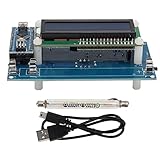
- BLE AND VISUAL ALARM: This Geiger counter meter kit feas a built-in ble and visual alarm system, alerting you immediately when s exceed limits. for la use, e response, and environmental
- LCD DI AND INTERFACE: Equipped with a clear LCD di and interrupt output interface, this Geiger counter e ws ection to controllers for real-time data visualization. Ideal for s and s.
- COMPATIBLE WITH MOST GEIGER TUBES: Supports a wide range of Geiger tubes incl M4011, STS 5, SBM20, and J305, g this e tile for various detection needs. for DIY purposes.
- COMPUTER DATA ACQUISITION: Geiger counter e supports PC data acquisition, enaailed analysis and psing with software like Matlab. A must-have tool for researc and data analysts.
- DETECTION: ed to detect γ rays (20mR/h to 120mR/h) and soft β deviations (100 to 1800), this kit is essential for nuclear hospitals, and industrial settings.
Older MATLAB documentation refers to daqregister for loading and unloading adaptors. The command is obsolete in modern releases, and the exact Advantech adaptor name must come from the documentation for the installed legacy release. Do not copy a registration command for another adaptor and substitute names by guesswork.
If your release documentation explicitly supports adaptor registration, use its documented procedure from the MATLAB Command Window. A historical registration workflow may look conceptually like this:
daqregister('adaptor-name','unload')
daqregister('adaptor-name')
The placeholder is deliberate. Do not run it with an unverified name. Modern MATLAB releases may not recognize daqregister at all.
If registration errors mention an old MATLAB folder:
What’s actually slowing this PC down?
Pick the symptom - the matching free tool is one click away.
- Close MATLAB.
- Remove stale shortcuts that launch the wrong release.
- Start the intended release from its own installation folder.
- Repair Data Acquisition Toolbox in that release.
- Reinstall the matching Advantech driver.
- Test again.
Do not manually edit the Windows registry unless MathWorks support gives you release-specific instructions.
Fix 6: Repair Windows components only when Windows itself is damaged
SFC and DISM are not normal repairs for mwadvantech.dll. The file belongs to MATLAB, so Windows System File Checker will not normally restore it.
Use these commands if Windows has broader symptoms, such as damaged system components, repeated loader failures across unrelated applications, or Windows features that will not work.
- Open Start.
- Search for Command Prompt.
- Right-click it and select Run as administrator.
- Run:
DISM.exe /Online /Cleanup-image /Restorehealth
- Wait for DISM to finish.
- Then run:
sfc /scannow
- Restart Windows.
- Repair MATLAB again if
mwadvantech.dllis still missing.
Microsoft recommends running DISM before SFC. These commands may repair Windows components that affect DLL loading, but they are unlikely to put this third-party MATLAB adaptor back into the MATLAB folder.
Quick wins for a faster PC:
Fix the driver behind crashes, sound loss and screen glitchesFind Drivers →Repair Windows errors before they cause bigger problemsFix Now →Repeating SFC and DISM without knowing what changed can waste time, especially when the real issue is a missing MATLAB product or an old hardware driver. Outbyte PC Repair can scan for broader Windows problems and identify repair areas, while the full version performs the repair; it is optional, and reinstalling MATLAB remains the definitive fix for a missing application file.
Independent reader supportYour contribution helps us test, update, and keep practical guides available for everyone.Why regsvr32 usually does not help
regsvr32 is intended for DLLs that provide registration entry points such as DllRegisterServer. It is commonly used for certain COM components and ActiveX controls.
mwadvantech.dll is a MATLAB adaptor loaded by the Data Acquisition Toolbox interface. It is not automatically a COM registration DLL. Running:
regsvr32 mwadvantech.dll
may produce an entry-point error, architecture error, or another message without repairing MATLAB.
Use regsvr32 only when the software vendor’s documentation specifically tells you to register that exact DLL. For this adaptor, repair the matching MATLAB installation and use the release’s documented adaptor-loading procedure instead.
Why random DLL downloads are unsafe
A DLL download page cannot reliably provide the complete software environment this adaptor expects. A copied file may have:
- The wrong MATLAB release compatibility.
- The wrong 32-bit or 64-bit architecture.
- Altered or malicious contents.
- Missing companion files.
- The wrong dependency chain.
- No matching Advantech driver.
Never place an unverified copy in C:WindowsSystem32. Do not replace a Windows DLL with a file named mwadvantech.dll, because this is not a Windows component in the first place.
If manual copying is unavoidable, use only a verified file from the matching MathWorks installation media or a known-good installation of the same MATLAB release, and copy it only into that release’s corresponding MATLAB directory. Repairing the installation is safer and more complete.
Do these 3 things before closing this tab:
1Fix the driver behind crashes, sound loss and screen glitches2Repair Windows errors before they cause bigger problems3Scan for outdated or missing drivers - takes under a minuteIf the file exists but MATLAB still cannot load it
Check the following in order:
- Confirm MATLAB is launching the release you inspected.
- Confirm the DLL is inside that release’s installation tree.
- Check whether antivirus software blocked a dependency.
- Confirm the Advantech driver matches the board and Windows version.
- Check MATLAB and driver architecture.
- Look for stale paths from another MATLAB installation.
- Review the exact loader message.
A dependency-analysis tool can help a technically qualified administrator identify a missing library, but do not download every dependency it reports from unrelated websites. Use the official MATLAB installer, the official Advantech driver package, or Microsoft’s supported runtime sources when a verified dependency is identified.
If a game or unrelated program requests mwadvantech.dll, check the application’s installation history. This file is associated with MATLAB Data Acquisition Toolbox, not ordinary games. The request may indicate a damaged MATLAB-related installation, a misidentified file, or software that should not be requesting it.
Last-resort recovery options
If the failure began immediately after a driver update, MATLAB installation, or Windows change, System Restore may reverse the software configuration.
- Press Windows key + R.
- Enter:
rstrui.exe
- Press Enter.
- Select a restore point from before the problem began.
- Review the affected programs.
- Start the restore.
System Restore can remove drivers and applications installed after the selected point. It does not replace a proper MATLAB repair, and it should be used only after reviewing what will be changed.
The Tool Desk
Outbyte PC Repair FREEClear out junk files and repair common Windows errorsFree Scan →Outbyte Driver Updater FREEFix the driver behind crashes, sound loss and screen glitchesFind Drivers →For persistent failures, collect:
- The exact MATLAB release.
- Windows edition and architecture.
- The Advantech board model.
- The driver package and version shown in Device Manager.
- The full error text.
- The MATLAB installation path.
- Installer logs and relevant Windows Event Viewer entries.
That information gives MathWorks or Advantech enough context to determine whether the old adaptor is repairable or incompatible with the current setup.
FAQ
Is mwadvantech.dll a Windows file?
No. It is the Advantech Adaptor for MATLAB Data Acquisition Toolbox, published by The MathWorks, Inc. Windows does not normally install or restore it.
Should I install Visual C++?
Not as the first response. There is no verified basis for treating a Microsoft Visual C++ redistributable as the standard installer for this specific adaptor. First repair MATLAB, verify the hardware driver, and investigate dependencies only if the loader message requires it.
Should I put the file in System32?
No. Its historical location is inside the MATLAB installation’s DAQ private directory. Copying it to System32 can create version and architecture conflicts without fixing MATLAB.
Is reinstalling MATLAB enough?
It can restore a missing adaptor, but it may not install the correct Advantech hardware driver. You also need a compatible board, driver, MATLAB release, and Windows architecture.
Does the current MATLAB release support Advantech hardware?
The current MathWorks supported-hardware list does not list Advantech. Older releases supported Advantech hardware through this legacy adaptor, but a current release may not contain or load it.
Can I register it with regsvr32?
Usually no. This is a MATLAB adaptor, not automatically a COM DLL. regsvr32 is not the standard repair.
What if antivirus removed it?
Check Windows Security > Virus & threat protection > Protection history. Restore the file only when its MathWorks provenance is verified and the detection is confirmed false positive, then repair MATLAB if necessary.
Free tools Windows power users keep installed
One-click scans. No signup required.
What is the safest download source?
Use the MathWorks installer for MATLAB and Data Acquisition Toolbox, and Advantech’s official support portal for the exact board driver. Avoid DLL download archives and forum attachments.
Quick Recap
Product prices and availability are accurate as of the date/time indicated and are subject to change. Any price and availability information displayed on Amazon at the time of purchase will apply.




