
Free tools Windows power users keep installed
One-click scans. No signup required.
psmon.dll is the PostScript Language Monitor DLL used by the Windows printing system. When Windows reports that psmon.dll is missing, not found, or could not be loaded, the problem is usually a damaged, obsolete, or incorrectly registered PostScript printer driver rather than a game runtime.
Start with this checklist before changing anything:
As an Amazon Associate I earn from qualifying purchases.
- Which program shows the error: a printer installer, print utility, spooler-related process, or another application?
- Does it happen during printer installation, when printing, at Windows startup, or when an older utility opens?
- What printer model and driver name are installed?
- Is Windows 10 or Windows 11 running on a 64-bit system, while the affected software or driver is legacy 32-bit?
- What full path does the error or security software report for
psmon.dll? - Did the problem begin after a printer-driver update, Windows Update, software removal, or antivirus quarantine?
psmon.dll is associated with the older Windows PostScript printer-driver architecture. Microsoft describes language monitors as user-mode DLLs installed through a printer driver’s INF file. The monitor can modify printer data and communicate with the printer port before the print job is sent. Microsoft explains language monitors here.
Windows Errors? Fix Them Before They Spread
Repair common Windows errors and clear accumulated junk for a smoother, more stable PC - no reinstall needed.Free scan · no reinstallOutdated Drivers Are Slowing You Down
One free scan finds every outdated or missing driver and matches the right update for your exact hardware.Free scan · exact hardware matchThat means an affected application may be unable to start even though the application itself is not broken. It may be loading a printer component during setup or startup, or the print spooler may be trying to load a monitor referenced by an old printer queue.
#1 Best Overall

- FROM AMERICA'S MOST TRUSTED PRINTER BRAND – Perfect for small teams printing professional-quality color documents and reports. Print speeds up to 26 ppm black/color.
- PROFESSIONAL PRODUCTIVITY – Proficiency with every print—next-generation TerraJet toner brings your business to life with more vivid colors
- UPGRADED FEATURES – Fast color printing, auto 2-sided printing, and a 250-sheet input tray
- AWARD-WINNING RELIABILITY – Performance you can count on page after page, and always ready for the high demands of business
- WIRELESS PRINTING – Stay connected with dual-band Wi-Fi with self-reset, which automatically detects and resolves connection issues
What psmon.dll is and where it belongs
The file is identified as the PostScript Language Monitor DLL, associated with Microsoft Windows. Historical driver records include PSMON.DLL from older Windows printer packages, including a public historical record showing version 4.90.3000. That history points to a legacy printing component rather than a modern Visual C++ runtime, DirectX file, .NET assembly, or game dependency.
Do not assume that every current Windows 10 or Windows 11 installation contains psmon.dll. A printer’s INF file can associate a language monitor with a specific driver package using an entry such as:
LanguageMonitor="Monitor Name,MonitorDLL.dll"
The print spooler then loads the monitor through the print-monitor interface. Microsoft documents printer INF entries here, and the monitor initialization process here.
What’s actually slowing this PC down?
Pick the symptom - the matching free tool is one click away.
This explains several common situations:
- A printer installer fails while adding an old PostScript driver.
- Printing fails after an old queue or driver was partially removed.
- The spooler reports a loading error when it starts.
- An older printer utility launches and immediately requests the missing file.
- A 32-bit legacy component is being loaded on current 64-bit Windows.
- Antivirus software removed a file from a third-party printer package.
A file named psmon.dll is not automatically malware, but it is not automatically trustworthy either. Its full path, digital signature, parent installer, and printer-driver history matter.
First, identify what is requesting psmon.dll
Do this before copying files or reinstalling Windows components.
Check the error window
Write down the complete message. Common Windows loader wording includes:
- “The program can’t start because psmon.dll is missing from your computer.”
- “psmon.dll was not found.”
- “Error loading psmon.dll.”
- “psmon.dll could not be loaded.”
- “The code execution cannot proceed because psmon.dll was not found.”
- “psmon.dll is either not designed to run on Windows or it contains an error.”
These are general loader-style messages, not proof that a particular game or application officially depends on the file.
Quick wins for a faster PC:
Scan for outdated or missing drivers - takes under a minuteDriver Scan →Repair Windows errors before they cause bigger problemsFix Now →Fix the driver behind crashes, sound loss and screen glitchesFind Drivers →Note the program name shown in the title bar. If Windows displays a path, record that too. A path inside a printer-driver directory is more consistent with a driver problem than a copy inside a random application folder.
Check Windows Security
If the error appeared after a security alert:
- Open Start.
- Search for Windows Security.
- Select Virus & threat protection.
- Open Protection history.
- Find the event involving
psmon.dll. - Record the original path, detection name, and affected application.
Do not restore the file simply because doing so makes the error disappear. Restore it only when the original location, signature, and printer-driver provenance are trustworthy. If the detection is valid, reinstall the complete printer package from Windows Update or the printer manufacturer instead. Microsoft’s guidance for handling quarantined files is available in its restore quarantined files documentation.
Check the PrintService log
- Press Windows + R.
- Type
eventvwr.msc. - Press Enter.
- Expand Applications and Services Logs.
- Expand Microsoft.
- Expand Windows.
- Open PrintService.
- Review the Operational log around the time of the failure.
If the log is disabled, right-click Operational, select Enable Log, reproduce the problem, and check the newest events. Record the printer, driver, application, and error text named there.
Rank #2

- Updated design, professional results. High-quality output with sharp color and black printing. Fast print and copy speeds up to 33ppm(1) help boost productivity. Reliable performance and durable, compact design, 25% smaller than the previous model. Multipurpose tray for custom printing.
- Maximize printing budgets. Offers built-in value with included Brother Genuine 3,000-page black and 1,800-page color standard yield toner cartridges. Help lower printing costs by using the TN635XXL super high yield replacement toner cartridges for 7,500-page black and 6,500-page color(2).
- Advanced scanning. High-speed, two-sided scanning up to 104ipm(3) with 80-page auto document feeder(4) and legal-size glass. Scan to cloud, email, SharePoint, and more from the touchscreen(5). Supports the added benefit of creating searchable and editable Microsoft Office documents(6).
- Productivity-enhancing features. Flexible connectivity, including built-in dual-band (2.4GHz / 5GHz) wireless networking and Gigabit Ethernet networking. 7” color touchscreen for easy menu navigation, scan preview, and up to 64 customized shortcuts for frequently used tasks.
- Triple Layer Security. Advanced security features to help keep devices secure, protect documents in transit to and from print devices, and safeguard networks. Includes an integrated NFC card reader for easy badge authentication.
This often distinguishes a missing Windows component from a stale third-party printer registration.
Fix 1: Remove and reinstall the complete printer package
This is the safest and most likely fix when the error happens during printing, printer setup, spooler startup, or after a printer update.
Do not begin by replacing only psmon.dll. The printer driver may also require its INF file, catalog, registry association, port configuration, and other files. Reinstalling the complete package repairs those relationships together.
Remove the printer
- Open Settings.
- Select Bluetooth & devices.
- Select Printers & scanners.
- Choose the affected printer.
- Select Remove.
- Confirm the removal.
- Restart Windows.
If several queues use the same physical printer, remove only the affected queue first. Do not delete a shared driver until you know no other printer depends on it.
Reinstall through Windows
- Return to Settings > Bluetooth & devices > Printers & scanners.
- Select Add device.
- Wait for Windows to search.
- Select the printer when it appears.
- Allow Windows Update to install the available driver.
- Print a test page from the printer’s settings page.
Microsoft recommends Windows Update first, followed by the printer manufacturer’s current driver package when Windows does not provide a suitable result. Its printer-driver installation guidance also covers driver updates and reinstallations.
If the printer does not appear:
- Select Add manually.
- Choose the appropriate connection method.
- Provide the printer’s network name, address, or local port.
- When asked for a driver, select Windows Update or provide the manufacturer’s official package.
- Choose a driver intended for your Windows architecture.
Avoid mixing a single DLL from an old package with files from a newer driver. A PostScript monitor from one release may not match the INF, spooler interface, or other files from another release.
When comparing drivers, note whether the package is intended for Windows 10 or Windows 11 and whether it supports the installed architecture. Historical evidence strongly points to psmon.dll being associated with older 32-bit printing software, but that does not mean every copy is 32-bit or that a random 64-bit replacement is valid.
Manually checking several printer packages and deciding which driver is stale can be tedious. Outbyte Driver Updater can scan for driver issues and show what needs attention; its free scan identifies the problem, while repair or driver installation requires the full version. It is optional, and the official printer manufacturer or Windows Update remains the correct source for a specific printer package.
Confirm that the reinstall worked
The repair worked if:
- The printer appears without a warning icon.
- A test page prints.
- The original application opens without the loader message.
- The PrintService log no longer records a failure for the old monitor.
- The error does not return after restarting the computer.
If the error returns immediately, the old driver may still be registered even though the printer queue was removed.
The Tool Desk
Outbyte Driver Updater FREEScan for outdated or missing drivers - takes under a minuteDriver Scan →Outbyte PC Repair FREEClear out junk files and repair common Windows errorsFree Scan →Fix 2: Remove a stale printer-driver registration
A deleted printer queue can leave its driver installed. An older queue or utility may still reference PSMON.DLL.
First, list installed printer drivers:
- Open Start.
- Search for PowerShell.
- Select Run as administrator.
- Run:
Get-PrinterDriver
Look for the exact driver name associated with the removed printer. Do not remove a driver merely because its name looks old.
Rank #3

- Compatible with Square Stand and Square register - USB only- IF NOT WORKING WITH SQUARE, UPDATE SQAURE APP
- USB interface ONLY - Not blutooth or WIFI
- To Use with Square, you must have the Square Stand Or Square Register
- Compatible with Square Stand and Square register USB only
If you have confirmed that the driver is unused, remove it with:
Remove-PrinterDriver -Name "Exact driver name"
Replace Exact driver name with the name returned by Get-PrinterDriver. Keep the quotation marks if the name contains spaces.
Recommended Free Tools
Restart Windows, then reinstall the printer using Windows Update or the manufacturer’s official package.
Microsoft documents Remove-PrinterDriver. The command requires administrator rights. Do not use optional driver-store removal settings until you have confirmed that no remaining queue needs the package.
Use Device Manager when the queue is stuck
Device Manager can help when Windows retains a broken printer device:
- Press Windows + X.
- Select Device Manager.
- Expand Print queues and Printers.
- Right-click the affected printer.
- Select Uninstall device.
- Confirm the removal.
- Restart Windows.
- Reinstall the printer from Settings > Bluetooth & devices > Printers & scanners.
Device Manager is not a substitute for removing a stale print driver. It removes the device entry, but the driver package may remain installed. Use the PowerShell check afterward if the error continues.
Fix 3: Restart the Print Spooler and clear a stuck queue
A damaged print job can keep the spooler busy, but clearing the queue will not repair an incompatible psmon.dll package. Use this step when printing is stuck or the error appears during spooler startup.
- Press Windows + R.
- Type
services.msc. - Press Enter.
- Find Print Spooler.
- Right-click it and select Restart.
- Try printing again.
If the service will not restart:
- Right-click Print Spooler.
- Select Stop.
- Open File Explorer.
- Go to:
C:WindowsSystem32spoolPRINTERS
- Delete the files inside that folder, not the folder itself.
- Return to Services.
- Right-click Print Spooler.
- Select Start.
You may need administrator approval. If the service stops again and the PrintService log names psmon.dll, return to the complete driver removal and reinstallation steps rather than repeatedly restarting the service.
Fix 4: Repair Windows components with DISM and SFC
Use Windows repair commands when:
- Several Windows files are missing.
- Windows Update recently failed.
- The file is reported from a protected Windows component location.
- The printer driver is current, but Windows itself appears damaged.
- The problem affects more than one unrelated Windows component.
Open Command Prompt as administrator:
- Open Start.
- Type Command Prompt.
- Select Run as administrator.
- Run this command and wait for it to finish:
DISM.exe /Online /Cleanup-Image /RestoreHealth
Then run:
sfc /scannow
Run the commands separately and let each one complete. DISM repairs the Windows component store. SFC checks protected system files against that repaired store. Microsoft documents this sequence in its Windows image repair guidance.
Interpret the result
If SFC reports that it found and repaired corrupted files, restart Windows and test the printer again.
Do these 3 things before closing this tab:
1Fix the driver behind crashes, sound loss and screen glitches2Clear out junk files and repair common Windows errors3Scan for outdated or missing drivers - takes under a minuteRank #4
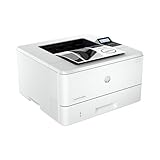
- PERFECT FOR SMALL TEAMS – Print professional-quality black & white documents and reports. Ethernet/USB only (for wireless, see LaserJet Pro 4001dw).
- FROM AMERICA'S MOST TRUSTED PRINTER BRAND – The LaserJet Pro 4001n is best for up to 10 users, with intuitive tools to set up and manage your printer.
- BLAZING FAST PRINT SPEEDS – Up to 42 black-and-white pages per minute single-sided
- PROTECTS YOUR DATA – Includes HP Wolf Pro Security with customizable settings so your printer and information are always secure
- PRINT FROM ANY DEVICE – Print from any mobile device, PC or tablet. Ethernet included. Works with Microsoft, Mac, AirPrint, Android, Chromebook and more
If SFC reports that it found no integrity violations, the problem is more likely to be a third-party printer package, stale driver registration, antivirus quarantine, or legacy-driver incompatibility.
If DISM cannot find source files, do not download psmon.dll separately. Microsoft supports using a matching Windows repair source with /Source and /LimitAccess. The source must correspond to the installed Windows version.
Manually repeating DISM and SFC without knowing whether Windows or the printer package is changing can make diagnosis slow. Outbyte PC Repair can scan for repair issues and show what needs attention; its free scan identifies problems, while repair requires the full version. It is optional, and it does not replace reinstalling a printer-specific driver.
Fix 5: Check whether the driver is incompatible with your Windows architecture
A legacy printer driver may have been designed for older 32-bit Windows. Current Windows installations are commonly 64-bit, but a 32-bit application can still exist on a 64-bit system. Those facts do not make every combination compatible.
Check your Windows architecture:
- Open Settings.
- Select System.
- Select About.
- Look at System type.
Then identify the driver architecture from the printer manufacturer’s package information or the driver properties. Do not infer architecture only from the filename.
A 32-bit legacy monitor cannot be fixed by placing an arbitrary 64-bit DLL beside it. Likewise, replacing a legacy printer package with one DLL from another version can leave the INF and driver registration inconsistent.
The correct repair is to install a complete Windows-compatible driver. Depending on the printer, that may be a current PostScript package, a PCL package, or a Microsoft-supported class or IPP driver. If the printer manufacturer no longer supports the old package, the legacy software may not be usable on the current Windows installation.
Independent reader supportYour contribution helps us test, update, and keep practical guides available for everyone.Fix 6: Use System Restore after a recent driver or Windows change
If printing worked until a driver update, software installation, or Windows update, System Restore may reverse the change while preserving personal files.
- Press Windows + R.
- Type:
rstrui.exe
- Press Enter.
- Select Next.
- Choose a restore point created before the
psmon.dllerror began. - Select Scan for affected programs if available.
- Review the changes.
- Select Next, then Finish.
- Allow Windows to restart.
You can also open Control Panel > Recovery > Open System Restore. Microsoft explains the process in its System Restore documentation.
System Restore is useful when the timing clearly matches a recent change. It is not a replacement for installing a supported printer driver, and it may not help if the missing file came only from a third-party package.
Why downloading psmon.dll separately is a bad repair
Random DLL download pages are risky because the file may be:
Best Value

- 2 Years of Unlimited Ink promo valid for ET-5150, ET-5170, ET-5180, ET-5800, ET-5850, ET-5880, ET-16600 or ET-16650 printers purchased from 10/1/2021 to 3/31/2025. Product must be registered within 30 days of purchase. Limit four 542 ink bottles per claim. Each claim cannot contain multiple bottles of the same color. Retain your empty 542 ink bottle for submission along with rebate form. Promotion applies to ink only. Printer covered by Epson 2-year ltd wnty with registration. For promo participation, you must register your product. See manufacturer's website for details.
- Save a ridiculous amount on ink (1) with revolutionary Cartridge-Free printing — save up to 80 percent with low-cost replacement ink bottles vs. standard-capacity color laser toner cartridges (2)— that’s about 2 cents per color ISO page vs. 14 cents with color laser toner (2)
- Built for speed — up to 17 black/9.5 color ISO ppm print speedƚ; no warmup time; fast first page out; PCL/PostScript support (1)
- Professional-quality color prints — Epson DURABrite ET pigment inks for crisp, vibrant prints in black-and-white and color.
- Engineered for high-volume business environments — reliability you can count on with a 2-year limited warranty with registration (3); PrecisionCore permanent printhead designed to last the life of the printer
- Modified or malicious.
- The wrong version.
- The wrong architecture.
- Missing a valid digital signature.
- Incompatible with the printer’s INF file.
- Missing related driver files.
- Unable to repair the driver store or spooler registration.
Copying a DLL into System32, SysWOW64, or an application folder can also create servicing and version conflicts. It does not recreate the printer queue, language-monitor registration, port configuration, or dependent files.
The safe sources are Windows Update, Windows component repair, System Restore, and the official support package for the printer. If antivirus removed a legitimate file, reinstall the complete signed package rather than forcing an isolated DLL back into the system.
Why regsvr32 is normally not the answer
Do not start with:
regsvr32 psmon.dll
regsvr32 is intended for DLLs that expose the registration functions used by COM or ActiveX components. A print-monitor DLL is loaded and initialized by the print spooler through the print-monitor interface. It is not normally repaired by registering it like an ordinary COM server. Microsoft describes print-monitor initialization here.
A registration error from regsvr32 does not prove that the file is missing or that Windows is corrupt. Repair the printer package and its registration instead.
If nothing works
If reinstalling the printer, removing the stale driver, checking quarantine, and running DISM/SFC do not help, collect this information for support:
- Windows 10 or Windows 11 edition and build.
- System architecture.
- Printer make and model.
- Exact printer-driver name.
- Full error text.
- Full path reported for
psmon.dll. - The program that triggers the error.
- Whether it occurs during setup, printing, startup, or spooler restart.
- Relevant PrintService Event Viewer entries.
- Any driver, Windows, or antivirus change that preceded it.
If Windows repair succeeds but the error remains, suspect an old third-party printer package or incompatible legacy software. A Windows 11 supported installation may also offer Settings > System > Recovery > Fix problems using Windows Update > Reinstall now. On supported systems, this reinstalls the current Windows version while preserving apps, files, and settings.
FAQ
Is psmon.dll a virus?
Not by name alone. psmon.dll is an identifiable PostScript Language Monitor component associated with Windows printing, but an unexpected copy in a user-writable directory should be checked. Review its path, signature, parent installer, and antivirus history.
Does every Windows 10 or Windows 11 PC have psmon.dll?
No. It is not a universal current file that every installation must contain. It may be installed as part of an older or vendor-supplied PostScript printer driver.
Can I download psmon.dll from the internet?
Do not download a lone DLL from an unverified source. Install the complete printer driver through Windows Update or the printer manufacturer’s official support channel.
What’s actually slowing this PC down?
Pick the symptom - the matching free tool is one click away.
Will SFC restore psmon.dll?
SFC can repair protected Windows files, but it cannot reliably restore a file supplied only by a third-party printer package. If the file belongs to a printer driver, reinstall that complete package.
Can I fix the error with regsvr32?
Normally no. Print-monitor DLLs are loaded by the print spooler through the print-monitor interface, not registered like COM or ActiveX DLLs.
Why did the error appear after removing my printer?
The printer queue may be gone while its driver registration remains. An old utility or another queue can still request the language monitor. List installed drivers with Get-PrinterDriver, remove only the confirmed obsolete driver, and reinstall the printer cleanly.
Why does a printer work without psmon.dll?
Language monitors are optional. A printer can use a driver that does not declare one, or it can use a different supported printing architecture. That is why replacing the complete driver with a current compatible package is safer than restoring one old DLL.
Quick Recap
Product prices and availability are accurate as of the date/time indicated and are subject to change. Any price and availability information displayed on Amazon at the time of purchase will apply.

