Most Razer Blade 14 problems can be isolated without immediately reinstalling Windows or opening the laptop. Start by identifying the exact model, disconnecting accessories, checking the supplied charger, and noting whether the fault appears before Windows, at the login screen, or only after you start using the system.
Do these three checks first
- Back up important files if Windows still starts.
- Disconnect everything external: docks, monitors, USB devices, SD cards, headsets, and other accessories.
- Use the supplied Razer power adapter directly from a wall outlet for testing. A dock or low-wattage USB-C charger can create symptoms that look like a laptop fault.
Then classify the problem. Is the Blade completely dead, powered with a black screen, unstable only in games, unable to charge, hot at idle, missing from Synapse, or failing with a particular peripheral? Also note whether it occurs in BIOS, at the Windows login screen, only after logging in, only on battery, or only with an external display. Where the symptom appears is often more useful than the symptom itself.
As an Amazon Associate I earn from qualifying purchases.
Razer Blade 14 will not turn on or wake from sleep
Check the power path
- Test the wall outlet with another device.
- Unplug and firmly reseat the adapter at both the wall and the laptop.
- Inspect the cable, connector, and charging port for looseness, heat, or visible damage.
- Remove all peripherals and docks.
- If you are using a third-party or USB-C charger, test the supplied Razer adapter.
Do not assume a missing adapter LED proves failure on a 2025 Blade 14: Razer says the adapters shipped with 2025 models do not have an LED indicator.
Do these 3 things before closing this tab:
1Clear out junk files and repair common Windows errors2Scan for outdated or missing drivers - takes under a minute3Repair Windows errors before they cause bigger problemsPerform Razer’s controlled power reset
For a Blade that will not start, connect the charger, hold the power button for 15 seconds or until the power indicator blinks white, release it, and press the power button normally. Razer documents this procedure in its power-on troubleshooting guide.
#1 Best Overall
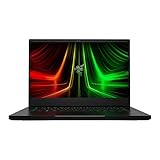
- NVIDIA GeForce RTX 3070 Ti GPU: The new GeForce RTX 3070 Ti is up to 70% faster than RTX 2070 SUPER laptops and can deliver up to 100 frames per second at 1440p resolution.Voltage:230.0 volts.Audio : 3.5mm headphone/microphone combo port, 7.1 Codec support (via HDMI), THX Spatial Audio, Built-in stereo speakers.
- AMD Ryzen 9 8-Core CPU: Experience cutting-edge speed with the newly released AMD Ryzen 9 6900HX 8-Core CPU with up to 4.9GHz of Max Boost for unrivalled performance to take on the most demanding gaming and creative tasks
- QHD 165Hz Display: High refresh rates meet high resolution to provide a responsive gaming experience that comes with a greater level of detail and fluidity
- DDR5 4800MHz Memory: 50% faster than the previous generation – enjoy a quicker, smoother experience when loading applications, running games, and performing other everyday PC tasks
- Next-Gen Vapor Chamber Cooling: Upgraded with more exhaust fins, quieter fans, and a larger liquid capacity, the new Blade 14 performs cooler and quieter than ever before
For a Blade that will not wake from sleep:
- Connect the charger.
- Hold the power button for 10 seconds.
- While still holding it, unplug the charger.
- Release the button, wait several seconds, reconnect the charger, and press the power button.
These are controlled reset procedures, not a reason to repeatedly force-shutdown the laptop. Repeated interruption can contribute to file-system corruption.
Contact Razer or an authorized repair provider if there is no response with a known-good adapter, the port or charger becomes unusually hot, the laptop smells burnt, has liquid or impact damage, shows case deformation, never reaches the Razer logo or BIOS, or repeatedly shuts down immediately after starting.
The power light is on but the screen is black
If Windows may be running
- Press
Windows + Ctrl + Shift + Bto reset the graphics driver. The display may flicker or make a sound if the reset succeeds. - Press
Windows + P, pressPagain to cycle display modes, then pressEnter. - Press
Ctrl + Alt + Delete. If the security screen appears, open Task Manager and restart Windows Explorer. - Disconnect external displays and docks, then restart.
Microsoft distinguishes graphics-driver failures, incorrect display-output selection, stalled Windows processes, and missing boot devices as different blank-screen causes. Its blank-screen guide covers the recovery and Safe Mode paths.
If the screen is blank from startup
Check whether you can see the Razer logo or enter BIOS. Test an external monitor only after disconnecting other accessories. A blinking cursor can indicate that UEFI/BIOS cannot find a boot device, which is not the same problem as a Windows display-driver failure.
If the issue began after a graphics update, enter Windows Recovery or Safe Mode through Troubleshoot → Advanced options → Startup Settings → Restart. Roll back the display driver if that option is available, or install the correct NVIDIA or AMD package for the exact Blade model. Avoid mixing generic laptop drivers with Razer-specific packages unless the model’s support instructions permit it.
Razer Blade 14 is not charging
First rule out normal charging behavior
A Blade can remain below 100% without having a defective battery. On 2023 and newer models, Battery Health Optimizer can intentionally stop charging at a selected limit, often in 5% increments. Check that setting in Synapse before diagnosing a battery failure.
USB-C charging also varies by generation and workload. Razer’s current product information lists the 2025 Blade 14 as supporting up to 100 W USB-C Power Delivery through a 20 V charger, while the bundled adapter is intended for maximum performance. Razer says USB Power Delivery requires at least 3% battery charge; at 0%, use the supplied adapter. A lower-wattage charger may show “More Power Required,” charge slowly, or fail to increase the percentage during gaming. See Razer’s USB-C charging guidance.
What’s actually slowing this PC down?
Pick the symptom - the matching free tool is one click away.
Charging checklist
- Connect the supplied Razer adapter directly to a wall outlet.
- Check whether Windows says “Plugged in” or “Plugged in, not charging.”
- Check Battery Health Optimizer in Synapse.
- Test charging while the laptop is shut down.
- If it charges while off but not during gaming, suspect insufficient adapter wattage, heavy system load, or power management.
- Inspect the port and cable without bending or forcing either one.
Battery swelling is a stop-use condition
Stop using the laptop and disconnect AC power if the touchpad or keyboard is raised, the case rocks on a flat surface, seams are separating, or the battery has suddenly lost capacity along with visible deformation. Do not charge, puncture, squeeze, open, or remove a swollen battery. Keep the laptop away from heat and combustible materials and contact Razer or an authorized repair center. Razer’s swollen-battery guidance specifically warns against continued use or charging.
Excessive heat, loud fans, throttling, or shutdowns
Gaming laptops can become hot and loud during sustained workloads. A brief CPU spike near 95°C is not automatically overheating; Razer notes that short spikes can occur before automatic throttling. Its current guidance treats temperatures above 90°C (194°F) for an extended period without intensive work as a reason to investigate. Measure the pattern rather than diagnosing from one maximum reading.
Rank #2

- More Power. The 10th Gen Intel Core i7-10750H processor provides the ultimate level of performance with up to 5.0GHz Max Turbo and 6 cores
- Supercharger: The NVIDIA GeForce GTX 1660 Ti graphics is a blazing-fast supercharger for today’s most popular games
- More Frames: Incredible performance paired with the fast 120Hz 15.6" Full HD thin bezel display helps edge out the win
- Thin and Compact: The CNC aluminum unibody frame houses incredible performance in the most compact footprint possible, while remaining remarkably durable and just 0.78" thin
- Ready To Connect: Fully loaded with ample connectivity including a webcam, wireless-AC, Bluetooth 5, 2X USB Type-A, 2X Type-C ports, and more
- Use the Blade on a hard, flat surface.
- Keep intake and exhaust vents clear.
- With the laptop powered off and unplugged, clean accessible external vents carefully.
- Close unnecessary background processes.
- Install applicable Windows and graphics-driver updates.
- Use HWiNFO or another reputable monitor to record current, minimum, maximum, and average CPU/GPU temperatures.
- In Synapse, select the Blade, open Performance, and try Balanced or Creator instead of Gaming.
- Use Auto (Default) fan control first. Manual fan controls vary by model.
- Return overclocking or performance-tuning changes to default settings.
Razer recommends HWiNFO for more informative temperature readings in its heat and fan troubleshooting guidance. Do not treat repasting as a routine fix: Razer warns that replacing thermal paste can void the device warranty.
Low FPS, stuttering, crashes, and unexpected restarts
- Only in games: Check the Windows power mode, GPU selection, game settings, temperatures, and background processes.
- Only on battery: Compare the same workload on the supplied adapter and check whether the game is using the integrated GPU.
- After an update: Roll back the affected driver or use System Restore where available.
- Across all applications: Investigate Windows corruption, storage health, memory limits, overheating, and hardware failure.
- Only with an external display: Check the cable, refresh rate, GPU routing, and dock bandwidth.
On model years that provide a MUX switch, GPU mode may be controlled in Synapse. External-monitor routing can also keep the dedicated GPU active and reduce battery life. The 2022 Blade 14 support page documents MUX and Optimus behavior for that generation. Do not expect a universal FPS result: performance depends on the game, resolution, refresh rate, graphics preset, driver, thermals, and GPU mode.
Quick wins for a faster PC:
Clear out junk files and repair common Windows errorsFree Scan →Fix the driver behind crashes, sound loss and screen glitchesFind Drivers →Repair Windows errors before they cause bigger problemsFix Now →Synapse does not open or detect the Blade
Synapse 3 stopped receiving updates and cloud services on February 3, 2026. Existing installed devices may remain configurable in Synapse 3, but cloud synchronization is no longer available. Older troubleshooting pages that simply say “reinstall Synapse 3” are therefore incomplete.
For Synapse 4
- Connect the Blade directly to the computer rather than through a USB hub where applicable.
- Restart after the first installation or a software update.
- Repair Synapse if the Blade is still missing.
- Check that Synapse is not running in Compatibility Mode.
- Confirm that the Blade is supported by the installed Synapse version.
Razer also identifies Riot Vanguard version 1.7.0.27 as a possible blocker of Razer drivers on Windows PCs. Treat this as a version-specific condition, not a universal cause. Razer’s Synapse detection guide has the current repair and compatibility checks.
If Synapse 3 is still installed and working, you may leave it in place for existing device configuration. Back up profiles before uninstalling. If you fully remove Synapse 3, use Synapse 4 and its profile migration tool where supported; Razer explains the transition in its Synapse 3 retirement notice.
Wi-Fi and Bluetooth disconnects
There is no single Wi-Fi fault that applies to every Blade 14 generation. Wireless hardware and driver packages differ, so use this isolation sequence:
The Tool Desk
Outbyte Driver Updater FREEScan for outdated or missing drivers - takes under a minuteDriver Scan →Outbyte PC Repair FREERepair Windows errors before they cause bigger problemsFix Now →- Restart the laptop and router.
- Test another Wi-Fi network or a phone hotspot.
- Check whether Bluetooth fails at the same time.
- Install the exact model’s wireless, chipset, and Windows updates.
- In Device Manager, inspect the wireless adapter for errors, then disable and re-enable it.
- Forget the network and reconnect.
- If the problem began after software installation, test with a clean boot or Safe Mode where practical.
- If the adapter disappears from Device Manager and multiple wireless functions fail, consider hardware service.
For example, the 2022 support page lists Qualcomm Wi-Fi 6E and Bluetooth 5.2. Do not install that generation’s wireless driver on every Blade 14.
Audio, microphone, camera, keyboard, touchpad, and RGB problems
Audio
- Right-click the taskbar Sound icon and choose Troubleshoot sound problems.
- Confirm the selected output device.
- Test both internal speakers and headphones.
- Check application-specific volume and communications settings.
- Only then consider reinstalling the exact model’s audio driver.
Microphone and camera
Check Windows privacy permissions, confirm the selected input device, and test with Windows Camera or Sound Recorder. A conferencing application, privacy setting, or driver can block access. For Windows 11, review the microphone permissions referenced by Razer’s model support documentation.
Keyboard, touchpad, and RGB
Test whether the problem exists before Windows loads. An external keyboard or mouse can help isolate an input-device fault. Check Device Manager for HID, keyboard, and pointing-device errors, and restart Synapse for lighting or profile problems. If the keyboard works but RGB profiles do not, Synapse is more likely at fault than the keyboard matrix. Avoid uninstalling every Razer driver as a first step.
Rank #3

- ULTRA THIN .62 IN. DESIGN — Featuring a thinner and lighter design, this laptop is 11% smaller than the previous generation and has a large 72 Whr battery for up to 11 hours of on-screen time — play, work, or create from wherever
- NVIDIA GEFORCE RTX 5070 LAPTOP GPU — Featuring up to a GeForce RTX 5070 GPU with up to 115 W TGP, Blade 14 combines raw power with NVIDIA DLSS 4 to deliver higher quality frames and intense visuals for more immersive gaming
- AMD RYZEN AI 9 365 PROCESSOR — With up to 50 Tera Operations Per Second (TOPS) and 200% more AI processing power than the previous Blade 14 , do more with AI applications, including Copilot+, to get more done in the day
- VIBRANT 3K 120 HZ OLED DISPLAY — Vivid colors and smoother visual make everything in view a sight to behold on the Calman Verified display, boasting an incredibly low .2 ms response time and blazing-fast 120 Hz refresh rate
- 32 GB OF LPDDR5X MEMORY — Upgraded to 8000 MHz RAM, this laptop not only delivers over 33% faster frequency than its predecessor but is more power-efficient for better battery life and thinner to maintain a compact profile
Some regional keyboards have secondary key functions that do not illuminate; that can be expected behavior rather than a defect.
Windows Errors? Fix Them Before They Spread
Repair common Windows errors and clear accumulated junk for a smoother, more stable PC - no reinstall needed.Free scan · no reinstallOutdated Drivers Are Slowing You Down
One free scan finds every outdated or missing driver and matches the right update for your exact hardware.Free scan · exact hardware matchBIOS, firmware, Secure Boot, and update failures
Firmware is where model confusion can cause the most damage. Match the updater to the complete RZ09 model code, keep the charger connected, close applications, and never interrupt a BIOS or firmware update. Record the existing BIOS version first. Do not flash firmware intended for another year, GPU configuration, or display configuration.
Do not publish or rely on a generic “latest Blade 14 BIOS” number. Razer lists firmware by model, and indexed support material can show conflicting version/date information across page captures. Verify the live support page for the exact model immediately before downloading anything.
If the problem began immediately after a firmware update, stop repeatedly flashing firmware and contact Razer support about rollback or recovery options.
Secure Boot violation
Use the recovery procedure for the exact Blade model. Razer’s general recovery flow may involve temporarily disabling Secure Boot, preparing recovery media, copying the recovery application, re-enabling Secure Boot, and booting from USB with F12. Do not leave Secure Boot disabled permanently unless you understand the security trade-off. The model-specific support page is authoritative for the exact sequence.
Factory reset and recovery
Reset Windows 11
- Open Start → Settings.
- Select System → Recovery.
- Choose Reset PC.
- Select Keep my files or Remove everything.
- Choose Cloud download or Local reinstall.
- Select Next, then Reset, and confirm with Continue if prompted.
Back up files first. Resetting can remove applications and settings, and the Remove everything option also removes personal data. Razer’s recovery guide covers this procedure.
Use the Razer recovery partition
- Shut down the laptop.
- Power it on and repeatedly press F9 until System Recovery appears.
- Select START RECOVERY.
- Keep the laptop connected to power and do not interrupt the process.
If the recovery partition was erased or is unusable, use Razer recovery media for the exact model.
When not to reset
Do not factory-reset first if the battery is swollen, the laptop cannot power on, it shuts down in BIOS, there is liquid or impact damage, the charging port is damaged, the SSD is not detected in BIOS, or the problem began immediately after a firmware flash. A reset can remove software symptoms; it cannot repair a battery, port, display, motherboard, or failing SSD.
When to contact Razer
Stop home troubleshooting and contact Razer or an authorized repair center for a swollen battery, burning smell, liquid damage, a damaged adapter or port, no power after the controlled reset, repeated shutdowns in BIOS, a failed firmware update, visible case deformation, or a display that fails in BIOS and on another connection.
For a charging failure, an official replacement adapter can be a reasonable diagnostic purchase, but it will not repair a swollen battery, damaged port, or motherboard. Avoid unverified batteries, generic chargers with unclear voltage or wattage, random BIOS downloads, and driver-updater utilities that install mismatched packages. If the device is out of warranty and has a major board or display failure, compare the verified repair cost with replacement rather than assuming a new laptop is the answer.
Quick Recap
Quick-reference troubleshooting table
| Symptom | First fix | Expected result | Escalate when |
|---|---|---|---|
| Completely dead | Check outlet and supplied adapter; perform the 15-second reset | Indicator or normal boot returns | No response with a known-good adapter |
| Will not wake | Use the 10-second charger-unplug reset | Normal power-on returns | It remains unresponsive or repeatedly shuts down |
| Black screen in Windows | Win + Ctrl + Shift + B; cycle display modes |
Screen recovers or flickers | No logo or BIOS display, or Safe Mode cannot start |
| Stops charging below 100% | Check Battery Health Optimizer | Charge limit matches the configured setting | Swelling, heat, or failure even with the supplied adapter |
| USB-C charges slowly | Check charger wattage and battery percentage | Charging works while idle or shut down | Supplied adapter also fails |
| Hot or loud | Clear vents, monitor sustained readings, try Balanced | Lower sustained temperatures or less throttling | High idle temperatures, shutdowns, or physical damage |
| Synapse misses the Blade | Direct connection, restart, repair, compatibility-mode check | Blade appears in the device list | Supported Synapse version still cannot detect it |
| Crashes after driver update | Safe Mode and driver rollback | System stabilizes after restart | Crashes continue in BIOS or a clean Windows install |
| Swollen battery | Stop using and disconnect AC power | Safe handoff to authorized repair | Always—do not continue DIY troubleshooting |
Product prices and availability are accurate as of the date/time indicated and are subject to change. Any price and availability information displayed on Amazon at the time of purchase will apply.




