The Tool Desk
Outbyte Driver Updater FREEScan for outdated or missing drivers - takes under a minuteDriver Scan →Outbyte PC Repair FREEClear out junk files and repair common Windows errorsFree Scan →Retro joysticks can work with emulation setups, but compatibility depends on the controller’s connection mode, the host device, and the software you use. Generic USB controllers can be mapped in RetroPie and Batocera; a successful initial setup does not guarantee that every emulator will use every control without further configuration.
Check your setup before choosing a joystick
Start with four details: the host device, the operating system or front end, the emulator you plan to use, and the exact joystick model. The documented examples here cover Raspberry Pi with RetroPie and Batocera. They do not establish a universal compatibility list for every retro joystick, emulator, or platform.
- Host and software: Confirm that the controller is supported by your operating system and emulation setup.
- Connection: Identify whether the controller uses USB, Bluetooth, or a dedicated wireless receiver. A controller that requires a receiver or adapter needs that hardware too.
- Mapping: Check that you can assign the stick’s direction and buttons to the controls expected by your games.
- Players: For multiplayer, verify that the system recognizes each controller separately.
For a wired setup, a search phrase such as “USB arcade stick for retro gaming” can help narrow options, but the product description alone is not proof of compatibility. DIY cabinet projects may involve a joystick, buttons, and a USB encoder; check that the encoder and its input mode work with your particular host and software.
Set up a controller in RetroPie
RetroPie’s initial EmulationStation setup configures controls for EmulationStation and RetroArch emulators. Follow the on-screen flow to map the controller; some emulators may still require their own manual configuration. RetroPie’s controller configuration guide provides the setup details.
Recommended Free Tools
#1 Best Overall
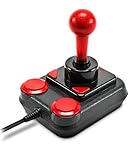
- Digital USB Joystick for PCs and Android Devices
- Perfect for Arcade and Retro Games
- Nostalgic Design Taken from the Original Competition Pro's Arcade Machine Stick
- Anniversary Edition Includes Games Collection with 20 Retro Games for Download
- Connect the controller to the Raspberry Pi or other host running RetroPie.
- When prompted, hold a button so EmulationStation can identify the controller.
- Follow the mapping prompts and assign the requested directions and buttons. Skip controls you do not have or do not use when the setup flow allows it.
- Test the controller in the games and emulators you intend to use. If one does not respond as expected, configure its controls separately.
The Raspberry Pi Foundation’s RetroPie tutorial uses a generic USB controller as its example and also describes wired Xbox and PlayStation controllers as options. In that tutorial’s setup context, wireless controllers without their own dongle can involve additional connection troubleshooting. Some wireless or Bluetooth controllers may also need drivers.
Set up an arcade stick in Batocera
Connect the controller and use Batocera’s interface to map it if the system does not already recognize it. For an arcade stick, Batocera.linux Wiki’s “Configure a Controller” documentation says, “The arcade stick should be assigned as the D-pad.”
Rank #2

- ✅【Compatibility】Compatible with Raspberry Pi, Windows PC, Linux ,Mac. Specifically designed for playing classic old school retro snes games on computer or laptop.This is the USB controller what has a USB plug for PC, NOT compatible for Original SNES super Nintendo console
- ✅ 【Ergonomic Design】Super precise cross key and function buttons,the cross direction key adopts frosted concave design,anti-sweat and anti-slip.The shape of the controller is designed to fit the contour of your hands,easy and comfortable to hold.
- ✅ 【Advanced Game Experience】PC running operating system:Windows 98/2000/ ME/XP/Vista/Win7/8/8.1/11 or later,or Mac running OS X 10.0/Mac OS X or above.It works with most of emulators you wish to download and use,such as VirtuaNES(PC),sens9x,Zsens,sensgt,Uosnesw,RetroArch,OpenEmu(MAC),NESEmu and Jnes etc.
- ✅ 【Wired USB Connection】Standard USB 2.0 port with a 1.5 meters (5ft) cable, don't need to install any drivers, you must manually set the buttons and directionals within the emulator you're using, and the controller not automatically assigns buttons/directional axes. Notice: please download the game emulator first before start the games, you can download the emulator “VirtuaNES” on PC and “OpenEmu”on MAC.
- ✅【Satisfaction】Third party controller(USB Version), not for original snes console and not support for switch. If there is an incompatibility on MAC or Raspberry Pi , please contact the seller for a support.
That mapping is a useful starting point, not a promise that one layout will suit every game. Arcade and console games may expect different control arrangements, so check the controls in the system or game you are emulating.
X-Arcade Tankstick
Batocera documents a specific setup for the X-Arcade Tankstick: enable controllers.xarcade.enabled=1 in /userdata/system/batocera.conf. With that setting, the two sticks appear as independent joysticks. The Tankstick’s trackball is treated as a USB mouse in emulators that support mouse input. This instruction applies to this named device in Batocera; it is not a general setting for other arcade sticks.
Rank #3

- 【Supported Operating System】The Game Controller is specifically designed for playing classic old school retro snes games on computer or laptop. Compatible with Windows 98 / ME / Vista / 2000/2003 / XP / 7 / 8 / 8.1 / 10/11, Mac OS X/ OS X 10.0 and beyond, Raspberry Pi, Raspberry PI 2 model B,Model A, Raspberry Pi 1 Model B+, Raspberry Pi 2,Raspberry Pi OS, Raspberry Pi 3 Model B+, Raspberry Pi 3, Raspberry Pi Zero.
- 【Simple USB Plug and Play】If your program or application accepts USB controller input, this classic game controller do not need install drivers or patches. 1.5 meter external cable(approx. 5 ft. Long). Notice: Please download the game emulator first before start the games, and then you must manually set the buttons and directionals within the emulator you're using, and the controller not automatically assigns buttons/directional axes. If on the Steam platform, you need to first enable Steam's "Universal Controller Configuration Support" and then restart Steam. After entering the game, you also need to manually bind key positions in the game
- 【High Sensitivity without Delay】Super sensitive buttons for precision control: 6 fire buttons, a 'Start' button and a 'Select' button, motion control cross. Play your favorite old school games with classic retro feel. Fits perfectly in the hand and also perfect for two player action.Note: Not applicable to Switch/PS games. Not Compatible with TV/ TV Box, third Mini Games Box and Tesla Model 3
- 【Supported Game Emulators】The game controller works with most emulators. Download any emulator you wish to download and use from Google and do the same with ROMS. Notice:Third party controller, not original controller. But it works phenomenal with the Raspberry Pi game emulation and so on
- 【Product Service】If you have any problem during use, send message to us and we will help you to solve the problem soon
Check connection type and adapters
“Wireless” does not describe one universal setup. A controller may connect over Bluetooth or rely on a dedicated receiver, and some systems need a specific adapter for older controllers. Batocera’s controller documentation, for example, notes that wireless Xbox 360 controllers require an RF dongle and discusses adapter options for GameCube controllers.
Before buying, check the exact controller model, its input mode, the required receiver or adapter, and the Batocera or RetroPie version you plan to use. Device-specific instructions can change with software releases, so do not assume that a guide for one controller or version applies to another.
Rank #4

- 1.【Widely compatible】:2.4G wireless game controller is compatible with Playstation 3 and PC Windows 7/8/10 wireless controllers. Plug and play. No installation required. To use on PC, You need to insert the USB into the USB port of your computer. One USB port can connect two game controllers and use them at the same time.
- 2.【connection method】NOTE:First, Press the power button on the controller, connect the USB receiver to the computer, and press the game controller "MODE" button. The game controller LED will begin to flash quickly. Once the first controller is connected, the LED will begin to flash slowly. Once the LED changes from flashing to stable, the second controller will be successfully connected.
- 3.【With vibration function】:The wireless controller has built-in dual motors and supports dual vibration function. In supported games, the handle will vibrate when driving a car, hitting, shooting, falling, etc., bringing you more fun and a more immersive gaming experience.
- 4.【6-axis gyroscope】:The wireless game remote controller supports 6-axis motion sensing function, and you can freely control the game by moving and adjusting the horizontal direction of the handle. Bring you a different gaming experience,
- 5. 【Built-in high-performance battery】:The wireless game remote is equipped with a large 400mAh battery capacity, which can provide 4~6 hours of ultra-long gaming time, and the game controller can be fully charged in 1.5 hours. When not playing games, the controller will automatically enter sleep mode to save power.
Troubleshoot a controller that does not work
USB controller is not detected in Batocera
Batocera’s troubleshooting documentation recommends starting with simple checks:
- Try another USB port.
- Confirm that the controller itself works.
- Check the controller’s manual and switch its input mode if needed.
- Review relevant system settings. If Batocera detects the device but produces no input, manually configure its EmulationStation mapping.
Bluetooth controller has connection trouble
Batocera suggests reducing the distance between the controller and system, and checking the adapter or wireless environment. Its troubleshooting guide also discusses disabling internal Wi-Fi as a possible signal troubleshooting measure. These are Batocera-specific suggestions; the right fix depends on the hardware and setup.
Best Value
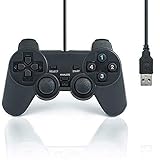
- USB 2.0 Game Pad.
- Plug and play.
- Light weight design.
- Master your games with this USB 10-button joy-pad for the PC!
- Styled after the controllers, this joy-pad offers the ultimate control for your favorite games.
Controller maps in the menu but not in a game
Initial mapping in EmulationStation does not ensure that every emulator will use the controller automatically. Check whether the affected emulator needs its own control configuration, and verify the game’s expected layout before changing the system-wide mapping.
What to verify before buying
- The exact host device and operating system are supported.
- The controller’s connection method works with that setup, including any required dongle or adapter.
- You can map the directions and buttons the way your games require.
- For a two-player stick or cabinet, the software can recognize the controls as separate devices.
- Any compatibility claim is tied to the specific model and relevant software version, rather than to “retro gaming” in general.
There is no single compatibility list in the cited RetroPie, Batocera, and Raspberry Pi documentation that covers all retro joysticks. The safest choice is one whose exact connection and model are documented for your host and software, with a return option if the seller’s compatibility details are unclear.
Quick Recap
Product prices and availability are accurate as of the date/time indicated and are subject to change. Any price and availability information displayed on Amazon at the time of purchase will apply.




