“ The program can’t start because sisudisp.dll is missing from your computer.” You may also see “Error loading sisudisp.dll,” “The specified module could not be found,” or “The file sisudisp.dll is missing or corrupted.”
sisudisp.dll is a legacy Silicon Integrated Systems Corporation display-settings DLL. It belongs to SiS graphics software, not to Windows itself. The safest repair is to restore the complete, matching SiS graphics package if the computer still uses SiS hardware. If it does not, remove the obsolete SiS utility or startup entry instead of downloading the DLL.


Which fix applies to you
Use this decision list before changing anything:
- The computer still has SiS graphics: Identify the adapter and reinstall the complete driver package from the PC, motherboard, or graphics-adapter manufacturer.
- The error appears only when Windows starts: Find the startup command, scheduled task, or OEM utility requesting the file. Repair or remove that confirmed entry.
- The computer no longer uses SiS hardware: Uninstall the old SiS display utility. Restoring the DLL would only preserve software you no longer need.
- The error began after antivirus activity: Check Windows Security Protection history and verify whether the original file was quarantined.
- The message says the file is not designed to run on Windows: Treat it as a possible architecture, corruption, or version mismatch. Reinstall the complete driver package rather than replacing one DLL.
- The file exists but still will not load: The named DLL may be present while one of its dependencies is missing. Check the requesting program, file location, signature, and matching driver package.
- You do not know which program is asking for it: Do not guess. Capture the full dialog and identify the executable path before installing or deleting anything.
What sisudisp.dll is
The file is associated with SiS’s SiS Compatible Super VGA Display Modes Setting software. Its reported product description refers to display-mode settings for Windows NT 4.0, Windows 2000, and Windows XP.
Public driver-package inventories place sisudisp.dll inside legacy SiS UniVGA and related graphics-driver installers. It may appear below a package folder such as u_DisplayPage, but there is no single installation path that applies to every SiS release.
Windows Errors? Fix Them Before They Spread
Repair common Windows errors and clear accumulated junk for a smoother, more stable PC - no reinstall needed.Free scan · no reinstallCrashes, No Sound, or Screen Glitches?
Random freezes, missing sound and display glitches usually trace back to one bad driver. Find and replace yours safely.Free scan · under a minute#1 Best Overall

- Pine PT 5968 Graphics Card
- P/N: SIS 6326
- Model: 5968
- Capacity: 8MB
- Connector Type: 15 pin HD D-Sub (HD-15), Interface: VGA
The file is not verified as a Windows inbox component. It is not the Microsoft Visual C++ runtime, DirectX, or a .NET component. Installing those packages normally will not supply a SiS-specific display-settings DLL.
Public metadata identifies the file as a Win32, 32-bit DLL. A 64-bit edition of Windows can run many 32-bit applications, but that does not make this file a 64-bit system DLL. Do not copy it into both System32 and SysWOW64 to see what happens.
SiS packages were released in multiple generations for older Windows versions and different chipsets. A file from one package may not work with another package’s executable or dependencies.
First identify the requesting program
The error dialog often names only sisudisp.dll, not the application that attempted to load it. That distinction matters because the correct repair depends on whether the request comes from an active graphics driver or an obsolete utility.
Check the startup entry
If the message appears immediately after signing in:
- Press
Ctrl+Shift+Escto open Task Manager. - Select Startup apps.
- Look for an entry mentioning SiS, display settings, graphics, or an unknown publisher.
- Right-click a likely entry and choose Open file location if that option is available.
- Record the executable name and folder before disabling anything.
- Disable only the entry you can connect to the error.
- Restart Windows.
If the error disappears, the disabled item was probably a stale startup component. Do not delete it yet. First confirm whether the machine needs the associated graphics software.
Also check Settings → Apps → Installed apps and search for SiS, display, VGA, or a computer-manufacturer graphics utility. On older systems, use Control Panel → Programs and Features.
Check Task Scheduler
A legacy utility may be launched by a scheduled task rather than Startup apps:
Free tools Windows power users keep installed
One-click scans. No signup required.
- Press the Windows key and type Task Scheduler.
- Open Task Scheduler.
- Select Task Scheduler Library.
- Review tasks whose names or actions mention SiS, display, VGA, or a missing executable.
- Double-click a candidate task and inspect the Actions tab.
- Note the program path and arguments.
- Disable the task only after confirming that it launches the error.
Do not remove a task merely because its name is unfamiliar. Confirm its action and publisher first.
Check Event Viewer
For an error that disappears too quickly:
- Press the Windows key and type Event Viewer.
- Open Event Viewer.
- Expand Windows Logs and select Application.
- Select Filter Current Log in the right pane.
- Review recent entries marked Error around the time the message appeared.
- Look for the application name, faulting module, and executable path.
The exact executable is more useful than the DLL filename alone. A SiS control-panel utility, an installer, and a third-party application can all produce different repair paths.
Rank #2
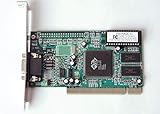
- ATI Rage IIc Graphic Chipset w/ 4MB memory
- PCI slots interface
- D-Sub 15 pin VGA connector, Support Video up to 1600 x 1200
- Legacy OS driver support for Windows 95, Windows 98 , OS2 and Windows NT 4.0. Include Driver Software CD.
- It is NEW, not refurbished or pulled unit. 90 Day Warranty
Fix 1: Reinstall the complete SiS or OEM graphics package
Use this fix when Device Manager shows SiS graphics, the machine is an older system with an SiS chipset, or the error started after a display-driver removal or failed update.
Do not begin by downloading sisudisp.dll separately. A complete package may also contain display drivers, control-panel files, services, registry entries, and other dependencies.
Recommended Free Tools
Identify the graphics adapter
- Right-click Start and select Device Manager.
- Expand Display adapters.
- Record the exact adapter name.
- Right-click the adapter and select Properties.
- Open the Driver tab and record the provider, date, and version.
- Open the Details tab.
- In the Property list, select Hardware Ids and record the entries if the model is unclear.
If the adapter appears as Microsoft Basic Display Adapter, Windows may be using a generic driver after the original package was removed. If the display adapter is not SiS, do not install an SiS package merely because the missing file name suggests one.
Obtain the matching package
Use the support page for the computer manufacturer, motherboard manufacturer, or graphics-adapter manufacturer. Match all of these:
- the exact computer or motherboard model;
- the SiS chipset or adapter family;
- the installed Windows release;
- 32-bit or 64-bit operating-system architecture;
- the complete graphics-driver package rather than an isolated DLL.
Legacy SiS packages were primarily intended for older Windows releases. A current Windows 10 or Windows 11 installation may not have a supported package for the old utility. The public SiS download area may not clearly expose every historical UniVGA package, so the original OEM package is usually the safer source.
Install the package
- Download the complete driver package from the manufacturer’s official support page.
- Create a restore point if System Protection is enabled.
- Close open programs.
- Right-click the installer and select Run as administrator.
- Follow the installer’s prompts.
- Restart Windows even if the installer does not require it.
- Open Device Manager again and confirm the adapter and driver details.
- Start the program that previously displayed the error.
If the installer refuses to run, check whether it supports the installed Windows version. Do not force an unrelated package or extract one DLL from it and place that file in a system folder.
For a clean reinstall using Device Manager:
- Open Device Manager.
- Expand Display adapters.
- Right-click the SiS adapter and select Uninstall device.
- If offered, select the option to remove the driver software.
- Select Uninstall.
- Restart Windows.
- Run the manufacturer’s complete driver installer.
- Restart again.
Microsoft documents the driver update and reinstall process through Device Manager.
The repair worked if the adapter has the expected name, Device Manager shows no warning icon, the SiS utility opens without the DLL message, and the display behaves normally. If the error remains, verify the executable that requests the file. You may be repairing the driver while a separate stale startup item is producing the message.
Manually comparing old driver versions and hunting through manufacturer pages can be tedious when several components are outdated. Outbyte Driver Updater can scan for driver issues and show what it found; its full-version repair installs are optional, and the correct OEM package remains the definitive choice for this legacy SiS file.
Fix 2: Remove an obsolete SiS utility
Use this fix when the computer has a newer non-SiS graphics adapter, the SiS hardware was replaced, or the error appears only during startup.
Restoring sisudisp.dll in this situation usually hides the symptom while leaving obsolete software configured to run.
Rank #3

- Robust 4GB Memory & Quad Display Ready: Equipped with 4GB of fast GDDR5 memory to smoothly handle daily graphics tasks. Features four built-in HDMI ports, enabling a seamless quad-monitor setup directly out of the box—perfect for multi-tasking offices, digital signage, or trading desks.
- Plug-and-Play Installation & Wide Compatibility: Utilizes a standard PCI Express interface for broad compatibility with most desktop PCs. Offers straightforward plug-and-play installation and stable driver support for modern Windows and Linux operating systems, ensuring a hassle-free setup.
- Quiet, Cool & Compact Design: Engineered with a silent fan and efficient cooling system for near-silent operation, making it ideal for noise-sensitive environments. Its low-profile design fits easily into small form factor cases, with both half-height and full-height brackets included for flexible installation.
- Enhanced Multimedia & Everyday Performance: Delivers smooth 1080P video playback and supports hardware-accelerated decoding, offering an excellent experience for home theater PCs (HTPC). Provides capable performance for everyday applications, multimedia tasks.
- Complete Package & Reliable Support: Includes the graphics card, both low-profile and standard brackets, a quick start guide, and screwdriver, which make it simple and quick setup process.
Uninstall the associated program
- Open Settings.
- Select Apps.
- Select Installed apps.
- Search for SiS, VGA, Display, or the computer manufacturer’s old graphics utility.
- Select the matching program’s three-dot menu.
- Choose Uninstall.
- Restart Windows.
On older Windows installations:
- Open Control Panel.
- Select Programs and Features.
- Select the SiS display or graphics utility.
- Select Uninstall or Change.
- Follow the prompts.
- Restart Windows.
Microsoft’s uninstall and repair guidance also covers repairing a program when that option is available.
If no uninstall entry exists, disable the confirmed startup item or scheduled task instead. Do not remove random registry values or delete folders before identifying the command that launches them.
After restarting, the repair worked if Windows signs in without the message and the current graphics driver continues to function. If removing the utility changes display resolution, color, or monitor detection, reinstall the correct current graphics driver from the hardware manufacturer rather than restoring the old SiS utility.
Quick wins for a faster PC:
Scan for outdated or missing drivers - takes under a minuteDriver Scan →Clear out junk files and repair common Windows errorsFree Scan →Fix 3: Check antivirus quarantine
A security scan, cleanup program, or accidental quarantine can remove a file from an otherwise working legacy installation.
- Open Windows Security.
- Select Virus & threat protection.
- Select Protection history.
- Review entries from the time the error began.
- Expand a matching detection and inspect its original path, detection name, and action.
- Do not restore the file solely because its name is
sisudisp.dll. - If the original path belongs to a trusted, complete OEM driver installation and the file has verifiable publisher information, review the available restore or allow action.
- Otherwise, leave it quarantined and reinstall the complete driver package from the manufacturer.
Microsoft explains Protection history and its restore controls in Windows Security.
A restored file can be detected again. If that happens, stop restoring copies and investigate the package, signature, and detection. A familiar filename alone does not prove that a file is authentic or safe.
Fix 4: Check architecture, version, and file integrity
A “not designed to run on Windows” message does not prove one specific cause. It can result from a corrupted binary, a 32-bit and 64-bit mismatch, an incompatible Windows version, or files from different driver generations.
What’s actually slowing this PC down?
Pick the symptom - the matching free tool is one click away.
Check the following:
- Right-click Start and select System.
- Find System type and record whether Windows is 32-bit or 64-bit.
- Return to the requesting executable’s folder.
- Right-click the executable and select Properties.
- Inspect Details and Digital Signatures, if present.
- Right-click
sisudisp.dll, select Properties, and compare its location and publisher information with the original package. - Do not trust a third-party label claiming that a particular copy is “x64.”
- Do not mix
sisudisp.dllfrom one SiS package with executables from another.
If the file is present but Windows reports “The specified module could not be found,” the missing item may be a dependency. Windows searches several locations when loading a DLL, including the application directory. Scattering copies through System32, SysWOW64, or unrelated program folders can cause Windows to load the wrong build. Microsoft describes this behavior in its documentation on DLL search order.
The safest repair is to uninstall or overwrite the complete matching package, not to replace the named file in isolation.
Fix 5: Repair Windows components
This is a secondary step. sisudisp.dll is not identified as a standard Windows component, so DISM and System File Checker will not normally recreate it. They can still repair Windows component corruption that prevents installers or applications from working correctly.
First run DISM from an elevated terminal:
- Right-click Start.
- Select Terminal (Admin) or Windows PowerShell (Admin).
- Select Yes at the User Account Control prompt.
- Run:
DISM /Online /Cleanup-Image /RestoreHealth
- Wait for the operation to finish.
- Then run:
sfc /scannow
- Wait until verification reaches 100 percent.
- Restart Windows.
- Retry the SiS or OEM installer.
Microsoft recommends running DISM before SFC in its Windows repair guidance.
Running these commands repeatedly without knowing what changed makes troubleshooting harder. Outbyte PC Repair can scan for reported Windows issues and show what it found; repair actions require the full version, and it does not replace reinstalling the correct SiS package.
If DISM or SFC reports that it could not repair files, save the result, restart, and return to the driver or obsolete-startup branches. Do not expect SFC to install a vendor DLL that was never part of Windows.
Independent reader supportYour contribution helps us test, update, and keep practical guides available for everyone.Fix 6: Roll back a recent change
If the error began immediately after a driver update, application installation, or Windows change:
- Open Device Manager.
- Expand Display adapters.
- Right-click the affected adapter and select Properties.
- Open the Driver tab.
- Select Roll Back Driver if available.
- Restart Windows.
For a recently installed application:
- Open Settings → Apps → Installed apps.
- Sort by installation date if available.
- Select the recent graphics utility or related application.
- Choose Uninstall.
- Restart Windows.
System Restore is another option when a suitable restore point exists:
Do these 3 things before closing this tab:
1Scan for outdated or missing drivers - takes under a minute2Clear out junk files and repair common Windows errors3Fix the driver behind crashes, sound loss and screen glitches- Press the Windows key and search for Create a restore point.
- Open it.
- Select System Restore.
- Choose a restore point from before the error began.
- Review the affected programs and drivers.
- Start the restore and restart Windows.
Microsoft describes what System Restore changes in its recovery options. It normally does not remove personal files, but it can remove drivers and applications installed after the selected restore point.
Do not use regsvr32 for this DLL
Do not run:
regsvr32 sisudisp.dll
regsvr32 is for registering DLLs that provide the appropriate registration entry point, such as DllRegisterServer. There is no verified evidence that sisudisp.dll is a self-registering COM or ActiveX server. Registering it is therefore not a general missing-DLL repair and may only produce another error.
Microsoft’s regsvr32 documentation explains the command’s intended use.
Why downloading the DLL is unsafe
Avoid random DLL download sites websites and isolated copies sent through forums or file-sharing services. A downloaded file can be malware, the wrong 32-bit or 64-bit build, a different SiS package version, or a modified file with no trustworthy provenance. Even an authentic copy may not fix the missing dependency, registry entry, driver, or startup configuration that caused the error.
The Tool Desk
Outbyte Driver Updater FREEScan for outdated or missing drivers - takes under a minuteDriver Scan →Outbyte PC Repair FREEClear out junk files and repair common Windows errorsFree Scan →Do not copy the file into C:WindowsSystem32, C:WindowsSysWOW64, or every application folder. If manual extraction is unavoidable, extract it only from the original matching SiS or OEM installer and use the package’s intended location. Reinstalling the complete package is safer.
The safe sources are the computer manufacturer, motherboard manufacturer, graphics-adapter manufacturer, or a verified original installation package already supplied with the hardware. Match the package to the hardware and Windows architecture.
Best Value
Prevention and final checks
After the repair:
- Restart Windows twice, checking whether the message returns at sign-in.
- Open Device Manager and confirm the display adapter has no warning icon.
- Check Startup apps for a disabled stale SiS entry.
- Check the installed program list for duplicate or leftover SiS utilities.
- Keep a copy of the matching OEM driver package in your support archive.
- Record the adapter model, driver version, and Windows architecture.
- Do not use generic driver cleaners or registry cleaners unless you can reverse their changes.
- Create a restore point before replacing a legacy display driver.
If the error persists, collect the exact error text, the requesting executable and full path, Windows version and architecture, graphics-adapter model, installed driver version, Protection History result, and the relevant Event Viewer entry. That evidence distinguishes a damaged driver from an obsolete utility or a missing dependency.
FAQ
Is sisudisp.dll part of Windows?
No verified evidence identifies it as a normal Windows system DLL. It is associated with legacy SiS display-mode software and graphics-driver packages.
Do these 3 things before closing this tab:
1Fix the driver behind crashes, sound loss and screen glitches2Repair Windows errors before they cause bigger problems3Scan for outdated or missing drivers - takes under a minuteIs sisudisp.dll a 32-bit or 64-bit file?
Public metadata identifies it as a Win32, 32-bit DLL. A 64-bit Windows system may run the related 32-bit utility, but the file should not be treated as a 64-bit system component.
Will Visual C++, DirectX, or .NET fix the error?
Usually not. Those packages do not provide this SiS-specific display-settings DLL. Identify the requesting program and repair its complete driver or utility package.
What if I still have SiS graphics?
Install the complete driver package matched to the exact computer, motherboard, chipset, Windows release, and architecture. Do not substitute a DLL from another SiS package.
What if I no longer have SiS hardware?
Uninstall the obsolete SiS utility or disable the confirmed startup task. Removing the old requester is safer than restoring a file for hardware the computer no longer uses.
Can I place the DLL in System32?
Do not do this as a default fix. The correct location depends on the application and package, and Windows may then load an incompatible copy.
Why does the message say “specified module could not be found” when the file exists?
The named DLL may depend on another missing or incompatible module. It can also be loaded from the wrong location. Reinstall the matching package and inspect the requesting executable.
What should I do if the error returns after every restart?
Identify the startup command, scheduled task, or OEM utility that launches it. If the machine no longer uses SiS graphics, remove that obsolete requester rather than repeatedly restoring the DLL.
Quick Recap
Product prices and availability are accurate as of the date/time indicated and are subject to change. Any price and availability information displayed on Amazon at the time of purchase will apply.



