
Start with this three-minute diagnosis
Before downloading anything, answer these questions:
- Which game or program shows the error? Write down its name and whether it is a LucasArts title.
- When did the problem begin? Did it happen after reinstalling, moving the game, applying a patch, or an antivirus scan?
- Where is the game installed? Check whether
smush.dllis beside the game’s executable or inside one of its folders. - Is Windows 64-bit? A 32-bit game can run on 64-bit Windows, so this alone is not a problem.
- What is the complete message? Common variants include “smush.dll is missing,” “smush.dll was not found,” “error loading smush.dll,” and “smush.dll is either not designed to run on Windows or it contains an error.”
smush.dll is a game library, not a Windows component. The safest repair is therefore to restore the complete game installation that owns it, rather than copying a replacement into a Windows system folder.

As an Amazon Associate I earn from qualifying purchases.
What smush.dll is
smush.dll is a 32-bit Windows DLL described as the Smush Animation Library. Public file metadata associates it with the product name Smush and LucasArts Entertainment Company LLC.
Smush was LucasArts’ multimedia technology for playing prerendered video and animation. Related Smush, SAN, and SNM media appeared in games including:
#1 Best Overall
- Star Wars: Rebel Assault
- Star Wars: Rebel Assault II
- Full Throttle
- The Dig
- The Curse of Monkey Island
- Grim Fandango
- X-Wing Alliance
That list identifies games associated with the technology. It does not prove that every release used the exact filename smush.dll. Different editions, ports, patches, and engines could use statically linked code or another library name, including tgsmush.dll.
Publicly indexed copies commonly identify smush.dll as:
- Architecture: 32-bit
- Version:
1.0.0.1 - Size: approximately
0.14 MB - Description:
Smush Animation Library
Those values are reference metadata from third-party file indexes, not an official LucasArts authenticity certificate. They also do not make a copy downloaded from an unknown source safe.
Recommended Free Tools
Fix 1: Repair or verify the affected game
This is the most likely solution when the message appears after installation, moving the game, restoring an old backup, or applying a patch.
If the game uses a launcher
Open the launcher where you normally start the game. Find the game in your library, then look for a menu next to its Play button. Choose an option named Verify, Verify integrity, Scan and repair, or similar.
The exact wording depends on the launcher, so do not assume that every platform uses the same menu.
Wait for the scan to finish. If files are missing or damaged, allow the launcher to download or restore them. Start the game from the launcher when the process completes.
The Tool Desk
Outbyte Driver Updater FREEScan for outdated or missing drivers - takes under a minuteDriver Scan →Outbyte PC Repair FREERepair Windows errors before they cause bigger problemsFix Now →A successful repair usually means:
- The launcher reports that verification completed.
- Missing files are reacquired.
- The game reaches its main menu instead of showing the DLL error.
If verification reports no problem but the error remains, continue with the installation-directory checks below.
If the game came from a disc or old installer
- Close the game.
- Insert the original disc or locate the original installer.
- Run
setup.exeor the installer’s normal entry point. - If it offers Repair, Change, or Modify, choose Repair.
- If no repair option exists, reinstall the game to its original folder.
- Apply the official patch for that specific game and release, if one exists.
- Launch the game using the shortcut created by the installer.
Do not copy only smush.dll from another LucasArts game. A matching filename does not mean that the library belongs to the same release or uses the same surrounding files.
If the game is listed in Windows
For a conventional desktop application on Windows 11:
- Open Start.
- Select Settings.
- Choose Apps.
- Select Installed apps.
- Find the affected game or program.
- Select the three-dot menu beside it.
- Choose Advanced options, if available.
- Select Repair.
- Start the game again.
If Repair is unavailable or does not help, return to the same screen and use Reset only if you understand that it may remove the program’s local data or settings.
Free tools Windows power users keep installed
One-click scans. No signup required.
Rank #2

- Star Wars: Empire at War puts the power to command a war for the entire Star Wars galaxy in the hands of players.
- Star Wars: Knights of the Old Republic is the recipient of over forty Game of the Year Awards and widely considered one of the best role-playing experiences of all time.
- Star Wars Battlefront gives gamers the opportunity to re-live all of the classic Star Wars battles like never before, in one of the best-selling Star Wars games of all time.
The Control Panel route is:
- Press
Windows + R. - Type
appwiz.cpl. - Press Enter.
- Select the game.
- Choose Repair or Change, if offered.
- Follow the installer’s instructions.
Microsoft documents these repair paths in its guide to repairing apps and programs in Windows.
Check that you are launching the complete installation
Old games often expect private DLLs beside the executable. Running a copied executable from the desktop, a temporary folder, or a different backup location can break that arrangement.
To check:
- Right-click the shortcut you normally use.
- Select Properties.
- On the Shortcut tab, inspect Target.
- Select Open File Location if that button is available.
- Confirm that the game executable and its supporting folders are together.
- Start the game from that shortcut or its launcher.
If you manually moved only the executable, restore the complete game directory or reinstall it.
Fix 2: Check Windows Security quarantine
A previously working game that suddenly reports a missing DLL may have had the file quarantined.
To inspect Windows Security:
- Open Start.
- Type Windows Security.
- Open the app.
- Select Virus & threat protection.
- Select Protection history.
- Review recent detections involving the game folder or
smush.dll.
Do not restore the file automatically just because the game needs it. First consider:
- Did the game come from original media or a legitimate store?
- Was the installer modified or repacked?
- Does the detection identify the file as a potentially unwanted or malicious program?
- Does the file belong in the game directory rather than a Windows folder?
If the source is trustworthy and the detection appears to be a false positive, record the detection name and file location, scan the complete installation, and consult the security vendor’s false-positive process. Restore only after you have verified the game’s origin.
If the game came from an unofficial repack, crack, or unknown download, treat the quarantine as a security warning. Obtain a clean, legitimate release instead of creating a permanent exclusion.
Fix 3: Reinstall the exact game release
A generic replacement can fail when the game and DLL come from different releases. This is especially important with old titles that have multiple editions, language versions, patches, ports, and fan modifications.
Use this order:
- Back up saved games if you know where the game stores them.
- Uninstall the affected game through Settings > Apps > Installed apps, or through Control Panel.
- Restart Windows.
- Install the game again from the original disc, official publisher source, or legitimate store library.
- Allow the installer to use its normal folder structure.
- Apply only patches intended for that game and release.
- Launch it normally.
If the installer offers compatibility settings, try those only after restoring the files. Compatibility settings do not replace a missing library.
The official Lucasfilm Games support material includes historical updates and patches for selected LucasArts games. Those patches are game-specific and do not establish a standalone official smush.dll download.
Fix 4: Check whether the game was moved
A missing-library error can appear after moving a game folder to another drive or restoring it from a backup.
Rank #3
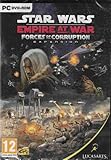
- Experience the timeframe depicted in The Empire Strikes Back and Return of the Jedi through an entirely new point of view as criminal mastermind Tyber Zann.
- Spreading corruption is the key to Underworld dominance.
- New hero characters such as Luke Skywalker, Yoda, and bounty hunters like Bossk and IG-88 use their own distinct special abilities in battle.
- New additions to land-tactical action include terrain modifiers, bunkers, mobile defenses and troop transports.
- Conquer 13 newly added planet maps (Bespin’s Cloud City, Mustafar, Kamino, Utapau, Felucia, Mandalore and more), plus all 43 in the Empire at War core product
Check the following:
- The shortcut points to the new drive.
- The game’s executable remains in the expected folder.
- Subfolders containing video, animation, or support files were copied.
- The game is not running from a compressed archive.
- The folder is not being cleaned by temporary-file software.
- The drive is available before the game starts.
If you moved the folder manually, reinstalling is usually safer than trying to reconstruct its original layout. If the launcher supports relocation, use its own Move, Locate, or Scan for installed games function.
Do these 3 things before closing this tab:
1Scan for outdated or missing drivers - takes under a minute2Clear out junk files and repair common Windows errors3Fix the driver behind crashes, sound loss and screen glitchesFix 5: Resolve a dependent-module error
Windows may say “The specified module could not be found” even when smush.dll is visible in the game directory. In that situation, the missing item may be a dependency required by the DLL or by the game.
Do this first:
- Restore or verify the complete game installation.
- Run the game installer’s prerequisite step, if it provides one.
- Restart Windows.
- Try the game again.
A dependency-analysis utility can help an experienced technician identify what the executable expects, but avoid downloading individual similarly named DLLs based on a search result. The exact dependency chain for the public smush.dll file is not established by an official vendor dependency manifest.
Fix 6: Address broader Windows component corruption
Use Windows repair commands only when other symptoms point to Windows corruption, such as several unrelated applications failing, damaged system files, or repeated integrity warnings. These commands generally cannot recreate a private LucasArts game DLL.
Open an elevated Command Prompt:
- Open Start.
- Type
cmd. - Right-click Command Prompt.
- Select Run as administrator.
- Approve the User Account Control prompt.
- Run this command:
DISM.exe /Online /Cleanup-image /Restorehealth
Wait for it to finish. Then run:
sfc /scannow
Microsoft recommends running DISM before SFC. You can review the official System File Checker instructions.
What’s actually slowing this PC down?
Pick the symptom - the matching free tool is one click away.
Restart Windows after both commands complete, then test the game.
If DISM or SFC reports repairs, reboot and test the game. If both complete successfully but smush.dll is still missing, return to the game repair or reinstall steps.
Repeatedly hunting through repair commands can be slower than identifying the damaged game installation. Outbyte PC Repair can scan for broader Windows issues and show what its free scan finds, while repairs are handled by the full version; reinstalling the affected LucasArts game remains the definitive fix for this private DLL.
Fix 7: Update drivers only when the evidence points there
A graphics or sound driver is not the normal cause of a missing smush.dll. Do not begin with Device Manager simply because the game is old.
Use Device Manager when you also see display problems, audio failures, device warnings, or a game that crashes after the DLL has been restored.
To check for device problems:
- Right-click Start.
- Select Device Manager.
- Expand Display adapters and Sound, video and game controllers.
- Look for a yellow warning icon.
- Right-click the affected device.
- Select Update driver.
- Choose Search automatically for drivers.
- Restart Windows if a driver is installed.
For a rollback:
- Right-click the device in Device Manager.
- Select Properties.
- Open the Driver tab.
- Choose Roll Back Driver if available.
Do not download a graphics or audio driver from a random driver website. Use Windows Update, the computer manufacturer, or the hardware manufacturer.
Finding the correct driver manually can mean checking hardware identifiers, Windows compatibility, and several device categories. Outbyte Driver Updater can scan and identify outdated drivers, with driver installation handled by the full version; it is optional, and it does not replace repairing the game that owns smush.dll.
Fix 8: Check architecture and file integrity
Public metadata identifies smush.dll as a 32-bit file. That is normal for a legacy game and does not mean that Windows must be 32-bit.
PC Slower Than It Used to Be?
A free scan shows the junk files, broken settings and background clutter dragging Windows down - then fixes them in one click.Free scan · Windows 10 & 11Outdated Drivers Are Slowing You Down
One free scan finds every outdated or missing driver and matches the right update for your exact hardware.Free scan · exact hardware matchRank #4

- All new design of the first 30 levels
- Includes complete content from Star Wars Galaxies: An Empire Divided and Star Wars Galaxies: Jump to Lightspeed
- Customize your character's appearance -- body types, facial features, tattoos and more
- Take on one of over nine iconic professions, including Bounty Hunter, Smuggler, Commando, or a Jedi
- Inspired by all the George Lucas films, including all the trilogy and prequel movies
To check Windows architecture:
- Open Settings.
- Select System.
- Select About.
- Look at System type.
A 64-bit Windows installation can run a 32-bit game using its compatibility subsystems. Do not search for a 64-bit replacement merely because your operating system is 64-bit.
If the message says the file is “not designed to run on Windows,” possible causes include:
- A corrupted DLL.
- A file from a different game release.
- A truncated or incomplete extraction.
- An incompatible architecture.
- A damaged dependency.
- Malware modification.
Restore the matching file set through the original installer or launcher. Do not keep testing random copies.
Do not place smush.dll in System32
Do not copy this game DLL into:
C:WindowsSystem32C:WindowsSysWOW64- Every application folder on the computer
- A random directory on the system
PATH
A 32-bit game normally loads its private library from the game’s own installation directory or one of its subdirectories. System32 and SysWOW64 are not general-purpose DLL storage locations.
Quick wins for a faster PC:
Repair Windows errors before they cause bigger problemsFix Now →Fix the driver behind crashes, sound loss and screen glitchesFind Drivers →Clear out junk files and repair common Windows errorsFree Scan →If you have a known-good file from the same legitimate release and the installer cannot restore it, the appropriate destination is the original game directory. Even then, restoring the entire installation is safer because the missing DLL may not be the only damaged file.
Independent reader supportYour contribution helps us test, update, and keep practical guides available for everyone.Do not use regsvr32 for this file
regsvr32 is not a universal DLL installer. It is intended for libraries that expose registration entry points such as DllRegisterServer, commonly used by COM or ActiveX components.
smush.dll is documented as a game playback library. No reliable public export listing establishes that the exact public file provides DllRegisterServer. Do not use this as a repair command:
regsvr32 smush.dll
It may return an error such as:
The module "smush.dll" was loaded but the entry-point DllRegisterServer was not found.
That does not mean registration is missing or that you need another copy. It means the command does not apply to the library.
Do these 3 things before closing this tab:
1Scan for outdated or missing drivers - takes under a minute2Clear out junk files and repair common Windows errors3Fix the driver behind crashes, sound loss and screen glitchesMicrosoft’s documentation explains Regsvr32 behavior and the DLL registration entry point.
Should you reinstall Visual C++, DirectX, or .NET
Not for smush.dll alone.
Microsoft’s current Visual C++ packages are named vc_redist.x86.exe, vc_redist.x64.exe, and vc_redist.arm64.exe. They apply when an error names components such as MSVCP*.dll, VCRUNTIME*.dll, or MSVCR*.dll, or when the game’s official installer explicitly requires them.
smush.dll is identified as LucasArts game code, not as a Visual C++ Redistributable file. Installing a runtime at random can add unnecessary variables without restoring the game’s missing library.
Best Value

- Kotor I - A massive conflict between Jedi & Sith has left the Republic weakened where the young Jedi's mission will determine the outcome of this colossal galactic war - and your destiny as a Jedi
- Kotor I - Lead your group of freedom fighters across the galaxy -- you can choose from humans, droids, Twi'leks, Wookies and more and recruit others to your cause & train them in exciting mini-games like racing swoop bikes or manning turret guns
- Kotor I - Travel to ten unique worlds; Customizable and evolving characters
- Kotor II - Sequel to the award-winning role-playing game; All-new Force powers, weapons, locations, characters and classes
- Kotor II - Choose the light or the dark side of the Force based on your characters actions as you progress through the story
Use the official Microsoft Visual C++ Redistributable downloads only when the actual error or installer calls for them.
Windows Features and Device Manager are similarly not normal fixes for this filename. Windows Features are useful when the error specifically names a Windows optional component, and Device Manager is relevant to a demonstrated hardware-driver problem, not a missing private game DLL.
Why random DLL download sites are risky
Avoid websites that offer a one-click smush.dll download. A downloaded copy may have:
- The wrong release or patch level.
- The wrong architecture.
- Modified or malicious content.
- A misleading version label.
- No trustworthy chain back to the original game.
It may also hide the real problem, such as a quarantined file, an incomplete installation, or a missing dependency. There is no verified Microsoft or LucasArts standalone smush.dll redistributable.
Use these sources instead:
- The original game disc and installer.
- A legitimate store or launcher library.
- The game’s built-in verification or repair feature.
- An official publisher patch intended for the exact title and release.
- Microsoft support pages for Windows repair commands and Windows components.
FAQ
Is smush.dll part of Windows?
No. It is a third-party game library associated with LucasArts’ Smush multimedia technology. It does not belong in System32 or SysWOW64.
Which game installed smush.dll?
The filename alone cannot identify the exact game. Smush technology is associated with several LucasArts titles, but releases could use different filenames or statically linked code. Check the erroring executable, launcher library, and installation folder.
Is smush.dll a Visual C++ file?
No evidence identifies it as a Microsoft Visual C++ Redistributable component. If the error names MSVCP, VCRUNTIME, or MSVCR, that is a separate runtime issue.
Can a 32-bit smush.dll run on 64-bit Windows?
Yes. A 32-bit game can run on 64-bit Windows. The DLL must match the game executable and come from the same release.
Should I download a replacement DLL?
Usually no. Repair or reinstall the affected game from its original or legitimate source. Do not use a generic copy from an unknown DLL repository.
What’s actually slowing this PC down?
Pick the symptom - the matching free tool is one click away.
Should I run regsvr32 smush.dll?
Normally no. This is a game playback library, not a DLL that should be registered as a Windows component.
Why does Windows say the specified module could not be found when the file exists?
The message can refer to a dependency rather than smush.dll itself. Restore the complete game installation and its bundled prerequisites instead of downloading individual DLLs.
What if antivirus removed the file?
Review Windows Security > Virus & threat protection > Protection history. Verify the game’s source and scan the installation before considering restoration. Do not create a permanent folder exclusion for an untrusted release.
What information should I provide if the error continues?
Record the exact error text, game name, installation source, Windows version and architecture, whether the game worked previously, whether smush.dll exists in the game folder, whether antivirus quarantined it, and whether the executable was moved. That information distinguishes a damaged installation from a wrong release, missing dependency, or security issue.
Quick Recap
Product prices and availability are accurate as of the date/time indicated and are subject to change. Any price and availability information displayed on Amazon at the time of purchase will apply.

