File SYNSOACC.DLL could not be located in the Windows system folders. You may also see SYNSOACC.DLL could not be located, The program can't start because synsoacc.dll is missing from your computer, or a message referring to the Protected Object Server.
The 60-second answer
synsoacc.dll is the eLicenser POS Access DLL, a genuine Steinberg component installed by eLicenser Control Center. It is not a Windows system file and should not be downloaded from a DLL website.
As an Amazon Associate I earn from qualifying purchases.
The most likely fix is to reinstall eLicenser Control Center:
Free tools Windows power users keep installed
One-click scans. No signup required.
- Close Cubase, Dorico, WaveLab, or the affected plug-in host.
- Open Settings > Apps > Installed apps.
- Search for eLicenser Control Center.
- Select the three-dot menu, choose Uninstall, and complete the wizard.
- Restart Windows.
- Download and install the current Windows eLicenser Control Center package from Steinberg.
- Restart Windows again and test the application.
Run the installer as administrator if Windows reports a permission problem. Reinstalling the host application alone may not restore this shared licensing component.
#1 Best Overall
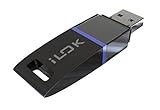
- USB Key for Storing Authorizations
- Portable
- Can Hold Over 500 Authorizations
- Immune from Updates and Crashes
- USB Key for Storing Authorizations
What causes the error
The cause is usually one of these:
| Cause | What it means | Best repair |
|---|---|---|
| Damaged eLicenser installation | The DLL or related licensing files are incomplete | Reinstall eLicenser Control Center |
| Old protected plug-in | A legacy plug-in still requests eLicenser | Update, remove, or reinstall that plug-in |
| Permissions failure | The file exists but the application cannot access it | Reinstall from an elevated installer |
| Antivirus quarantine | Security software removed or blocked the file | Check Protection history and verify the file |
| Windows corruption | Windows components or permissions are damaged | Run DISM, then SFC |
| Damaged host installation | Cubase, Dorico, WaveLab, or another host is incomplete | Repair or reinstall that application |
Newer Steinberg products may use Steinberg Licensing instead of eLicenser. Therefore, not every current Cubase, Dorico, or WaveLab installation needs this file. An older application or plug-in copied from another computer may still call it.
Fix 1: Reinstall eLicenser Control Center
This is the correct first repair because synsoacc.dll is part of the eLicenser installation rather than a standalone Windows dependency.
Uninstall the existing installation
- Save your work and close every Steinberg application.
- Press Windows + I.
- Select Apps, then Installed apps on Windows 11. On Windows 10, choose Apps & features.
- Find eLicenser Control Center.
- Select the three-dot menu, or click the entry, and choose Uninstall.
- Follow the uninstall wizard.
- Restart Windows even if the wizard does not require it.
You can also use the older interface:
- Press Windows + R.
- Enter
appwiz.cpl. - Press Enter.
- Select eLicenser Control Center.
- Click Uninstall and restart Windows.
Install the official package
Download the current Windows eLicenser Control Center package from Steinberg’s official download page. The current package is listed as eLicenser Control Center 6.12.11.1328. Steinberg lists Windows 7, Windows 8.1 64-bit, Windows 10 64-bit, and Windows 11 64-bit among its supported systems, with a Microsoft .NET Framework prerequisite.
Recommended Free Tools
After downloading:
- Right-click the installer.
- Select Run as administrator.
- Approve the User Account Control prompt.
- Accept the installation options.
- Restart Windows when installation finishes.
- Start the affected application normally.
Do not use compatibility mode unless Steinberg specifically instructs you to. If the application now starts, the repair worked. If the same message returns, continue with the plug-in and security checks below.
Fix 2: Identify the application that calls the file
The application named in the error determines the next step.
Older Steinberg products can include Cubase, Dorico, and WaveLab. Older third-party audio plug-ins that used eLicenser protection can produce the same error while a host is scanning plug-ins.
Rank #2

- Bluetooth 5.4 + Broad Compatibility - Provides Bluetooth 5.4 plus EDR technology and is backward compatible with Bluetooth V5.3/5.0/4.2/4.0/3.0/2.1/2.0/1.1.
- Faster Speed, Extended Range - Get up to 2x faster data transfer and 4x broader coverage compared to Bluetooth 4.0 — perfect for smooth audio streaming and stable connections.
- EDR and BLE Technology - This Bluetooth dongle is quipped with enhanced data rate and Bluetooth low energy, UB500 has greatly improved data transfer speed and operates at the optimal rate of power consumption
- Nano-Sized - A sleek, ultra-small design means you can insert the Nano Bluetooth receiver into any USB port and simply keep it there regardless of whether you are traveling or at home
- Plug & Play with Free Driver Support - Plug and play for Windows 8.1/10/11 (internet required). Supports Win7 (driver required and can be downloaded from website for free). Download the latest driver from TP-Link website to utilize Bluetooth 5.4
If the error appears during plug-in scanning:
- Close the host.
- Temporarily move the suspected old plug-in out of its VST2 or VST3 folder.
- Start the host again.
- If it opens, update or reinstall the plug-in from its developer.
- If the plug-in is obsolete and no longer needed, remove it permanently.
- Rescan plug-ins from the host’s plug-in settings.
A recent application can be fully repaired while an obsolete plug-in still requests synsoacc.dll. In that situation, removing the old plug-in is the definitive fix.
Quick wins for a faster PC:
Fix the driver behind crashes, sound loss and screen glitchesFind Drivers →Repair Windows errors before they cause bigger problemsFix Now →Scan for outdated or missing drivers - takes under a minuteDriver Scan →If the error appears when launching Cubase, Dorico, or WaveLab itself, repair eLicenser first, then use the application’s official repair or reinstall process.
Fix 3: Check the expected file locations
Steinberg’s cleanup instructions refer to these locations:
C:WindowsSystem32
C:WindowsSysWOW64SYNSOACC.dll
The second location is relevant on 64-bit Windows. A 64-bit installation can contain both 64-bit and 32-bit software directories, so do not swap a DLL between System32 and SysWOW64 based on advice from a random website.
To check the file:
- Press Windows + E.
- Browse to
C:WindowsSystem32. - Search for
SYNSOACC.dll. - On 64-bit Windows, also check
C:WindowsSysWOW64. - Right-click any matching file and select Properties.
- Review the Digital Signatures and Details tabs if available.
- Scan the file with your current security software.
The filename alone does not prove that the file is safe. A file copied from another computer may have the wrong release, architecture, permissions, or malicious content.
The Tool Desk
Outbyte Driver Updater FREEScan for outdated or missing drivers - takes under a minuteDriver Scan →Outbyte PC Repair FREEClear out junk files and repair common Windows errorsFree Scan →Do not manually copy the file beside the application executable. Steinberg installs related licensing components, drivers, and data together, so restoring only one DLL often leaves the underlying problem unchanged.
Rank #3

- This LEVN USB Dongle supports pairing with all LVEN brand headphones with USB Dongle. Currently supported models are LE-HS010 Superior, LE-HS013 Superior, LE-HS016 Superior, LE-HS011 Superior, CT001, CT002, CT005. For questions about USB adapter and headphone re-pairing, please feel free to contact us!
Fix 4: Check antivirus quarantine
Windows Security may have quarantined the file or blocked the installer.
- Open Start and search for Windows Security.
- Select Virus & threat protection.
- Click Protection history.
- Look for an event involving
SYNSOACC.dll, eLicenser, or the Steinberg installer. - Expand the event and review its path, source, and detection details.
Do not restore a quarantined file merely because its name is correct. Restore it only if you have verified that it came from a legitimate Steinberg installation and the file passes a current security scan. Otherwise, leave it quarantined, remove the damaged installation, and reinstall eLicenser from Steinberg.
If security software repeatedly removes the freshly installed component, check its detection details and submit the suspected false positive to that security vendor. Do not disable protection permanently.
What’s actually slowing this PC down?
Pick the symptom - the matching free tool is one click away.
Fix 5: Repair installation permissions
A file can exist and still appear missing when the calling program cannot access it.
First, close the application. Then reinstall eLicenser using an elevated installer:
- Download a fresh official installer.
- Right-click it and select Properties.
- If an Unblock checkbox appears on the General tab, select it and click Apply.
- Right-click the installer again.
- Select Run as administrator.
- Complete the installation and restart Windows.
Test the application using your normal Windows account. Do not permanently run a DAW as administrator. If the application works only when elevated, the installation or folder permissions still need attention.
Rank #4

- 1. Free update. No subscription, no annual fee.
- 4. Work offline, NEED online. Read/Write (have account for users).With integrated scanmatik2
- 3. Master-version, save data in bin format, data not encrypted.
- 2. Has a USB dongle, all licenses for the modules are on the dongle.
- 5. Helpdesk supply free Damaos for tuner (Free damaos as WinOLS damaso file ,WinOLS damaos and MAP package)
Avoid changing permissions on the entire Windows directory. If permissions remain abnormal, create a restore point and contact Steinberg or the plug-in vendor rather than granting broad access.
Fix 6: Repair Windows components
Because synsoacc.dll is a third-party Steinberg file, Windows repair commands normally do not reinstall it. They are useful when Windows itself is damaged, updates fail, or other system components show errors.
Install pending Windows updates first:
- Open Settings.
- Select Windows Update.
- Click Check for updates.
- Install available updates.
- Restart Windows.
Then run DISM followed by SFC:
- Open Start.
- Type
Command Prompt. - Right-click it and select Run as administrator.
- Run:
DISM.exe /Online /Cleanup-image /Restorehealth
- Wait for DISM to finish.
- Run:
sfc /scannow
- Wait until verification reaches 100 percent.
- Restart Windows and test the affected application.
If DISM reports that it repaired the component store, restart and run SFC again. If SFC reports that it found and repaired corrupt files, test the application. If both commands complete without fixing the error, return to the eLicenser reinstall and legacy plug-in checks.
Repeatedly running SFC or DISM without knowing what changed makes this process difficult to diagnose. Outbyte PC Repair can scan for Windows problems and show what it found; its repair functions are handled by the full version. Reinstalling the Steinberg program remains the definitive fix when the missing component belongs to eLicenser.
Independent reader supportYour contribution helps us test, update, and keep practical guides available for everyone.Fix 7: Check drivers only when the evidence points there
The eLicenser installation can include USB licensing support, but synsoacc.dll itself is not repaired by randomly replacing Windows drivers. Use Device Manager only if the USB-eLicenser is not detected or Windows reports a driver error.
- Right-click Start.
- Select Device Manager.
- Expand Universal Serial Bus controllers and any category containing an unknown device or warning icon.
- Right-click the affected device and select Properties.
- Read the Device status message under the General tab.
- Use Update driver only with a driver supplied by the device or software vendor.
- Restart Windows after installing a legitimate driver.
Outbyte Driver Updater can scan for outdated drivers and show which versions need attention; driver installation is handled by the full version. Do not use a driver update as a substitute for reinstalling eLicenser when the licensing package is the actual failure.
Why regsvr32 is not the answer
regsvr32 registers DLLs that expose a registration entry point such as DllRegisterServer. It is not a general-purpose DLL installer.
There is no Steinberg instruction to register SYNSOACC.dll with regsvr32. Running commands such as these can produce another error without repairing the licensing chain:
Best Value
- Works with Windows,Andorid,Linux,Raspberry pi.Support Google Earth.It can not work with IOS system
- Windows and Andorid need driver, Raspberry pi and linux no need driver
- The default output is the product GPs protocol data. You can test the software or serial commands to modify switch PS / GLONASS protocol data
- Note: This dongle only can work outdoor. If you want to let it work indoor, you need have GPS amplifier. Otherwise the GPS can not lock
- If you need some driver links and using videos for VK-172,Please contact us
regsvr32 synsoacc.dll
regsvr32 C:WindowsSystem32synsoacc.dll
Use the official eLicenser installer instead. It places the component and its related files in the appropriate locations.
PC Slower Than It Used to Be?
A free scan shows the junk files, broken settings and background clutter dragging Windows down - then fixes them in one click.Free scan · Windows 10 & 11Outdated Drivers Are Slowing You Down
One free scan finds every outdated or missing driver and matches the right update for your exact hardware.Free scan · exact hardware matchWhat the eLicenser shutdown changes
Steinberg shut down the eLicenser service on May 20, 2025. Reinstalling eLicenser Control Center can still help software that uses an existing local Soft-eLicenser or USB-eLicenser license.
It cannot restore discontinued online activation-code entry, license transfers, maintenance, or license-database updates. If the product has migrated to Steinberg Licensing, follow that product’s current licensing process instead of trying to rebuild eLicenser indefinitely.
Frequently asked questions
Is synsoacc.dll a Windows file?
No. It is a Steinberg eLicenser component installed by eLicenser Control Center.
Is the file safe?
A legitimate Steinberg-installed copy can be expected, but the filename alone is not proof. Verify its source, review its properties, and scan it with current security software.
Should I download synsoacc.dll separately?
No. Standalone DLL downloads may contain malware or the wrong release and architecture. They also omit the related licensing files and configuration.
Why does the file exist but the application still report it as missing?
The calling process may lack permission, the wrong architecture may be loaded, antivirus software may be blocking it, or an old plug-in may be requesting an obsolete component.
Will reinstalling Cubase fix it?
Not necessarily. Cubase may depend on the shared eLicenser installation, and a separate old plug-in may be the component raising the error.
When should I contact support?
Contact Steinberg or the plug-in vendor after recording the exact error, the application that triggers it, whether the file exists in the documented locations, and the result of the eLicenser reinstall. Preserve installers and existing license information before removing legacy software.
Quick Recap
Product prices and availability are accurate as of the date/time indicated and are subject to change. Any price and availability information displayed on Amazon at the time of purchase will apply.




