If TEKKEN 8 crashes on startup, during shader compilation, while loading a mode, or in an online match, work through these fixes in order. Start with Steam file verification, Windows and GPU-driver updates, clean graphics settings, and disabled overlays before attempting a reinstall.
One important distinction: a temporary “not responding” screen during the first launch after a game or driver update may be shader compilation rather than a crash. If CPU or GPU activity continues, give it several minutes. A repeatable crash, blue screen, reboot, or identical error at the same point needs a different diagnosis.

Identify the type of crash first
| Symptom | Start with these checks |
|---|---|
| Nothing happens after clicking Play | Steam files, antivirus quarantine, Windows updates, GPU drivers, and prerequisites |
| Crash before the main menu | Driver stability, corrupted configuration, overlays, and system requirements |
| “UE-Polaris Game Has Crashed” | Verify files, update or clean-install the driver, disable overlays, and remove overclocks |
| “LowLevelFatalError” | Record the exact text, then test drivers, graphics settings, shader compilation, and hardware stability |
| “Could not decompress shader” or another shader error | Verify files, allow compilation to finish, update the driver, and return hardware tuning to stock |
| Crash when entering one mode, stage, or story section | Verify files, update the game, lower settings, and record the exact reproducible trigger |
| Crash only during online play | Check whether the desktop closes or whether this is actually a disconnect or network error |
| The entire PC freezes, reboots, or blue-screens | Investigate temperatures, power, memory, drivers, and overclock stability—not just the game installation |
These are first-line remedies, not guaranteed cures. A crash can come from damaged files, a driver regression, an overlay conflict, antivirus interference, unstable tuning, inadequate hardware, or a game-side bug.
Before troubleshooting: check your PC against the published requirements
The Steam listing specifies the following Windows requirements for TEKKEN 8:
Windows Errors? Fix Them Before They Spread
Repair common Windows errors and clear accumulated junk for a smoother, more stable PC - no reinstall needed.Free scan · no reinstallOutdated Drivers Are Slowing You Down
One free scan finds every outdated or missing driver and matches the right update for your exact hardware.Free scan · exact hardware match#1 Best Overall
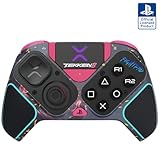
- BUILT FOR GAMING - Engineered to fit your play style and packed with tons of customizable options, the Pro BFG Wireless Controller is the new standard in PlayStation and PC gaming.
- FULLY CUSTOMIZABLE - Map functions to any of the four mappable back buttons to take down ops quickly and efficiently. Use the Profile Button to create three unique button mapping profiles to maximize your efficiency in any game.
- ULTIMATE MODULARITY - Create the ultimate controller for any game using the swappable modules and interchangeable pieces. Includes a reversible left module, standard right module, 6-button fight pad module, 4 interchangeable sticks, 3 different D-pads, and 4 gates.
- PREMIUM BUILT-IN AUDIO - Hear your enemies before you see them with Sony 3D audio on PS5. Plus, low latency audio and different EQ profiles to choose from give you the advantage over the competition.
- Officially licensed by Bandai Namco Entertainment Inc. & a PlayStation Official Licensed Product
| Minimum | Recommended | |
|---|---|---|
| Operating system | Windows 10 64-bit | Windows 10 64-bit |
| CPU | Intel Core i5-6600K or AMD Ryzen 5 1600 | Intel Core i7-7700K or AMD Ryzen 5 2600 |
| Memory | 8 GB RAM | 16 GB RAM |
| Graphics | NVIDIA GeForce GTX 1050 Ti or AMD Radeon R9 380X | NVIDIA GeForce RTX 2070 or AMD Radeon RX 5700 XT |
| DirectX | Version 12 | |
| Storage | 100 GB available space | |
| Network | Broadband internet connection | |
The listing describes stable 60 FPS under the game’s default graphics selection, but says performance can drop when other applications are running. Treat the minimum specification as a floor, not a stability guarantee—particularly during shader compilation or on a PC close to the minimum.
Press Win + R, enter dxdiag, and press Enter. Check the System and Display tabs. On a laptop, also confirm that Windows is using the dedicated GPU rather than integrated graphics. The 100 GB figure is the game’s nominal requirement; leave substantially more free space if the drive is nearly full.
Quick checklist
- Restart Windows and allow shader compilation to finish.
- Verify the Steam installation.
- Update Windows and the graphics driver.
- Disable overlays, capture tools, and monitoring utilities.
- Reset graphics settings and lower GPU-heavy options.
- Check antivirus quarantine and protection history.
- Remove GPU, CPU, and memory overclocks or undervolts.
- Repair prerequisites, reinstall only if necessary, or contact Bandai Namco with diagnostic files.
Fix 1: Restart Windows and wait through shader compilation
- Exit TEKKEN 8 and Steam.
- Restart Windows.
- Open Steam and let any game update finish.
- Launch the game with other demanding applications closed.
- If this is the first launch after a driver or game update and the window appears frozen, wait several minutes while checking whether CPU or GPU activity continues.
Shader compilation can produce unusually high CPU or GPU activity and a temporary apparent hang. Community reports describe this behavior after updates or long periods without launching the game, but those reports are anecdotal. Waiting is reasonable once; it is not a solution for a crash that repeatedly closes the game at the same point.
Fix 2: Verify TEKKEN 8 files in Steam
- Open Steam and go to Library.
- Right-click TEKKEN 8 and select Properties.
- Open Installed Files.
- Select Verify integrity of game files.
- Wait for the process to finish, restart Steam, and test the game.
Steam’s verification guidance explains that this can reacquire damaged or incomplete files. It may repair a missing executable or corrupted game data, but it will not fix an unstable GPU driver, overheating, or faulty hardware.
Free tools Windows power users keep installed
One-click scans. No signup required.
If verification reports repeated corruption, suspect a failing drive, insufficient free space, or antivirus interference. If you use mods, back them up and remove them before testing. Do not delete your entire Steam library as a first step.
If you need the installation folder, use Library → right-click TEKKEN 8 → Manage → Browse local files. The exact path depends on your Steam library location.
Rank #2

- High-end tournament ready fight stick, compatible with PlayStation 5, PlayStation 4, and PC
- Opens for easy customization & maintenance
- Features TEKKEN 8 top panel artwork and downloadable alternate artwork to print
- Features HORI’s proprietary HAYABUSA buttons and HAYABUSA joystick
- Officially Licensed by Sony and Bandai Namco Entertainment
Fix 3: Update or clean-install the graphics driver
- Identify the GPU in Task Manager → Performance → GPU or in
dxdiag. - Download the current driver from the manufacturer: NVIDIA, AMD, or Intel.
- Install it and restart Windows.
- Test TEKKEN 8 before re-enabling overlays, monitoring tools, or custom driver profiles.
If the crashes began immediately after a driver update, testing the previous stable driver can help establish whether a regression is involved. Treat that as a diagnostic rollback, not a permanent recommendation to remain on an old driver.
GPU-driver interactions can be title-specific. Historical NVIDIA release notes documented a TEKKEN 8 crash issue affecting some GTX 10-series configurations; that reference does not prove the same issue remains current. Check current release notes rather than assuming an old driver bug still applies.
Recommended Free Tools
Fix 4: Reset graphics settings and reduce the load
If the game reaches the menu, first restore the recommended or default preset. Then test lower settings one at a time:
- Texture quality
- Shadow quality
- Effects and other GPU-memory-heavy options
- Resolution or resolution scale
- Ray tracing, if available in your installed version
Borderless or windowed mode is also worth testing if exclusive fullscreen is unstable. Change one setting at a time so you can identify a useful trigger.
If the game crashes before the menu, use Steam’s Browse local files option to locate the installation, then back up the relevant local settings or configuration folder before renaming it. Launching afterward should allow the game to recreate default settings. Folder names and locations can vary by build, so do not blindly delete an unverified path.
Avoid treating -dx11, -dx12, -sm5, or other Unreal Engine launch flags as universal fixes. Steam’s launch-option documentation notes that many listed options are intended for Valve or Source games and do not necessarily apply to third-party titles. TEKKEN 8 lists DirectX 12 as its requirement.
Fix 5: Disable overlays and conflicting background software
Temporarily close or disable these items:
- Steam Overlay
- Discord Overlay
- NVIDIA App or GeForce overlay
- AMD Adrenalin overlay
- Xbox Game Bar
- OBS and other capture tools
- MSI Afterburner and RivaTuner Statistics Server
- RGB, peripheral, macro, and motherboard-monitoring utilities
- Third-party frame limiters and DLL injectors
- Nonessential antivirus overlays or aggressive real-time scanning features
Test after each change where possible. Steam’s general launch guidance recommends disabling nonessential software because background conflicts can prevent games from launching or cause unstable behavior.
If the crash disappears, that identifies an interaction—not necessarily a defective game installation. Do not uninstall security software just to test this; use a temporary setting, trusted-game exception, or the vendor’s game mode where appropriate.
Fix 6: Check antivirus quarantine and Windows Security
This step matters when Steam reports a missing executable or the game works once and then stops launching.
- Open your antivirus application or Windows Security.
- Check Protection history or the equivalent quarantine log.
- Look for legitimate TEKKEN 8 or Polaris files that were blocked or quarantined.
- Restore a file only when it came from the legitimate Steam installation.
- If necessary, add the verified installation folder as an exclusion.
- Run Steam file verification again and retest.
Steam’s missing-executable guidance covers antivirus quarantine as a common cause. Verification alone may not stick if security software immediately removes the restored file.
What’s actually slowing this PC down?
Pick the symptom - the matching free tool is one click away.
Exclusions reduce protection. Never download a replacement executable or DLL from a third-party website, and remove the exclusion if it is no longer needed.
Independent reader supportYour contribution helps us test, update, and keep practical guides available for everyone.Fix 7: Remove overclocks and check temperatures
Return these settings to stock temporarily:
- GPU core and memory overclocks
- GPU undervolts
- CPU multiplier or voltage tuning
- XMP or EXPO memory profiles if testing points to RAM instability
- Aggressive fan or power profiles
Monitor GPU temperature, hotspot temperature, and CPU temperature during shader compilation and gameplay. Also note whether the system reboots, freezes, or blue-screens.
Rank #4

- Fighting Game design. Officially licensed TEKKEN item.
- Choose your favorite design from the pool of popular character illustrations to cool and pop designs. Search "TEKKEN"!
- Lightweight, Classic fit, Double-needle sleeve and bottom hem
A game-only crash can still expose marginal stability because DirectX 12 workloads and shader compilation stress a system differently from other games. Community reports have associated some shader errors with Intel-system stability and tuning problems, but they do not establish a universal Intel defect. Do not jump to BIOS downgrades, microcode changes, or disabling hyper-threading.
Open eventvwr.msc with Win + R. Check Windows Logs → Application and Windows Logs → System for entries at the crash time, including application errors, display-driver resets, and hardware-related warnings.
The Tool Desk
Outbyte PC Repair FREEClear out junk files and repair common Windows errorsFree Scan →Outbyte Driver Updater FREEFix the driver behind crashes, sound loss and screen glitchesFind Drivers →Fix 8: Repair prerequisites, reinstall, or escalate
Before reinstalling:
- Install pending Windows updates and restart.
- Verify the game files again.
- Launch through Steam rather than bypassing the client.
- Check the game folder for bundled prerequisite installers, if present.
- Remove mods and injected DLLs.
- If the installation still appears damaged, reinstall on a healthy SSD with adequate free space.
Steam notes that games may depend on DirectX, Visual C++ components, .NET-related components, or Windows updates, and that secondary installers may be included in the game folder. Reinstallation can repair missing data, but it will not solve defective hardware, unstable tuning, or a game-side regression.
Troubleshooting by error message
| Error or pattern | Best next step |
|---|---|
| UE-Polaris Game Has Crashed | Verify files, update or clean-install the driver, disable overlays, and return tuning to stock. |
| LowLevelFatalError | Save the complete error text and test drivers, graphics settings, shader compilation, and system stability. |
| Could not decompress shader | Verify files, allow compilation to finish, update the driver, and remove overclocks or undervolts. |
| DXGI device removed | Investigate driver resets, GPU temperature, overclocking, overlays, and demanding graphics settings. |
| Missing executable | Check antivirus quarantine, restore only a legitimate file, then verify Steam files. |
| Crash only during online play | Determine whether the game closes or merely disconnects. Network and server problems are not the same as a client crash. |
When none of the fixes work
At this point, check whether other demanding games also crash. Test with all mods, overlays, capture tools, and tuning disabled. Review Steam’s recent update history and current Bandai Namco announcements: a reproducible crash introduced by a patch may not be fixable locally.
Use Win + R → dxdiag, select Save All Information, and keep the report available. When contacting Bandai Namco support, include:
- The exact crash wording
- Whether it happens at startup, during shader compilation, in a specific mode, stage, or online match
- CPU and GPU models
- Windows version and GPU-driver version
- RAM amount
- Whether the game is modified
- The
dxdiagreport - Relevant Event Viewer entries
- Crash logs or minidumps if support requests them
For a laptop, verify the dedicated GPU. For an older GTX 10-series card, check current driver notes and lower settings. For Intel 13th- or 14th-generation desktop systems, use stock settings and follow the motherboard manufacturer’s current BIOS guidance if stability testing points there—do not apply an indiscriminate BIOS downgrade.
The Steam listing for TEKKEN 8 specifies Windows 10 64-bit. Do not assume that a different operating system, integrated graphics, or Linux/Proton has the same support status as the published Windows configuration.
Quick Recap
Product prices and availability are accurate as of the date/time indicated and are subject to change. Any price and availability information displayed on Amazon at the time of purchase will apply.




