What’s actually slowing this PC down?
Pick the symptom - the matching free tool is one click away.
tsmvhlp.dll is a legacy Microsoft Train Simulator component. If Windows says it is missing or cannot load it, repair the original MSTS installation rather than downloading a generic Windows DLL.
What tsmvhlp.dll is
Public file inventories identify tsmvhlp.dll as “TSmvhlp,” associated with Microsoft Train Simulator 1.00. The file is part of the game installation and may also be required by routes, locomotives, activities, and other MSTS add-ons.
| # | Preview | Product | Price | |
|---|---|---|---|---|
| 1 |
|
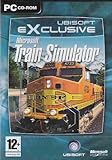
Train Simulator - PC | $54.99 | Buy on Amazon |
| 2 |

|
Microsoft Train Simulator Legendäre Lokomotiven für PC | $8.96 | Buy on Amazon |
| 3 |

|
Train Simulator (Jewel Case) | $24.99 | Buy on Amazon |
| 4 |

|
Pro Train 2: Microsoft Train Simulator Add-On - PC | $29.00 | Buy on Amazon |
| 5 |

|
Train Simulator 2014 (Windows) | $9.77 | Buy on Amazon |
As an Amazon Associate I earn from qualifying purchases.
It is not a normal Windows system file, Visual C++ runtime, DirectX component, .NET file, or modern driver. It normally belongs in the Microsoft Train Simulator program folder, not in:
Do these 3 things before closing this tab:
1Clear out junk files and repair common Windows errors2Scan for outdated or missing drivers - takes under a minute3Repair Windows errors before they cause bigger problemsC:WindowsSystem32C:WindowsSysWOW64- A temporary folder
- A different game or application folder
A 32-bit game running on 64-bit Windows does not change this. Do not place the file in SysWOW64 merely because Windows itself is 64-bit.
#1 Best Overall
| Item | Identification |
|---|---|
| File | tsmvhlp.dll |
| Associated software | Microsoft Train Simulator 1.00 |
| File category | Application component |
| Normal location | The MSTS installation folder |
| Windows component | No reliable evidence supports this |
| Best repair | Repair or reinstall the original MSTS installation |
Database listings may show version, size, or architecture details, but those are third-party metadata rather than confirmed Microsoft specifications.
Error messages this guide addresses
You may see one of these messages when starting MSTS or an add-on:
- “The program can’t start because tsmvhlp.dll is missing from your computer.”
- “The code execution cannot proceed because tsmvhlp.dll was not found.”
- “There was a problem starting tsmvhlp.dll.”
- “Error loading tsmvhlp.dll. The specified module could not be found.”
- “Cannot find tsmvhlp.dll.”
- “tsmvhlp.dll is either not designed to run on Windows or it contains an error.”
The message can appear even when the file exists. In that case, the installation may contain mismatched or damaged game files, or the application may be unable to load a related dependency.
Quick wins for a faster PC:
Fix the driver behind crashes, sound loss and screen glitchesFind Drivers →Repair Windows errors before they cause bigger problemsFix Now →Fix 1: Repair or reinstall Microsoft Train Simulator
This is the most likely solution because the file belongs to MSTS.
If MSTS is listed in Windows
- Save any personal route, activity, or configuration backups.
- Press Windows key + I to open Settings.
- Select Apps.
- Select Installed apps on Windows 11, or Apps & features on Windows 10.
- Search for Microsoft Train Simulator.
- Select the three-dot menu beside it, if available.
- Choose Advanced options and look for Repair or Reset.
Older installers may not provide a Windows repair button. If no repair option exists, continue with a reinstall from the original legitimate CD, DVD, or retained installer.
Reinstall from the original source
- Close MSTS and any add-on installer.
- Uninstall Microsoft Train Simulator from Settings > Apps, or from Control Panel > Programs > Uninstall a program.
- Restart Windows.
- Insert the original installation disc or open your legitimate retained installer.
- Install the game again.
- Start the base game once before installing routes, trains, or activities.
- Open File Explorer and browse to the MSTS program folder.
- Confirm that
tsmvhlp.dllis present there. - Reinstall affected add-ons only after the unmodified base game starts.
The exact installation path varies. Do not assume that every installation uses the same folder name or drive.
If the installer cannot read the disc, the disc or optical drive may be defective. Use a legally obtained replacement installation source rather than copying the DLL from an unknown location. Historical Microsoft update pages for MSTS may no longer be available, so do not assume that a current Microsoft download exists.
Recommended Free Tools
How to tell whether this worked
The repair succeeded if:
tsmvhlp.dllappears in the main MSTS folder- MSTS starts without the missing-file message
- The base game runs before add-ons are restored
If the base game works but an add-on fails, the problem is probably in the add-on installation or its other dependencies. Reinstall that route, train, or activity after confirming that the base game remains intact.
Fix 2: Check whether antivirus software quarantined the file
Antivirus quarantine is possible, although there is no reliable evidence that this specific file is commonly removed.
- Open Windows Security from the Start menu.
- Select Virus & threat protection.
- Select Protection history.
- Review recent entries for the MSTS folder or
tsmvhlp.dll. - If Windows Security identifies the original file as a threat, do not immediately restore it.
- Scan the original disc or legitimate installer first.
- Restore the file only if you are confident it is a clean false positive.
Microsoft explains the Protection History process in its Windows Security guidance.
If Defender repeatedly detects the file, stop restoring it. Reinstall MSTS from clean original media and investigate the detection. Never create an exclusion for a DLL obtained from an unknown download site.
The Tool Desk
Outbyte Driver Updater FREEFix the driver behind crashes, sound loss and screen glitchesFind Drivers →Outbyte PC Repair FREEClear out junk files and repair common Windows errorsFree Scan →After a safe restoration, launch MSTS again. If the error returns immediately, quarantine or deletion may still be occurring, or the installation may be damaged.
Fix 3: Check the MSTS folder and installation order
An add-on does not reliably recreate missing files from the original game. A route or locomotive package may simply assume that the complete base installation already exists.
- Right-click the MSTS shortcut.
- Select Open file location.
- If that opens a shortcut folder, right-click the shortcut again and choose Open file location.
- Look for
tsmvhlp.dllin the main game directory. - Do not substitute similarly named files such as
tsbmphlp.dll,tswshlp.dll, orFSmvhlp.dll. - If the file is absent, repair or reinstall MSTS.
- If the file is present but an add-on fails, uninstall and reinstall the affected add-on.
- Test the original game before adding community content again.
If the error changes to “entry point not found,” the files may come from mismatched MSTS versions. A clean base-game reinstall is safer than replacing individual DLLs.
Rank #3
- Authentically recreated trains, routes, and sounds
- 11 drivable locomotives with realistic controls and activities
- Hundreds of miles of accurately detailed routes across three continents
- Real-world train operation activities and challenges from novice to expert
- Customize your trains, create new routes and activities
Fix 4: Run Windows repair commands only for broader system problems
DISM and System File Checker repair protected Windows components. They normally do not recreate a third-party game file such as tsmvhlp.dll.
Use them when Windows itself shows other corruption symptoms, built-in apps fail, or system files are reporting errors.
- Install pending Windows updates.
- Restart the computer.
- Open Start and type
Command Prompt. - Right-click Command Prompt.
- Select Run as administrator.
- Approve the User Account Control prompt.
- Enter this command and press Enter:
DISM.exe /Online /Cleanup-image /Restorehealth
- Wait for it to finish.
- Run:
sfc /scannow
- Restart Windows.
- Test MSTS again.
Microsoft documents this order in its System File Checker guidance.
Repeatedly running SFC will not replace a missing MSTS file. If Windows reports that it found no integrity violations, return to repairing the game installation.
When manually tracking system corruption means repeating SFC and DISM without knowing what changed, Outbyte PC Repair can provide a free scan showing what it identifies; repairs are handled by the full version. Reinstalling Microsoft Train Simulator remains the definitive fix for a missing game component.
Fix 5: Update drivers only if MSTS still crashes
Restoring tsmvhlp.dll may remove the missing-file message without solving a separate graphics, audio, or compatibility problem. Older MSTS installations can still have trouble on Windows 10 or Windows 11 because of obsolete graphics support, permissions, copy protection, or hardware compatibility.
First test the repaired base game. If it starts and then crashes:
- Right-click Start.
- Select Device Manager.
- Expand Display adapters.
- Right-click the graphics adapter.
- Select Update driver.
- Choose Search automatically for drivers.
- Repeat for relevant entries under Sound, video and game controllers.
- Restart Windows.
- Test MSTS before reinstalling add-ons.
For the most reliable driver, check the computer or graphics-card manufacturer’s official support page. Do not expect a driver update to recreate tsmvhlp.dll.
Rank #4
- Software (unboxed)
If checking every device manually is taking too long, Outbyte Driver Updater can scan for outdated drivers; its free scan shows what it finds, while driver installation is handled by the full version. Driver maintenance is separate from the definitive MSTS reinstall.
You can also try compatibility settings:
- Right-click the MSTS executable or shortcut.
- Select Properties.
- Open the Compatibility tab.
- Try Run this program as an administrator.
- If necessary, test a suitable compatibility mode.
- Select Apply, then OK.
- Launch the base game again.
Compatibility mode is not guaranteed to make this early game run correctly on current Windows.
Independent reader supportYour contribution helps us test, update, and keep practical guides available for everyone.What not to do
Do not download the DLL separately
Random DLL download sites can provide malware, an incorrect version, a damaged file, or a file intended for a different application. Even a clean copy may not fix the damaged installation that caused the error.
Use the original MSTS media or a legitimate retained installer instead.
Do not copy it to System32
The normal location is the MSTS program folder. Copying a game DLL into System32 or SysWOW64 can create version conflicts and makes future troubleshooting harder.
Do not use regsvr32 as a routine fix
regsvr32 is intended for DLLs that provide a registration entry point such as DllRegisterServer. There is no reliable evidence that tsmvhlp.dll is a self-registering COM or ActiveX DLL.
Running this command:
regsvr32 tsmvhlp.dll
will usually not repair MSTS and may produce “DllRegisterServer was not found.” A game-support DLL is normally loaded by the game from its own directory.
Do not install unrelated runtimes
There is no reliable evidence linking tsmvhlp.dll to Visual C++, DirectX, .NET, or a Windows driver package. Installing those runtimes is not the primary repair.
Best Value
The Windows Turn Windows features on or off dialog is also not a solution for this file. Enable an optional Windows feature only when a separate application error specifically identifies that feature.
Outdated Drivers Are Slowing You Down
One free scan finds every outdated or missing driver and matches the right update for your exact hardware.Free scan · exact hardware matchWindows Errors? Fix Them Before They Spread
Repair common Windows errors and clear accumulated junk for a smoother, more stable PC - no reinstall needed.Free scan · no reinstallFAQ
Is tsmvhlp.dll part of Windows?
No reliable evidence supports that. It is associated with Microsoft Train Simulator and should normally be restored through the game installation.
Where should tsmvhlp.dll be located?
Normally in the Microsoft Train Simulator installation folder. The exact path depends on where the game was installed.
Why did the error appear after installing an add-on?
The add-on may depend on original MSTS files that are missing or damaged. Restore and test the base game first, then reinstall the add-on.
Will SFC or DISM restore the file?
Normally no. Those commands repair protected Windows components, not missing files from an old game.
Does this file need registration?
Usually no. regsvr32 is not a standard fix for this MSTS component.
What if MSTS still crashes after the file is restored?
Test the unmodified base game, then investigate compatibility settings, administrator permissions, graphics and audio drivers, available MSTS updates, and add-on integrity separately.
Should I use System Restore?
Only if the file previously existed and the failure clearly followed a recent software or system change. Press Windows key + R, enter rstrui.exe, and choose a restore point from before the problem. Microsoft describes the process in its System Restore guidance.
Quick Recap
Final verification checklist
- Microsoft Train Simulator was repaired or reinstalled from legitimate media.
tsmvhlp.dllis in the MSTS folder.- The base game starts before add-ons are installed.
- Windows Security shows no unresolved quarantine event.
- The file was not copied to
System32orSysWOW64. regsvr32was not used as a substitute for reinstalling the game.- Drivers and compatibility settings were checked only after restoring the base installation.
Product prices and availability are accurate as of the date/time indicated and are subject to change. Any price and availability information displayed on Amazon at the time of purchase will apply.
Free tools Windows power users keep installed
One-click scans. No signup required.




