Quick wins for a faster PC:
Fix the driver behind crashes, sound loss and screen glitchesFind Drivers →Repair Windows errors before they cause bigger problemsFix Now →Scan for outdated or missing drivers - takes under a minuteDriver Scan →The ucs32p.dll error usually appears when a Canon application or printer driver cannot load its ColorGear component. Messages may say “ucs32p.dll was not found,” “The code execution cannot proceed because ucs32p.dll was not found,” or “ucs32p.dll is missing or corrupted.”
ucs32p.dll is a Canon file associated with ColorGear, not a normal Windows component. The safest repair is to identify the Canon program or printer that requests it, then repair or reinstall that exact Canon package.
Which fix applies to you
Use the symptom that best matches your situation:
- Picture Style Editor, Digital Photo Professional, EOS Utility, or another Canon camera program will not start: reinstall or repair the affected Canon application.
- The error appears while printing, adding a printer, or installing a driver: remove the old Canon printer driver and install the correct driver for the printer model.
- The file disappeared after an antivirus alert: check Windows Security Protection history before restoring anything.
- The error started after a Windows, driver, or Canon software update: use System Restore or reinstall the changed Canon package.
- The error appears with other Windows failures: run DISM and System File Checker, but do not expect them to recreate a Canon DLL.
- The error names another file such as
VCRUNTIME*.dllorMSVCP*.dll: repair the Microsoft Visual C++ runtime separately. Installing that runtime does not replaceucs32p.dll.
Do not begin by downloading ucs32p.dll from a random DLL website. That can give you malware, the wrong architecture, or a version that does not match the Canon program. It also leaves the damaged installation that caused the error untouched.
What is ucs32p.dll
The file is identified as ColorGear 32bit dll and is published by Canon. ColorGear is Canon’s color-management technology, used by some camera applications and Windows printer-driver packages.
Outdated Drivers Are Slowing You Down
One free scan finds every outdated or missing driver and matches the right update for your exact hardware.Free scan · exact hardware matchPC Slower Than It Used to Be?
A free scan shows the junk files, broken settings and background clutter dragging Windows down - then fixes them in one click.Free scan · Windows 10 & 11#1 Best Overall

- Single-Function, Color, Wireless, Duplex Printer: Print only. — No Scanning, Copying, or Faxing
- Fast Print Speeds: Print up to 26 ppm in both color and monochrome and spend less time waiting with a quick first print time of approximately 10.3 seconds.
- Easy Wireless Setup: Setup your wireless connection and get up and running in just a few steps.
- 5-inch LCD Screen: Navigate through all the features using the 5-line LCD screen.
- Mobile Device Printing: Print from your compatible mobile devices using the free Canon PRINT app, Apple AirPrint and Mopria Print Service.
The filename alone cannot identify one exact Canon product. Known contexts include:
- Canon Picture Style Editor and related EOS software
- Digital Photo Professional and other Canon camera utilities
- Canon Windows printer drivers
- Older Canon multifunction-device software
Some Canon printer drivers place the file under a driver directory similar to:
%WINDIR%System32spooldriversw32x863
%WINDIR%System32spooldriversx643
The exact folder depends on Windows architecture, the printer driver, and the Canon product. A camera application may instead keep the file inside its own installation directory.
Reported file records include 32-bit and 64-bit variants. The listed versions are identification clues, not a universal compatibility chart:
| Reported variant | Reported version | Reported size |
|---|---|---|
| 32-bit | 2.0.0.0 | Approximately 0.37 MB |
| 32-bit | 3.2.5.0 | Approximately 0.54 MB |
| 64-bit | 3.2.5.0 | Approximately 0.61 MB |
A 32-bit Canon application needs the compatible 32-bit dependency even when Windows itself is 64-bit. Do not replace one architecture with the other.
Identify the Canon program requesting the file
Before changing Windows files, identify the application that is failing.
Check the error window
Read the title bar and the text around the error. It may name:
- Picture Style Editor
- Digital Photo Professional
- EOS Utility
- A Canon printer installer
- A print processor or spooler-related program
If the message appears immediately after opening a shortcut, right-click that shortcut and select Properties. On the Shortcut tab, check Target. The executable name often identifies the Canon product.
The Tool Desk
Outbyte PC Repair FREEClear out junk files and repair common Windows errorsFree Scan →Outbyte Driver Updater FREEScan for outdated or missing drivers - takes under a minuteDriver Scan →Check when the error appears
The timing is useful:
- At application launch: the Canon application installation is probably incomplete or damaged.
- When opening a photo or applying a picture style: investigate Canon camera software.
- During printer installation: investigate the Canon driver package.
- When printing from any application: investigate the printer driver and print spooler.
- After a security alert: investigate antivirus quarantine.
- After moving to a new PC or upgrading Windows: reinstall the Canon package rather than copying the DLL from the old computer.
Check the executable architecture
Windows does not provide a simple architecture label for every program, but you can use the installation package and product documentation as the primary guide. If a Canon application offers separate 32-bit and 64-bit downloads, install the package matching the application and supported Windows version.
Do not assume that a 64-bit Windows installation requires every application and DLL to be 64-bit. Many older Canon programs remain 32-bit.
Fix 1: Reinstall the Canon application
This is the most likely solution when ucs32p.dll appears while launching Picture Style Editor, Digital Photo Professional, EOS Utility, or another Canon camera program.
Rank #2

- Color, Wireless, Duplex 4-in-1: Print, scan, copy, fax.
Remove the damaged application
- Save any application settings or custom files that you need.
- Press Windows + I to open Settings.
- Select Apps.
- Select Installed apps in Windows 11, or Apps & features in Windows 10.
- Search for the Canon application named in the error.
- Select the three-dot menu beside it.
- Select Uninstall and follow the prompts.
- Restart Windows.
If the application is not listed, check Control Panel:
- Press Windows + R.
- Type
appwiz.cpl. - Press Enter.
- Select the Canon application.
- Choose Uninstall.
Do not remove unrelated Canon software unless you know it belongs to the same damaged installation.
Download the correct Canon package
Use Canon’s official Support site and search for the exact camera or product model. Canon separates drivers, software, firmware, and manuals, so choose the software package that contains the affected application.
For example, if Picture Style Editor fails, use the support page for the camera model rather than searching for the DLL by filename. If the camera model is no longer listed for your current Windows release, look for the newest Canon package that supports your version of Windows.
Download the package intended for your Windows version and application architecture. Do not combine files from two different Canon products.
Recommended Free Tools
Install and test it
- Open the downloaded Canon installer.
- If Windows asks for permission, select Yes.
- Follow the Canon setup wizard.
- Restart Windows after installation.
- Open the Canon program from the Start menu.
- Repeat the action that previously produced the error.
The repair worked if the application opens without the ucs32p.dll message and can perform the operation that previously failed.
If the installer fails, temporarily close other Canon utilities, disconnect the camera if it is connected, and run the installer again as administrator. Right-click the installer, select Properties, open Compatibility, and use compatibility settings only when Canon documents that the package requires an older Windows version. Compatibility mode is not a guaranteed fix for missing dependencies.
Fix 2: Remove and reinstall the Canon printer driver
Use this fix when the error appears during printing, printer setup, driver installation, or when connecting to a shared Canon printer.
Remove the printer
- Press Windows + I.
- Select Bluetooth & devices.
- Select Printers & scanners.
- Select the affected Canon printer.
- Choose Remove.
- Confirm the removal.
In Windows 10, open Settings → Devices → Printers & scanners, select the printer, and choose Remove device.
What’s actually slowing this PC down?
Pick the symptom - the matching free tool is one click away.
Remove the old driver
- Press Windows + R.
- Type
control printers. - Press Enter.
- In the Devices and Printers window, select any printer.
- Select Print server properties from the toolbar. If it is not visible, open the Printer server properties option through the printer menu.
- Open the Drivers tab.
- Select the old Canon driver.
- Choose Remove.
- Select Remove driver and driver package when offered.
- Confirm and restart Windows.
If Windows refuses to remove the driver because it is in use, restart the computer and try again. You can also stop the print spooler first:
- Press Windows + R.
- Type
services.msc. - Press Enter.
- Find Print Spooler.
- Right-click it and select Stop.
- Remove the driver from Print server properties.
- Return to Services, right-click Print Spooler, and select Start.
- Restart Windows.
Install the correct driver
Use Canon Support for the exact printer, copier, or multifunction model. Select your Windows version and the available 32-bit or 64-bit package. Download the complete Canon installer when available instead of manually copying individual files.
Rank #3

- Color, Wireless, Duplex 4-in-1: Print, scan, copy, fax.
- Fast Print Speeds: Print up to 26 ppm in both color and monochrome and spend less time waiting with a quick first print time of approximately 10.3 seconds.
- Easy Wireless Setup: Setup your wireless connection and get up and running in just a few steps.
- 5-inch Color Touchscreen: Get the job done quickly with Application Library - an intuitive and easy to use customizable access to the features you use most.
- Mobile Device Printing: Print from your compatible mobile devices using the free Canon PRINT app, Apple AirPrint and Mopria Print Service.
- Disconnect the printer if the Canon installer requests it.
- Run the Canon driver installer as administrator.
- Connect or power on the printer only when the installer requests it.
- Complete setup.
- Print a Windows test page.
To print a test page, open Settings → Bluetooth & devices → Printers & scanners, select the Canon printer, open Printer properties, and choose Print Test Page.
If the test page works and the original application can print again, the driver dependency was restored correctly.
Free tools Windows power users keep installed
One-click scans. No signup required.
When finding the correct driver manually means checking multiple Canon packages, Outbyte Driver Updater can scan for outdated or mismatched drivers; its free scan shows what it finds, while the full version performs the driver installation. It is optional, and reinstalling the exact Canon driver remains the definitive fix for a printer-specific ucs32p.dll error.
Fix 3: Check Windows Security Protection history
Antivirus software may quarantine a file that was part of a legitimate Canon installation. The filename alone does not prove that a particular copy is safe or malicious.
- Open Windows Security from the Start menu.
- Select Virus & threat protection.
- Select Protection history.
- Review entries from the time the Canon program stopped working.
- Expand any entry related to the Canon application, printer driver, or
ucs32p.dll.
Do not automatically select Allow on device. First confirm that:
- The file came from a Canon installer.
- The affected application is a genuine Canon product.
- The detection is not associated with other suspicious files.
- You can reinstall the package from Canon instead.
The safer repair is usually to update Windows Security definitions, remove the damaged Canon package, and reinstall it from Canon Support. If the file is restored, the application may still fail if other files were removed or the installation is inconsistent.
Run a full scan from Virus & threat protection → Scan options → Full scan if the file disappeared unexpectedly or other files are changing without explanation.
Fix 4: Confirm the architecture and installation path
A 32-bit DLL cannot replace a 64-bit DLL, and a 64-bit DLL cannot replace a 32-bit DLL. The reported ucs32p.dll records include both architectures, so architecture matters.
Check the path named in the error or installation log. A path under a Canon application folder points to an application repair. A path under:
C:WindowsSystem32spooldrivers
usually points to a printer-driver repair.
On 64-bit Windows, the x64 spool-driver folder is used for 64-bit driver components, while w32x86 is associated with 32-bit driver components. Do not use the folder name alone to decide which file to download. Let the Canon installer place the correct files.
Do these 3 things before closing this tab:
1Fix the driver behind crashes, sound loss and screen glitches2Clear out junk files and repair common Windows errors3Scan for outdated or missing drivers - takes under a minuteIf the Canon program is old and no longer supports your Windows release, search Canon Support for a newer compatible application. Installing an arbitrary newer DLL into an older program directory can create a different loader error.
Fix 5: Repair Windows components when other Windows problems exist
DISM and SFC repair protected Windows components. They do not normally restore third-party Canon files such as ucs32p.dll. Use them when Windows has additional symptoms, such as broken updates, damaged built-in applications, or repeated servicing errors.
Rank #4

- Color, Wireless, Duplex 3-in-1: Print, scan, copy.
- Fast Print Speeds: Print up to 26 ppm in both color and monochrome and spend less time waiting with a quick first print time of approximately 10.3 seconds.
- Easy Wireless Setup: Setup your wireless connection and get up and running in just a few steps.
- 5-inch Color Touchscreen: Get the job done quickly with Application Library - an intuitive and easy to use customizable access to the features you use most.
- Mobile Device Printing: Print from your compatible mobile devices using the free Canon PRINT app, Apple AirPrint and Mopria Print Service.
Run DISM
- Open Start.
- Type Command Prompt.
- Right-click Command Prompt.
- Select Run as administrator.
- Run:
DISM /Online /Cleanup-Image /RestoreHealth
- Wait for the operation to finish.
- Restart Windows.
Run System File Checker
Open an elevated Command Prompt again and run:
sfc /scannow
Wait until verification reaches 100 percent, then restart Windows.
Test the Canon application or printer again. If SFC reports that it repaired Windows files but ucs32p.dll is still missing, that is expected. Reinstall the Canon package separately.
If you are repeatedly running repair commands without knowing which Windows component changed, Outbyte PC Repair can show issues identified by its free scan, while the full version performs repairs. It is optional, and it does not replace reinstalling the Canon application that owns ucs32p.dll.
Fix 6: Use System Restore after a recent change
System Restore can help when the error began immediately after a driver update, Canon installation, Windows upgrade, or software removal.
- Press Windows + R.
- Type:
rstrui.exe
- Press Enter.
- Select Next.
- Choose a restore point from before the error started.
- Select Scan for affected programs.
- Review the programs and drivers that will be changed.
- Select Close, then Next.
- Select Finish and confirm.
System Restore normally preserves personal files, but it can remove applications, drivers, and system changes installed after the selected restore point. After Windows restarts, test the Canon program or printer.
If the error returns after reinstalling a Canon update, use the newer compatible Canon package rather than repeatedly restoring the system.
Why copying ucs32p.dll is usually the wrong fix
Manual DLL replacement fails for several reasons:
- The downloaded file may be malicious.
- It may be the wrong 32-bit or 64-bit architecture.
- It may be from a different Canon product.
- It may have a different version than the requesting executable expects.
- The original installation may also be missing other dependencies.
- The file may belong in an application or printer-driver directory, not
System32. - Antivirus may remove the replacement again.
If you have a verified backup or the original Canon installer, restoring the file from that source can be appropriate. Even then, reinstalling the complete Canon package is usually more reliable.
Independent reader supportYour contribution helps us test, update, and keep practical guides available for everyone.Why regsvr32 normally does not apply
regsvr32 is not a general-purpose DLL repair command. It is intended for self-registering COM and ActiveX libraries that provide a registration entry point such as DllRegisterServer.
There is no evidence that ucs32p.dll is a self-registering COM server. Running:
regsvr32 ucs32p.dll
will not normally repair a missing Canon application dependency. It may produce an error stating that the module was loaded but the entry point was not found.
What’s actually slowing this PC down?
Pick the symptom - the matching free tool is one click away.
Use regsvr32 only when Canon’s own documentation specifically instructs you to register a particular component. Do not use it as the first response to a missing-file message.
Windows Features and Device Manager checks
Windows Features are not a source for ucs32p.dll, but checking them can help when the affected Canon software depends on an older Windows component.
Best Value
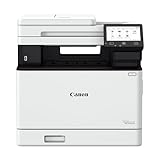
- Color, Wireless, Duplex 3-in-1: Print, scan, copy.
- Fast Print Speeds: Print up to 35 ppm in both color and monochrome and spend less time waiting with a quick first print time of approximately 7 seconds.
- Easy Wireless Setup: Setup your wireless connection and get up and running in just a few steps.
- 5-inch Color Touchscreen: Get the job done quickly with Application Library - an intuitive and easy to use customizable access to the features you use most.
- Mobile Device Printing: Print on-the-go using your compatible mobile devices with the free Canon PRINT app, Apple AirPrint and Mopria Print Service.
To inspect optional features:
- Press Windows + R.
- Type:
optionalfeatures
- Press Enter.
- Review the available features.
- Enable an older component only if the Canon documentation requires it.
- Select OK and restart if prompted.
Do not enable random features to resolve this DLL message.
For a printer or camera connected by USB, inspect Device Manager:
The Tool Desk
Outbyte PC Repair FREERepair Windows errors before they cause bigger problemsFix Now →Outbyte Driver Updater FREEScan for outdated or missing drivers - takes under a minuteDriver Scan →- Press Windows + X.
- Select Device Manager.
- Expand Printers, Cameras, Imaging devices, or Universal Serial Bus controllers.
- Look for a warning icon beside the Canon device.
- Right-click the device and select Uninstall device only if you are preparing to reinstall its Canon software.
- Restart Windows.
- Install the correct Canon package.
Do not use Update driver to install an arbitrary Windows driver when Canon provides a product-specific package.
Prevention
To avoid another ucs32p.dll failure:
- Keep the Canon application and printer driver together as a supported package.
- Do not delete files from Canon installation folders during disk cleanup.
- Avoid mixing drivers from different Canon models.
- Record whether the affected Canon program is 32-bit or 64-bit.
- Check Windows Security Protection history before restoring quarantined files.
- Use Canon’s installer after a Windows migration instead of copying application folders.
- Keep the original Canon installer or a verified backup.
- Remove old printer drivers cleanly before installing a replacement package.
- Install Windows updates and Canon updates through their official channels.
FAQ
Is ucs32p.dll a Windows system file?
No. Available evidence identifies it as a Canon ColorGear component used by Canon applications and printer-driver packages. SFC and DISM should not be expected to recreate it.
Does ucs32p.dll belong to Picture Style Editor?
It can. A Canon Community report specifically connects a missing Ucs32P.dll message with Picture Style Editor. The filename alone still cannot prove which Canon product is installed on your computer.
Do I need Visual C++ Redistributable?
Not for ucs32p.dll itself. Install or repair Visual C++ only when the error also names a Microsoft runtime such as MSVCP, VCRUNTIME, or api-ms-win-crt.
Do these 3 things before closing this tab:
1Fix the driver behind crashes, sound loss and screen glitches2Repair Windows errors before they cause bigger problems3Scan for outdated or missing drivers - takes under a minuteCan I copy the file into System32?
Do not do that unless Canon’s own instructions specifically require it. The file may belong in a Canon application directory or printer-driver folder, and the wrong copy can create further problems.
Should I register it with regsvr32?
Normally, no. regsvr32 applies to self-registering COM or ActiveX DLLs, not ordinary application dependency libraries.
Why does the error appear after upgrading Windows?
A Windows upgrade can leave an older Canon application or printer driver incomplete, incompatible, or disconnected from its files. Reinstall the Canon package intended for the current Windows version.
What should I provide to Canon or technical support?
Collect the exact error text, affected Canon application or printer model, Windows version and build, the path where the loader expects ucs32p.dll, whether the program is 32-bit or 64-bit, and what changed before the error appeared. Include whether antivirus quarantined the file and whether a clean Canon reinstall failed.
Quick Recap
Product prices and availability are accurate as of the date/time indicated and are subject to change. Any price and availability information displayed on Amazon at the time of purchase will apply.




