Steam is more than a storefront and launcher. Its desktop client, mobile app, overlay and game settings include tools for starting downloads remotely, moving games without reinstalling, sharing eligible titles with a household, streaming to other devices, fixing controller layouts, recovering from cloud conflicts and recording clips.
The menu names can differ slightly between the current desktop client, Big Picture Mode and Steam Deck. The paths below primarily apply to desktop Steam, and features such as Game Recording, device support and Steam Families rules can change with client updates.


As an Amazon Associate I earn from qualifying purchases.
Start a download while you are away
Steam Remote Downloads lets you begin installing a game from a browser or the Steam Mobile app. The target computer must be powered on, connected to the internet, running Steam and signed in.
Quick wins for a faster PC:
Fix the driver behind crashes, sound loss and screen glitchesFind Drivers →Repair Windows errors before they cause bigger problemsFix Now →Scan for outdated or missing drivers - takes under a minuteDriver Scan →- Leave Steam running and logged in on your home PC or Mac.
- Sign in to Steam in a browser or the Steam Mobile app.
- Open your profile menu and choose Activity.
- Select Games, then All Games.
- Open the game and choose Install.
- Refresh the page to check its status.
This is useful for starting a large download before leaving work or school. It does not guarantee that the game will be ready to play: first-run prerequisites, updates, shader processing or controller setup may still be required.
#1 Best Overall
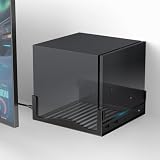
- COMPABILITY- Designed specifically to securely hold your Steam Machine. With precise internal dimensions of 6.30" (W) x 6.46" (D), this bracket offers a snug, stable fit for your console. Please verify your device dimensions prior to purchase to ensure perfect compatibility
- RECLAIM YOUR DESK SPACE- Transform your cluttered gaming station into a clean, professional setup. By mounting your console on the wall near your monitor, you free up valuable desktop real estate for your mouse, keyboard, and other accessories while keeping your rig safely off the ground
- OPTIMIZED AIRFLOW DESIGN- Keep your system cool during intense gaming sessions. The bottom of the bracket features extensive ventilation cutouts that align with your console’s intake/exhaust vents, preventing overheating and ensuring maximum performance compared to solid shelves
- HEAVY-DUTY METAL CONSTRUCTION- Built to protect your expensive hardware. Crafted from high-grade, thickened iron with a durable powder-coated finish, this mount provides rigid support that won't bend or sag, ensuring your gaming console stays securely on the wall
- QUICK & EASY INSTALLATION- Set up in minutes. The bracket comes with pre-drilled mounting holes for a hassle-free installation on wood studs or drywall. The open-frame design allows for full access to all ports, power buttons, and cables without unmounting the device
If remote installation fails, check that the home machine has not shut down, Steam has not signed out or entered an offline state, and security or network settings are not blocking the connection. Valve recommends using remote downloads only on a private, secured computer—not a shared or public machine.
Move installed games to another drive
When an SSD is full, you do not have to uninstall and download a game again. Steam can move installed games between library folders through Steam > Settings > Storage. Valve’s support instructions cover the process.
- Open Steam > Settings > Storage.
- Click the + button to add or create a Steam Library folder on the destination drive.
- Select the drive containing the game.
- Choose the game or games you want to relocate.
- Select Move and choose the destination library.
Use Steam’s built-in move command instead of dragging folders manually. Moving a game is different from moving the Steam client itself, and Valve warns that installing Steam on an external drive can create performance problems.
Outdated Drivers Are Slowing You Down
One free scan finds every outdated or missing driver and matches the right update for your exact hardware.Free scan · exact hardware matchWindows Errors? Fix Them Before They Spread
Repair common Windows errors and clear accumulated junk for a smoother, more stable PC - no reinstall needed.Free scan · no reinstallIf the game is not detected afterward, confirm that the destination library is listed under Settings > Storage, restart Steam and use Properties > Installed Files > Verify integrity of game files if necessary.
Moving the game folder does not necessarily move its saves. Saves may be in Documents or another user folder, and not every game supports Steam Cloud. Check the game’s support documentation before deleting anything.
Share eligible games through Steam Families
Steam Families is Valve’s current household-oriented sharing system. Valve describes it as intended for a household of up to six close family members, rather than as a way to exchange account credentials with unrelated friends.
Each person uses their own Steam account, profile, achievements and saves. Family features also include permissions, playtime limits, playtime reports, approval requests and account-recovery tools for children.
Recommended Free Tools
Not every game is eligible. Restrictions can depend on the title, operating-system compatibility and other game-specific limitations. Simultaneous play also depends on the family’s available copies and the game’s sharing rules, so do not assume that one purchased copy always supports two people playing it at once.
Steam Families should not be confused with Valve’s older Family Library Sharing documentation. The underlying idea—separate users with their own progress—is similar, but current membership and eligibility policies belong to Steam Families and may change.
Play local multiplayer games online
Remote Play Together can turn a supported local multiplayer game into an online session. One player owns and runs the game; invited players generally do not need to own or install it.
- Launch a game marked as supporting Remote Play Together.
- Open the Steam overlay, commonly with Shift+Tab.
- Invite a Steam friend from the friends list.
- Have each player connect a controller, or grant keyboard-and-mouse access where appropriate.
The host PC renders the game and streams video, audio and voice to the other players. Valve says sessions can support up to four players, or more when connections are sufficiently fast; there is no universal experience or fixed practical limit for every game.
Shared-screen and split-screen party games are the best candidates. Competitive shooters, fighting games and rhythm games can feel poor because input latency and compression matter. Some games also use input methods that do not work correctly through Remote Play. If the session stutters, use a wired connection for the host, reduce other network traffic and close downloads, streaming services or capture programs.
Stream your library to a phone, TV or another PC
With Steam Remote Play and Steam Link, a gaming PC can stream games to supported phones, tablets, televisions, another PC and selected compatible VR headsets. Install Steam Link on the receiving device, ensure Steam is running on the gaming PC, pair the devices and launch a game from the streamed library.
Valve’s supported-platform list includes iPhone and iPad, Apple TV, Android devices, Amazon Fire TV, Raspberry Pi, Windows, Linux, macOS and selected Meta Quest headsets. Check the current Steam Link listing because platform and operating-system support can change.
For a better stream
- Connect the gaming PC to the router with Ethernet if possible.
- Use a modern 5 GHz Wi-Fi network for the receiving device.
- Pause large downloads and cloud-sync activity.
- Close unnecessary screen-capture or streaming software.
Remote Play is a convenience feature, not the same as native hardware. It is usually a better fit for turn-based games, platformers and casual multiplayer than for latency-sensitive competitive play. For persistent problems, Valve’s Remote Play troubleshooting guide is the appropriate next step.
Do these 3 things before closing this tab:
1Scan for outdated or missing drivers - takes under a minute2Clear out junk files and repair common Windows errors3Fix the driver behind crashes, sound loss and screen glitchesBuild a controller layout for each game
Steam Input can translate controller inputs into gamepad, keyboard, mouse and other commands. That makes it useful for games with limited or absent native controller support, as well as for players who need a different control scheme.
- Open the game’s Steam library page.
- Select its controller or configuration option.
- Browse community layouts or create a new one.
- Save the result as a personal configuration.
- Test it in the game and revert to the official layout if necessary.
Depending on the controller and game, layouts can include radial or touch menus, gyro aiming, keyboard shortcuts, multiple actions on one button and separate configurations for menus, vehicles or inventory. Community layouts can save time, but they may be outdated or designed for different hardware.
Compatibility is not universal. Native controller input, anti-cheat systems, launchers and direct-input paths can affect remapping and overlay behavior. If controls become duplicated or unresponsive, switch back to the game’s official layout and test with Steam Input disabled or adjusted.
Handle Steam Cloud conflicts safely
Steam Cloud synchronizes supported saves, settings, profile statistics and other user-specific data, but the game developer decides what is included. It is synchronization—not a complete backup.
Cloud may not protect saves stored outside the configured locations, manually installed files, mods, screenshots, recordings or games without Cloud support. It can also synchronize a corrupted save, leaving the bad version present on multiple devices.
When Steam reports a conflict
- Stop and identify which device contains the newest valid progress.
- Do not automatically choose Local or Cloud.
- Copy the local save somewhere safe before overwriting it.
- Compare timestamps or test the save on the device with the correct progress.
- Choose whether to upload or download that version.
- Only resume normal synchronization after confirming the correct file.
Save locations vary by game and operating system. If the correct file is unclear, consult the game’s support documentation rather than assuming every save is inside the Steam game directory.
Record gameplay without installing another app
Steam includes Game Recording, with options for background recording and manually saved clips. Controls and hardware support can change as Steam updates, so check the recording settings in the current stable client before relying on it. Valve’s Steam client announcements document ongoing changes.
Background recording keeps a rolling capture that lets you save a recent moment after it happens. Manual recording gives you more direct control over when a clip begins and ends. Review the recording settings to choose quality, storage limits and hotkeys, then confirm where clips appear in Steam’s media manager.
What’s actually slowing this PC down?
Pick the symptom - the matching free tool is one click away.
Recording consumes disk space and may use system resources. Set a sensible storage limit, test the hotkey in advance and remember that non-Steam games, third-party launchers and some hardware configurations may behave differently. OBS Studio or a GPU vendor’s recorder remains the better choice when you need advanced scenes, audio tracks, encoding controls or livestreaming.
Independent reader supportYour contribution helps us test, update, and keep practical guides available for everyone.Add games bought elsewhere to your Steam library
Steam can act as a central launcher for games purchased from other stores, although it does not turn an external purchase into a Steam license.
- Click + ADD A GAME… in the lower-left corner of Steam.
- Choose Add a Non-Steam Game….
- Select the executable or shortcut.
- Click Add Selected Programs.
This can provide a convenient shortcut and may enable the Steam overlay, Steam Input and Steam Link where the external launcher and game allow them. Steam will not necessarily provide Steam achievements, Cloud saves, native playtime tracking, updates or community features for that title. Anti-cheat software and additional launchers can also block overlay or streaming functions.
Use refunds as a purchase-safety net
Valve’s general rule is that a game refund can usually be requested within 14 days of purchase when total playtime is under two hours. The calculation includes online, offline and shared-library playtime. Valve also accepts requests outside those conditions for review, but approval is not guaranteed.
To request one, visit Steam Support, open your purchase history, select the transaction and follow the refund workflow. Approved refunds can take up to seven days to appear; Steam Wallet refunds may arrive faster, with Valve citing roughly 24–48 hours in its support information. Refunds do not remove playtime or achievements from your Steam Community Profile.
In-game purchases follow separate rules. Valve-developed games generally allow eligible refunds within 48 hours when items are unconsumed, unmodified and untransferred; third-party developers may opt in. The two-hour rule is not an unconditional free-trial guarantee, and repeated abuse can lead to restrictions on refund access.
Quick wins for a large library
Use collections and filters
Collections, favorites and dynamic categories can separate installed games, backlogs and multiplayer titles. Filter by installed status, controller support, Remote Play Together or Steam Deck compatibility where those filters are available. Hiding a game removes clutter without uninstalling it. Custom artwork and shortcuts can also make a mixed library easier to scan.
Check Steam Workshop before modding manually
For supported games, Steam Workshop provides a built-in way to discover and download player-created mods and cosmetics. Support is game-specific. Mods can conflict, break after updates or be unsuitable for competitive games, and unsubscribing does not always remove files that were manually created or changed.
The Tool Desk
Outbyte PC Repair FREERepair Windows errors before they cause bigger problemsFix Now →Outbyte Driver Updater FREEFix the driver behind crashes, sound loss and screen glitchesFind Drivers →Use the overlay for more than invitations
The Steam overlay can provide friends lists, Remote Play Together invitations, guides, screenshots, recordings, notes and community pages while a game is running. Its default shortcut is commonly Shift+Tab, but it can be changed in Steam settings. If it does not open, check that the overlay is enabled globally and for the individual game.
Treat Downloads as a queue
The Downloads page lets you pause, reorder and inspect queued installs and updates, and in some client versions schedule download activity. It is useful when you need to protect bandwidth for a Remote Play session or prioritize the game you intend to play next.
Quick Recap
Which Steam feature should you use?
| Your problem | Best first step |
|---|---|
| Your SSD is nearly full | Move installed games through Settings > Storage. |
| You want a game ready when you get home | Use Remote Downloads while Steam remains running on the target PC. |
| Your household owns overlapping libraries | Review Steam Families and its current eligibility rules. |
| A local co-op game has no online mode | Try Remote Play Together. |
| You want to play on a TV or phone | Set up Steam Link, preferably with a wired host connection. |
| Your controller feels wrong | Open the game’s Steam Input configuration and test a layout. |
| Your save appears on the wrong device | Stop syncing, preserve the local file and resolve the Cloud direction deliberately. |
| You are unsure about a purchase | Track the 14-day and two-hour refund limits before continuing to play. |
Product prices and availability are accurate as of the date/time indicated and are subject to change. Any price and availability information displayed on Amazon at the time of purchase will apply.




