Do these 3 things before closing this tab:
1Clear out junk files and repair common Windows errors2Scan for outdated or missing drivers - takes under a minute3Repair Windows errors before they cause bigger problemsvnetlib.dll is a VMware file, not a Windows system DLL. If vnetlib.dll is missing, was not found, or could not be loaded, repair the VMware product that installed it instead of downloading a replacement DLL.
Start with this diagnostic checklist
Before changing files, note:
- Which VMware product fails: Workstation, Player, or VMware Remote Console.
- When the error appears: during startup, while opening Virtual Network Editor, during installation, or after an update.
- The complete error text: especially whether it says “specified module could not be found” or shows error
126. - The file path: if Windows or an installer displays one.
- What happened immediately beforehand: an update, uninstall, reinstall, antivirus alert, driver failure, or interrupted setup.
- Your VMware architecture: do not assume that a file named
vnetlib.dllis 32-bit or 64-bit from its name alone.
These details distinguish a damaged VMware installation from a missing dependency, incompatible update, blocked driver, or antivirus quarantine.

As an Amazon Associate I earn from qualifying purchases.
What is vnetlib.dll?
vnetlib.dll is associated with VMware’s network install library. It supports installation and configuration of VMware host-network components, including virtual adapters and services used by NAT, host-only, bridged, and custom virtual networks.
Free tools Windows power users keep installed
One-click scans. No signup required.
VMware Workstation and older VMware Player installations may contain this file. VMware Remote Console can also contain a VMware copy in a different product directory. The exact path depends on the product and version. Historical installations have used the VMware program directory and, in some cases, a path such as:
#1 Best Overall
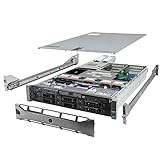
- Dell PowerEdge R710 6B LFF Server.
- 2x 2.80GHz X5660 12-Cores Total / 128GB RAM / 6x 2TB 7.2K SATA 3.5" HDD
- H700 w/ 512MB / DVD-ROM / 2x 870W PSU
- Includes Bezel and Rails / No Operating System
C:WindowsSystem32vnetlib.dll
A VMRC installation may instead reference:
C:Program Files (x86)Common FilesVMwareUSBvnetlib.dll
Do not treat either path as universal.
VMware installations can also contain related files such as vnetlib.exe and vnetlib64.dll. The correct file is selected by the VMware installer and the executable calling it. Renaming one file to imitate another does not correct an architecture or dependency problem.
Common vnetlib.dll error messages
You may see messages such as:
- “The program can’t start because vnetlib.dll is missing from your computer.”
- “The code execution cannot proceed because vnetlib.dll was not found.”
- “The specified module could not be found.”
- “Error loading vnetlib.dll.”
- “The file ‘vnetlib.dll’ could not be loaded or is corrupt.”
- “vnetlib.dll is either not designed to run on Windows or it contains an error.”
These are general Windows loader messages. They do not prove that Windows supplied the file or that the DLL itself is the only damaged component.
If the message says “The specified module could not be found,” a dependency required by vnetlib.dll may be missing even when the named file exists.
Fix 1: Repair or reinstall VMware from its official installer
This is the safest and most likely solution because the VMware installer restores the DLL, its companion files, services, drivers, and matching dependencies together.
- Back up your virtual machines and close VMware.
- Download the matching Workstation, Player, or VMRC installer from the official Broadcom Support Portal.
- Right-click the installer and select Run as administrator.
- If the installer offers Repair, choose it and complete the wizard.
- Restart Windows.
- Open VMware and test the operation that previously failed.
If no repair option appears:
- Open Settings.
- Select Apps → Installed apps.
- Find the affected VMware product.
- Select the three-dot menu and choose Uninstall.
- Restart Windows when prompted.
- Run the complete official installer as administrator.
- Restart Windows again before testing virtual networking.
VMware’s installer is the source of truth for the correct version, architecture, file location, and driver package. Do not copy a DLL from another computer or from a different VMware release.
If the error began after an update
A partially completed update can leave the executable, DLL, USB components, and drivers at incompatible versions. Uninstall the affected VMware product and install the complete package manually rather than copying individual files.
Rank #2

- HP Proliant DL360 G9 4-Bay LFF Server | 2x E5-2695v4 2.10GHz 18-Core CPU (36-Cores Total)
- 256GB DDR4 RAM | 4x 4TB 7.2K SATA 3.5" HDD
- Smart Array P440ar w/ 2GB FBWC | 4x1Gbe NIC
- 2x 500W PSU | Windows Server 2019 Standard Evaluation
A documented VMRC case involved an update from versions 13.0.0 or 13.0.1 to 13.0.2 that failed because of an internal USB-arbitrator version mismatch. That is a product-specific historical case, not a universal explanation for every vnetlib.dll error. For this type of VMRC failure, removing the existing VMRC installation and manually installing the complete affected release is the appropriate pattern.
Fix 2: Rebuild VMware virtual-network configuration
If VMware starts but virtual machines have no network, or setup stops while installing virtual network drivers, check the virtual adapters.
- Open VMware Workstation.
- Select Edit → Virtual Network Editor.
- Select Change Settings if administrator approval is requested.
- Review the VMnet entries and their modes:
- Bridged connects through a physical network.
- NAT shares the host connection.
- Host-only creates an isolated host-to-guest network.
- Custom uses a selected virtual network.
- Apply the intended configuration.
- Start the virtual machine and test its network.
Then check the Windows devices:
- Right-click Start and select Device Manager.
- Expand Network adapters.
- Look for VMware virtual adapters or entries with a warning icon.
- Right-click a VMware adapter and select Properties.
- Read the message under Device status.
- If the adapter is absent, disabled, or reports a driver error, repair or reinstall VMware rather than downloading
vnetlib.dllseparately.
Do not delete VMware driver files, services, or registry entries casually. If multiple VMware versions have been installed, use the cleanup procedure intended for the exact VMware product and version family, then reinstall from the official package.
Fix 3: Check antivirus quarantine
Security software can remove or block a VMware file during installation.
In Windows Security:
- Open Start and search for Windows Security.
- Select Virus & threat protection.
- Select Protection history.
- Review entries matching the time the VMware error began.
- Open a detection and inspect its path, name, and publisher.
- Restore or allow the file only if it came from a verified VMware installation and the computer is otherwise clean.
- Restart Windows and test VMware.
Allowing a suspicious file can expose the system, so do not restore an unknown DLL merely because its filename matches the error. The safer resolution is usually to remove the affected VMware installation and reinstall it from the official Broadcom package. Microsoft explains Protection History and threat actions in its Windows Security documentation.
Fix 4: Check architecture and missing dependencies
Do not infer the required architecture from the filename. A 32-bit VMware executable needs the matching 32-bit library, while a 64-bit executable needs its compatible 64-bit build. Copying vnetlib64.dll, renaming it, or placing it in System32 or SysWOW64 will not solve that mismatch.
Check the following:
- Note the full path shown in the error.
- Right-click the VMware executable or installer.
- Select Properties → Digital Signatures.
- Confirm that the file belongs to VMware and has a valid signature when one is present.
- Compare the file and its surrounding VMware files with the same installation package.
- If only one DLL is missing or has a different timestamp, run the VMware installer’s repair option.
A “module could not be found” message may indicate that another library required by vnetlib.dll is absent. Reinstalling the complete VMware product restores the dependency set more reliably than trying to identify and copy individual runtime files.
vnetlib.dll is not normally repaired by installing DirectX, .NET, or Microsoft Visual C++ Redistributables. Those runtimes may matter to another application, but the evidence for this file points to VMware networking.
Fix 5: Update or reinstall VMware drivers
Driver installation can fail because of stale adapters, pending Windows updates, disabled installation services, restrictive policies, or leftover files from an older VMware release.
Recommended Free Tools
First, install pending Windows updates:
- Open Settings.
- Select Windows Update.
- Select Check for updates.
- Install available updates.
- Restart Windows.
Then return to Device Manager, expand Network adapters, and check VMware entries for warning icons. If the driver is missing or damaged, rerun the official VMware installer as administrator and choose repair or reinstall.
Manually hunting through many driver versions can make it difficult to know which component changed. Outbyte Driver Updater can scan for outdated drivers, while its full version performs driver installation; however, reinstalling the VMware product remains the definitive fix when vnetlib.dll belongs to that product.
Fix 6: Repair Windows components only when Windows is also damaged
Because vnetlib.dll is a VMware file, System File Checker will not normally restore it. Use Windows repair commands when Windows servicing, protected system files, or driver installation also show problems.
Open an elevated Command Prompt:
- Open Start.
- Type
cmd. - Right-click Command Prompt.
- Select Run as administrator.
- Run:
DISM /Online /Cleanup-Image /RestoreHealth
Wait for it to finish. Then run:
sfc /scannow
Restart Windows after both commands complete, then rerun the VMware installer.
Rank #4

- Secure private cloud - Enjoy 100% data ownership and multi-platform access from anywhere
- Easy sharing and syncing - Safely access and share files and media from anywhere, and keep clients, colleagues and collaborators on the same page
- Automated Backup Protection - Set-and-forget backups for Macs, PCs and mobile devices to multiple destinations including cloud and external drives
- Home Security System - Record and monitor your property 24/7 with support for multiple IP cameras and remote viewing
- 2-Year Warranty - Reliable hardware backed by Synology's expert customer support team and ongoing software updates
DISM repairs the Windows component image, while SFC checks protected Windows files. Neither command should be expected to download or replace a VMware DLL.
Repeating these commands without knowing what changed can make troubleshooting difficult. Outbyte PC Repair can scan for Windows problems and show what needs attention, while repair actions require its full version; it is optional, and reinstalling VMware remains the definitive fix for this application file.
Independent reader supportYour contribution helps us test, update, and keep practical guides available for everyone.Do not use regsvr32 as a general fix
Do not begin with:
regsvr32 vnetlib.dll
regsvr32 is intended for DLLs that expose a registration entry point such as DllRegisterServer. A missing registration entry point produces another error and does not restore a missing VMware installation.
VMware networking documentation describes specific exported functions and legacy operations, which is different from registering the DLL with Windows. Do not substitute regsvr32 or an unrelated rundll32 command for repairing VMware.
Never download a loose vnetlib.dll
Avoid third-party DLL download sites and “DLL fixer” utilities. A downloaded file may contain malware, belong to another VMware release, use the wrong architecture, or require dependencies you do not have. Copying it into System32 or SysWOW64 can also create version conflicts and will not repair VMware’s virtual adapters or services.
Use the official VMware product installer from the Broadcom Support Portal. If antivirus quarantined a verified file, investigate the detection and reinstall the complete product rather than replacing one DLL manually.
If the error remains after reinstalling
Collect this information before escalating:
- VMware product name and version.
- Windows 10 or Windows 11 edition.
- Exact error text.
- Full path shown for
vnetlib.dll. - Whether the error occurs at launch, during installation, or while configuring networking.
- Whether the problem began after an update or antivirus action.
- Device Manager error codes.
- VMware installer logs.
- Relevant Windows Event Viewer entries.
- File properties and digital-signature details.
If the problem affects only one VM, check that VM’s network settings. If all VMware products fail after a clean reinstall, investigate stale adapters, driver-policy restrictions, Windows servicing problems, and pending restarts before attempting another file replacement.
FAQ
Is vnetlib.dll part of Windows?
No. Available VMware evidence identifies it as a VMware network-install and configuration component. Windows may report the error, but Windows does not normally provide this file as an inbox system DLL.
The Tool Desk
Outbyte Driver Updater FREEFix the driver behind crashes, sound loss and screen glitchesFind Drivers →Outbyte PC Repair FREERepair Windows errors before they cause bigger problemsFix Now →Which programs use vnetlib.dll?
It is primarily associated with VMware Workstation and older VMware Player installations. VMware Remote Console can also contain a VMware copy, with a product-specific path.
Should I copy vnetlib.dll into System32?
No. The correct location and architecture vary. Repair or reinstall the VMware product that supplied the file.
Can SFC fix vnetlib.dll?
Usually not. SFC repairs protected Windows files, not arbitrary third-party VMware files. Use SFC when Windows itself also appears corrupted, then repair VMware separately.
Does vnetlib.dll need to be registered?
There is no general reason to register it with regsvr32. VMware’s networking functions and DLL registration are separate issues.
What’s actually slowing this PC down?
Pick the symptom - the matching free tool is one click away.
What if VMware still fails after reinstalling?
Check antivirus history, Device Manager, pending Windows updates, stale VMware adapters, exact architecture, installer logs, and the full error path. Then escalate with those details to VMware support through Broadcom.
Quick Recap
Product prices and availability are accurate as of the date/time indicated and are subject to change. Any price and availability information displayed on Amazon at the time of purchase will apply.




