A “bricked” Nintendo Switch is an informal label for a console that seems dead or unresponsive. It is not a diagnosis. A console that will not turn on, shows a blank screen, freezes, or displays a solid color can have very different causes, and Nintendo’s official support pages give a different first step for each. Identify the symptom, run the matching checks in order, and escalate to Nintendo service only when those steps do not resolve it.
What “bricked” means in practice
Owners use “bricked” for everything from a flat battery to a failed internal component. Nintendo’s own support material does not use the word. Its no-power guidance is written around the symptoms a player actually sees, under the heading “Nintendo Switch System Has No Power, a Blank Screen, or Won’t Wake Up From Sleep Mode.” Nothing in that guidance proves permanent damage. The steps are designed to rule out simple causes first, and they are the right starting point whatever the console’s underlying condition.
Symptom 1: no power, a blank screen, or won’t wake up
This is the most common situation, and it is also the one where a simple reset and a charge check resolve many cases. Nintendo’s no-power troubleshooting page lays out the sequence below.
Perform a forced power reset
- Undock the console and remove it from the dock.
- Unplug the AC adapter from the wall outlet and from the console or dock. Wait 30 seconds.
- Press and hold the POWER button for 20 seconds, then release it.
- Reconnect the AC adapter to the console.
- Press POWER once.
Let a deeply drained battery charge
Nintendo notes that a nearly depleted battery may show a charging icon briefly and then leave the screen blank. In that case, charge the console for at least 15 to 30 minutes before repeating the reset above. The brief icon followed by a blank screen is a normal-looking sign of a very low battery, not proof of a fault.
Windows Errors? Fix Them Before They Spread
Repair common Windows errors and clear accumulated junk for a smoother, more stable PC - no reinstall needed.Free scan · no reinstallCrashes, No Sound, or Screen Glitches?
Random freezes, missing sound and display glitches usually trace back to one bad driver. Find and replace yours safely.Free scan · under a minute#1 Best Overall

- ♔【Compatibility】----- The slide rail is for Nintendo Switch Console left and right slide rail replacement(Not for Nintendo Switch OLED and Switch Lite). The left and right slide rail only for Nintendo Switch Console, not for Joy-Con Controller.Please make sure your model and type before purchasing.
- ✨【Application】----- The replacement for Nintendo Switch left and right slide rail are apply to the problem of the slide rail not touch sensitive, slide rail too loose, or slide rail was damaged or long time use, etc. The NS Switch slide rail Replacement will better help to solve that problem and help to Joy-Con to restore the connect with console.
- ⛄【Quality Guarantee】----- Our product are test before shipment.The product for Nintendo Switch right left slide rail replacement are made of good quality, it is the newest version, the design and material was updated than before, , make the NS left slide rail replacement use more sturdy and durable, and has longer working life. Restore the formerly feeling.
- ⏰【Console Screws and Tools】----- Comes with whole set screw for Nintendo Switch console, it need to disassemble the console before replace the NS slide rail, the 17 screws could help to replace the old screws or lost screws. And it also comes with set tools, professional repair tools helps to disassemble and replace the NS Switch slide rail more convenient.
- ✽【Suggestion & Customer Service】----- If you do not have any installation experience for Nintendo Switch left and right slide rail replacing, we suggest to replace by professional. If you have any problem about the NS slide rail or need installation video, please contact us, we will reply you within 24 hours, and we provide 6 Months Free Exchange for non-human damages.
Check the AC adapter and the USB-C port
Nintendo identifies its Switch AC adapter as model MOD. HAC-002. Before assuming the console has failed, check the power accessory:
- Inspect the adapter, cable, and plug for cuts, bent pins, scorch marks, or a loose connection.
- If there is no charge indicator, connect the adapter to another compatible Nintendo USB-C device to test it. If you have a second adapter, try that one.
- Nintendo cautions that unlicensed or damaged adapters can cause compatibility problems, and it says a damaged adapter needs to be replaced. Replacement adapters are sold through the Nintendo Store.
- If the console’s USB-C port looks damaged, or the console still does not charge with a known-good adapter, stop and move to the service steps later in this article.
Symptom 2: frozen, or won’t power off
A frozen console is a software-level problem far more often than a hardware one, and Nintendo’s freeze troubleshooting page starts with a forced shutdown and an update.
Rank #2
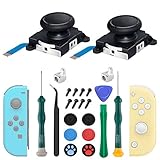
- New Version 3D Analog Joycon Thumbsticks: Our upgrade anti-drift joycon joysticks are compatible with Switch, Switch Lite and Switch OLED, just replace your broken, worn-out or drifting joysticks by yourself, and bring your controller back to life
- Metal Latch Buckles: Alloy slider lock buckles is sturdy and durable, you can replace the damaged original plastic buckle to reduce the frequency of replacement and replacement costs; The metal buckle will firmly fix the metal track to the controller
- Screwdrivers & Spare Screws: The kit is equipped with a magnetic Y1.5 Tri-Wing screwdriver and a magnetic +2.0 Phillips screwdriver, you can switch them as needed at any time; In addition, we also provide you with some spare screws
- Thumb Grip Caps: The included joystick cover caps are compatible with Nintendo Switch, made of safe, soft and comfortable silicone with a good tactile feel, effectively protect your joycon joysticks from scratches, corrosion and other damage
- After-Sale Service: We suggest that you watch tutorials on YouTube or other websites before replacing, and calibrate the joystick after installation is completed; For any product quality issues, please contact us for unconditional after-sales service
Force a shutdown and install the latest update
- Press and hold the POWER button for at least 20 seconds to force the system to shut down.
- Turn the console back on. If it restarts normally, install the latest system update as soon as possible.
- If the console freezes again, continue to Maintenance Mode below.
Where possible, remove or insert microSD cards only while the system is off or on the HOME Menu. This reduces the chance of corrupting data during a crash.
Use Maintenance Mode without deleting save data
Nintendo’s Maintenance Mode includes an option called “Initialize Console Without Deleting Save Data.” Use it only if the forced shutdown and update do not stop the freezing.
The Tool Desk
Outbyte PC Repair FREEClear out junk files and repair common Windows errorsFree Scan →Outbyte Driver Updater FREEScan for outdated or missing drivers - takes under a minuteDriver Scan →Rank #3

- 【Easy to Repair Joy-Con by Yourself】It come with complete repair kit,you can repair it by yourself in a few minutes. Bring your Joycon back to life. No need to go to the After-sales Center, No need to buy a new Joy-Con.
- 【68 pcs】Contains almost all the easily damaged parts of joycon and Professional Repair Toolkit,4 x joystick,5 x Flex cable,2 x Alloy Slider Lock Buckles,1 x Full Screw Set with Spring(43pcs),1 x Professional Repair Toolkit,6 x Thumbstick Caps.
- 【Highest Quality】All our parts replacement will be inspected before packaging to ensure that the goods you receive are in good condition.
- 【24-hour quick reply】We provide 24-hour quick reply,If you are not 100% satisfied with our product,please fell free to contact us via Amazon and will be our pleasure to serve you.
- 【12 months warranty】360 days guarantee for None human caused damage,Have any questions, please feel free contact us.
- Make sure the console is turned off.
- Press and hold the volume up and volume down buttons, then press POWER while holding them, until Maintenance Mode appears.
- Select “Initialize Console Without Deleting Save Data” and follow the on-screen prompts.
This option preserves save data, screenshots, and user information. The trade-off is that software stored on the microSD card becomes unusable after the process and may need to be downloaded again.
Save-preserving initialization versus a factory restore
These two recovery paths are not interchangeable. Choose the save-preserving option first whenever your saves matter, and treat a full factory restore as a last resort.
Rank #4
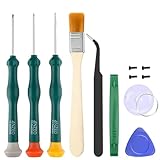
- Professional Repair Tool for Joy Con -- The tool repair kit set is suitable for Jon Con. Unscrew the screws with sdcrewdrivers. Pry the screen with suction cup, triangle plates and pry bars. Clean the device interior with a brush. Turely makes your repairment easier.
- Safe & Customized -- Triwing Screwdrivers are made of industrial grade quality steel which is much more durable and harder. Precise and accurate to fit and remove your screws with no hassle and strip.
- Application -- Use for joy con for battery change and repairment. Perfect for DIY work. This is a good repair tool for technicians, amateurs, students in everywhere.
- What's Included -- There are 8 pcs. 1* "Y"2.0 screwdriver, 1* "Y"1.5 screwdriver, 1* "+"2.0screwdriver, 1*tweezers, 1* brush, 1*pry bar,1*pry opening repair tool,1*suction cup.
- Risk-free Shopping Experience -- We provide ★30 DAYS FREE RETURN & REPLACEMENT. If there are any problems with quality, lifetime customer service ensures that an ideal solution will be given to bring your smile back.
| Option | How you reach it | Internal save data | Screenshots, videos, and user information | Software on the microSD card |
|---|---|---|---|---|
| Forced shutdown (hold POWER 20 seconds) | Normal operation or frozen screen | Not stated in Nintendo’s freeze guidance | Not stated in Nintendo’s freeze guidance | Not stated in Nintendo’s freeze guidance |
| Initialize Console Without Deleting Save Data | Maintenance Mode, console off, volume up and down with POWER | Preserved | Preserved | Becomes unusable and may need to be redownloaded |
| Factory restore | Recovery Mode, as described in Nintendo’s factory restore guidance | Deleted and cannot be recovered | Deleted and cannot be recovered | Not stated in Nintendo’s factory restore guidance |
When to stop troubleshooting and contact Nintendo
Move to Nintendo’s service process when any of the following applies:
- No power persists after the forced reset, the charging interval, and a test with a known-good adapter. Nintendo directs unresolved no-power cases to service.
- A solid-color screen persists after the steps in Nintendo’s solid-color screen troubleshooting page.
- Freezing continues after the update and Maintenance Mode.
- Physical or liquid damage is present. Nintendo’s system troubleshooting and repair page says damage of this kind is not covered by warranty. Warranty status is decided during the service-request process, so ask there rather than assuming either way.
Nintendo’s pages do not publish repair prices or turnaround times, so confirm those with Nintendo during the request. The procedures above apply to the Switch, Switch Lite, and OLED models as Nintendo describes them, but service workflows and warranty terms can vary by region, so check your country’s Nintendo support site before sending a console away.
Do these 3 things before closing this tab:
1Repair Windows errors before they cause bigger problems2Scan for outdated or missing drivers - takes under a minute3Clear out junk files and repair common Windows errorsQuick Recap
Best Value

- 【4 × 3D Joysticks + 14 × Thumb stick Caps】This set includes 4 precision-crafted analog joystick replacements, designed to perfectly fit both left and right Switch Joycon controllers. Whether you're dealing with drift, wear, or damage, these replacements will bring your controllers back to peak performance, ensuring smooth, responsive gameplay like the day you first used them.
- 【2025 Version Metal Latch Buckles】Crafted from high-strength alloy, these metal latch buckles provide a secure and reliable connection between the controller and rail. The upgraded design ensures a firm grip, preventing slippage or detachment during intense gameplay, offering long-lasting performance and superior durability compared to plastic alternatives.
- 【Magnetic Screwdrivers and Spare Screws】This set includes a magnetic Y1.5 Tri-Wing and +1.5 screwdriver, designed specifically for repairing your controllers with ease. The magnetic tips hold screws securely, preventing drops or loss during repairs. Plus, 10 spare screws are included, so you’ll never have to worry about losing or damaging screws, ensuring a smooth and stress-free repair process.
- 【Complete Repair Kit】This comprehensive kit comes with everything you need to restore your controllers to perfect condition, including 4 replacement joysticks, 4 durable metal lock buckles, 10 screws, 10 springs, 2 magnetic screwdrivers, a precision tweezer, 14 thumb stick caps, a triangle paddle, a cleaning brush, and a pry tool. Whether you're dealing with joystick drift, loose parts, or cosmetic wear, this kit provides all the essential tools for easy and efficient repairs, saving you time and money.
Product prices and availability are accurate as of the date/time indicated and are subject to change. Any price and availability information displayed on Amazon at the time of purchase will apply.



