There is no single best ASUS monitor preset: OSD options and their behavior vary by model, input, and firmware. For a dependable starting point, use the display’s native resolution and highest stable refresh rate, enable VRR, choose Racing or User Mode, set OverDrive to a moderate level, and leave ELMB and HDR off until you have a reason to enable them.
Quick-start settings
| Setting | Starting point | Reason |
|---|---|---|
| Resolution | Native resolution | Avoids unnecessary scaling softness. |
| Refresh rate | Highest stable rate supported by the display and connection | Improves motion clarity and responsiveness. |
| Adaptive-Sync / VRR | On, with GPU support enabled | Helps reduce tearing and stutter when frame rates fluctuate. |
| GameVisual | Racing or User Mode | A more balanced starting point than presets that aggressively alter the image. |
| OverDrive / Trace Free | Middle setting, or Variable Overdrive if available | Balances trailing against inverse ghosting. |
| ELMB / ELMB Sync | Off initially; test separately | Can improve motion clarity but may reduce brightness or restrict other features. |
| Shadow Boost | Off or lowest level | Higher levels can lift blacks and reduce contrast. |
| HDR | Off for SDR; enable for HDR content when the display performs well | HDR is best treated as a separate display mode. |
| Brightness | Set for room lighting and comfort | ASUS brightness scales differ by model. |
| Contrast | Near factory default | Excessive contrast can clip bright detail. |
| Blue Light Filter | Off for gaming unless needed for comfort | It changes the image’s color balance. |
Use your model’s manual to check exact menu names and feature restrictions. ASUS documents different feature combinations across products; for example, the TUF Gaming VG27AQ3AZ lists Adaptive-Sync, ELMB Sync, and Variable Overdrive, but those features should not be assumed on every ASUS monitor.
1. Set the highest stable refresh rate and enable VRR
A high refresh rate is useful when the monitor is actually running at that rate. In Windows 11, open Settings > System > Display > Advanced display, select the ASUS display, then choose the highest stable rate under Choose a refresh rate. Microsoft notes that available rates depend on the display and connection, and Dynamic Refresh Rate can affect the rate available in some scenarios. If games do not use the expected rate, check the setting and consider disabling DRR. See Microsoft’s refresh-rate instructions.
Use a DisplayPort or HDMI connection that supports the monitor’s resolution and refresh rate. Some ASUS models require enabling an OSD overclocking option to expose an advertised maximum; check the exact manual. If the maximum produces flicker, black screens, or signal loss, step down one rate and test another cable or port.
Free tools Windows power users keep installed
One-click scans. No signup required.
#1 Best Overall

- Immersive 4K QD-OLED Display: 32-inch 4K (3840 x 2160) QD-OLED gaming monitor with 240 Hz refresh rate and 0.03 ms (GTG) response time for immersive gaming
- Advanced Heat Management System: Highly efficient custom heatsink, advanced airflow design, and graphene film for better heat management to reduce the risk of burn-in
- Exceptional HDR Performance: VESA DisplayHDR 400 True Black compliance, 99% DCI-P3 gamut, true 10-bit, and Delta E < 2 color difference for astonishing HDR performance
- Uniform Brightness Setting: Optional uniform brightness setting ensures consistent luminance levels across the entire display
- Convenient Monitor Control: DisplayWidget Center allows users to access OLED Care functions, as well as adjust monitor settings with a mouse
Enable VRR on both monitor and PC
- In the monitor OSD, open the gaming or display menu and turn on Adaptive-Sync or Variable Refresh Rate, if present.
- For NVIDIA, open NVIDIA Control Panel > Display > Set up G-SYNC, enable G-SYNC/G-SYNC Compatible for the selected display, and check Manage 3D settings for Monitor Technology where available. Follow NVIDIA’s setup guidance; compatibility is not guaranteed for every FreeSync display.
- For AMD, leave Adaptive-Sync enabled in the OSD, then verify FreeSync in AMD Software: Adrenalin Edition. Labels and locations can vary by driver version.
VRR matches display timing to the GPU’s changing frame output, helping reduce tearing and stutter. If a game offers a frame-rate limit, try a cap a few frames per second below the monitor’s maximum refresh rate, then assess smoothness and latency. There is no universal cap that suits every monitor, game, and driver.
If VRR or the refresh rate is missing
- Confirm the selected Windows refresh rate and that the monitor is the active display.
- Check that the cable and input support VRR at the chosen resolution and rate; try DisplayPort if HDMI does not expose the expected option.
- Check the model manual for input-specific limits or an OSD overclocking requirement.
- If VRR flickers or loses signal, test another cable or port and reduce the refresh rate one step.
- Some combinations of HDR, ELMB, and Adaptive-Sync disable menu options. A missing control may be a mode restriction rather than a fault.
2. Choose Racing, User, or sRGB Mode
Start with Racing Mode for a general gaming baseline, or User Mode if you want to adjust image controls yourself. These are starting points, not a claim that either is measured as most accurate on every model. ASUS GameVisual presets alter characteristics such as brightness, contrast, saturation, or tone; see the ASUS gaming monitor settings guide.
Rank #2

- Immersive QHD OLED Display: 26.5-inch QHD (2560 x 1440) glossy WOLED gaming monitor with 240 Hz refresh rate and 0.03 ms response time for immersive gaming
- Advanced Cooling and OLED Protection: Highly efficient custom heatsink, advanced airflow design, and ASUS OLED Care functions to reduce the risk of burn-in
- ROG OLED Anti-flicker Technology: ROG-exclusive OLED Anti-flicker technology helps reduce the flicker during refresh-rate fluctuations
- Third-Generation WOLED Panel: Third-generation WOLED technology provides brighter full white windows, clearer text, and improved motion clarity
- Uniform Brightness Setting: Optional uniform brightness setting ensures consistent luminance levels across the display
- FPS Mode: Choose it if you prefer its visibility or image treatment. Brighter-looking shadows do not necessarily mean more accurate color, and there is no basis for assuming the preset reduces input lag on every model.
- sRGB: A useful choice for restrained SDR color on a wide-gamut monitor. It clamps the display toward the smaller sRGB color space, which can look less vivid but closer to typical SDR content.
- Wide gamut or DCI-P3 modes: Can produce more saturated colors, but are not automatically preferable for SDR games or desktop use.
- Scenery or Cinema: Treat these as preference presets rather than accuracy settings.
sRGB, HDR, or other modes may lock brightness, contrast, saturation, Shadow Boost, or color temperature. ASUS manuals document model-specific restrictions, including the VG279QE5A manual and XG27UCG manual. If an adjustment is unavailable, switch modes or consult the manual rather than assuming the monitor is broken.
3. Tune OverDrive; do not simply max it out
OverDrive—called Trace Free on some displays—accelerates pixel transitions to reduce visible trailing. Too little can leave ghosting; too much can create bright or dark halos, known as inverse ghosting or overshoot.
Outdated Drivers Are Slowing You Down
One free scan finds every outdated or missing driver and matches the right update for your exact hardware.Free scan · exact hardware matchWindows Errors? Fix Them Before They Spread
Repair common Windows errors and clear accumulated junk for a smoother, more stable PC - no reinstall needed.Free scan · no reinstallRank #3

- 27-inch 2560 x 1440 HDR gaming monitor with ultrafast 180Hz refresh rate designed for professional gamers and immersive gameplay
- ASUS Fast IPS technology enables a 1ms response time (GTG) for sharp gaming visuals with high frame rates
- ASUS Extreme Low Motion Blur Sync (ELMB SYNC) technology enables ELMB together with variable refresh rate, eliminating ghosting and tearing for sharp gaming visuals with high frame rates.
- DisplayWidget Center enables easy OSD access and monitor settings adjustments with a mouse.
- USB Type-C hub supports video transmission in DisplayPort signal; can serve as a USB hub, meaning that you can connect your device to your wired peripherals with clutter-free set-up
- Select Racing or User Mode.
- Open the gaming menu and find OverDrive, Trace Free, or Variable Overdrive.
- Start at the middle setting, then test a fast-moving game or motion pattern at the frame rates you actually play.
- Increase one level if ordinary trailing remains. Reduce it if halos, dark trails, or colored overshoot appear.
There is no universal best numeric level: panel type, refresh rate, frame rate, VRR behavior, and firmware all matter. A level that looks clean at maximum refresh may look poor at a lower rate. Where supported, Variable Overdrive dynamically adjusts overdrive as frame rates change; ASUS lists it on models such as the TUF Gaming VG27AQML1A. Recheck the setting after changing GameVisual modes, since some models reset or alter controls when presets change.
4. Test ELMB or ELMB Sync only if motion clarity is the priority
ELMB is ASUS backlight strobing intended to reduce perceived eye-tracking motion blur. ELMB Sync is designed to combine blur reduction with Adaptive-Sync on supported models. ASUS explains that standard ELMB turns the backlight off between refreshes and is intended for fixed-refresh operation, while ELMB Sync can operate alongside G-SYNC, FreeSync, or Adaptive-Sync on compatible displays. See ASUS’s ELMB and ELMB Sync FAQ.
Rank #4
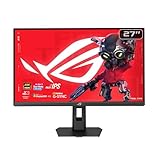
- Dual Mode Display Technology: 27-inch 4K (3840 x 2160) gaming monitor with versatile dual mode (4K @ 160 Hz or FHD @ 324 Hz)
- Ultra-Fast Response Time: ASUS Fast IPS technology enables a 0.3ms response time (min.) for sharp gaming visuals with high frame rates
- Enhanced Visual Clarity: ASUS Smart Pixel technology enhances every detail, delivering sharper, more vibrant visuals, even at lower resolutions
- Advanced Motion Blur Reduction: ASUS Extreme Low Motion Blur Sync (ELMB SYNC) technology enables ELMB together with variable refresh rate, eliminating ghosting and tearing for sharp gaming visuals with high frame rates
- Superior Color Accuracy: 95% DCI-P3 color gamut with ASUS advanced gray-scale tracking technology ensures smoother color gradation delivered and uniformity
Keep ELMB off initially and prioritize VRR for general gaming. If your model has ELMB Sync, compare it with VRR alone in a high-frame-rate game. Standard ELMB may require a fixed refresh rate or Adaptive-Sync disabled; consult the specific manual.
- Strobing can lower perceived brightness and may produce flicker, double images, or crosstalk.
- At low or fluctuating frame rates, strobing may be less comfortable or clear.
- Some models disable ELMB or other options when HDR is active.
- Some models offer ELMB Sync; others have ELMB only or neither.
Choose the mode that makes moving objects clearest without distracting artifacts. ASUS notes that compatibility depends on the model in its gaming monitor settings guide.
Best Value

- World's First 1440P 480Hz OLED Gaming Monitor: Experience unprecedented gaming performance with the industry's first 1440P resolution OLED display running at an incredible 480Hz refresh rate
- Ultra-Fast Response Time and High Refresh Rate: 26.5-inch QHD 480Hz WOLED gaming monitor delivers 0.03ms response time for sharp and ultra-fast gaming visuals without motion blur
- Exclusive Gaming AI Assistant: Advanced AI technology helps you better navigate your gaming experience with intelligent features and optimizations
- ROG OLED Anti-Flicker Technology: Exclusive technology helps reduce the flicker during refresh rate fluctuations for more comfortable extended gaming sessions
- Superior Color Accuracy and HDR Performance: 99% DCI-P3 color gamut coverage and Delta E <2 color difference deliver astonishing HDR performance with true-to-life colors
5. Set HDR, brightness, and Shadow Boost for the content
For SDR desktop and games
Keep Windows HDR off for ordinary SDR use unless you have a reason to leave it enabled. Use Racing, User, or sRGB mode according to your color preference, set brightness for your room, and keep contrast near its factory default unless calibration shows a problem. Brightness numbers from another ASUS monitor are not transferable because scales and panels differ.
Shadow Boost changes dark-tone gamma to make shadow detail easier to see. Start at Off or the lowest level: stronger settings can lift blacks, flatten contrast, and make the image look gray or washed out. Use it only if that trade-off helps in a particular game; it is not a universal competitive advantage. The feature may be unavailable in some modes, as shown in the ASUS XG27UQ manual.
For HDR games on Windows 11
- Open Settings > System > Display, select the HDR-capable ASUS monitor, and enable HDR.
- Run the Windows HDR Calibration app and adjust its patterns for black level, peak brightness, and color saturation.
- Calibrate under the lighting conditions in which you normally play HDR games. Temporarily disable monitor post-processing effects if they interfere with calibration.
- If SDR content looks too dim, bright, or desaturated with HDR enabled, adjust the Windows SDR-content brightness control or turn HDR off when using SDR.
Microsoft documents the HDR controls in Windows HDR settings and the calibration process in its HDR Calibration app guidance. HDR support on a product page does not establish strong HDR image quality: brightness, local dimming, panel behavior, and tone mapping all affect the result. Some ASUS models disable GameVisual, ELMB, Shadow Boost, brightness, or contrast controls in HDR mode.
Settings by gaming priority
| Priority | Emphasis | Settings to favor |
|---|---|---|
| Competitive FPS | Motion clarity and responsive play | Highest stable refresh, VRR, moderate OverDrive, optional ELMB Sync test, low Shadow Boost. |
| General gaming | Smoothness and balanced image | VRR, Racing or User Mode, moderate or Variable OverDrive, ELMB off initially. |
| Cinematic single-player | Image quality and HDR when effective | Calibrated HDR for supported games and display; otherwise a preferred SDR mode. |
| Color-conscious SDR use | Restrained color | sRGB or calibrated User Mode; Shadow Boost off. |
| Dark-room visibility | Shadow detail | Test a low Shadow Boost level and check that blacks are not excessively lifted. |
| VA panel | Control dark-level smearing | Test OverDrive carefully; avoid settings that cause halos. |
| OLED panel | Model-specific HDR and motion behavior | Follow the manual’s HDR, brightness, uniform-brightness, and pixel-care guidance. |
Recover from common image problems
Washed-out color or gray-looking blacks
- Turn off Windows HDR for SDR content.
- Lower or disable Shadow Boost.
- Try sRGB instead of a wide-gamut mode for SDR.
- Check that the GPU output range is not incorrectly set to Limited.
- Reset monitor color controls if the image remains wrong.
Bright halos, dark trails, or overshoot
- Reduce OverDrive one or more levels and retest at the game’s normal frame rate.
- Temporarily disable ELMB Sync to isolate the cause.
- Try Variable Overdrive if your model offers it.
VRR flicker, tearing, or stutter
- For tearing, confirm VRR is enabled in both the OSD and GPU software.
- For flicker or signal loss, reduce the refresh rate one step, try another cable or port, and check for driver or monitor firmware updates.
- If flicker occurs as frame rates fluctuate, check whether the game is repeatedly moving in and out of the monitor’s VRR range.
- Stutter below the effective VRR range may require a game-specific frame-rate or graphics adjustment.
ELMB is unavailable
- Check whether the model supports ELMB Sync or standard ELMB.
- Check the manual for required refresh-rate or Adaptive-Sync conditions.
- See whether HDR or another picture mode has disabled the control.
HDR looks dim or wrong
- Confirm HDR is enabled for the correct Windows display and the monitor is in its intended HDR mode.
- Run Windows HDR Calibration and check the SDR-content brightness control.
- Restart the game after changing its HDR or Windows HDR setting.
Model-specific names and restrictions
ASUS menus may call VRR Adaptive-Sync or Variable Refresh Rate; overdrive may appear as OverDrive, Trace Free, or Variable Overdrive. GameVisual presets, HDR controls, refresh limits, and ELMB support also differ. Check the manual for the exact model and input, especially if changing HDR, sRGB, or ELMB makes a control disappear. Some models expose maximum refresh only after an OSD overclock setting; others have input-specific limits.
Recommended Free Tools
Quick Recap
A reliable setup order
- Identify the exact ASUS model and download its manual from ASUS support.
- Connect through a cable and input capable of the desired resolution and refresh rate.
- Set native resolution and highest stable refresh in Windows Advanced display.
- Enable Adaptive-Sync/VRR in the monitor OSD, then configure compatible G-SYNC or FreeSync support in the GPU software.
- Choose Racing or User Mode; use sRGB when you prefer restrained SDR color.
- Set OverDrive in the middle or use Variable Overdrive, then test in your games.
- Test ELMB Sync separately if available; turn it off if brightness loss, flicker, or artifacts are distracting.
- Adjust brightness for the room and keep Shadow Boost low unless you intentionally want brighter shadows.
- Enable and calibrate HDR separately for HDR gaming. Save separate monitor profiles for general use, competitive play, and HDR if the monitor supports them.
Product prices and availability are accurate as of the date/time indicated and are subject to change. Any price and availability information displayed on Amazon at the time of purchase will apply.




