
For the published 1440p/60fps target, start with Medium graphics, Balanced upscaling, and ray tracing off. That profile is associated with RTX 3060 Ti, Radeon RX 6700 XT, or Intel Arc B580-class hardware, plus 16 GB of RAM and a 120 GB SSD. If you have substantially faster hardware, a hands-on test found a strong image-quality/performance balance at High graphics, High ray tracing, and Quality upscaling. The adjustment order matters: reduce ray tracing or path tracing before lowering output resolution, and add frame generation only after the game already maintains roughly 45 FPS.
Recommended CONTROL Resonant settings at a glance
Use the profile that matches your hardware and target. These are starting points rather than guarantees: the developer describes each profile as a specific performance target, not a promise of identical results in every scene or configuration.

As an Amazon Associate I earn from qualifying purchases.
| Use case | Graphics preset | Upscaling | Ray tracing | Published or tested hardware context |
|---|---|---|---|---|
| 1440p/60fps target | Medium | Balanced | Off | RTX 3060 Ti, Radeon RX 6700 XT, or Intel Arc B580 class; 16 GB RAM and 120 GB SSD |
| Minimum target | Low | Quality | Off | 1080p/30fps target; 16 GB RAM and 120 GB SSD |
| High-end image-quality setup | High | Quality | High | PC Gamer test system with RTX 5070 Ti, Ryzen 7 7700X and 32 GB DDR5 |
The first row is the sensible default for most players seeking smooth play. The third row is not a universal “best” preset; it was a practical sweet spot on a much faster test machine that reported smooth play with zero stutters across nearly every setting, even with frame generation disabled.
Start with the 1440p/60fps profile
Set the main preset
Select Medium graphics, choose Balanced for the upscaler, and turn ray tracing off. This is the published Recommended profile for a 1440p/60fps goal. It preserves a higher output resolution than the minimum profile while keeping the two largest performance risks—ray tracing and very expensive lighting paths—out of the frame-time budget.
#1 Best Overall
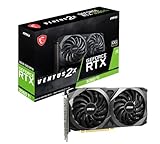
- This Renewed product is tested and certified to look and work like new, with limited to no signs of wear. The refurbishing process includes functionality testing, inspection, and repackaging. The product comes with 90-day warranty
- Memory Speed: 14 Gbps. Digital Max Resolution:7680 x 4320
- NVIDIA Ampere Streaming Multiprocessors: The building blocks for the world’s fastest, most efficient GPU, the all-new Ampere SM brings 2X the FP32 throughput and improved power efficiency.
- 2nd Generation RT Cores: Experience 2X the throughput of 1st Gen RT Cores, plus concurrent RT and shading for a whole new level of ray tracing performance.
- 3rd Generation Tensor Cores: Get up to 2X the throughput with structural sparsity and advanced AI algorithms such as DLSS. Now with support for up to 8K resolution, these cores deliver a massive boost in game performance and all-new AI capabilities.
Check the hardware and storage baseline
The same requirements listing names an RTX 3060 Ti, Radeon RX 6700 XT, or Intel Arc B580-class GPU for the Recommended profile. It also lists 16 GB of system memory and a 120 GB SSD for both the Minimum and Recommended targets. A system below that baseline may need the Low profile or a lower output resolution; a system above it still needs testing because the profile is a target, not a guarantee.
Use the minimum profile when consistency matters more than detail
For a 1080p/30fps objective, use Low graphics, Quality upscaling, and ray tracing off. This is the published Minimum target. It is the appropriate fallback when Medium settings produce uneven frame pacing, when a laptop is power-limited, or when your display is 1080p and you would rather hold a stable frame rate than preserve extra effects.
Why ray tracing should be the first major compromise
Ray tracing and path tracing cost the most
The settings guidance identifies ray tracing and path tracing as the largest visual-performance costs. Ultra ray tracing/path tracing should therefore be reduced in this order: Ultra to High, High to Medium, Medium to Off. Ultra includes full path tracing and can require aggressive upscaling or frame generation even on powerful GPUs.
Free tools Windows power users keep installed
One-click scans. No signup required.
Keep resolution before sacrificing it
If the game feels uneven, lower the ray-tracing tier before dropping output resolution. A lower RT setting usually removes expensive lighting work while allowing the reconstruction image to keep more of its intended detail. Once RT is off or at a level your GPU can sustain, adjust the upscaler mode. Only then should you make a large resolution compromise.
When High ray tracing is reasonable
High RT is a valid choice on a much faster 1440p system. In the PC Gamer test, an RTX 5070 Ti paired with a Ryzen 7 7700X and 32 GB DDR5 delivered smooth play with zero stutters across nearly every setting without frame generation. The review’s practical sweet spot was High graphics, High ray tracing and Quality upscaling. That result describes that hardware and test conditions; it should not be read as a guarantee for an RTX 3060 Ti, RX 6700 XT, Arc B580, or any other GPU.
DLSS or FSR: choosing Quality versus Balanced
Use the supported upscaler before cutting every quality slider
Enable DLSS on supported NVIDIA hardware or FSR on supported AMD hardware before turning multiple graphics options down. Upscaling can preserve a more detailed-looking scene than uniformly lowering every setting, while reducing the workload used to produce the final frame.
Rank #2

- 8GB GDDR6 256-bit Memory
- 7680 x 4320 Maximum Resolution
- PCIe 4.0
- Full Height, Dual Slot
- DisplayPort 1.4a, HDMI 2.1
When to choose Quality
Quality is the preferred starting point when your base frame rate is already close to the target and you want the clearest reconstructed image. It is part of the published 1080p/30fps Minimum profile and the tested high-end sweet spot. Quality is also the right first choice when Balanced looks softer than you can comfortably tolerate and your frame pacing remains stable.
The Tool Desk
Outbyte Driver Updater FREEScan for outdated or missing drivers - takes under a minuteDriver Scan →Outbyte PC Repair FREERepair Windows errors before they cause bigger problemsFix Now →When to choose Balanced
Balanced is the published starting mode for 1440p/60fps on Recommended-class hardware. Move from Quality to Balanced when the GPU cannot maintain the target and ray tracing is already off or reduced. This is a controlled performance step before making a larger change to output resolution.
When Performance mode is justified
Performance mode belongs after you have reduced RT/path tracing and tried the less expensive quality changes. The guide specifically recommends moving DLSS from Quality to Balanced or Performance as part of that fallback sequence. Use it when consistency is more important than fine image detail, and reassess clarity in motion rather than judging only from a static screenshot.
Frame generation: add it only after a healthy base frame rate
Establish the underlying frame rate first
Frame generation should not be the first response to a low or unstable base frame rate. The practical guidance uses approximately 45 FPS before frame generation as a rule of thumb. If the game is well below that level, generated frames cannot fix the underlying workload and may make controls feel less immediate.
Use the multiplier conservatively
If combat feels laggy or motion looks unstable, lower the frame-generation multiplier before cutting output resolution. The recommended troubleshooting order is to reduce the multiplier or the RT tier first, then consider a more aggressive upscaler. This keeps the base render responsive instead of asking frame generation to cover a weak foundation.
Why the high-end test is useful
The PC Gamer system reported smooth play with frame generation disabled. That demonstrates that a sufficiently powerful CPU/GPU combination can reach a good experience without relying on generated frames. It does not mean frame generation is unnecessary on all systems; it means you should measure the native base performance of your own machine before enabling it.
Rank #3
Which settings to lower after ray tracing
Once RT or path tracing is at an acceptable tier, the guide recommends reducing these options before sacrificing native output resolution:
- Shadows
- Lighting quality
- Volumetric spotlight quality
- Foliage quality
Change one group at a time and check both average smoothness and frame pacing. A setting that raises an average counter but leaves noticeable hitching is not a successful trade for a smooth-play target.
Recommended settings by hardware class
RTX 3060 Ti
Use Medium graphics, Balanced upscaling and RT off as the first 1440p/60fps attempt. The RTX 3060 Ti is explicitly named in the Recommended hardware profile, so it is a logical baseline for that preset. If frame pacing is inconsistent, keep RT off, lower shadows or lighting, and move from Balanced to Performance only after those changes.
Quick wins for a faster PC:
Clear out junk files and repair common Windows errorsFree Scan →Fix the driver behind crashes, sound loss and screen glitchesFind Drivers →Radeon RX 6700 XT
Begin with the same Medium/Balanced/RT-off profile. The RX 6700 XT is also listed for the Recommended target. Use FSR where supported, and follow the same order: RT or path tracing off first, then shadows, lighting, volumetric spotlight and foliage, followed by a more aggressive FSR mode if necessary.
Intel Arc B580 class
The published Recommended profile includes Intel Arc B580-class hardware. Start at Medium, Balanced upscaling and RT off, then evaluate frame pacing in demanding scenes. Keep the comparison conditions fixed when changing modes so that a driver or build difference is not mistaken for a graphics-setting improvement.
Higher-end 1440p hardware
On hardware comparable to the RTX 5070 Ti, Ryzen 7 7700X and 32 GB DDR5 test system, try High graphics, High RT and Quality upscaling. Leave frame generation disabled initially, as the test achieved smooth play without it. If your system does not match that performance, step RT down before changing resolution.
Rank #4
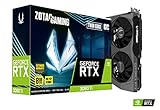
- NVIDIA Ampere architecture, 2nd Gen Ray Tracing Cores, 3rd Gen Tensor Cores.Power Consumption : 200W. Slot Size : Dual Slot
- Boost Clock 1695 MHz, 8GB 256-bit GDDR6, 14 Gbps, PCIE 4.0; Low Hash Rate (LHR) 25 MH/s ETH hash rate (est.)
- White LED Logo Lighting, IceStorm 2.0 Advanced Cooling, Active Fan Control, Freeze Fan Stop, Metal Backplate
- 8K Ready, 4 Display Ready, HDCP 2.3, VR Ready.Avoid using unofficial software
- 3 x DisplayPort 1.4a, 1 x HDMI 2.1, DirectX 12 Ultimate, Vulkan RT API, OpenGL 4.6
Systems below the Minimum target
Use Low graphics, Quality upscaling and RT off for the published 1080p/30fps objective. The listing still calls for 16 GB RAM and a 120 GB SSD, so meeting the graphics profile alone does not remove the memory or storage requirements.
What’s actually slowing this PC down?
Pick the symptom - the matching free tool is one click away.
A repeatable setup procedure
- Set your display output to the resolution you actually intend to play, then select the matching target: 1440p/60fps for the Recommended profile or 1080p/30fps for the Minimum profile.
- Choose Medium graphics, Balanced upscaling and RT off for the Recommended starting point. Choose Low, Quality and RT off for the Minimum starting point.
- Play through a demanding section rather than judging only the opening area. Note average FPS, the worst-feeling moments, image clarity and control response.
- If frame pacing is poor, lower RT/path tracing first. Use the sequence Ultra, High, Medium, Off rather than changing several unrelated options simultaneously.
- Next lower shadows, lighting, volumetric spotlight and foliage. Keep output resolution unchanged while you test these changes.
- If the base frame rate is healthy but you want more smoothness, enable frame generation. Start only when the underlying rate is roughly 45 FPS or higher.
- If input feels delayed, reduce the frame-generation multiplier or RT tier. Do not immediately compensate by dropping resolution.
- After every change, compare under the same resolution, upscaler mode, frame-generation setting, driver and game build.
How to reduce stutter and frame drops
Separate average FPS from frame pacing
A high average can hide irregular delivery. Record the base FPS and the 1% lows when your tools provide them, and pay attention to whether camera movement or combat produces visible pauses. The comparison axes that matter are output resolution, upscaler mode, RT/path-tracing tier, frame-generation multiplier, base FPS and 1% lows, input latency, and image clarity.
Use controlled comparisons
Change one variable at a time. Keep the resolution, upscaler, frame generation, driver and game build constant while comparing RT tiers or individual quality settings. Otherwise, a different software condition can appear to be a setting improvement.
Prioritize the costly workload
When drops occur, remove Ultra path tracing or lower the RT tier before making broad image-quality cuts. Then lower shadows, lighting, volumetric spotlight and foliage. This order follows the documented performance cost and protects the output resolution for as long as possible.
Do not treat a preset as a guarantee
Remedy states that each profile represents a particular performance target and that meeting it does not guarantee identical performance in every area or hardware configuration. Scene complexity, drivers and the game build can change results, which is why identical test conditions matter.
Do these 3 things before closing this tab:
1Scan for outdated or missing drivers - takes under a minute2Repair Windows errors before they cause bigger problems3Fix the driver behind crashes, sound loss and screen glitchesClarity and comfort settings that cost little performance
The official Steam announcement says you can disable motion blur, depth of field, lens distortion, film grain and vignetting. Turn these off if you prefer a cleaner image, have difficulty tracking motion, or find post-processing distracting. They are separate comfort and clarity choices, so you can change them without abandoning the main Medium, Low or High preset.
Best Value
- GeForce RTX 30 Series GPUs deliver ultimate performance for gamers and creators. They're powered by Ampere, NVIDIA's 2nd generation RTX architecture, with new RT cores, Tensor cores, and streaming multiprocessors for the most realistic ray-plotted graphics and cutting-edge AI features.
- Discover today's biggest blockbusters like never before with the visual fidelity of real-time ray tracing and the ultimate performance of AI-powered DLSS. RTX It's on.
- NVIDIA DLSS is a revolutionary AI rendering that increases frame rates with uncompromising image quality using dedicated AI processing Tensor cores on Geforce RTX. This gives you the margin of performance to increase settings and resolutions for an amazing visual experience. The AI revolution has arrived in the game.
- NVIDIA Reflex delivers the ultimate competitive advantage. The lowest latency. The best responsiveness. Powered by Geforce RTX 30 Series GPUs and NVIDIA G-SYNC monitors. Acquire targets faster, react faster and increase aiming accuracy with a revolutionary suite of technologies to measure and optimize system latency for competitive gaming.
- Enhance your creative projects with Geforce RTX 30 Series GPUs. Accelerate AI in the best creative applications. Supported by the NVIDIA Studio platform of dedicated drivers and exclusive tools. Designed to run in record time. Whether it's rendering complex 3D scenes, editing 8K videos, or live streaming with the best encoding and image quality, Geforce RTX GPUs give you the performance you need to create the best.
How to judge whether a change worked
- Smoothness: Does camera movement remain consistent in demanding areas?
- Base performance: Is the rate before frame generation healthy, especially around the 45 FPS rule of thumb?
- Frame pacing: Are 1% lows and visible hitches improving, not just the average counter?
- Latency: Does aiming or combat remain immediate after enabling frame generation?
- Clarity: Does the selected Quality, Balanced or Performance mode retain enough detail during motion?
- Consistency: Were resolution, upscaler, frame-generation setting, driver and game build held constant during the comparison?
A setting change is worthwhile only when it improves the problem you are actually experiencing. For example, reducing foliage will not solve latency caused by an excessive frame-generation multiplier, while changing the upscaler will not address the largest cost of Ultra path tracing.
Practical decision tree
If you want 1440p/60fps
Start at Medium, Balanced and RT off. If performance is uneven, lower shadows, lighting, volumetric spotlight and foliage. If that is insufficient, move to Performance upscaling. Keep RT off unless your hardware has substantial headroom.
If you want the best image quality on a powerful system
Try High graphics, High RT and Quality upscaling. Test with frame generation disabled first. If the base rate is not healthy, reduce RT before changing resolution or switching away from Quality.
If you are below the Recommended target
Use Low, Quality and RT off at 1080p, aiming for the published 30fps minimum target. If you still see drops, reduce the costly secondary settings and then move to a more aggressive upscaler.
If combat feels laggy
Check the base rate, then lower the frame-generation multiplier or RT tier. Frame generation is a finishing step for a healthy render rate, not a substitute for one.
Bottom line
The safest smooth-gameplay recipe is Medium graphics, Balanced upscaling and ray tracing off at 1440p, using the published RTX 3060 Ti, RX 6700 XT or Arc B580-class profile as your reference. For a 1080p/30fps fallback, choose Low, Quality upscaling and RT off. Only move to High RT and Quality upscaling when your hardware has the headroom demonstrated by the RTX 5070 Ti test, and always lower RT/path tracing before resolution when frame pacing breaks down.
Quick Recap
Product prices and availability are accurate as of the date/time indicated and are subject to change. Any price and availability information displayed on Amazon at the time of purchase will apply.

