Recommended Free Tools
Short answer: FSR4 is not an officially supported Steam Deck feature. Community FSR4 replacement methods may work in individual games, but they are experimental. Lossless Scaling is a Windows application; on SteamOS, its frame-generation technology is accessed through the unofficial lsfg-vk Vulkan layer. For most owners, the safest order is: use the game’s built-in FSR, establish a stable frame rate, and only then consider lsfg-vk or a game-specific FSR4 workaround.
FSR4 and Steam Deck compatibility
AMD now describes what was commonly called FSR4 as FSR Upscaling, part of the broader FSR “Redstone” family. It is an ML-based upscaling technology, unlike the older approaches:
As an Amazon Associate I earn from qualifying purchases.
- FSR 1 uses spatial upscaling, reconstructing each frame largely from that frame alone.
- FSR 2 and FSR 3 use temporal data from previous frames and motion information.
- FSR Upscaling/FSR4 uses AMD’s newer machine-learning reconstruction path.
AMD’s official support information lists the ML-based implementation for Radeon RX 7000- and RX 9000-series graphics. The Steam Deck’s custom APU uses older RDNA 2 graphics, so the Deck is not listed as an official target for this current ML-based FSR Upscaling path. See AMD’s FSR documentation.
What’s actually slowing this PC down?
Pick the symptom - the matching free tool is one click away.
That does not mean every “FSR4 on Deck” report is false. It means those reports generally involve community Proton builds, OptiScaler, DLL replacement, or other interception methods. Compatibility depends on the game engine, renderer, Proton version, Mesa and SteamOS versions, and the exact workaround. A game may load an FSR-related file yet fall back to FSR3 or use a different upscaler entirely. Valve’s Proton issue tracker includes unresolved reports covering these compatibility problems, including an FSR4/FSR3 fallback report.
#1 Best Overall

- Ultra-Portable: Slim, portable, and light weight allowing you to protect your investment wherever you go
- Ergonomic Comfort: Doubles as an ergonomic stand with two adjustable height settings
- Optimized for Laptop Carrying: The metal mesh provides your laptop with a stable laptop carrying surface
- Ultra-Quiet Fans: Three ultra-quiet fans create a noise-free environment for you
- Extra Usb Ports: Extra USB port and power switch design allows for connecting more USB devices. Warm Tips: The packaged cable is USB to USB connection. Type C connection devices need to prepare an Type C to USB adapter
Do not treat a menu label or DLL filename as proof that official FSR4 is running. Confirm the active implementation with the workaround’s own diagnostic method or an appropriate in-game indicator.
What SteamOS already gives you
Steam Deck games commonly target the device’s 1280×800 display, or 1280×720 when a title uses a 16:9 presentation. A game can render internally below that resolution and upscale to the display, reducing GPU workload. Steam Deck also has a Gamescope compositor scaling path for games that lack a useful in-game upscaler. Valve documents its Deck resolution expectations and FSR support in the Deck Verified documentation and Steam Deck developer FAQ.
Use an integrated game upscaler first when one is available. It has access to the game’s motion vectors, depth information, and rendering pipeline, so it can usually make better reconstruction decisions than an external scaler. External scaling is not automatically superior.
Avoid applying two upscalers without a specific reason. In-game FSR followed by compositor or external scaling can soften the image, emphasize ringing and halos, and increase shimmering. When diagnosing frame generation, disable other scaling paths so you know which component is responsible for the result.
Lossless Scaling versus lsfg-vk
Lossless Scaling is a paid Windows utility. Its features include spatial scaling algorithms such as LS1, FSR, and NIS, along with LSFG frame generation, profiles, and windowed or borderless scaling. Its Steam listing specifies Windows 10 version 2004 or newer and DirectX 11 requirements. The price observed on August 16, 2026, was $6.99; prices can change.
Rank #2

- Dual USB Hub: With a built-in dual USB hub, the laptop fan enables you to connect additional USB devices to your laptop, providing extra connectivity options for your peripherals. Warm tips: The packaged cable is a USB-to-USB connection. Type C connection devices require a Type C to USB adapter. Please plug the cooling pad's USB cable into a 5V 1A adapter for best performance; otherwise, the fans may fail to spin or run at very low speed.
- Whisper-Quiet Operation: Enjoy a noise-free and interference-free environment with super quiet fans, allowing you to focus on your work or entertainment without distractions.
- Enhanced Cooling Performance: The laptop cooling pad features 5 built-in fans (big fan: 4.72-inch, small fans: 2.76-inch), all with blue LEDs. 2 On/Off switches enable simultaneous control of all 5 fans and LEDs. Simply press the switch to select 1 fan working, 4 fans working, or all 5 working together.
- Ergonomic Design: The laptop cooling stand also serves as an ergonomic stand, offering 6 adjustable height settings that enable you to customize the angle for optimal comfort during gaming, movie watching, or working for extended periods. Ideal gift for both the back-to-school season and Father's Day.
- Secure and Universal Compatibility: Designed with 2 stoppers on the front surface, this laptop cooler prevents laptops from slipping and keeps 12-17 inch laptops—including Apple Macbook Pro Air, HP, Alienware, Dell, ASUS, and more—cool and secure during use.
Those Windows requirements do not mean the Windows application is natively supported by SteamOS. On the Deck, the relevant Linux route is lsfg-vk, an unofficial open-source Vulkan layer that exposes Lossless Scaling’s frame-generation functionality on Linux. It is not Valve-supported native Lossless Scaling, and it is not proof that AMD’s official FSR4 implementation is active.
The Lossless Scaling listing also notes that frame generation needs spare GPU resources. If the Deck is already using nearly all available GPU capacity, the added work can reduce the original frame rate rather than improve the experience.
What frame generation can—and cannot—do
Frame generation creates additional displayed frames between conventionally rendered frames. If a game produces a stable 30 FPS, 2× generation may make camera motion appear closer to a 60-FPS presentation. The game itself is still simulating and rendering its underlying frames at about 30 FPS.
That distinction matters:
- Base FPS is the rate at which the game actually renders its source frames.
- Generated or output FPS is the apparent display rate after inserted frames.
- Input responsiveness is governed mainly by the underlying game and its frame queue, not simply by the number shown by an overlay.
LSFG can make motion look smoother, but it does not make game logic, input sampling, animation decisions, or CPU simulation run at the generated rate. It can add GPU work, latency, and artifacts around HUDs, foliage, hair, particles, and rapidly moving objects. A nominal 60 FPS from a fluctuating 20 FPS base is not equivalent to a stable native 60 FPS experience.
Frame generation is therefore most defensible when the game already maintains a reasonably stable 30 or 40 FPS. It is a poor solution for CPU bottlenecks, shader-compilation pauses, severe stutter, or unstable frame pacing.
Rank #3

- 9 Super Cooling Fans: The 9-core laptop cooling pad can efficiently cool your laptop down, this laptop cooler has the air vent in the top and bottom of the case, you can set different modes for the cooling fans.
- Ergonomic comfort: The gaming laptop cooling pad provides 8 heights adjustment to choose.You can adjust the suitable angle by your needs to relieve the fatigue of the back and neck effectively.
- LCD Display: The LCD of cooler pad readout shows your current fan speed.simple and intuitive.you can easily control the RGB lights and fan speed by touching the buttons.
- 10 RGB Light Modes: The RGB lights of the cooling laptop pad are pretty and it has many lighting options which can get you cool game atmosphere.you can press the botton 2-3 seconds to turn on/off the light.
- Whisper Quiet: The 9 fans of the laptop cooling stand are all added with capacitor components to reduce working noise. the gaming laptop cooler is almost quiet enough not to notice even on max setting.
The safest Steam Deck performance workflow
- Start with the game’s native resolution or a sensible lower resolution. Avoid lowering resolution unnecessarily if the game is CPU-bound.
- Enable the game’s built-in FSR. Start with a quality-oriented preset, then move toward more aggressive performance settings only if necessary.
- Reduce expensive settings selectively. Shadows, volumetric effects, view distance, and crowd density can offer better trade-offs than reducing everything.
- Choose a stable frame-rate target. A consistent 30 or 40 FPS is generally a better foundation than a highly variable average.
- Check frame pacing. Average FPS alone can hide spikes and stutter.
- Only then test external frame generation. Compare smoothness, latency, artifacts, power draw, and temperature—not just the overlay number.
Installing lsfg-vk on SteamOS
Use the current lsfg-vk installation guide as the authority for package names and supported methods. The project recommends a Decky-based installation when available for easier Deck management. Package names, filenames, and commands can change.
Do these 3 things before closing this tab:
1Clear out junk files and repair common Windows errors2Fix the driver behind crashes, sound loss and screen glitches3Repair Windows errors before they cause bigger problemsThe project’s documented prebuilt Arch/SteamOS package route is:
- Switch to Desktop Mode.
- Buy and install Lossless Scaling through Steam if you intend to use the project’s documented workflow.
- Download the appropriate lsfg-vk release package from the project’s current releases.
- Open a terminal and substitute the actual downloaded filename for the example below:
sudo pacman-key --init
sudo pacman-key --populate holo
sudo pacman -Syy
sudo pacman -U ./lsfg-vk-x.y.z-x86_64.tar.zst
This is an unofficial modification path. SteamOS updates can remove, invalidate, or require reinstallation of system-level components. Keep the project documentation and your configuration notes available before updating.
Advanced source-build fallback
The project also documents an older Steam Deck source-build method dated July 17, 2025. It is not the preferred default because it modifies the normally read-only SteamOS environment:
sudo steamos-readonly disable
sudo pacman-key --init
sudo pacman-key --populate
sudo pacman -Syy
sudo pacman -S base-devel git clang llvm cmake ninja spirv-headers vulkan-headers vulkan-icd-loader
sudo pacman -S linux-headers linux-api-headers glibc

git clone --recurse-submodules --depth 1 https://github.com/PancakeTAS/lsfg-vk.git
cd lsfg-vk

cmake -B build -G Ninja
  -DCMAKE_BUILD_TYPE=Release
  -DCMAKE_INSTALL_PREFIX=~/.local
cmake --build build
cmake --install build

sudo steamos-readonly enable
Use this only if you understand SteamOS’s read-only filesystem and the possibility that an update will undo the installation. Prefer the current release package or supported Decky route.
PC Slower Than It Used to Be?
A free scan shows the junk files, broken settings and background clutter dragging Windows down - then fixes them in one click.Free scan · Windows 10 & 11Outdated Drivers Are Slowing You Down
One free scan finds every outdated or missing driver and matches the right update for your exact hardware.Free scan · exact hardware matchRank #4

- SMART COOLING — From idle to full load, keep the laptop running smoothly with our first laptop cooling pad that changes fan speeds automatically to manage system temperatures based on the settings
- AIRTIGHT PRESSURE CHAMBER — Included foam seals ensure no cool air leakage and works in tandem with a long lifespan 140 mm brushless fan that spins up to 3000 RPM to significantly reduce CPU, GPU, and surface temperatures
- WORKS WITH MOST LAPTOPS — Whether you've got an ultra-portable 14″ laptop or an 18″ powerhouse, choose between three magnetic frames that maximize cool air pressure and circulation
- PRESET & CUSTOM FAN CURVES — Keep the system cool in any scenario with our recommended presets or calibrate the fan to adjust for noise level or desired internal temperature via Razer Synapse
- 3-PORT USB TYPE A HUB — From webcams to controllers to drawing tablets, plug in more devices to the laptop without solely relying on its native USB ports
A sensible first lsfg-vk test
- Configure one game only.
- Disable the game’s own frame generation. During initial diagnosis, also disable its upscaler if the lsfg-vk documentation recommends avoiding stacked scaling.
- Establish a stable base rate before enabling generation.
- Try 2× generation from a stable 30-FPS base, rather than forcing a high output number from an unstable base.
- Compare the native/base FPS, displayed output FPS, frametime consistency, input response, power draw, temperature, and visible artifacts.
- Keep the configuration only if the smoother motion is worth the added complexity and any image defects.
Steam’s performance overlay may not report generated frames correctly. Use it as one data point, not as proof of the final displayed rate. Also disable other Vulkan layers, such as MangoHud or VkBasalt, while troubleshooting so conflicts are easier to isolate.
Why FSR4 workarounds must remain experimental
There is no universal “turn on FSR4” procedure for Steam Deck. A workable method may require:
- a game that already uses a compatible FSR 3.x path;
- a particular Proton version or custom Proton build;
- OptiScaler or game-directory DLL replacement;
- a compatible DirectX or Vulkan renderer;
- specific SteamOS, Mesa, and game versions.
If you try one, back up the game directory or be prepared to use Steam’s file verification. Change one component at a time, keep the original files, and test whether the intended upscaler is actually active. Game patches, Proton updates, SteamOS updates, and Mesa changes can all invalidate the workaround.
Community reporting about Proton and FSR4 should not be confused with a blanket Valve compatibility guarantee. The official Proton repository and its issue tracker are better places to check the state of a particular compatibility problem than a generic settings guide.
Free tools Windows power users keep installed
One-click scans. No signup required.
Troubleshooting and rollback
The game no longer launches
- Remove custom launch options.
- Disable or remove the lsfg-vk profile for that executable.
- Remove DLL overrides, OptiScaler files, or other game-directory modifications.
- Use Steam’s file-verification option.
- Reboot SteamOS.
- Try the default Proton version.
- Reintroduce modifications one at a time.
Black screen or corrupted output
Disable lsfg-vk and other Vulkan layers, including MangoHud and VkBasalt. Verify that the correct GPU is selected, try windowed or borderless mode, and test without in-game FSR or frame generation. If Gamescope interaction is suspected, the project’s troubleshooting guide documents this experiment:
Best Value
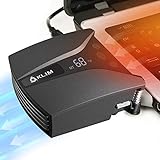
- ✅DESIGNED FOR MAXIMUM COOLING. KLIM Tempest features a high-powered reliable motor that spins at 4000 RPM to propel massive volumes of air through your laptop, cooling it down in seconds. Avoid overheating now!
- ✅TEMPERATURE DETECTION AND OPERATING MODES. If you use the Automatic mode, the KLIM Tempest will automatically detect the temperature of your laptop, select the best speed and cool it down. Alternatively, you can use the Manual mode to choose your preferred speed from 13 available levels.
- ✅COMPATIBILITY AND USAGE. The KLIM Tempest works with laptops that have a side or rear air exhaust. We offer three rubber sleeves, fastening plates, hooks and foam pads to raise your laptop if necessary. Please read the manual before installing to achieve the best possible fit with your laptop's air exhaust.
- ✅EASY TO USE AND PORTABLE. With the three buttons on the front, you can simply switch between modes and adjust the fan speed and view the speed on the display. The KLIM Tempest laptop fan cooling pad weighs only 4.2oz and is small enough to fit in your palm.
- 🕹️CONNECT WITH STEAMDECK. Want some serious cooling power for your steamdeck? Stay frosty whilst gaming with the KLIM Tempest.
ENABLE_GAMESCOPE_WSI=0 %command%This is not a universal fix. If it was already present, remove it and compare both configurations. Consult the lsfg-vk troubleshooting documentation for project-specific guidance.
Stutter or high latency
Return to the base game without frame generation and check whether the original frame rate is stable. If the title is CPU-bound, lowering resolution will not solve the bottleneck. If the base rate fluctuates, generation may magnify uneven motion rather than hide it. Competitive or latency-sensitive games are usually better served by a responsive stable base rate than by a higher generated number.
A SteamOS update breaks the installation
Reinstall the current lsfg-vk release rather than assuming an older package remains compatible. The project’s Deck documentation warns that system updates can undo the installation. Avoid source-building again unless you are comfortable with the read-only filesystem and the maintenance burden.
An FSR4 menu appears, but quality does not change
The workaround may not be loading, the game may be using an FSR3 fallback, the renderer may be unsupported, or the files may be stale. Confirm the active implementation through a project-specific diagnostic method instead of trusting a menu label or configuration file.
Who should use which method?
| Situation | Best choice |
|---|---|
| You want reliability and easy updates | Use the game’s built-in FSR and normal SteamOS settings. |
| The game is GPU-limited and holds a stable 30 FPS | Consider lsfg-vk as an unofficial experiment. |
| The game is CPU-limited | Do not expect upscaling or frame generation to fix the main bottleneck. |
| Input latency matters most | Prefer a stable base frame rate and avoid frame generation if it feels less responsive. |
| You enjoy troubleshooting per-game mods | FSR4 replacement methods may be worth testing, with backups and rollback plans. |
| You frequently update SteamOS | Avoid fragile system-level modifications or be prepared to reinstall them. |
| You play anti-cheat-sensitive online games | Check the game’s current policy; do not assume injected layers are universally safe. |
The practical recommendation is straightforward: use native FSR first, use Gamescope scaling only when it solves a real gap, and consider lsfg-vk only after establishing a stable base frame rate. Treat FSR4 replacement on the Deck as an experimental, per-game tweak—not an official Steam Deck upgrade.
Quick Recap
Product prices and availability are accurate as of the date/time indicated and are subject to change. Any price and availability information displayed on Amazon at the time of purchase will apply.




