What’s actually slowing this PC down?
Pick the symptom - the matching free tool is one click away.
cnhipro.dll is associated with Canon’s Inkjet WIA driver, so the safest fix is to reinstall the complete Canon printer or scanner package for your exact model. Do not download the DLL by itself: the driver installer also restores its INF files, registry entries, dependencies, and device configuration.
What this file actually does
cnhipro.dll is a Canon imaging-driver component used with Windows Image Acquisition, or WIA. WIA is the Windows framework that lets scanner applications and multifunction printers communicate with imaging hardware.
As an Amazon Associate I earn from qualifying purchases.
The filename alone cannot identify the exact Canon model that installed it. It may be connected to a printer, scanner, or multifunction device and to a Canon utility that was removed, damaged, or left behind after a device migration.
Free tools Windows power users keep installed
One-click scans. No signup required.
This is not established as an independent Windows system file, Microsoft Visual C++ component, DirectX file, .NET file, or game runtime. Public file records associate it with Canon’s Inkjet WIA Driver, but exact versions, sizes, hashes, architectures, and paths vary between driver packages.
#1 Best Overall

- Stay organized: Easily covert your paper documents into digital formats (searchable PDF, JPG, and more) or scan directly to the cloud (Dropbox, Google Drive, OneDrive, Box, QuickBooks Online, Evernote, SharePoint, and more)
- Space saving design: Upright, with top feed and top eject, and a built-in cable organization system
- Reliably handles many different document types: Receipts, photos, business cards, plastic or embossed cards, reports, contracts, long documents, thick or thin documents, and more
- Fast and efficient: Scans both sides of a document at the same time, in color, at up to 25 pages-per-minute, with a 30 sheet automatic feeder, and one-touch operation
- Broad compatibility: Supports Windows and Mac; TWAIN driver also included
That distinction matters. Copying a replacement file into C:WindowsSystem32 may silence one message while leaving the actual Canon driver uninstalled. The application can then fail again because the device registration, companion files, or WIA configuration are still missing.
Causes and symptoms
| What you see | Most likely cause | Best response |
|---|---|---|
cnhipro.dll was not found when scanning |
Missing or damaged Canon WIA package | Reinstall the complete Canon package |
| Error began after Windows Update | Driver migration or compatibility problem | Remove the Canon device and reinstall its current driver |
| Error appears after uninstalling a Canon program | Stale startup entry or incomplete removal | Repair or remove the remaining Canon utility |
| Scanner is absent from scanning apps | WIA or Canon device registration is broken | Check the Windows service and Device Manager |
| Antivirus reports the DLL | Quarantine or an untrusted replacement | Review quarantine, then reinstall from Canon |
| Printer works but scanning does not | Printer driver is present but WIA software is missing | Install the Canon scanning component or full package |
| Error appears only at login | A Canon utility still launches at startup | Identify the calling program before reinstalling anything |
| Installation fails on a newer Windows release | The Canon model may be legacy or unsupported | Check Canon’s support page for your exact Windows edition |
Fix 1: Reinstall the complete Canon driver package
This is the most likely solution because cnhipro.dll belongs to a hardware driver package rather than a standalone Windows runtime.
Identify the exact Canon model
- Check the label on the printer or scanner.
- In Windows 11, open Settings > Bluetooth & devices > Printers & scanners.
- In Windows 10, open Settings > Devices > Printers & scanners.
- Select the Canon device and record its full model name.
- If it is listed under an incomplete name, open Control Panel > Hardware and Sound > Devices and Printers and inspect the device properties.
Do not select a similar-looking model. Canon packages are model-specific, and a package for a related PIXMA or multifunction device may not install the correct WIA component.
Do these 3 things before closing this tab:
1Fix the driver behind crashes, sound loss and screen glitches2Repair Windows errors before they cause bigger problems3Scan for outdated or missing drivers - takes under a minuteDownload the official package
- Open Canon’s official support and downloads page in your browser.
- Search for the exact model.
- Select your Windows edition.
- Check whether the system is 64-bit by opening Settings > System > About and reading System type. Windows 10 also shows this under Settings > System > About.
- Download the recommended MP Driver, IJ Printer Driver, ScanGear MP, or model-specific full driver and software package.
- Prefer the package that includes scanning if scanning is the function producing the error.
There is no universal cnhipro.dll installer. The correct package depends on the Canon model, Windows version, and available architecture.
Remove the damaged installation
If Canon’s installer provides its own uninstall option, use that first. Otherwise:
- Open Settings > Bluetooth & devices > Printers & scanners in Windows 11, or Settings > Devices > Printers & scanners in Windows 10.
- Select the Canon device.
- Choose Remove.
- Open Control Panel > Programs > Programs and Features.
- Uninstall Canon entries associated with that device, including scanning utilities or driver packages.
- Restart Windows.
For a deeper driver cleanup:
- Press Windows key + X.
- Select Device Manager.
- Expand Print queues, Printers, Imaging devices, and Cameras.
- Right-click the affected Canon entry and choose Uninstall device.
- If Windows shows Attempt to remove the driver for this device, select it when you are certain the entry belongs to the old Canon installation.
- Select Uninstall.
- Restart Windows.
Disconnect the USB cable before running the new installer if Canon’s instructions request it. Run the downloaded installer, approve the administrator prompt, and reconnect or re-add the device only when prompted.
Success means the Canon printer appears without a warning icon, scanning software detects the scanner, and the original cnhipro.dll message no longer appears.
Outdated Drivers Are Slowing You Down
One free scan finds every outdated or missing driver and matches the right update for your exact hardware.Free scan · exact hardware matchWindows Errors? Fix Them Before They Spread
Repair common Windows errors and clear accumulated junk for a smoother, more stable PC - no reinstall needed.Free scan · no reinstallIf installation fails, disconnect the device, uninstall the remaining Canon software, restart again, and run the installer as administrator. Check Device Manager for a yellow warning icon and record the model and any displayed error code.
Rank #2

- STAY ORGANIZED – Easily convert your paper documents into digital formats like searchable PDF files, JPEGs, and more.Power Consumption : 2.5W or less (Energy Saving Mode: 0.7W). Suggested Daily Volume : 500 scans..Does it contain liquid: no
- CONVENIENT AND PORTABLE –lightweight and small in size, you can take the scanner anywhere from home offices, classrooms, remote offices, and anywhere in between
- HANDLES VARIOUS MEDIA TYPES – Digitize receipts, business cards, plastic or embossed cards, reports, legal documents, and more
- FAST AND EFFICIENT – No technical hurdles or complicated setups here; easily scan both sides of a document at the same time, in color or black-and-white, at up to 12 pages-per-minute, and with a 20 sheet automatic feeder
- BROAD COMPATIBILITY – Works with both Windows and Mac devices, be it laptop or computer
A driver updater can reduce the manual work of checking which device packages are stale and matching them to Windows, but it cannot replace the exact Canon package when the model requires a proprietary scanning utility. Outbyte Driver Updater provides a free scan showing detected driver problems; the repair or driver installation is performed by the full version, so use Canon’s installer when it is available for your model.
Fix 2: Check the WIA service
The Windows Image Acquisition service must be available for many scanner workflows. This will not recreate a missing Canon DLL, but it can explain why a correctly installed scanner still cannot start.
- Press Windows key + R.
- Type
services.msc. - Press Enter.
- Find Windows Image Acquisition (WIA).
- Double-click it.
- Set Startup type to Automatic or Automatic (Delayed Start) if available.
- If Service status is stopped, select Start.
- Select Apply, then OK.
- Restart the scanning application.
If WIA will not start, note the error shown in the service dialog. Repair the Canon driver first, then investigate Windows service corruption if the problem continues.
Recommended Free Tools
There is normally no Windows optional feature that you need to enable to restore cnhipro.dll. Do not turn on random legacy components or install unrelated runtime packages in response to this filename.
Fix 3: Check Device Manager for a bad or incompatible driver
A Windows upgrade can leave an old Canon device registered against a damaged driver package.
- Press Windows key + X.
- Select Device Manager.
- Expand Printers, Print queues, Imaging devices, and Cameras.
- Look for the Canon model, an unknown imaging device, or a yellow warning triangle.
- Double-click the entry and read the Device status box.
- Open the Driver tab and note the provider, date, and version.
- If the failure began after a recent driver update, select Roll Back Driver if the button is available.
- Otherwise select Uninstall Device, remove the old driver when offered, restart, and install Canon’s current package.
Windows may offer an optional driver under Settings > Windows Update > Advanced options > Optional updates. This can help with basic device detection, but it may not include Canon’s complete scanning software. Canon’s model-specific package remains the preferred source for WIA functions.
A 32-bit and 64-bit mismatch can also prevent a driver component from loading. Use the architecture shown in Settings > System > About, and select the matching package when Canon provides separate choices. Do not mix a DLL from one architecture with a driver package built for another.
Fix 4: Check antivirus quarantine and scan the system
Security software may quarantine a driver file after a detection, or a damaged installation may leave a reference to a file that no longer exists.
- Open Windows Security.
- Select Virus & threat protection.
- Choose Protection history.
- Look for a Canon-related detection or a quarantined file.
- Do not restore the file solely because its name is
cnhipro.dll. - If the file was inside a verified Canon installation and the detection is clearly a false positive, follow your security product’s restore process.
- Otherwise, reinstall the Canon package instead of restoring the loose file.
- Run a Quick scan or Full scan after reinstalling.
If the DLL exists in an unexpected folder, has no trustworthy Canon package provenance, or is repeatedly recreated after removal, treat that as a security warning. A matching filename does not prove that the file is genuine.
Rank #3
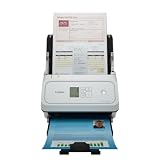
- Fast and Efficient: Scans both sides of a document at the same time, in color, at up to 45 pages per minute, with a 60 sheet automatic feeder, and one touch operation. Innovative Feeding System.
- Reliably Handles Many Different Document Types: Receipts, business cards, reports, contracts, long documents, thick or thin documents, and more. Monochrome LCD Display.
- Designed exclusively for the included Canon CaptureOnTouch software;TWAIN and ISIS drivers are not supported.
- Easy Setup: Simply connect to your computer using the supplied USB-C cable.
- Bundled Software: Includes easy-to-use Canon CaptureOnTouch scanning software.
Fix 5: Remove a stale Canon startup entry
If the error appears during boot or login even though the Canon device was removed, an old utility may still be trying to load the driver.
- Press Ctrl + Shift + Esc to open Task Manager.
- Select Startup apps.
- Look for Canon entries.
- Right-click an entry and select Disable.
- Restart Windows.
- If the error disappears, open Settings > Apps > Installed apps in Windows 11, or Settings > Apps > Apps & features in Windows 10.
- Remove the unused Canon application.
You can also inspect Event Viewer:
- Press Windows key + X.
- Select Event Viewer.
- Open Windows Logs > Application.
- Look for an error at the time the message appeared.
- Record the executable name that requested
cnhipro.dll.
That executable identifies whether the request comes from a Canon utility, a scanning program, Windows startup, or a stale shortcut. Do not copy the DLL into the executable’s folder until you know the program and have verified the complete installation.
The Tool Desk
Outbyte Driver Updater FREEScan for outdated or missing drivers - takes under a minuteDriver Scan →Outbyte PC Repair FREEClear out junk files and repair common Windows errorsFree Scan →Fix 6: Repair Windows components with DISM and SFC
Use these commands when Windows itself appears damaged, Windows Update is failing, or Canon’s installer cannot complete because system components are corrupted. They are not normally a substitute for reinstalling a third-party Canon driver.
- Open Start.
- Type
Command Prompt. - Right-click Command Prompt.
- Select Run as administrator.
- Run:
DISM.exe /Online /Cleanup-Image /RestoreHealth
- Wait for it to finish.
- Then run:
sfc /scannow
- Restart Windows after both commands complete.
- Run the Canon installer again.
DISM repairs the Windows component store. SFC checks protected Windows system files. If SFC reports that it repaired files, restart and test the Canon software. If it reports that some files could not be repaired, run Windows Update, restart, and repeat the Canon installation rather than expecting SFC to restore a Canon driver DLL.
When repeated manual repair scans make it difficult to see what changed, Outbyte PC Repair provides a free scan that identifies reported Windows problems; the repair is performed by the full version, and it remains optional because DISM, SFC, and a Canon reinstall are the direct troubleshooting path.
Why regsvr32 usually does not help
Do not run regsvr32 cnhipro.dll as a routine fix.
regsvr32 is intended for self-registering OLE controls and ActiveX DLLs. A Canon driver component may not expose the required DllRegisterServer entry point. In that case, the command returns an error such as “The module was loaded but the entry-point was not found” or says the file is not self-registerable.
Driver installation is performed through the package’s installer, INF files, services, and device registration. Only use regsvr32 if Canon or the software vendor specifically documents that procedure for the exact package.
Why random DLL downloads are unsafe
A loose DLL from a download site can be:
- The wrong Windows architecture
- From an unrelated Canon package
- Missing required companion files
- Incompatible with the installed driver
- Modified or malicious
- Unable to register the device correctly
Copying it to System32, SysWOW64, or an application folder can also create a second failure while hiding the original problem. The safe sources are Canon’s official model-specific driver package and Microsoft’s official Windows repair and driver-management guidance.
When to use System Restore
System Restore is appropriate only when the error clearly began after a recent driver update, Windows change, or software installation and no newer compatible Canon package is available.
Rank #4

- Scanner type: Document
- Connectivity technology: USB
- With Auto Scan Mode, the scanner automatically detects what you're scanning
- Digitize documents and images
- Press Windows key + R.
- Type
rstrui.exe. - Press Enter.
- Select a restore point created before the failure.
- Review the affected programs.
- Select Next, then Finish.
Restore does not identify the correct Canon package and should not be the first step. It is a fallback after recording the current device state and confirming that the failure follows a recent system change.
FAQ
Can cnhipro.dll identify my Canon printer?
No. The filename indicates a Canon WIA-related component, but it does not identify a particular printer or scanner model. Use the label on the device, Windows printer settings, or Device Manager.
Is cnhipro.dll a Windows system file?
It is not established as a standalone Windows system component. It is associated with a Canon driver package, so repair the Canon installation before attempting Windows system-file repairs.
Should I install Visual C++, DirectX, or .NET?
Not for this filename alone. There is no evidence that those runtimes provide cnhipro.dll. Install or repair them only if the actual application reports a separate, verified dependency error.
Will SFC restore the missing file?
Usually not. SFC repairs protected Windows files, while cnhipro.dll belongs to a Canon driver package. Reinstall the exact Canon package first.
What if Canon has no driver for Windows 11?
The model may be unsupported on that Windows release. Check Canon’s official support listing for the exact model and Windows edition. Do not substitute a DLL from another model or architecture.
The printer works, but scanning fails. What should I do?
Install the Canon scanning component, such as the model’s ScanGear or full software package, then verify that Windows Image Acquisition (WIA) is running. A printer-only driver may not include the scanning software that loads this component.
How do I know the repair worked?
The Canon device should appear without a warning icon, the Canon scanning utility or Windows scanning application should detect it, and printing and scanning should complete without the cnhipro.dll message.




