crashreporter.dll is usually a game-local component from a Nexon installation, not a Windows system file. Repair or verify the affected game through its official launcher or platform first instead of downloading the DLL or copying it into System32.
What this file actually does
A DLL is a shared library that supplies code to an application. A game can call its crash-reporting component when the client fails, starts, updates, or needs to record diagnostic information. If crashreporter.dll is missing, damaged, blocked, or the wrong architecture, the game may fail before its main window appears.
The filename is associated with Nexon game installations, including reports involving MapleStory, Vindictus, Mabinogi, and other Nexon clients. Some releases also contain CrashReporter_64.dll, so the exact files depend on the game and build installed on your PC.
The file should normally be beside the game’s executable or in another folder managed by that game’s launcher. It does not normally belong in:
#1 Best Overall

- With broad game support, the Logitech Gamepad F310 works with old standbys to today's biggest titles, so it's easy to set up and use with your favorite games.
- Profiler software allows the gamepad to be programmed to perform keyboard and mouse commands for games without gamepad support.* * Requires software installation.
- A familiar control layout that doesn't require a learning curve to be able to use, with all the same buttons as on an Xbox 360.
- The unique floating D-pad rests on four switches-instead of a single pivot point-making it responsive to quick changes in direction.
- The six-foot cord lets you lean back and play a comfortable distance from your PC monitor.
C:WindowsSystem32C:WindowsSysWOW64- A random application folder
- A temporary extraction directory
Public metadata may identify one version as “NEXON Korea” and describe it as “CrashReporter,” but that does not prove that every file with this name belongs to the same product. Do not use a filename alone to decide whether a replacement is safe.
Match the symptom to the likely cause
| Error or symptom | Most likely explanation | Best first action |
|---|---|---|
| “crashreporter.dll was not found” | The game file is missing or quarantined | Verify or repair the game, then check antivirus history |
| “Cannot load” during launch | Corruption, a blocked file, or a missing dependency | Repair the game and inspect the security product |
| “Not designed to run on Windows” | Corruption, wrong architecture, or a damaged dependency | Replace the complete game files through the official launcher |
Error 0xc000007b |
A 32-bit and 64-bit dependency mismatch is possible | Identify the game architecture and repair the required runtime |
| The error started after moving the game | The launcher still points to the old path or files were partially copied | Return it to the managed library and run file verification |
| The file returns after repair, then disappears | Antivirus is probably quarantining or blocking it | Review Protection History before repairing again |
| Only one Windows account has the problem | A profile-specific permission or configuration issue | Test the game from a new local profile |
regsvr32 reports no entry point |
The DLL is not a self-registering COM library | Do not register it; repair the game instead |
Fix crashreporter.dll errors in order
1. Identify the game that produced the error
Do not start by searching Windows for a replacement DLL. First determine which game displayed the message.
Check the error window, desktop shortcut, Start menu entry, launcher library, and the shortcut’s target:
- Right-click the game shortcut.
- Select Properties.
- Open the Shortcut tab.
- Read the Target and Start in fields.
- Note the installation folder, but do not edit either field yet.
If the game was installed through Steam or another official platform, open that platform and confirm the game’s library location. If it was installed through a Nexon launcher, use that launcher’s installation and repair controls.
Recommended Free Tools
A path inside the game’s own folder is expected. A path in System32, SysWOW64, a temporary folder, or an unrelated program directory deserves additional scrutiny.
2. Repair or verify the complete game installation
This is the most likely fix because the launcher can restore the correct file for the exact game build and architecture.
Before repairing, close the game, launcher, overlays, and mod managers. Then use the relevant option:
- Open the official game launcher or platform.
- Find the affected game in your library.
- Open its settings, properties, or management menu.
- Choose Repair, Scan, Verify files, Check files, or a similarly named command.
- Allow the scan to finish.
- Restart Windows if the launcher requests it.
- Launch the game normally from its launcher.
The wording varies between launchers, but the purpose is the same: compare the installed files with the expected game build and download missing or damaged files.
Rank #2

- Hall Effect joysticks eliminate stick drift and deliver smooth, accurate control for consistent performance in every game.
- Optimized 250Hz polling rate provides fast, reliable input with stable and consistent responsiveness.
- Programmable back buttons allow added control options for competitive gameplay
- Impulse Hall Effect triggers deliver smooth, responsive input for both quick reactions and precise control.
- Laser-textured bumpers and triggers improve grip and handling during intense gameplay.
If the scan reports that files were replaced, test the game. If the game starts, the repair worked. Do not copy a DLL from another Nexon game, an older backup, or a different Windows computer.
If repair fails:
- Exit the launcher completely.
- Restart Windows.
- Run the repair again without changing the installation path.
- If the launcher itself cannot scan the game, repair or reinstall the launcher through Settings > Apps > Installed apps.
- If that still fails, uninstall only the affected game and reinstall it from its official distribution channel.
A full reinstall is more reliable than replacing one file because the error may involve a neighboring executable, configuration file, or dependency.
3. Check Windows Security quarantine
Antivirus software may remove a game DLL after an update or a new detection. This is especially likely when the file appears after a repair and disappears again before the next launch.
In Windows Security:
- Open Start and search for Windows Security.
- Select Virus & threat protection.
- Select Protection history.
- Look for an event involving the game folder or
crashreporter.dll. - Expand the event and check the detected path and action.
- Compare that path with the official game installation folder.
- Check the publisher or signature information when Windows provides it.
Restore the file only when all of these conditions make sense:
Quick wins for a faster PC:
Fix the driver behind crashes, sound loss and screen glitchesFind Drivers →Repair Windows errors before they cause bigger problemsFix Now →- The game came from its official launcher or platform.
- The file is inside the expected game directory.
- The detection is consistent with a false positive or a known game update.
- The launcher or game publisher has not identified the file as malicious.
After restoring it, update the game and antivirus definitions, then run the launcher’s repair or verification scan. If the detection remains suspicious, leave the file quarantined, scan the entire PC, and contact the game publisher. A filename does not prove authenticity, and metadata can be forged.
Do not create a broad antivirus exclusion for your entire Downloads folder, Windows directory, or all executable files. If an exclusion is genuinely recommended by the game publisher, limit it to the specific managed game directory and remove it if it does not solve the problem.
4. Check the game’s architecture and file set
A 32-bit game uses 32-bit libraries even when Windows itself is 64-bit. A 64-bit game needs 64-bit libraries. Some Nexon releases ship both:
CrashReporter.dllCrashReporter_64.dll
That does not mean you should rename one file to replace the other. It means the game build may select a particular library according to the executable it launches.
Rank #3
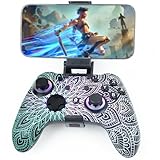
- Widely Compatible - Play your favorite games across multiple platforms: Switch/Switch2, iOS (iPhone/iPad/Mac and Apple TV including Apple Arcade), Android (phones/tablets/TV boxes including Fire TV), Windows PC, Steam Deck, and Tesla Arcade.
- We've implemented regular upgrades to our gaming controller, and this latest version now features dynamic RGB lighting effects. While the daytime appearance matches the product images, the lights transform into an even cooler spectacle at night. Powered by an optimized 800mAh+ battery delivering 10-15 hours of gameplay. Allowing you to dominate each battle with more personality and become the center of attention.
- Pro-Grade Gaming Controls - Features Bluetooth 5.0 for lag-free connection, dual precision vibration motors with 3 adjustable levels, high-sensitivity 6-axis gyroscope, customizable Turbo rapid-fire, programmable M1/M2 back buttons, and instant one-touch reconnect/wake-up for seamless gameplay. Experience precision control with joysticks rated at ≤0.3% error, and the ability to swap YXBA/XYAB button functions in any connection mode.
- Wired Controller Mode - For games compatible with wired controllers, the included accessories are highly practical. The package comes with a 25cm USB-C to USB-C cable (with a phone holder), which is instantly recognized by iPhone 15/16/17 and Android devices like Samsung and Motorola (more convenient than Bluetooth).
- The set also includes a 100cm (3.3ft) USB-C to USB-C cable, ideal for iPad 10/iPad Pro, Android tablets, PCs, and Tesla gaming. Plus, you’ll get a USB-C to USB-A adapter—connect to traditional devices or charge effortlessly. Experience true plug-and-play simplicity.
To inspect the game executable:
- Open the game installation folder.
- Right-click the main game executable.
- Select Properties.
- Open Details and record the product information if available.
- If the launcher has separate 32-bit and 64-bit launch choices, use the option intended for your installed build.
- Run the launcher’s file verification after any failed manual change.
If you see 0xc000007b, do not assume that installing a random copy of crashreporter.dll will help. That code often points to an incompatible 32-bit or 64-bit dependency. Repairing the entire game is safer than mixing files from different releases.
5. Repair the Microsoft Visual C++ runtime only when indicated
A game can contain the correct crashreporter.dll and still fail because Windows cannot load one of the library’s dependencies. This is more plausible when the message says the file cannot be loaded, reports 0xc000007b, or the launcher identifies a missing runtime.
Use Microsoft’s official Visual C++ Redistributable downloads. Choose the architecture that matches the application:
- Use x86 for a 32-bit game.
- Use x64 for a 64-bit game.
- Use ARM64 only on an ARM-based Windows installation.
To repair an installed package:
- Open Settings.
- Select Apps > Installed apps.
- Search for Microsoft Visual C++.
- Open the menu beside the relevant package.
- Select Modify or Change.
- Choose Repair.
- Restart Windows and test the game.
You can also download the current Microsoft packages from the linked page. Older games may require an older supported runtime generation, and multiple generations can coexist. Do not uninstall every Visual C++ entry just because one game fails.
The Tool Desk
Outbyte PC Repair FREERepair Windows errors before they cause bigger problemsFix Now →Outbyte Driver Updater FREEFix the driver behind crashes, sound loss and screen glitchesFind Drivers →Installing Visual C++ will not recreate a missing vendor DLL. If the file itself is absent from the game directory, return to the launcher repair step.
6. Repair Windows components with DISM and SFC
Use Windows component repair when several applications show loading errors, Windows files appear damaged, or the issue began after a failed update. These commands repair Windows components; they do not download a vendor’s game DLL.
First install pending Windows updates:
- Open Settings.
- Select Windows Update.
- Select Check for updates.
- Install available updates.
- Restart the PC.
Then open an elevated Command Prompt:
- Open Start.
- Type Command Prompt.
- Right-click it and select Run as administrator.
- Select Yes at the User Account Control prompt.
- Run:
DISM.exe /Online /Cleanup-Image /RestoreHealth
Wait for it to complete. Then run:
sfc /scannow
Restart Windows when SFC finishes and test the game again. If SFC reports that it repaired files, retry the launcher. If it cannot repair everything, restart and run the DISM command again before running SFC once more.
Repeatedly running these commands without identifying what changed is not a substitute for repairing the game installation. If manually tracking Windows component problems is becoming guesswork, Outbyte PC Repair can scan for issues and show what needs attention; its repair functions require the full version, and reinstalling the game remains the definitive fix for a missing vendor DLL.
What’s actually slowing this PC down?
Pick the symptom - the matching free tool is one click away.
7. Update drivers only when the timing points to a driver problem
A graphics or chipset driver is not normally the cause of a missing crashreporter.dll. Consider driver work if the failure began immediately after a Windows or driver update, the game now crashes with graphics errors, or several games fail in the same way.
Rank #4

- 2.4GHz Low Latency Wireless Connection to Windows PC
- Rotating Button Modules for Multi-Genre Dominance
- Connected Command Display for On-Board Social Notifications
- 20-Hour Battery Life + Play and Charge Capability
- AntiDrift Thumbsticks for Long-Lasting, Smooth Control
Use Windows Update first:
- Open Settings > Windows Update.
- Select Advanced options.
- Open Optional updates.
- Expand Driver updates.
- Select the relevant update and choose Download and install.
You can also inspect Device Manager:
- Right-click Start.
- Select Device Manager.
- Expand Display adapters for graphics drivers or System devices for chipset entries.
- Right-click the relevant device.
- Select Update driver.
- Choose Search automatically for drivers.
- Restart Windows if a driver is installed.
If the problem started after a recent driver change, open the device’s Properties, select the Driver tab, and use Roll Back Driver when the button is available. Do not remove unrelated drivers to solve a game-local DLL error.
Manually checking hardware vendors and matching driver packages can involve hunting versions across several device entries. Outbyte Driver Updater can scan and identify outdated drivers, while driver installation through its full version is optional; the game’s official repair or reinstall is still the definitive fix for crashreporter.dll.
8. Test permissions, the installation path, and the Windows profile
Run the launcher normally first. Administrator mode is not a universal DLL fix and can create permission differences between the launcher and the game.
PC Slower Than It Used to Be?
A free scan shows the junk files, broken settings and background clutter dragging Windows down - then fixes them in one click.Free scan · Windows 10 & 11Outdated Drivers Are Slowing You Down
One free scan finds every outdated or missing driver and matches the right update for your exact hardware.Free scan · exact hardware matchIf you see an access-denied message:
- Right-click the launcher shortcut.
- Select Properties.
- Open the Compatibility tab.
- Select Run this program as an administrator.
- Choose Apply, then OK.
- Start the launcher and repair the game.
If the game was moved manually to another drive, restore it through the launcher’s library-management option. Do not drag individual folders between drives. The launcher may retain the old path, or the copy may omit hidden and protected files.
If only one account fails, create a temporary local account through Settings > Accounts > Other users, sign in, and test the launcher. A successful test points to a profile-specific permission or configuration problem rather than a missing universal Windows DLL.
Independent reader supportYour contribution helps us test, update, and keep practical guides available for everyone.Commands and fixes to avoid
Do not download crashreporter.dll from random DLL websites. The replacement may contain malware, belong to another game release, use the wrong architecture, or simply leave the damaged installation and missing dependencies untouched.
Do not copy the file into System32 or SysWOW64. Do not rename CrashReporter_64.dll to crashreporter.dll, and do not use registry cleaners to solve this error.
Do these 3 things before closing this tab:
1Clear out junk files and repair common Windows errors2Scan for outdated or missing drivers - takes under a minute3Repair Windows errors before they cause bigger problemsregsvr32 is also generally inappropriate. It is intended for DLLs that expose a registration function such as DllRegisterServer, not for every DLL that an application loads. Running:
regsvr32 crashreporter.dll
may produce a “DllRegisterServer entry point was not found” message. That does not install the game component and does not prove the file is defective. Repair the game instead.
Best Value
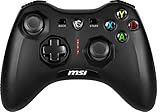
- Support PC and Android
- Support for Wireless
- Dual Vibration Motors Inside
- Durable Switches with Excellent Feel
FAQ
Is crashreporter.dll a Windows file?
No verified evidence shows that it ships with Windows or belongs in System32 or SysWOW64. It is generally a third-party, game-local component.
Which game uses crashreporter.dll?
Public reports associate the filename with several Nexon games, including MapleStory, Vindictus, Mabinogi, and Counter-Strike Online. The exact build and file set vary, so identify the game from the error path or launcher.
Free tools Windows power users keep installed
One-click scans. No signup required.
Should I download a replacement DLL?
No. Verify or reinstall the affected game from its official launcher or platform. A standalone download can be unsafe and may not match the game’s architecture or release.
Does installing Visual C++ fix the error?
Only when the game or error indicates a missing Microsoft runtime dependency. It does not replace a missing crashreporter.dll.
Why does the file disappear after I repair the game?
Antivirus quarantine or blocking is a likely explanation. Check Windows Security Protection History and the security product’s quarantine before repeating the repair.
What if the message says “not designed to run on Windows”?
Treat it as a symptom of corruption, architecture mismatch, or a damaged dependency. Record the full message and code, then verify the complete game installation rather than replacing one DLL.
When should I reset Windows?
Almost never for this error. A game repair, antivirus check, runtime repair, or installation-path correction should come first. If the issue began immediately after a system change, Windows System Restore may be more appropriate than a reset. Microsoft’s documented recovery options explain the available choices.
Quick Recap
Product prices and availability are accurate as of the date/time indicated and are subject to change. Any price and availability information displayed on Amazon at the time of purchase will apply.




