If Final Fantasy IX crashes, will not launch, or opens to a black screen on Steam, start by verifying the game’s files. Square Enix specifically recommends this check for those symptoms. If the game launches but crashes during play, try display and graphics checks next; reinstall only after less disruptive steps fail.
Start by verifying the Steam installation
For a crash, failure to start, or black screen, Square Enix recommends checking that the game’s files are present and correct through Steam. In your Library, right-click FINAL FANTASY IX, open Properties, and find the installed-files or local-files section. Run Steam’s option to verify the integrity of the game files. The publisher’s article calls this “Verify integrity of game cache”; Steam’s labels may change, so choose the current integrity-check action in the game’s Properties.
| # | Preview | Product | Price | |
|---|---|---|---|---|
| 1 |
|
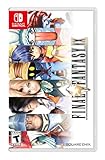
FINAL FANTASY IX - Nintendo Switch | $38.98 | Buy on Amazon |
| 2 |

|
Final Fantasy IX - For Nintendo Switch | $47.99 | Buy on Amazon |
| 3 |

|
Final Fantasy VII and Final Fantasy VIII Remastered - Twin Pack (Nintendo Switch) | $34.29 | Buy on Amazon |
| 4 |

|
Nintendo Chocobo GP | $38.31 | Buy on Amazon |
| 5 |

|
Final Fantasy XII The Zodiac Age - Nintendo Switch | $28.88 | Buy on Amazon |
Let the check finish, then try launching the game again. If the symptom is unchanged, continue with the steps that match what happens on your PC.
If the game crashes during play
Square Enix’s crash guidance recommends these display and graphics checks. Change one setting at a time where practical, then see whether the crash recurs.
The Tool Desk
Outbyte PC Repair FREERepair Windows errors before they cause bigger problemsFix Now →Outbyte Driver Updater FREEFix the driver behind crashes, sound loss and screen glitchesFind Drivers →#1 Best Overall
- Selling over five million copies since its release in 2000, FINAL FANTASY IX proudly returns on Nintendo Switch!
- Experience the adventure once again with characters and pre-rendered movies featured in high definition, as well as a new booster system with a selection of various modes such as "high speed" or "no encounters"!
- Abilities - Learn new abilities by equipping items. When fully mastered, these abilities can be used even without equipping items, allowing for nearly endless customization options.
- Trance - Fill your Trance gauge as you sustain hits in battle. When fully charged, your characters will enter Trance mode, granting them powerful new skills!
- Synthesis - Never let items go to waste. Combine two items or pieces of equipment together and make better, stronger items!
- Switch between windowed and fullscreen display modes.
- Lower the game’s screen resolution.
- Update your graphics driver using the appropriate driver software for your graphics hardware.
The publisher does not rank these steps or say which one will resolve a particular crash.
Check for security-software or peripheral interference
Square Enix also suggests checking whether security software or the operating system firewall is monitoring the game, and testing without peripheral devices. Treat these as temporary diagnostic checks: do not leave security protections disabled or weakened. The support guidance does not identify a particular security product, device, or setting as the cause.
Rank #2
- Synthesis - Never let items go to waste. Combine two items or pieces of equipment together and make better, stronger items!
- Additional Features - 7 game boosters including high speed and no encounter modes, sutosave, and high-definition movies and character models!
- Trance - Fill your Trance gauge as you sustain hits in battle. When fully charged, your characters will enter Trance mode, granting them powerful new skills!
- Abilities- Learn new abilities by equipping items. When fully mastered, these abilities can be used even without equipping items, allowing for nearly endless customization options.
- Minigames - There are plenty of minigames to enjoy when you're not off saving the world. You can even earn special item rewards!
- Check your security software or firewall settings for the game, following the product’s instructions for a temporary test.
- Disconnect peripherals that are not needed to test the game, then try reproducing the problem.
- Restore your normal security settings and reconnect devices after the test.
If Final Fantasy IX will not launch or shows a black screen
Use the file-integrity check first, since Square Enix explicitly lists it for a game that does not start or displays a black screen. If that does not help, note whether the screen is black immediately on launch or only at a particular point, and whether the game process remains open or closes. Those details help distinguish a launch problem from an in-game crash when you continue troubleshooting or contact support.
If you use Moguri or Memoria, see the mod-specific checks below before changing files or applying a community workaround.
Do these 3 things before closing this tab:
1Repair Windows errors before they cause bigger problems2Scan for outdated or missing drivers - takes under a minute3Clear out junk files and repair common Windows errorsRank #3
- Final Fantasy VI - The following extra features are included:
- 3X speed mode
- ability to turn battle encounters off
- battle enhancement mode
- final FANTASY VIII remastered - The following extra features are included.battle assist options (HP, ATB gauge, and limit break boosts).game speed boost (X3.no random encounters
Restart, update, and reinstall only if needed
Square Enix’s general PC guidance recommends restarting the PC, keeping the game up to date, and having the PC online. Reinstalling is also on the publisher’s troubleshooting list, but it is more disruptive than verifying files or changing display settings, so leave it until those checks have failed.
- Restart the PC and confirm Steam is online.
- Install any available update for the game through Steam.
- If the problem persists, reinstall the game through Steam and test the unmodified installation.
Mod users: separate Moguri or Memoria issues from the base game
Steam community posts describe different problems on modded setups: one Steam Deck report links a black screen to a failed Moguri installation, another describes a black screen at a scene transition, and an older post discusses a Moguri Steam Overlay hook and a launch failure. These are individual reports, not official support guidance, and they do not establish one cause or fix across devices and mod configurations.
Rank #4
- Ready. Set. Chocobo!
- Start your engines and get set for a new racing experience, featuring a roster of dozens of your favourite Chocobo characters, complete with their own unique abilities and variants.
- Equip Magicites and take out the competition as you drift through various familiar courses in online and offline multiplayer modes.
- Compete in tournaments and become the reigning champion of GP!
If the fault began after installing or updating Moguri or Memoria, first determine whether the unmodified game works. Return to a clean base installation and verify its files in Steam before following instructions written for a specific mod version or device. Do not alter registry entries or hooks based only on the older community report; its workaround is user-specific and may be disruptive. The available sources do not establish current mod compatibility or a universal mod-related fix.
Independent reader supportYour contribution helps us test, update, and keep practical guides available for everyone.Know when the whole PC is failing
A game closing to the desktop is different from the computer shutting down, crashing, or showing a blue screen. Square Enix says those whole-PC failures may indicate a hardware issue, but the symptom alone does not identify a faulty component. If you contact Square Enix support, its general PC guidance asks for MSINFO and DxDiag diagnostic files and provides instructions for creating them.
Quick wins for a faster PC:
Clear out junk files and repair common Windows errorsFree Scan →Scan for outdated or missing drivers - takes under a minuteDriver Scan →Repair Windows errors before they cause bigger problemsFix Now →Best Value
- The zodiac job system improved character leveling system that now caters to the player’s preference
- Trial Mode take on monsters and enemies in up to 100 consecutive battles
- Latest generation HD graphical capabilities, including characters and movie scenes fully remastered in high definition
- True 7.1 surround sound, including high definition voicing and newly recorded background music utilizing the current generation of sound production
- Modern advancements, including auto save and shortened loading times
Check the PC requirements in context
Steam lists these requirements for the PC release, dated April 14, 2016. They are the store listing’s published requirements, not a guarantee that every modern PC configuration will work. Steam also notes that its client has supported Windows 10 and later since January 1, 2024.
Quick Recap
| Category | Steam listing |
|---|---|
| Minimum | Windows Vista/7/8/8.1/10; Core 2 Duo 2 GHz or higher; 2 GB RAM; NVIDIA GeForce 8600GTS or ATI Radeon HD4650 or higher; DirectX 9.0c; 7 GB storage |
| Recommended | Core i5 2520 2.5 GHz or better; 4 GB RAM; DirectX 9.0c; 20 GB storage |
Product prices and availability are accurate as of the date/time indicated and are subject to change. Any price and availability information displayed on Amazon at the time of purchase will apply.




