Quick wins for a faster PC:
Repair Windows errors before they cause bigger problemsFix Now →Fix the driver behind crashes, sound loss and screen glitchesFind Drivers →Connect your PS5 or PS4 to the internet in the console’s Network settings, then sign in to PlayStation services. To join a particular game server, use that game’s own console instructions: there is no single PlayStation server-address setup that works for every game. If you mean streaming your console to another device, that is Remote Play and has a separate setup.
Connect your PS5 or PS4 to the internet
You can use Wi-Fi or a wired LAN connection. PlayStation recommends the default or “Easy” network setup unless you have a reason to change advanced settings.
PS5 over Wi-Fi
- Open Settings > Network > Settings > Set Up Internet Connection.
- Choose your home Wi-Fi network and enter its password.
- Use the console’s connection test to check whether it can reach the internet.
PS5 with a LAN cable
- Connect a LAN cable from the PS5’s LAN port to your router.
- Open Settings > Network > Settings > Set Up Internet Connection and choose the wired connection option shown.
PS4
- Open Settings > Network > Set Up Internet Connection.
- For Wi-Fi, choose Use Wi-Fi > Easy, select your network, and enter its password. For a cable, connect the PS4 to your router and choose the wired connection path.
Wi-Fi is supported; Ethernet is optional and may be preferable if the wireless signal is weak or unstable. PlayStation’s internet connection setup guidance also notes that PS5 supports IPv6, but not an IPv6-only network.
What kind of “server” are you trying to reach?
Being online, joining a PlayStation friend’s session, connecting to a game’s dedicated server, and using Remote Play are different tasks. First sign in to your PlayStation account for PlayStation services. Then use the route that matches what you want to do.
#1 Best Overall

- Use a SATA hard-drive with the original Sony network adaptor
- Custom in-house PCB design
- Works with most SATA hard-drive's (Up to 2TB)
- Unlock additional features from your PS2 Works great with HD-Loader or OPL on Mcboot
- Compatible with all fat versions of the Playstation 2 models 5-Minute Installation - Instructions included
Join a friend’s game on PS5
PlayStation documents several ways to join: open a friend’s profile, use a Play With Friends card, select Join Game from the friends list, or accept an invitation. The exact options depend on the game and its session settings. Some games require PlayStation Plus for online multiplayer, so check the game’s PlayStation Store details and its in-game instructions. See PlayStation’s PS5 game-joining guidance.
Connect to a dedicated server in a specific game
Follow the current instructions for that game and console edition. Do not assume you can enter an arbitrary server IP address in a universal PlayStation menu; games expose different server lists and joining options.
Rank #2
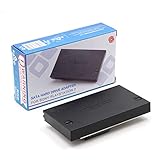
- [Designed for PlayStation 2]: The PS2 SATA hard drive to Expansion Port Bay Adapter allows you to use a modern SATA 3.5" or 2.5" hard drive with your PlayStation 2 console.
- [Streamlined Gaming Setup]: Pairing perfectly with PS2 McBoot Memory Card(s), this PS2 Hard Drive adapter seamlessly supports HD-Loader or Open PS2 Loader on McBoot, enabling you to run games directly from the hard drive.
- [PS2 SATA Adapter Storage Capability]: This enables direct game backups and avoids the slower USB ports, supporting storage capacities up to 2TB.
- [Plug and Play Feature]: Simply connect Kaico's PS2 SATA HDD to your PlayStation 2 console for an easy setup. Enjoy faster loading times for your games and support for all loaders, with no network port needed.
- [Full Warranty]: 12 Months Support, Repair, and Replace Warranty with Kaico on all HDMI adapters
Minecraft Bedrock illustrates the difference: Minecraft Help says console versions are limited to featured servers. Its manual server-name and address instructions apply to computer or mobile, not to a general PlayStation server-address field.
For Minecraft multiplayer, check that you and the people you want to join have compatible Bedrock editions and current game versions. Console multiplayer also requires a Microsoft account and an active console online subscription; a child account’s multiplayer permissions may affect access. You need a stable internet connection or a suitable LAN setup. These are Minecraft-specific conditions, not universal PlayStation requirements. Minecraft’s multiplayer guidance covers the game’s account, version, and permission details.
Rank #3

- Ethernet connection gameplay
Use Remote Play instead of joining a game server
Remote Play streams and lets you control your PS5 or PS4 from a compatible device; it does not connect the console to a game server. Enable Remote Play on the console and sign in to the console and Remote Play app with the same PlayStation account. Keep the console online and follow the device-specific setup in PlayStation’s Remote Play troubleshooting guide.
PlayStation Support states that Remote Play uses UDP port 8572. Its support page gives 5 Mbps upload and download as the minimum connection speed and recommends at least 15 Mbps in each direction for better performance. Those figures apply to Remote Play, not ordinary online gaming.
Rank #4
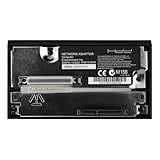
- Compatibility with Various Storage Devices: This network card is compatible with all brands of 2.5/3.5-inch SATA mechanical and solid-state drives, allowing users to easily install their preferred storage devices. With a maximum capacity support of 2TB, it ensures ample space for storing games, saves, and other data
- Enhanced Gaming Functionality: Designed to enhance the gaming experience, the SATA network card is compatible with FHDB/FMCB memory cards. It supports popular cheat software such as HD Loader, OPL, and USB Advance, giving players access to additional features and game enhancements
- Easy Installation and Setup: Installing the SATA network card is a breeze. Simply connect it to your PS2 console and start enjoying the benefits of improved loading times and expanded storage capacity. The straightforward setup process ensures that even beginners can effortlessly upgrade their gaming system
- Easy Installation and Setup: Installing the SATA network card is a breeze. Simply connect it to your PS2 console and start enjoying the benefits of improved loading times and expanded storage capacity. The straightforward setup process ensures that even beginners can effortlessly upgrade their gaming system
- Reliable and Durable: Crafted with high-quality components, the SATA network card guarantees reliability and long-lasting performance. Its sturdy construction ensures that it can withstand regular usage, making it a reliable and durable addition to any PS2 gaming setup
If your PlayStation cannot connect or join
Work through these checks before changing router settings. A connection test can confirm whether the console reaches the internet, but a game may still have its own service, account, or permission issue.
- Check PlayStation service status. Look for an outage or maintenance notice on the PlayStation service status page. A service-side problem is unlikely to be fixed by changing your router.
- Check the local connection. Confirm that the console has the right Wi-Fi name (SSID) and password, and see whether another device can use the same network. Run the console’s internet connection test. PlayStation’s PS4 NW-31205-1 and PS5 NW-102650-4 guidance includes connection checks for those specific errors.
- Restart the console and network equipment. Turn off the console and router or modem. PlayStation’s cited error guidance recommends waiting at least five minutes before restarting the network equipment, then test again.
- Improve the connection conditions. If you use Wi-Fi, reduce distance and obstructions between the console and router. Pause bandwidth-heavy downloads or streaming on other devices while you test.
- Try wired LAN if practical. A cable can help distinguish a weak Wi-Fi signal from a broader connection problem; it is not required for PlayStation online services.
- Use advanced settings only for a matching issue. PlayStation lists possible port changes for the cited PS4 and PS5 error cases, but those are case-specific recommendations—not instructions to open every port for every game. Remote Play separately documents UDP 8572. If you do not know how to change router settings, ask your router maker or internet provider for help.
- Consider DNS changes only as a diagnostic step. PlayStation lists changing DNS as a temporary troubleshooting option in its error guidance. It does not establish one public DNS provider as best for everyone.
If the console connects to the internet but a particular game still will not let you join, check that game’s server status, console-specific joining instructions, version compatibility, and account permissions before changing network settings.
Quick Recap
Product prices and availability are accurate as of the date/time indicated and are subject to change. Any price and availability information displayed on Amazon at the time of purchase will apply.




