
The Tool Desk
Outbyte PC Repair FREERepair Windows errors before they cause bigger problemsFix Now →Outbyte Driver Updater FREEScan for outdated or missing drivers - takes under a minuteDriver Scan →Some links on this page are affiliate links: if you buy through them we may earn a commission, at no extra cost to you.
To add colored text in Microsoft Paint, open your image, choose the Text tool (the A icon in the Windows 11 redesign), draw a text box, and type. While that box is active, choose a font, size, and a palette swatch for Color 1 or Color 2. To recolor text you have already typed, highlight those characters inside the active text box and select another swatch. For an exact shade, use Paint’s custom color controls and enter a hexadecimal, RGB, or HSV value. The names and positions of controls can vary by Windows build, so the procedure below also explains what to do when your toolbar looks different.
How do I add text in Microsoft Paint?
Paint is included with Windows, so no separate text editor is required for this workflow. Start with a blank canvas or an existing picture, then keep the text box active until its formatting is complete.
As an Amazon Associate I earn from qualifying purchases.
1. Open Paint and your image
- Open the Windows Start menu and search for Paint.
- Launch the app, then open the picture you want to annotate, or paste an image onto a new canvas.
- Make sure the image is displayed at a useful zoom level. A larger view makes it easier to drag a text box and select individual characters.
2. Select the Text tool
Choose the Text tool. In the Windows 11 redesign it is represented by an A icon. Microsoft describes this tool as the way to add text to an image. If your toolbar uses a different arrangement, look for the text or “A” control rather than assuming the feature is missing.
3. Create a text box
- Click where the lettering should begin for a small label, or click and drag to define a wider text box.
- Type your words inside the box.
- Leave the box active while you set the font, size, and color. The text-specific controls are available while Paint is editing that box.
A dragged box is useful for captions or multiple words because it gives the text room to wrap. A single click is suitable for a short label that can remain on one line.
Popular on Amazon
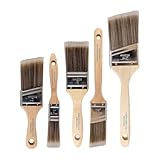
- COMPLETE 5-PIECE BRUSH SET FOR EVERY PAINTING TASK — Includes 1 Inch Flat, 1.5 Inch Angle, 2 Inch Flat, 2 Inch Angle Stubby, and 2.5 Inch Angle brush giving you every size professional painters use daily. Get all 5 for less than the price of a single brush from hardware store brands — professional grade performance at a fraction of the cost. Perfect for walls, trim, cabinets, doors, furniture, and detailed cutting-in work on any project.
- ZERO BRISTLE LOSS — GUARANTEED BY PRECISION ADHESIVE BONDING — Every bristle is locked in place with precision-set adhesive that keeps them in the brush — not in your paint job. The coated steel ferrule provides structural support while the adhesive bond ensures clean performance on every stroke. Premium SRT synthetic filaments load more paint and release it evenly for a smooth streak-free finish on walls, ceilings, and trim. Works with latex, oil-based paint, primer, sealer, and wood stain.
- INCLUDES THE ANGLE STUBBY MOST SETS LEAVE OUT — Professional painters know the 2 Inch Angle Stubby is the go-to brush for tight cabinet interiors, window sashes, inside corners, and detailed trim where standard angle brushes are too long. Combined with the 1.5 and 2.5 inch angle sash brushes you have precision cutting-in covered at every scale — baseboards, crown molding, door casings, and ceiling lines.
- FLAT BRUSHES FOR BROAD SMOOTH COVERAGE ON ANY SURFACE — The 1 and 2 inch flat brushes deliver even coverage on walls, furniture, shelving, doors, fences, decks, and wood surfaces. Ideal for applying primers, stains, varnishes, polyurethane, and specialty coatings. Solid wood handles provide all-day comfort and control for both professional contractors and weekend DIY homeowners tackling interior or exterior painting projects.
- TRUSTED BY PROFESSIONAL PAINTERS AND CONTRACTORS NATIONWIDE — Pro Grade delivers professional-grade results at a price that makes sense for crews who go through brushes on every job. Ideal for property managers, remodeling contractors, apartment turnover crews, maintenance teams, and commercial painting operations. Backed by thousands of verified reviews from working painters. Washable and reusable for multiple projects.
4. Set the typeface and size
With the insertion point in the box, choose the font and size from the text toolbar. If you need to format only part of a sentence, select those characters first; if nothing is selected, the setting applies to text you type next.
How do I choose a color for new text?
Select a palette color before entering the next characters. Paint uses the selected Color 1 or Color 2 swatch to determine the color of text typed into the active text box.
Use the palette for a quick choice
- Keep the text box active and place the insertion point where new text will be entered.
- Choose a swatch as Color 1 or Color 2 in the palette.
- Type the next characters and check their appearance on the canvas.
The two color slots let you keep two choices ready while working. The important detail is timing: changing a swatch before typing affects the next text, not automatically every character that is already on the canvas.
Check contrast before committing the label
Look at the image behind the text before clicking away. A bright swatch can disappear on a light background, while a dark swatch can become difficult to read over shadows or dark artwork. If the words are hard to see, highlight them while the box is still active and choose a more contrasting color rather than recreating the box.
Also popular on Amazon

- Great Value Pack Artist Paint Brushes: Soucolor 20 brushes in 10 sizes professional paintbrushes set — no shedding, holds paint well, cleans easily, Acrylic, watercolor, oil, gouache, Halloween pumpkin decoration & face painting, rock painting, ceramics. Fantastic high quality gifts for creative, artistic siblings to share!
- Awesome Set of Paint brushes: Professional paint brushes can cover all of your needs. The multi-purposed brushes are ideal for Watercolor, Oil, Gouache, enamel, Acrylic Painting, Body, Nail, Face Painting, Miniature, Model, Wood, Glass, Cup, Ceramic, Fine work, Art class, Craft Art Painting, DIY Art Crafts etc.
- Soft and long-lasting: The bristles are soft and strong, with nickel metal ferrules and blue wooden handles. After cleaning, the bristles will become soft and fluffy again and will not fall off.
- Easy to clean: it’s very convenient to Wash well in soap and water. Retain shape after drying. the brushes hold up very well. Nice selection to beginners and professionals. Keep them clean and they last a long time.
- Halloween Pumpkin Ceramic Crafts Supplies: A Great painting gift for family, friends, kids, girls, women, student, classmate, teacher. For using in school, travel or used in the home and office.
How do I change the color of text I already typed?
Recoloring works only while Paint still has the text box in editing mode. Highlight the characters you want to change, then select a different palette swatch.
- Click inside the text box so the text cursor and selection handles appear.
- Drag across the characters to highlight them. Select a word, a phrase, or the entire line, depending on what should change.
- Choose another Color 1 or Color 2 swatch.
- Confirm that the highlighted characters changed while the selection remains visible.
If you select a swatch without highlighting text, Paint treats it as the color for text entered next. If the characters are no longer selectable, the text box is no longer active; use the undo command immediately if you need to reverse a just-committed change, then recreate the text box with the desired color.
How can I use an exact hexadecimal, RGB, or HSV color?
Palette swatches are fastest, but they may not match a brand, accessibility, or design specification. Paint provides custom color controls that accept hexadecimal, RGB, and HSV values.
Choose the custom-color controls
- Open Paint’s custom color controls from the palette area.
- Enter the known hexadecimal value, or provide the red, green, and blue components in the RGB fields.
- If your specification is expressed as hue, saturation, and value, enter those numbers in the HSV controls instead.
- Apply the custom color, then keep the text box active and select the resulting color for the highlighted text or for text you will type next.
Hexadecimal is convenient when a design guide gives a value such as a six-digit web color. RGB is practical when a graphics brief lists three channel values, while HSV can be easier when you are adjusting hue or brightness. Whichever model you use, verify the result on the actual image because the surrounding pixels can change how the shade appears.
Also popular on Amazon
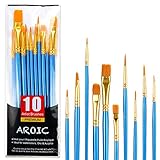
- 【All sizes of art brushes】: The 10 sizes of multi-functional brushes have various shapes, making the mixing color easier, which is very suitable for artists, students, teenagers, children and painters at all levels. Wonderful Present ideas for friends and family who like painting!
- 【general brush set】: Professional paint brush can meet all your needs. Multifunctional brush is very suitable for watercolor, oil, gouache, acrylic painting, body, nail, face painting, miniature, model, ceramics, arts and crafts painting, etc.
- 【high quality process】: It is designed with anti falling bristles, anti-rust nickel ferrule and solid wood handle. You can use the brush to focus on the painting and always be creative.
- 【easy to maintain】: After using the brush, it is very convenient to clean the brush with warm soapy water and reshape the tip of the brush. Air dry the brush and place it on top of the top for long use.
- 【100% satisfaction guarantee - buy now】1 packs of set brushes, you can also get friendly customer service, any questions feel free to contact us, within 24 hours to help you! There is no risk in buying our paint brush kit.
What is the difference between coloring text and coloring artwork?
Text color is controlled through an active text box. Artwork color is applied with drawing or fill tools, so selecting a palette swatch alone does not recolor existing pixels in the picture.
| What you are changing | Tool or control | When the color takes effect | Typical use |
|---|---|---|---|
| New lettering | Text tool, Color 1 or Color 2 | For characters typed after the swatch is selected | Adding a caption, title, or label |
| Selected lettering | Active text box, highlighted characters, palette swatch | Immediately on the highlighted characters | Correcting one word or emphasizing part of a sentence |
| Freehand marks | Brush or Pencil | As you draw with the selected color | Annotations, outlines, and handwritten notes |
| Geometric artwork | Shapes | As the shape is created, using the selected color settings | Boxes, arrows, circles, and callouts |
| Enclosed area | Fill with color | When you fill a bounded region | Changing the interior of a shape or flat-color area |
| Existing pixel color reference | Color picker | When you sample a color from the image | Matching a nearby color before drawing or filling |
Use the Text tool for editable lettering during the current edit. Use Brush, Pencil, Shapes, Fill with color, or Color picker when the target is painted artwork rather than characters. The same palette and custom-color controls can supply the color for those drawing tools.
Free tools Windows power users keep installed
One-click scans. No signup required.
Why is my text color not changing?
Most color problems come from applying the swatch at the wrong stage or from editing a text box that is no longer active. Work through these checks in order.
The new text has the wrong color
- Confirm that you selected the intended Color 1 or Color 2 swatch before typing.
- Place the insertion point at the location where new characters will be entered and type a short test character.
- If the test character is correct, remove it and continue; if it is wrong, choose the swatch again while the box remains active.
Existing characters stay the old color
- Click inside the text box and verify that selection handles or the text cursor are visible.
- Highlight the exact characters to recolor. A swatch change without a selection affects future typing instead.
- Choose the color again and check the highlighted text before clicking elsewhere.
The text box cannot be selected
Clicking outside the box finishes that text edit. Once the box is no longer active, its characters may no longer be available for individual text formatting. If you have just left the box, undo the action and re-enter the text edit; otherwise, create a replacement text box and remove or cover the old lettering as appropriate for the image.
Also popular on Amazon

- Bates paint brushes come in a convenient 6 pieces with 3 flat and 3 angled bristle styles, including (1”, 1.5”, 2”) flat and (1.5”, 2”, 2.5”) angled bristles, perfect for tackling any surface painting or staining job.
- The sturdy natural bristles of each brush are designed to hold more paint, creating a smoother finish with fewer streaks and saving you time on the job.
- The lightweight wooden handles provide extra comfort and ease during long painting processes like walls, trims, cabinets, and doors.
- These versatile brushes are ready-to-use, easy to clean, and can be reused multiple times, making them economical as well as reliable tools for any painting project.
- Bates paint brushes can be used for both oil-based paints as well as latex stains and are ideal for home or commercial projects such as decks, fences or DIY painting jobs.
The palette or Text tool looks different
Microsoft notes that Paint features can vary by Windows build and that the app continues to change. Look for the current Text control, which is an A icon in the Windows 11 redesign, and open the palette’s custom-color controls if the swatches are arranged differently. A missing control can indicate that your installed build has not received the same update rather than a problem with your image.
The custom shade looks different on the canvas
Recheck the hexadecimal, RGB, or HSV value for typing mistakes, then compare the color against the surrounding image at normal viewing size. A sampled or entered color can appear lighter or darker beside nearby pixels even when the numeric value is correct.
What’s actually slowing this PC down?
Pick the symptom - the matching free tool is one click away.
Which Paint version affects these instructions?
The broad workflow—Text tool, active text box, palette color, and custom color controls—applies to current Paint releases, but Microsoft cautions that feature availability may vary. Windows 11 builds can move controls or add capabilities without changing the basic idea that text must be active for character-level formatting.
Microsoft’s release notes list Paint version 11.2605.61.0 in an Insider rollout in June 2026. That is an Insider distribution, not a promise that every Windows installation has the same build. If your screen differs, check Paint and Windows update status, then use the labels and icons actually shown in your installation.
Also popular on Amazon

- 2 Inch Angled Paint Brush for Precision Cutting-In – Designed for clean, sharp lines around trim, baseboards, ceilings, corners, and detailed edge work. The perfect size for control and coverage.
- Value 3-Pack for Pros & DIY Projects – Includes three professional 2-inch angled sash brushes — ideal for contractors, remodelers, and homeowners tackling multiple rooms or repeat paint jobs.
- Smooth Results on Walls, Trim & Cabinets – Great for interior wall painting, cabinet edges, furniture projects, and trim work where a smooth finish and crisp control matter most.
- Works with Latex Paint, Oil-Based Paint & Stains – Premium synthetic filaments hold more paint, reduce streaks, and provide a clean finish with latex paints, oil coatings, and wood stains.
- Works with Latex Paint, Oil-Based Paint & Stains – Premium synthetic filaments hold more paint, reduce streaks, and provide a clean finish with latex paints, oil coatings, and wood stains.
Do I need a touchscreen or stylus?
No. A mouse, trackpad, or keyboard is sufficient for creating the text box, selecting characters, and choosing colors. Microsoft says a Surface Pen or another stylus can be used on compatible touchscreen hardware, but it is optional for this procedure.
A stylus can make freehand Brush or Pencil work more comfortable, especially for handwritten annotations. It does not change the text-color rules: the box still has to be active, and characters still need to be highlighted when you are recoloring existing text.
PC Slower Than It Used to Be?
A free scan shows the junk files, broken settings and background clutter dragging Windows down - then fixes them in one click.Free scan · Windows 10 & 11Outdated Drivers Are Slowing You Down
One free scan finds every outdated or missing driver and matches the right update for your exact hardware.Free scan · exact hardware matchWhat is the most reliable add-text-and-color workflow?
- Open Paint from Windows Start search and open or paste the image.
- Select the Text tool, shown as the A icon in the Windows 11 redesign.
- Click or drag to create the text box.
- Choose the font and size while the box is active.
- Select Color 1 or Color 2 before typing if the color is for new text.
- Type the lettering and highlight any characters that need a different color.
- Choose a palette swatch, or enter a precise hexadecimal, RGB, or HSV value through the custom color controls.
- Click outside the box only after the wording, size, and color are correct.
- Save the finished image in the format required by your next app or service.
This sequence separates text editing from pixel drawing, applies colors at the point Paint expects them, and gives you a final opportunity to correct the text before it is committed to the canvas.
Frequently Asked Questions
Why can’t I find the A icon in Paint?
The A icon belongs to the Windows 11 redesign, and Microsoft says feature availability varies by build. Check whether Paint and Windows are up to date; an older or different build may place the Text command elsewhere in the toolbar.
Can Paint match a color from another part of my image?
Yes. Use the Color picker to sample an existing pixel color, then use that selected color with the text or drawing controls. Sampling is useful when a palette swatch or typed value does not visually match the image.
Is a stylus required to write text in Paint?
No. Text boxes can be created and edited with a mouse, trackpad, or keyboard. A compatible pen is an optional input method mainly useful for freehand Brush or Pencil marks.
What should I do if I clicked away before fixing the text color?
Try undoing immediately so the text box returns to an editable state, then highlight the characters and apply the correct swatch. If the edit can no longer be reopened, create a replacement text box and remove or cover the committed lettering.
Quick Recap
Product prices and availability are accurate as of the date/time indicated and are subject to change. Any price and availability information displayed on Amazon at the time of purchase will apply.

