
In the original Assetto Corsa, start a driving session or replay and press F1 through F6 to change camera families: F1 is cockpit, F2 automatic, F3 TV/trackside, F5 exterior free camera, and F6 onboard views. These are default PC bindings and can be changed in the controls menu.
Quick answer: use the default PC camera keys
In the original Assetto Corsa, start a driving session or replay and press F1 through F6 to switch between the main camera families. The default shortcuts are:
As an Amazon Associate I earn from qualifying purchases.
Recommended Free Tools
| Key | Default camera | What it does |
|---|---|---|
| F1 | Driver/cockpit view | Places you inside the car. Repeated presses can cycle through available driver-facing positions for that car. |
| F2 | Automatic camera | Lets the game choose or manage the camera automatically. |
| F3 | TV/trackside camera | Switches to broadcast-style or fixed trackside views, particularly useful while watching a replay or spectating. |
| F5 | Exterior free camera | Detaches the viewpoint from the cockpit so you can orbit around or move away from the car. |
| F6 | Onboard camera | Cycles through the onboard cameras available for the selected car. |
| F8 | Screenshot | Captures a screenshot; it does not switch camera views. |
These are the default keyboard shortcuts for the PC version, not permanent controls. You can change them in the game’s control or key-binding settings. If you play on a console, open the in-game controls menu and look for the camera commands instead of assuming that PC function-key shortcuts apply.
How to change the view step by step
- Launch the original Assetto Corsa and enter a practice session, race, hot-lap session, or replay.
- Press F1 for the normal driver or cockpit view.
- Press F2 for the automatic camera.
- Press F3 for TV and trackside views.
- Press F5 for the exterior free camera.
- Press F6 to cycle through the car’s onboard cameras.
The number and type of available onboard or driver-facing positions depend on the car. A vehicle does not necessarily provide the same camera choices as every other car.
#1 Best Overall

- Immersive Gaming Experience: Perfect for PlayStation 5, PS4 and PC gaming titles, the Driving Force simulates the feeling of driving a real car with precision steering and pressure-sensitive pedals
- Premium Control: The Driving Force feedback racing wheel provides a detailed simulation of driving a real car, with helical gearing delivering smooth, quiet steering and a hand-stitched leather cover
- Customizable Pedals: These pressure-sensitive nonlinear brake pedals provide a responsive, accurate braking feel on a sturdy base - with adjustable pedal faces for finer control
- 900-Degree Rotation: Lock-to-lock rotation of the Driving Force means you can turn the wheel around two and a half times, hand over hand on wide turns - just like a real F1 race car
- Up Your Game: Take your racing simulation to the next level with Driving Force accessories like the Driving Force Shifter or desk and rig mounts
How to adjust the cockpit field of view
While using the standard driver view, press Ctrl + numeric-keypad plus or Ctrl + numeric-keypad minus to increase or decrease the field of view. This shortcut is documented for the driver view specifically; it should not be treated as a universal field-of-view control for every camera mode.
A wider field of view shows more of the cockpit and track at once, but can make the surroundings look farther away. A narrower field of view can look more natural on a large, close monitor, but shows less to either side. Adjust it gradually and check your mirrors and braking references after each change.
If you use VR, the keyboard guide documents Ctrl + Space for Oculus VR recentering. VR users can also use the configured left-look and right-look recenter commands. The exact available command can depend on the VR setup and current bindings.
Using the free camera for screenshots and replays
F5 is the built-in starting point for an exterior camera. The official keyboard reference describes mouse movement, mouse buttons, and the mouse wheel as controls for this mode. Use it when you want to inspect the car from outside, set up a replay shot, or capture a view that is impossible from the driver’s seat.
Rank #2

- Immersive Gaming Experience: Perfect for Xbox and PC gaming titles, the Driving Force simulates the feeling of driving a real car with precision steering and pressure-sensitive pedals
- Premium Control: The Driving Force feedback racing wheel provides a detailed simulation of driving a real car, with helical gearing delivering smooth, quiet steering and a hand-stitched leather cover
- Customizable Pedals: These pressure-sensitive nonlinear brake pedals provide a responsive, accurate braking feel on a sturdy base - with adjustable pedal faces for finer control
- 900-Degree Rotation: Lock-to-lock rotation of the Driving Force means you can turn the wheel around two and a half times, hand over hand on wide turns - just like a real F1 race car
- Up Your Game: Take your racing simulation to the next level with Driving Force accessories like the Driving Force Shifter or desk and rig mounts
Press F8 when you are ready to take a screenshot. Camera switching and screenshot capture are separate functions, so changing to F5 does not automatically save an image.
On some PC installations, community documentation also describes F7 as a static free camera that does not follow the selected car, while F5 follows the car. Treat this as installation- and context-dependent rather than a universal base-game shortcut. The official keyboard reference lists F7 in a showroom-related first-person-view context, so check the binding shown by your installation before relying on it.
What to do if the camera keys do nothing
- Check the game title. Confirm that you are playing the original Assetto Corsa, not Assetto Corsa Competizione. They are separate games and their camera controls should not be assumed to match.
- Test during active gameplay. Enter a session or replay before trying F1–F6. A camera shortcut may not behave as expected from the main menu.
- Check the function layer. Compact and laptop keyboards may require holding Fn while pressing the function key. Some keyboards also have an F-lock or function-row mode that changes whether F1–F12 send function commands.
- Inspect the in-game bindings. Open the controls or keyboard settings and locate the driver, automatic, TV, free-camera, and onboard-camera commands. Restore the defaults or assign unused keys.
- Check your input device. A keyboard, gamepad, joystick, steering wheel, VR system, TrackIR setup, or triple-monitor configuration can all be used with Assetto Corsa, but the active bindings may differ. The game does not require a wheel just to change the view.
- If you use Content Manager, check it separately. Content Manager can expose Assetto Corsa controls and view bindings of its own. Verify those settings in addition to the base game’s controls.
If only one key fails, it is usually a binding or keyboard-layer problem. If all camera commands fail, first test another keyboard key, verify that the session is active, and check whether a custom configuration or utility has changed the controls.
Content Manager and advanced PC camera options
Content Manager, Custom Shaders Patch, and other PC community tools can add camera-editor functions, extra view controls, and additional rebinding options. They are optional: you do not need them to switch between the standard F1–F6 views.
Rank #3

- TRUEFORCE: Next-gen TRUEFORCE technology connects to game engines for high-definition feedback; experience the ultimate driving experience with processing at 4000 times per second
- Programmable dual clutch: Get off the starting line cleaner and faster; a programmable dual clutch simulates real race car launch assist right from the controller, when playing supported games
- Control your game: Fine-tune your speed with a built-in LED RPM indicator; integrated PlayStation 5, PS4, PC game controls, a 24-point selector and progressive brake spring keep steering under control
- Premium Racing Design: Refreshed Logitech G gear design includes premium materials like a hand-stitched black leather wheel cover and polished metal pedals; experience the pleasure of driving at home
- On-wheel game controls: Take charge of wheel sensitivity, force feedback levels and simulated steering; Logitech G Hub Gaming software enable button customisation right from the controller
Use these tools only after the base-game shortcuts and bindings work. Menu names and camera features can change with the installed tool and its version, so follow the labels displayed by your installation rather than expecting every guide to use identical paths.
Some community guides also describe editing files in the game’s system/cfg directory for free-camera behavior, including settings such as allow_free_camera=1 and camera_onboard_free. These are optional PC troubleshooting or customization steps, not requirements for ordinary camera switching. Back up the relevant configuration file before editing it, and undo the change if it causes unexpected camera behavior.
Free tools Windows power users keep installed
One-click scans. No signup required.
Editing a car’s cockpit camera position
Changing to the cockpit view is different from changing the camera’s underlying position. For advanced car-specific adjustments, the dash_cam.ini file defines the position and exposure of the dashboard camera used by F1 camera cycling. Depending on the car, that file may be visible in the car’s data directory or packed inside its data.acd archive.
This is a modding task for PC users, not a normal gameplay step. Do not edit it merely because F1 does not show the viewpoint you prefer. First try the in-game camera binding and field-of-view controls; only edit car data if you understand the mod’s file structure and have made a backup.
Rank #4

- ROFESSIONAL SIM RACING EXPERIENCE: The PXN V99 racing wheel delivers immersive racing gameplay with 3.2Nm dual-motor force feedback, realistically simulating road texture, acceleration, body roll, and collision effects for authentic driving feedback. Switch easily between 270° and 900° rotation for precise control in both casual and competitive racing. For connection instructions and steering or force feedback adjustments, please refer to the user manual.
- MULTI-PLATFORM COMPATIBILITY: Compatible with PC, Xbox One, Xbox Series X|S, and PS4. Supports most mainstream racing and driving simulation titles, including Assetto Corsa, Euro Truck Simulator 2, The Crew 2, WRC 10, Project CARS 3, F1 22, Gran Turismo 7, and more. For Xbox and PS4, connection is guided via the original controller for seamless pairing.
- DETACHABLE WHEEL WITH 4 PADDLES: The 11.8-inch detachable wheel is designed for comfort and precise control. The grip area is wrapped in eco-friendly TPR rubber, providing a comfortable, anti-sweat texture for secure handling. Its 4-paddle layout features upper shifters for fast gear changes and lower analog paddles for progressive clutch or customizable input. Versatile multi-function buttons allow quick access to essential driving functions for a more responsive racing experience.
- COMPLETE RACING SET WITH HALL 3-PEDAL & 6+1 SHIFTER: Features a realistic three-pedal system with Hall magnetic sensor technology for precise, linear throttle and brake response. The 6+1 gear shifter delivers strong mechanical feedback, supports high/low gear switching, and additional gear adjustments. Secure mounting clamps ensure stable installation on desks or compatible racing wheel stands for a reliable and immersive setup.
- RELIABLE BRAND SUPPORT & SERVICE: Backed by PXN, a trusted gaming peripheral brand with over 20 years of design and manufacturing experience and a portfolio of patented technologies and innovations, and a robust global supply chain. Our dedicated support team provides responsive assistance and clear guidance, ensuring a smooth, reliable, and worry-free sim racing experience.
Assetto Corsa is not Assetto Corsa Competizione
Assetto Corsa and Assetto Corsa Competizione are different games. This article covers the original Assetto Corsa, developed by Kunos Simulazioni and published by 505 Games. Its default PC camera table should not be copied directly into ACC.
In particular, community ACC guides may describe F7 or Ctrl+F7 free-camera behavior. Those instructions belong to Competizione and are not a reliable substitute for checking the controls in the original game. If your menus, interface, or available camera commands do not match the instructions above, verify the exact title before changing configuration files.
Independent reader supportYour contribution helps us test, update, and keep practical guides available for everyone.Do you need a racing wheel to change camera view?
No. A keyboard, controller, or other supported input device is enough. A wheel is useful only if you want a more authentic driving setup or want to assign a camera-change command to a wheel-mounted button.
For PC players who want that upgrade, a USB racing wheel and pedals for PC is a reasonable optional purchase category. Check the current model’s platform compatibility and the game’s control settings before buying. A named wheel such as the Logitech G29 is also listed in compatibility material for Assetto Corsa, but it should not be presented as necessary or automatically the best choice for every driver.
Best Value
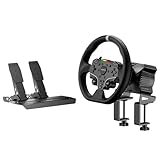
- This MOZA R3 Wheel and Pedals Bundle Kit is designed for PC Users (Not Compatible with Xbox), delivers high-performance sim racing at an exceptional price.
- MOZA R3 Direct Drive Base delivers a punchy 3.9Nm DD power with ultra-low torque ripple to achieve a instant reaction. R3’s compact design can be easily adapted to fit any scenario regardless of available space.
- ES Lite Steering Wheel for PC: This 11-inch round gaming wheel with durable ISF PU grips aluminum alloy rim, 22 customizable buttons for maximum immersion and extended use. The racing-level Quick Release system allows for effortless wheel rims changing.
- SR-P Lite Pedals(No Clutch): Pure, high-strength steel gives these anti-slip pedals a rock-solid durability and feel. High-precision Hall Sensor in core allows for consistency and performance. The space and configuration of the pedals, and the out curve are adjustable for the best comfor playing and customization.
- Table Clamp: 5mm-thick CNC machined high-intensity steel suitable for desktop setups or rigs. Angle-adjustable and fits various tables.
Make the camera controls work with your existing keyboard or controller first. Hardware will improve the driving interface; it will not fix an incorrect key binding, a disabled function layer, or confusion between Assetto Corsa and Competizione.
Windows Errors? Fix Them Before They Spread
Repair common Windows errors and clear accumulated junk for a smoother, more stable PC - no reinstall needed.Free scan · no reinstallCrashes, No Sound, or Screen Glitches?
Random freezes, missing sound and display glitches usually trace back to one bad driver. Find and replace yours safely.Free scan · under a minuteCamera-view cheat sheet
- Cockpit: F1
- Automatic view: F2
- TV or trackside: F3
- Exterior free camera: F5
- Onboard cameras: F6
- Adjust driver-view FOV: Ctrl + numeric-keypad plus/minus
- VR recenter: Ctrl + Space for the documented Oculus command
- Screenshot: F8
If a shortcut does not work, use the controls menu as the authority for your installation: the default bindings can be changed, and Content Manager or other PC tools may add another layer of configuration.
Frequently Asked Questions
How do I get the cockpit view in Assetto Corsa?
In the original PC version of Assetto Corsa, press F1 for the driver or cockpit view. Repeated presses may cycle through the available driver-facing positions for the selected car.
How do I use the free camera in Assetto Corsa?
Press F5 for the built-in exterior free camera. Use the mouse and mouse buttons to control it, with the mouse wheel used as documented by the keyboard reference. For replay shots, press F8 to capture a screenshot.
Do I need a racing wheel to change the camera?
No. You can change views with a keyboard or controller. A racing wheel is optional and is useful for driving immersion or assigning camera commands to wheel buttons.
Are Assetto Corsa and Assetto Corsa Competizione camera controls the same?
No. Assetto Corsa and Assetto Corsa Competizione are separate games, and their camera bindings should not be assumed to match. Check the exact game title before using an ACC camera guide.
The Bottom Line
For the original PC version of Assetto Corsa, press F1 for cockpit, F2 for automatic, F3 for TV/trackside, F5 for the exterior free camera, and F6 for onboard views. These are default bindings and can be reassigned. If they fail, check the active session, keyboard Fn layer, in-game controls, and—if applicable—Content Manager before editing configuration files.
Quick Recap
Product prices and availability are accurate as of the date/time indicated and are subject to change. Any price and availability information displayed on Amazon at the time of purchase will apply.

