
The most reliable way to draw gothic anime fan art digitally is to solve the image in this order: readable silhouette, consistent anime construction, separated line and color layers, a predominantly dark but varied costume, a grayscale value pass, then controlled material rendering, lighting and atmosphere. Black clothing should contain enough value shifts, reflected color and edge variation to remain legible; making every surface the same black will flatten the character.
Use a pressure-sensitive tablet and a painting program with layers, clipping, blending modes and correction tools. Clip Studio Paint and a Wacom Intuos, Wacom One or Cintiq fit this workflow, but the principles apply to any application that supports editable layers and pressure-sensitive strokes.
As an Amazon Associate I earn from qualifying purchases.
What makes gothic anime fan art read as gothic
Gothic identity comes from a coordinated design system rather than a single prop. A dark palette, ornamental shapes, melancholy mood and deliberate material contrast should support the character’s pose and face. One gothic-style tutorial summarizes the mood directly: “Gothic style always evokes a feeling of darkness and melancholy, with black as the predominant color.” Predominant does not mean universal. If the hair, clothing, background and shadows all have identical values, the silhouette and costume details disappear.
Recommended Free Tools
Start with a silhouette that survives at thumbnail size
Reduce the character to a small black shape and ask whether the head, hair mass, shoulders, sleeves, skirt or coat, hands and gesture are identifiable. Separate major shapes with overlaps and negative spaces. A raised sleeve, pointed collar, veil, weapon or wide skirt can communicate the design before any lace or facial detail is added. Keep the face as the likely focal area and reserve the clearest contrast for it and the upper torso.
#1 Best Overall

- Wacom Intuos Small Graphics Drawing Tablet: Enjoy industry leading tablet performance in superior control and precision with Wacom's EMR, battery free technology that feels like pen on paper
- Works With All Software: Wacom Intuos tablet can be used in any software program to explore new facets of digital creativity; draw, paint, edit photos/videos, create designs, and mark up documents
- What the Professionals Use: Wacom's industry leading pen technology and pen to paper feeling makes it the preferred drawing tablet of professional graphic designers
- Software and Training Included: Only Wacom gives you software with every purchase. Register your Intuos tablet and gain access to some of the best creative software and Wacom's online training
- Wacom is the Global Leader in Drawing Tablet and Displays: For over 40 years in pen display and tablet market, you can trust that Wacom to help you bring your vision, ideas and creativity to life
Use ornament as structure, not noise
Gothic motifs work best when they reinforce the body’s construction: a collar follows the neck, straps wrap the rib cage, pleats describe the direction of a skirt, and jewelry sits on believable anatomy. Group repeating motifs into a few strong families—such as crosses, pointed arches, ribbons, chains, roses or lace—rather than scattering unrelated decorations everywhere. Large, medium and small shapes create hierarchy; tiny marks cannot rescue a weak costume silhouette.
Canvas, tablet and layer setup
Before drawing, create a canvas large enough for your intended output and keep the working file in a format that preserves layers. A pressure-sensitive pen makes tapered lines and controlled opacity easier, especially during inking and hair rendering. Clip Studio Paint’s official guidance covers pen pressure, brushes, layers, blending modes, perspective rulers, gradients, filters, 3D figures and color tools; those features map well to this process.
A practical layer stack
| Layer or group | Purpose | Why it stays separate |
|---|---|---|
| Thumbnail and gesture | Small composition tests and pose direction | Can be hidden once the final composition is chosen |
| Construction | Simple head, torso, limbs and costume forms | Lets you correct anatomy without damaging the drawing |
| Draft sketch | Refined eyes, hair masses, hands and clothing design | Can remain visible as an underdrawing or be removed before finishing |
| Ink or line art | Clean contours and selected interior lines | Lines remain editable while flats are refilled |
| Flat colors | Separate fills for skin, hair, costume, props and background | Supports clipping, recoloring and edge cleanup |
| Shadows and light | Value modeling, cast shadows and highlights | Allows the light direction to be changed without repainting flats |
| Effects | Rim light, glow, particles and atmospheric accents | Effects can be reduced or removed without harming the character |
| Corrections | Color-balance or tone-correction layers | Unifies the finished character and background non-destructively |
Separated layers let you hide the draft, retain lines while refilling color and reposition elements. Name groups as you work and lock finished flats before painting above them. A clipping mask or clipped paint layer is useful for shading inside a garment without repeatedly erasing its contour.
Step 1: Make thumbnail compositions
Draw several tiny versions before committing to anatomy. Test a frontal portrait, a three-quarter bust, a full-body contrapposto and a more dynamic diagonal pose. At this stage use only a few masses: head, hair, torso, costume outline and the largest background shape.
- Check that the face is not swallowed by the hair or collar.
- Check that hands and important props do not merge into the torso.
- Try both a light background behind the silhouette and a dark atmospheric background; choose the one that gives the costume a readable edge.
- Mark the intended light direction with a simple arrow.
Pick the thumbnail whose gesture and value grouping remain clear when viewed small. Detail cannot repair a pose that is unreadable at this stage.
Step 2: Construct the anime figure
Build the head and body from simple forms before refining the face. Use a sphere or box for the skull, a centerline for the face, a rib-cage block, a pelvis block and cylinders for limbs. Establish the line of action first, then attach the costume to the body rather than drawing clothing as a flat sticker.
Keep proportions consistent
Set landmarks for the eye line, chin, shoulders, elbows, wrists, hips, knees and ankles. Anime proportions vary by character, but the chosen head-to-body relationship must remain stable across the pose. Compare the width of the head, shoulder span and hand size repeatedly. Turn the canvas or use a horizontal flip to expose proportion errors that become invisible through familiarity.
Rank #2

- Wacom Intuos Medium Bluetooth Graphics Drawing Tablet: Enjoy industry leading tablet performance in superior control and precision with Wacom's EMR battery free technology that feels like pen on paper
- Works With All Software: Wacom Intuos tablet can be used in any software program to explore new facets of digital creativity; draw, paint, edit photos/videos, create designs, and mark up documents
- Wireless Superior Connectivity: Connect wirelessly via Bluetooth or directly using USB-A cable which enables you to work, draw or create whether it's at a desk, on the sofa, in classrom or even outside
- Software and Training Included: Only Wacom gives you software with every purchase. Register your Intuos tablet and gain access to some of the best creative software and Wacom's online training
- Wacom is the Global Leader in Drawing Tablet and Displays: For over 40 years in pen display and tablet market, you can trust that Wacom to help you bring your vision, ideas and creativity to life
Refine the high-information areas
Eyes, hair masses, hands and costume anatomy carry most of the character’s identity. Treat hair as large interlocking clumps first; add individual strands only after the masses describe the head. Draw hands as simplified mitten and finger forms before adding nails or rings. Design sleeves, collars and belts around the underlying joints so folds point toward the elbow, wrist, waist or knee.
Step 3: Sketch and ink on separate layers
Lower the opacity of the draft and ink on a new layer. Vary line weight with pen pressure: stronger weight can anchor the underside of hair, overlapping costume pieces and the shadow side, while lighter lines keep the face and small ornaments delicate. Do not outline every interior boundary equally. Lost edges in shadow and selective line breaks make the painting feel less mechanical.
Use a stabilizer only as much as needed. Over-smoothed lines can remove the angular energy that suits gothic design. If a contour is wrong, redraw it cleanly rather than repeatedly patching it with eraser marks. Keep the draft hidden periodically to confirm that the ink communicates the pose by itself.
Step 4: Design the gothic costume
Begin with a black or deep-neutral base, then reserve lighter neutrals and restrained accent colors for separation. A near-black blue, violet, brown or green can distinguish adjacent garments without breaking the mood. Place ornament where it explains construction: trim follows hems, seams, lapels and cuffs; chains hang from believable anchors; lace changes scale as it recedes.
The Tool Desk
Outbyte Driver Updater FREEScan for outdated or missing drivers - takes under a minuteDriver Scan →Outbyte PC Repair FREERepair Windows errors before they cause bigger problemsFix Now →Build a value hierarchy before color detail
Decide which areas are darkest, middle-dark and light enough to catch the eye. The costume may occupy the largest dark mass, while the face receives a lighter value or a warmer temperature. Hair should not automatically be the same value as the coat; a cool charcoal highlight can separate it from black fabric. Similarly, a black glove can be distinguished from a black sleeve by edge light, reflected color or a change in surface response.
Control ornament density
Concentrate the most intricate trim near the face, chest and hands, then simplify it toward the outer silhouette. This creates a focal path and prevents lace from competing with the eyes. Repeat a motif at different scales so the design feels intentional, but leave quiet areas where the silhouette can breathe.
Step 5: Block flats and inspect the image in grayscale
Fill skin, hair, costume, props and background on editable layers. Keep the background simple at first; it is easier to judge the character when the surrounding value is controlled. Before detailed coloring, temporarily remove hue or use a grayscale view. The grayscale-to-color method establishes “lighting, value, form, and design” before color is added.
Rank #3

- WACOM’S BEST PEN TECHNOLOGY: Pro Pen 3 offers amazing precision, 8192 pressure levels, tilt support & lag-free tracking for smooth, precise strokes; choose slim, straight or flared grip, adjust balance & button layout for precision and comfort
- DIAL INTO PRODUCTIVITY: Speed up and stay in the creative flow with 10 customizable tablet ExpressKeys & 2 mechanical dials conveniently located at the top of the tablet and close to your keyboard for efficiency
- DESIGNED FOR MODERN MONITORS: With a versatile 16:9 format perfect for multiple monitors and wide displays; medium size has a large active area with a small footprint 11.4 x 8.1” / 291 x 206 mm
- SLEEK AND STURDY: Measuring 4mm at its thinnest this professional-grade drawing tablet feels like pen-on-paper on your desk, combined with the robust durability of magnesium making it equally suited for your office or life on the go
- WIRELESS FREEDOM: use Intuos Pro with USB or connect wirelessly via Bluetooth to multiple computers with a simple switch
What to check in grayscale
- The head and upper torso should separate from the background.
- The eyes, face plane and hands should not merge into neighboring dark shapes.
- Large costume sections should read as different planes even if they are all nominally black.
- The lightest accents should be intentional rather than scattered across every ornament.
- The shadow side should remain dark enough to preserve mood without erasing anatomy.
Correct the value grouping now with clipped paint, a levels adjustment or revised flats. Do not postpone this check until after rendering; color can make a weak value structure look temporarily convincing while the image is still small or printed.
Free tools Windows power users keep installed
One-click scans. No signup required.
Step 6: Choose a rendering language
Decide whether the final image should use hard cel-style shapes, softer painterly transitions or a deliberate combination. The choice affects speed, edge control and how materials are described.
| Approach | Strengths | Risks and best use |
|---|---|---|
| Cel-style rendering | Clear shadow shapes, graphic silhouette and fast visual readability | Can look rigid if every edge has the same hardness; vary shape design and reserve soft edges for selected transitions |
| Painterly rendering | Subtle form modeling, atmospheric depth and nuanced material changes | Can muddy the silhouette; establish clean value masses before blending |
| Hybrid | Hard anime shadow planes with soft transitions on skin, smoke or background | Requires a deliberate edge hierarchy so softness does not spread everywhere |
For fan art, match the rendering choice to the character’s source design and your intended mood, but keep the silhouette and focal contrast stronger than any stylistic effect.
Step 7: Paint black clothing without losing detail
Separate planes with value, not random highlights
Start with a deep base rather than absolute black. Establish broad shadow and light planes that describe the garment’s volume: the front of a sleeve, the underside of a fold, the turned edge of a lapel and the plane facing the key light. Keep the darkest accents in occlusion areas such as under collars, between overlapping folds and beneath accessories.
Match the surface response
Glossy leather has distinct light and dark areas, prominent reflections and high contrast. Place a narrow, designed highlight across the form, break it where the surface turns and add a reflected tint from the environment. Glossy surfaces pick up colors from their surroundings, so a cool room or colored glow can appear in the reflection.
Matte leather uses softer transitions and broader, quieter changes. Avoid a bright razor-thin stripe on every matte fold; use a restrained edge light and gradual value shifts instead. Velvet, cotton, metal, satin and polished leather should not share the same highlight shape. Material distinction is more convincing when the light direction stays constant while the response changes.
Use reflected light carefully
A subtle bounce from the background can separate a shadow-side sleeve from a dark backdrop. Keep reflected light weaker than the key light so the form does not appear to glow from all directions. If the costume begins to look gray, reduce the bounce and restore a few deep occlusion accents.
Rank #4

- Wacom Intuos Small Bluetooth Graphics Drawing Tablet: Enjoy industry leading tablet performance in superior control and precision with Wacom's EMR, battery free technology that feels like pen on paper
- Works With All Software: Wacom Intuos tablet can be used in any software program to explore new facets of digital creativity; draw, paint, edit photos/videos, create designs, and mark up documents
- Wireless Superior Connectivity: Connect wirelessly via Bluetooth or directly using USB-A cable which enables you to work, draw or create whether it's at a desk, on the sofa, in classroom or even outside
- Software and Training Included: Only Wacom gives you software with every purchase. Register your Intuos tablet and gain access to some of the best creative software and Wacom's online training
- Wacom is the Global Leader in Drawing Tablet and Displays: For over 40 years in pen display and tablet market, you can trust that Wacom to help you bring your vision, ideas and creativity to life
Step 8: Establish one clear light direction
Choose a key light from above-left, above-right, front or back and apply it consistently to the face, hair, costume and background. A single direction makes anime shadow shapes believable and gives dramatic gothic lighting a coherent logic. Mark the direction on a separate note or layer before painting.
Shape the face as the focal area
Use value and color-temperature contrast to direct attention toward the face and upper torso. A slightly warmer skin light against a cool dark costume, or a cooler facial rim against warm shadows, can separate the features without making the palette bright. Keep the eyes, nose plane and lips readable with small, intentional accents rather than outlining every feature in white.
What’s actually slowing this PC down?
Pick the symptom - the matching free tool is one click away.
Add rim light only where it helps
Rim light is most effective along selected hair spikes, shoulders, a sleeve edge or a veil against a dark background. Break the rim where the form turns away or where the silhouette should remain quiet. A continuous neon outline flattens the figure and competes with the face.
Step 9: Colorize and unify the scene
Once the grayscale pass works, add color with low-opacity overlays, clipped layers or a colorize workflow. Preserve the established value relationships while introducing hue. Test a few small color studies before committing to the full-size painting; the lighting tutorial recommends these studies to determine the tone or value range early.
Use the background to support, not duplicate, the character. A flat graphic background can use arches, frames, moon shapes or geometric panels that echo the costume’s ornament. An atmospheric environment can use fog, rain, dust, stained-glass color or distant architecture, but keep its contrast lower than the focal area. Finish with color-balance or tone-correction layers to bring the character and background into the same palette.
Independent reader supportYour contribution helps us test, update, and keep practical guides available for everyone.Step 10: Add atmosphere and finish effects
Create glow, particles, smoke and sharp highlight effects on separate layers. Add Glow or Linear Dodge can produce luminous accents, but reduce opacity until the effect supports the form instead of covering it. Place particles along the composition’s flow rather than distributing them evenly. Sharpen only the eyes, jewelry, weapon edges or other focal details after the large shapes are stable.
Windows Errors? Fix Them Before They Spread
Repair common Windows errors and clear accumulated junk for a smoother, more stable PC - no reinstall needed.Free scan · no reinstallCrashes, No Sound, or Screen Glitches?
Random freezes, missing sound and display glitches usually trace back to one bad driver. Find and replace yours safely.Free scan · under a minuteFinal inspection checklist
- View the art as a thumbnail and in grayscale.
- Flip the canvas to catch anatomy and spacing errors.
- Hide effects to confirm that the character still reads without atmosphere.
- Check that the chosen key-light direction agrees on the face, hair, folds and props.
- Reduce highlights that make every black surface equally shiny.
- Inspect hands, eyes and costume joins at full size for tangents and accidental merges.
- Save a layered master file and export a flattened copy in the format required by your destination.
Choosing between common gothic painting decisions
| Decision | Choose the first option when you prioritize | Choose the second option when you prioritize |
|---|---|---|
| Cel-style or painterly | Graphic silhouette, crisp shadow design and efficient rendering | Soft form modeling, atmospheric depth and nuanced transitions |
| Matte or glossy costume | Quiet value changes and a subdued, fabric-like mood | High-contrast reflections and a sharper, dramatic surface |
| Warm or cool key light | Warm separation from a cool dark costume or background | Cool nocturnal mood or a warm accent elsewhere in the scene |
| Flat graphic or atmospheric background | Strong emblematic design and maximum silhouette clarity | Environmental mood, depth and a sense of place |
Whichever combination you choose, judge it by six practical tests: silhouette clarity, value separation, material readability, focal contrast, editability and the time required to finish. A technically sophisticated effect that weakens the first four tests is not helping the illustration.
Best Value
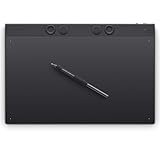
- WACOM’S BEST PEN TECHNOLOGY: Pro Pen 3 offers amazing precision, 8192 pressure levels, tilt support & lag-free tracking for smooth, precise strokes; choose slim, straight or flared grip, adjust balance & button layout for precision and comfort
- DIAL INTO PRODUCTIVITY: Speed up and stay in the creative flow with 10 customizable tablet ExpressKeys & 2 mechanical dials conveniently located at the top of the tablet and close to your keyboard for efficiency
- DESIGNED FOR MODERN MONITORS: With a versatile 16:9 format perfect for multiple monitors and wide displays; large size has a large active area with a small footprint 14.8 x 9.9” / 377 x 253 mm
- SLEEK AND STURDY: Measuring 4mm at its thinnest this professional-grade drawing tablet feels like pen-on-paper on your desk, combined with the robust durability of magnesium making it equally suited for your office or life on the go
- WIRELESS FREEDOM: Use Intuos Pro with USB or connect wirelessly via Bluetooth to multiple computers with a simple switch
Troubleshooting common failures
The character looks like a black shape
Return to grayscale and assign different values to adjacent planes. Add a cool or warm near-black to one garment, lighten the plane facing the key light and reserve the deepest darks for overlaps. Restore a thin edge light only where the silhouette needs separation.
The image feels gothic but the face disappears
Reduce costume contrast near the head, simplify ornament around the eyes and create a value or temperature difference between skin and collar. Check the background directly behind the face; a small shift there can do more than brightening every facial feature.
The clothing looks plastic
Decide whether it is meant to be glossy or matte. For glossy leather, design distinct reflected shapes and high-contrast transitions. For matte leather or cloth, broaden the transitions and reduce narrow highlights. Keep reflected light subordinate to the key light.
Quick wins for a faster PC:
Scan for outdated or missing drivers - takes under a minuteDriver Scan →Repair Windows errors before they cause bigger problemsFix Now →The pose is stiff
Return to the thumbnail and construction layers. Re-establish a line of action, tilt the shoulders and pelvis in opposition, and rebuild limbs as simple forms before redrawing the costume. Do not attempt to fix a rigid gesture with folds or ornament.
The painting becomes muddy after blending
Restore the major shadow and light shapes with a hard brush, then blend only selected edges. Compare the image to the grayscale thumbnail and remove colors that do not support the established value structure. Keep effects and correction layers separate so they can be lowered without repainting.
The details took over the composition
Hide the ornament layer temporarily and assess the silhouette, face and gesture. Reintroduce detail in descending order of importance: focal area, structural seams, medium motifs, then tiny lace and particles. Leave quiet surfaces around the busiest regions.
A repeatable practice routine
- Create five to ten thumbnails using only silhouette and one background mass.
- Choose one and build the figure from simple forms, checking proportions before costume detail.
- Refine the face, hair, hands and costume on a draft layer.
- Ink on a separate layer with pressure-sensitive line variation.
- Place flats for skin, hair, costume, props and background in editable groups.
- Make a grayscale value pass and correct the focal hierarchy.
- Choose cel, painterly or hybrid edges and render one material at a time.
- Apply a single key-light direction, then add restrained reflected light and rim accents.
- Colorize, run small color studies if needed, and unify the scene with correction layers.
- Inspect at thumbnail size, in grayscale and with effects hidden before exporting.
This order keeps decisions reversible: composition and anatomy are solved before decoration, value before hue, and material response before atmosphere. The result is a gothic anime character whose darkness feels designed rather than merely unpainted.
Do these 3 things before closing this tab:
1Scan for outdated or missing drivers - takes under a minute2Clear out junk files and repair common Windows errors3Fix the driver behind crashes, sound loss and screen glitchesQuick Recap
Product prices and availability are accurate as of the date/time indicated and are subject to change. Any price and availability information displayed on Amazon at the time of purchase will apply.

