If BlueStacks opens to a black window, first update your GPU driver and Windows, then go to Settings → Graphics and test a different Interface renderer. Click Save changes → Restart now after each change. If only one game is black, test its graphics renderer or Android instance instead. The available options vary by BlueStacks 5 version and Android instance.
These steps are based on BlueStacks’ black-screen guidance and Microsoft’s Windows display troubleshooting.
For recurring BlueStacks black screens, Outbyte PC Repair can optionally inspect Windows settings, components, and crash-related system issues.
As an Amazon Associate I earn from qualifying purchases.
Identify which black-screen problem you have
| Symptom | Test first |
|---|---|
| The entire BlueStacks window is black | Interface renderer, GPU driver, Windows graphics stack |
| Only one game is black | Graphics renderer, Android instance, game compatibility |
| Audio plays but there is no picture | Renderer or GPU presentation settings |
| Black screen occurs only in full-screen mode | Interface renderer, overlays, display-driver behavior |
| Windows itself flickers or goes black | Windows display driver, not just BlueStacks |
| BlueStacks will not launch | Virtualization, Hyper-V, permissions, drivers, or an outdated build |
If the entire desktop is affected, press Ctrl+Shift+Esc to open Task Manager. If Task Manager also flickers or turns black, troubleshoot Windows and the display driver first. If Task Manager is normal, focus on BlueStacks.
Try these quick fixes first
- Close BlueStacks completely and restart Windows.
- Press Windows+Ctrl+Shift+B once. Microsoft documents this as a graphics-driver reset shortcut. It may briefly blank or beep, but it is not a guaranteed BlueStacks repair.
- Install Windows updates.
- Update the GPU driver from Intel, AMD, NVIDIA, or your computer manufacturer.
- Launch BlueStacks again before changing several settings at once.
Change BlueStacks’ Interface renderer
This is the most important BlueStacks-specific fix when the application interface is black, distorted, flickering, or black only in full-screen mode.
#1 Best Overall

- Experience the latest in mobile technology with the newest Android operating system. It comes equipped with advanced AI capabilities, allowing you to interact with intelligent assistants for real-time conversations, content creation, and smarter daily task management, keeping you ahead of the tech curve.
- Designed for power users, this tablet features an exceptionally large RAM capacity and massive internal storage. Whether you are downloading high-definition movies, installing graphic-intensive games, or storing thousands of photos, you will never run out of space. It also supports extensive storage expansion, giving you the ultimate freedom to keep all your digital assets in one place.
- At the heart of this device lies a high-performance octa-core processor that delivers lightning-fast speeds. It handles demanding mobile games, seamless multitasking, and complex applications with ease, ensuring a lag-free experience whether you are working on heavy documents or enjoying immersive entertainment.
- Built with a high-capacity battery, this tablet provides enduring power that lasts through your busiest days and longest trips. You can stream videos, attend online meetings, or play games for extended periods without constantly worrying about finding a power outlet, making it the perfect travel companion.
- This package goes beyond just a tablet by including a full set of essential accessories. It comes with a protective keyboard case, a responsive mouse, and a precision stylus, instantly transforming your tablet into a versatile laptop replacement that is ready for work, study, or creative drawing right out of the box.
- Launch BlueStacks 5.
- Click the gear icon on the side toolbar.
- Open Graphics.
- Find Interface renderer and note the current setting.
- Select a different available option.
- Click Save changes.
- Choose Restart now, then test the home screen, game, and full-screen mode.
Test one option at a time and keep the setting that works on your computer. Do not assume that Auto, OpenGL, or DirectX is universally best; BlueStacks recommends trying the available alternatives because compatibility differs between systems.
See BlueStacks’ Interface renderer instructions.
Test the graphics renderer and engine mode
The Interface renderer affects BlueStacks’ user interface and presentation. The Graphics renderer affects Android content and games. If the interface is visible but a game is black, change the graphics renderer rather than repeatedly changing the interface setting.
Recommended Free Tools
Open Settings → Graphics. The choices depend on the Android instance:
- Pie, Android 11, and Android 13 instances may offer Vulkan & OpenGL or OpenGL Only.
- Nougat 32-bit and 64-bit instances may offer OpenGL or DirectX.
- Nougat instances may also offer Compatibility and Performance graphics-engine modes.
Save and restart after every change. A useful test sequence is:
- OpenGL black screen → test DirectX, if available.
- DirectX black screen → test OpenGL.
- Vulkan unstable → test OpenGL Only or the instance’s alternate option.
- Performance fails → test Compatibility.
- Compatibility fails → test Performance.
Intel documents changing BlueStacks from OpenGL to DirectX for a particular engine-startup scenario, but DirectX is not a universal fix. Use the options exposed by your selected instance. BlueStacks’ graphics-settings guide explains the differing menus.
Rank #2

- 【Dual-Function 2-in-1 Tablet】URAO Android 16 Tablet is a game-changer with 2-in-1 professional work mode. The tablet is compatible with a Bluetooth keyboard, mouse, stylus, headset, and a convenient foldable case. The setup and connection process is straight forward, enabling you to effortlessly transform your tablet into either a laptop or a computer mode. Friendly Tips: Mouse does not come with batteries.
- 【Android 16 & Octa-Core Processor】URAO Android tablet features the latest operating system Android 16 and an 1.8 GHz octa-core processor ensure of excellent performance, seamless multitasking, getting rid of annoying ads, emphasizing privacy and security by designing enhanced app permissions, providing you complete management control.
- 【36GB (6+30GB) RAM 128GB ROM 】Our 11 inch tablet comes with 36GB (6+30GB) RAM 128GB ROM and maximun 1TB TF card ( not included )expandable ensures you of a fast APP launch and smooth gaming experience. URAO tablet also come with pre-installed Google Play Store, you can easily download any needed Apps such as Facebook, Twitter, Youtube, etc.
- 【7800mAh Battery with Fast Charge】The built-in large capacity and low consumption CPU enable our URAO 11 inch tablet to stand by for up to 3 days and allows you to enjoy up to 8 hours of mixed reading, watching TV shows, playing games, surfing the web. URAO tablet adopts fast-charging technology ,easily charge via the USB Type-C port and rest assured the battery will last. It is a good companion for you to play and study!
- 【Wi-Fi 6+Bluetooth5.4】URAO 11 inch android tablet adopts the lastest sixth generation WiFi technology and the upgraded bluetooth 5.4. Dual band integrated chips make the 5g WiFi and 2.4g WiFi more stable and the lastest bluetooth 5.4 connection supports all your favorite accessories, highly increased the speed of data transfer, improved network capacity and reduced network delays.
Make BlueStacks use the correct GPU
Laptops often switch between an integrated GPU and a dedicated NVIDIA or AMD GPU. In Settings → Graphics, check the GPU in use section. If BlueStacks provides an option to use the dedicated GPU, enable it, save the setting, and restart.
Quick wins for a faster PC:
Clear out junk files and repair common Windows errorsFree Scan →Fix the driver behind crashes, sound loss and screen glitchesFind Drivers →If the option is unavailable, assign BlueStacks through Windows Graphics settings or your GPU vendor’s control panel. This is a test, not automatically an upgrade: forcing the dedicated GPU can increase heat, fan noise, and battery use, while the integrated GPU may be more stable on some laptops. Also test with one monitor and without a dock if the problem appears only on an external display.
Update or roll back the graphics driver
Use official sources only:
- Intel: Intel Driver & Support Assistant or your laptop manufacturer.
- AMD: AMD’s official driver-support page or your system manufacturer.
- NVIDIA: NVIDIA’s official driver page or application.
For laptops, the manufacturer’s validated driver can be preferable when a generic driver disrupts display switching or power management. Do not download “BlueStacks drivers,” random DLL files, registry cleaners, or third-party driver-updater tools.
If the black screen started immediately after a driver update:
- Search Windows for Device Manager.
- Expand Display adapters.
- Right-click your GPU and choose Properties → Driver.
- Select Roll Back Driver, if available.
- Restart Windows and test BlueStacks.
Microsoft also documents updating or reinstalling the display driver as possible remedies. BlueStacks’ GPU-driver guidance recommends current graphics drivers and Windows updates.
Free tools Windows power users keep installed
One-click scans. No signup required.
Rank #3

- POWER FOR ALL YOU DO: Galaxy Tab A11+ gives your family the optimal performance they need for all their day-to-day activities. Power through tasks, relax with a movie or jump into a game — the upgraded chipset⁴ keeps everything responsive
- CHARGES UP FAST. LASTS FOR HOURS: Galaxy Tab A11+ keeps your family going with a long-lasting battery that’s perfect for browsing, streaming and play. When you finally need a boost, fast charging gets you back to 100% quickly.⁵
- MEMORY AND STORAGE THAT KEEP UP: With up to 8GB of memory and 256GB⁶ of storage, Galaxy Tab A11+ gives your family the space and speed to multitask seamlessly and handle large files.
- BIG SCREEN. FAMILY-SIZED FUN: A bright, engaging 11" screen¹ with a refresh rate up to 90Hz delivers natural, fluid motion, making it easy for every family member to stream, play and do what they love.
- SURROUND YOURSELF WITH RICH AUDIO SOUND: Whether you're watching a movie or listening to your favorite playlist, immerse yourself in a cinema-like audio experience with quad speakers powered by Dolby Atmos on Galaxy Tab A11+
Check virtualization and Hyper-V
Hardware virtualization and Windows virtualization features are separate:
- Hardware virtualization: Intel VT-x or AMD-V/SVM in UEFI/BIOS.
- Windows features: Hyper-V, Virtual Machine Platform, Windows Hypervisor Platform, Windows Sandbox, and related components.
If BlueStacks will not launch, update it first through Settings → About → Check for updates → Download update. Current BlueStacks 5 builds should be used with supported Hyper-V configurations. If prompted, use the BlueStacks Hyper-V Diagnostic Tool and try Run as administrator as a permissions test.
Do not disable Hyper-V by default. It can affect Windows Subsystem for Linux, Windows Sandbox, virtual machines, security features, and other emulators. Disabling it may be relevant to an old BlueStacks build or an incompatible configuration, but it requires a restart and is a compatibility trade-off.
If hardware virtualization is disabled, Microsoft’s path is Settings → System → Recovery → Advanced startup → Restart now → Troubleshoot → Advanced options → UEFI Settings → Restart. Look for Intel Virtualization Technology, VT-x, AMD-V, or SVM Mode. Enable only the required setting, save, and exit. The exact label varies by manufacturer. Enabling virtualization can help launch and compatibility problems; it is not a guaranteed graphics fix.
Windows Errors? Fix Them Before They Spread
Repair common Windows errors and clear accumulated junk for a smoother, more stable PC - no reinstall needed.Free scan · no reinstallOutdated Drivers Are Slowing You Down
One free scan finds every outdated or missing driver and matches the right update for your exact hardware.Free scan · exact hardware matchFor Hyper-V-specific launch failures, follow BlueStacks’ Diagnostic Tool and Windows Features guidance. BlueStacks also documents this elevated command for enabling Virtual Machine Platform:
Rank #4

- COMPACT SIZE, COMPACT FUN – The Lenovo Tab One is compact, efficient, and provides non-stop entertainment everywhere you go. It’s lightweight and has a long-lasting battery life so the fun never stops.
- SIMPLICITY IN HAND - Add a touch of style with a modern design that’s tailor-made to fit in your hand. It weighs less than a pound and has an 8.7” display that’s easy to tuck in a purse or backpack.
- NON-STOPPABLE FUN – Freedom never felt so sweet with all-day battery life and up to 12.5 hours of unplugged YouTube streaming. It’s designed to charge 15W faster than previous models so you can spend less time tethered to a power cable.
- PORTABLE MEDIA CENTER - Enjoy vibrant visuals, immersive sound, and endless entertainment anywhere you go. The HD display has 480 nits of brightness for realistic graphics and dual Dolby Atmos speakers that provide impressive sound depth.
- ELEVATED EFFICIENCY - Experience the MediaTek Helio G85 processor and 60Hz refresh rate that ensure fluid browsing, responsive gaming, and lag-free streaming.
dism.exe /online /enable-feature /featurename:VirtualMachinePlatform /allRun it only from an elevated Command Prompt when it is appropriate for your configuration, then restart.
Repair Windows system files
If BlueStacks fails to boot or Windows components may be damaged, BlueStacks recommends this general Windows check:
- Search for Command Prompt.
- Select Run as administrator.
- Run:
sfc /scannowWait for the scan to finish, restart Windows, and test again. SFC checks Windows system files; it does not specifically repair a bad BlueStacks renderer or GPU driver. If it cannot repair files, use Microsoft’s current Windows repair guidance rather than deleting BlueStacks data.
If only one game has a black screen
When the BlueStacks home screen and other apps work, the installation may be fine. Try the game’s update, its in-game graphics options, and another renderer supported by the current Android instance.
You can also open Multi-instance Manager and create a fresh test instance using an Android version supported by the game. Test the game there before deleting the original instance. Local saves and app data may not transfer automatically, so synchronize or back up them first. If every instance and every game is black, return to driver, Windows display, GPU-selection, and virtualization troubleshooting.
Best Value
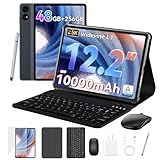
- 1.** 🚀 🤖 [Upgrade Your Digital Life: Native Android 16 & Gemini AI] This tablet with keyboard is the first to experience the cutting-edge Android 16 OS, stripped of bloatware for a pure, lightning-fast interface. Unlike older Android 13/14 tablets, the T60 utilizes Google's Gemini AI to smartly manage background apps and assist with writing summaries, ensuring your device stays snappy for years. Features "Private Space" for sensitive data and "Predictive Back" for intuitive navigation. It's designed for Canadians who demand a device that "just works" right out of the box—secure, intelligent, and future-proof.
- 2. **🖥🎨 [Pro-Grade Visuals: 12.2" 2.5K CSOT Display with 99% sRGB] Why settle for washed-out screens? Our premium CSOT LCD panel covers 99% sRGB color gamut, restoring colors with professional accuracy. This makes the T60 an ideal choice for graphic designers requiring precise color calibration or movie lovers seeking cinematic immersion. Featuring Anti-Glare technology and Eye-Comfort protection, it significantly reduces eye strain during long binge-watching sessions or late-night reading. Whether you are reviewing design proofs in a sunlit café or watching 4K content in bed, the view remains sharp, vibrant, and natural.
- 3. **💾🔥 [Multitasking Beast: 48GB RAM (12+36) & Gaming Power] Say goodbye to freezing screens.This small laptop Crushing the industry standard, our massive 48GB RAM (12GB Physical + 36GB Virtual) effortlessly handles resource-heavy tasks like Roblox gaming, CapCut 4K video editing, and split-screen multitasking. Keep 30+ apps active without reloading. The 256GB UFS storage (expandable to 1TB) acts as your offline warehouse for 500+ HD movies. Whether you are a gamer or a power user, enjoy a silky-smooth experience that cheaper 4GB/8GB tablets simply can't match.
- 4. **💻 ✏️ [Instant "Laptop Mode": Complete 8-in-1 Productivity Bundle] Why carry a heavy laptop? This value-packed bundle includes a Magnetic Keyboard, Mouse, Stylus Pen, and Protective Case ($100+ value), transforming the T60 into a mobile office instantly. Utilizing Android 16's Desktop Windowing Mode, you can attend Zoom/Teams calls while taking notes in Google Docs seamlessly. It is the ultimate budget solution for students and remote workers to handle essays in lecture halls or work from a coffee shop.
- 5. **🌲 🔋 [Unbound Freedom: GPS & 10000mAh Battery] Built for the nomad lifestyle and outdoor enthusiasts. The 10000mAh massive battery supports all-day usage, perfect for camping trips or long shifts. Unlike WiFi-only tablets, With precise GPS Navigation, it serves as a reliable large-screen navigator for truck drivers or road trippers, ensuring you never lose your way even without WiFi.
Test full-screen mode and overlays
If windowed mode works but full-screen mode is black, switch back to windowed mode and test another Interface renderer. BlueStacks specifically connects Interface renderer changes with full-screen black-screen and flickering problems.
As practical isolation tests, temporarily disable Discord, Xbox Game Bar, NVIDIA or AMD overlays, recording software, RGB utilities, and screen-capture tools. You can also test with one monitor and HDR temporarily disabled. These are diagnostic possibilities rather than guaranteed BlueStacks fixes. Re-enable features one at a time after the display works.
What’s actually slowing this PC down?
Pick the symptom - the matching free tool is one click away.
Last resort: repair, reinstall, or contact support
Do not immediately delete BlueStacks folders, edit the registry, or use a PC-cleaner utility. Those actions can remove instances or create new problems.
- Back up or synchronize game data.
- Record the BlueStacks version, Windows edition/build, GPU model, driver version, Android instance type, and exact symptom.
- Test a fresh instance.
- Repair or reinstall BlueStacks using the official installer or in-app update path.
- Submit a problem report to BlueStacks Support.
Microsoft ended Windows 10 support on October 14, 2025. That does not by itself prove BlueStacks cannot run on Windows 10, but users should account for the lack of ongoing Windows support when diagnosing driver and display problems.
When to stop troubleshooting
If changing the renderer, updating or rolling back the driver, testing GPU selection, and checking the affected instance make no difference, stop changing random settings. Gather the system details above and submit a support report. If the Windows desktop itself remains black or flickers, continue with Microsoft’s display-driver troubleshooting independently of BlueStacks.
Quick Recap
Product prices and availability are accurate as of the date/time indicated and are subject to change. Any price and availability information displayed on Amazon at the time of purchase will apply.
The Tool Desk
Outbyte PC Repair FREERepair Windows errors before they cause bigger problemsFix Now →Outbyte Driver Updater FREEFix the driver behind crashes, sound loss and screen glitchesFind Drivers →



