
Recommended Free Tools
Most Halo-64 problems have a short fix path: run an 8 MB N64 memory configuration, verify every controller assignment, start with the Standard control scheme, and tune resolution before changing visual effects. If a build cannot find a map, check the extracted-map directory before changing compiler settings.
Halo-64 is an unofficial fan port of Halo: Combat Evolved multiplayer. It uses decompiled Halo code with a new Nintendo 64 renderer, menu, HUD and sound layer, converts maps from the Xbox game, and requires files from your own Xbox copy. The project supports split-screen play, bots, Firefight and Rumble Pak feedback.
| # | Preview | Product | Price | |
|---|---|---|---|---|
| 1 |

|
Nintendo 64 Expansion Pak (Renewed) | $73.94 | Buy on Amazon |
| 2 |

|
Nintendo 64 Expansion Pak | $69.15 | Buy on Amazon |
| 3 |

|
Original OEM Expansion Pak (Pack) / Memory Card for N64 Console - 4MB RAM | $67.99 | Buy on Amazon |
| 4 |

|
Nintendo 64 Expansion Pak Plus System Bundle N64 | $169.00 | Buy on Amazon |
| 5 |
|
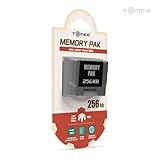
Tomee 256KB Memory Pak for Nintendo 64 – N64 Memory Card | $9.99 | Buy on Amazon |
As an Amazon Associate I earn from qualifying purchases.
What Halo-64 needs before troubleshooting
The port is designed around the Nintendo 64’s expanded memory mode. On original hardware, use the required Expansion Pak configuration. In the ares emulator, open the Nintendo 64 system settings and enable Nintendo64/ExpansionPak=true. A 4 MB configuration is not an alternate performance mode: it can prevent the game from booting or produce a not-enough-memory error.
Quick wins for a faster PC:
Clear out junk files and repair common Windows errorsFree Scan →Fix the driver behind crashes, sound loss and screen glitchesFind Drivers →Repair Windows errors before they cause bigger problemsFix Now →- Original hardware: install an Expansion Pak and use a cartridge or flash-cart setup that supports the port.
- ares: select the Expansion Pak rather than the console’s 4 MB memory configuration.
- Game data: provide map and other files extracted from your own Xbox copy; the port does not supply Xbox game data.
- Controllers: connect and assign each N64 controller before launching a multiplayer match.
- Accessories: use a Rumble Pak in a physical controller, or select Rumble Pak as the controller pak in ares.
These checks separate launch failures from in-game configuration problems. If the game starts, leave memory settings alone and work through input, display and performance controls one change at a time.
#1 Best Overall
- This Certified Refurbished product is tested and certified to look and work like new. The refurbishing process includes functionality testing, basic cleaning, inspection, and repackaging. The product ships with all relevant accessories, a minimum 90-day warranty, and may arrive in a generic box. Only select sellers who maintain a high performance bar may offer Certified Refurbished products on Amazon.com
- Cartridge is inserted into Nintendo 64 console; doubles original 4MB of memory, for a total of 8MB
- Allows games to have larger worlds, longer animation sequences, and much more complex gameplay.
- Increases screen resolution from 320 X 240 pixels up to 640 X 480 pixels
- Required for games like Donkey Kong 64
Why does Halo 64 need the Expansion Pak?
Halo-64 converts Xbox-era maps and rendering data for N64 hardware while also supporting split-screen views, bots, effects and a larger HUD and sound layer. The project therefore requires the N64’s 8 MB memory configuration. On ares, the relevant setting is Nintendo64/ExpansionPak=true; leaving it at the 4 MB configuration can make the game refuse to start or report insufficient memory.
Memory availability also affects the highest display mode. The README describes high detail as using 480i when a map leaves enough memory, while maps with less room use 640×240 at 240p. That is why selecting the highest-looking option does not guarantee the same signal or internal render mode on every map.
Fixing a controller that does not move, fires the wrong button, or ignores an input
Assign the right controller to each player
In the emulator, verify that port 1 is assigned to player 1, port 2 to player 2, and so on. A controller can appear healthy while its buttons seem wrong if it is attached to a different player slot. For a physical console, reseat the controller and test the same port with another known-good controller.
Start with the Standard layout
The Standard scheme follows this mapping:
| Control | Action |
|---|---|
| Analog stick | Look and turn |
| C buttons | Move and strafe |
| Z | Fire |
| R | Throw a grenade |
| A | Jump |
| B | Reload or perform an action |
| L | Melee |
| D-pad up | Switch weapon |
| D-pad down | Crouch |
| D-pad left | Zoom |
| D-pad right | Switch grenade |
| START | Pause |
Use this layout first when diagnosing a fault. It gives you a known baseline before an alternative scheme or custom action setting changes several controls at once.
Try the other documented schemes
Halo-64 includes Bumper Jumper, GoldenEye and North schemes. Select one when the Standard layout conflicts with how you normally play, or when you need jump, melee and firing actions on different fingers. Each player can also choose normal or inverted look, held or toggled crouch, Z or R as the fire button, and separate look speeds for the analog stick and C buttons.
- Open the game’s controller options.
- Choose a complete scheme: Standard, Bumper Jumper, GoldenEye or North.
- Set look inversion and crouch mode for that player.
- Choose Z or R for firing.
- Adjust stick-look and C-button-look speeds independently.
- Test movement, aiming, firing, grenade selection, zoom and pause in a local match before adding bots or extra players.
When one physical button still fails
Isolate the hardware rather than repeatedly changing the Halo-64 layout:
- Move the controller to another N64 port or emulator assignment.
- Try a second controller in the original port.
- Test the suspect controller outside Halo-64.
- On a wireless N64 controller, check for interference, install available system updates and restart the console or adapter.
- If the same physical button remains faulty in other software, arrange hardware service.
Nintendo’s controller guidance is written for its own N64 software and hardware, so these are general isolation steps, not Halo-64-specific repairs. If another controller works in the same port and the fault follows the first controller, the game mapping is unlikely to be the cause.
Do these 3 things before closing this tab:
1Repair Windows errors before they cause bigger problems2Fix the driver behind crashes, sound loss and screen glitches3Clear out junk files and repair common Windows errorsHow to fix the black screen, missing textures, or coarse graphics
Change 3D RESOLUTION first
Use the in-game 3D RESOLUTION option as the main image-quality and performance control. The documented modes are:
Rank #2
- Cartridge is inserted into Nintendo 64 console; doubles original 4MB of memory, for a total of 8MB
- Allows games to have larger worlds, longer animation sequences, and much more complex gameplay.
- Increases screen resolution from 320 X 240 pixels up to 640 X 480 pixels
- Required for games like Donkey Kong 64
| Mode | Internal rendering described by the project | When to try it |
|---|---|---|
| Chunky | 160 pixels wide with doubled pixels | When memory or frame time is the limiting factor |
| Medium | 256 pixels wide | When Chunky is readable but Standard is unstable |
| Standard | 320 pixels wide | Balanced starting point |
| High detail | Targets 480i where the map leaves room; otherwise uses 640×240 at 240p | When the map and memory budget allow it |
Move one step at a time, then restart the match or reload the map so you can tell whether the change corrected the display. If a black or corrupted picture appears after selecting a higher mode, step back to the previous mode instead of changing several settings simultaneously.
Check WIDESCREEN and overscan
WIDESCREEN is an anamorphic 16:9 option. It expects the television or display to stretch the image; it does not create a native widescreen render. Turn it off while diagnosing geometry that looks squashed, stretched or incorrectly centered, then enable it only when the display is configured to perform that stretch.
If the picture is visible but the HUD is cut off at the edges, enable HUD INSET. It moves interface elements inward to compensate for television overscan without changing the 3D scene.
Free tools Windows power users keep installed
One-click scans. No signup required.
Reduce terrain shimmer
When textures or distant ground appear to shimmer, lower TERRAIN DETAIL. The project reduces terrain detail with distance to limit shimmer, so a lower setting can make the scene steadier even though distant geometry is less detailed.
Separate a renderer fault from a bad setting
The project exposes developer diagnostics including debug_no_level, debug_no_objects, debug_no_hud and debug_rdpq. These flags can identify whether the level, object, HUD or RDPQ rendering phase is failing:
- If disabling a phase makes the rest of the image appear, that phase is the useful lead for a bug report.
- Record the map, resolution, widescreen state, memory mode, emulator or hardware, and exact steps that reproduce the fault.
- Do not leave a debug flag enabled as a normal player configuration; use it to narrow the failure and report a reproducible case to the project.
Why does Halo 64 lag with four players or bots?
The game simulation runs at 30 ticks per second. Rendered frame rate varies with map complexity, the number of split-screen views and the number of bots, so a match can remain logically synchronized while the displayed frames slow down. Four local views require substantially more rendering work than one, and bots add simulation and scene activity.
It helps to distinguish a simulation tick from a rendered frame. The 30-tick update governs game state, while the FPS counter shows how often the image is being drawn. A lower displayed frame rate does not automatically mean the 30-tick game logic has stopped; it does mean controls and animation can look less responsive. Compare the counter in the same location and encounter rather than judging from a busy firefight alone.
What’s actually slowing this PC down?
Pick the symptom - the matching free tool is one click away.
Use these controls in order
| Setting | What it reduces | Trade-off |
|---|---|---|
| 3D RESOLUTION | Pixels drawn per frame | A coarser image |
| ANIMATIONS: half rate | Character, vehicle and weapon animation updates | Less fluid animation |
| PARTICLES: off | Transient effects such as impact and explosion particles | Fewer visual effects |
| VIEW MODEL detail | Rendering work for the first-person weapon and hands | Less detailed weapon view |
| TERRAIN DETAIL | Terrain geometry and distant detail | Less distant terrain detail; potentially less shimmer |
Lower resolution first because it cuts the number of pixels for every view. If the match is still slow, set animations to half rate, disable particles, then reduce view-model and terrain detail. The best combination depends on the map and player count; a setting that is comfortable for one player may not hold four views.
Rank #3
- EASY TO USE: Insert into the original N64 console directly and ready to go
- MAXIMUM RAM: Double original 4MB of memory inside the console, for a total of 8MB right now
- BOOSTER: Increase screen resolution from 320 X 240 pixels up to 640 X 480 pixels and enhance graphics in N64 games
- NOTE: Required for the games like Donkey Kong 64, Legend of Zelda: Majora's Mask and other N64 classics
For a useful comparison, test one player at Standard resolution, then repeat with two, three and four split-screen views. After that, keep the player count fixed and add bots one at a time. This separates the cost of additional cameras from the cost of extra AI and objects. A resolution change affects every view, whereas half-rate animation or disabled particles primarily changes how much each view has to draw.
Measure instead of guessing
Keep the in-game FPS COUNTER visible while tuning. Use one repeatable scenario so each change has a meaningful comparison:
- Choose one map and begin with one player.
- Record the FPS counter and timing readout.
- Add players and bots separately; do not change visual settings during the first comparison.
- Change exactly one option, then repeat the same movement or combat situation.
- Keep the change that removes the largest frame-time spike while preserving an image you can read.
This method also reveals whether the bottleneck comes mainly from extra views, bot activity or a particular visual effect. The project documents debug_stats, profile and profiling scripts for deeper measurement when the FPS counter is not enough. Do not compare a quiet spawn area with a particle-heavy vehicle fight; the workload is different even on the same map.
The Tool Desk
Outbyte PC Repair FREEClear out junk files and repair common Windows errorsFree Scan →Outbyte Driver Updater FREEScan for outdated or missing drivers - takes under a minuteDriver Scan →Original N64 versus ares: setup differences
| Configuration | What to verify | Common symptom when wrong |
|---|---|---|
| Original N64 hardware | Expansion Pak installed; compatible controller in each used port; Rumble Pak fitted when feedback is wanted | Launch failure, missing input or no rumble |
| ares emulator | Nintendo64/ExpansionPak=true; each port assigned to the intended player; Rumble Pak selected as the controller pak |
Not-enough-memory error, controls assigned to another player or absent rumble |
The game itself is the same port, but emulator assignments add a layer that does not exist on a correctly wired console. Check those assignments before changing in-game controls.
The 4 MB versus 8 MB distinction is a prerequisite comparison, not a quality slider. Use 8 MB first, then select a lower render mode if performance or memory pressure remains. Conversely, lowering resolution cannot make a 4 MB launch configuration satisfy the port’s requirement.
Map conversion and rebuild failures
If a map worked previously but fails after a rebuild, first verify that the extracted Xbox maps are present at build/xbox/disc/maps/. Rebuild only after correcting that path. Missing map files can look like a linker or conversion problem when the input data was never found.
Map conversion and linking are memory-intensive. On a machine with less than 16 GB of memory, reduce Ninja’s parallelism so fewer compilation and linking jobs run simultaneously. If a build running under WSL is killed, increase WSL’s memory allocation and retry with lower parallelism. These changes address host memory pressure; they do not replace the required Xbox map files.
When investigating a rebuild, change one host variable at a time: first confirm the directory and filenames, then rerun with fewer Ninja jobs, and only then adjust WSL’s memory limit if the process is still terminated. A successful game launch with one map does not prove that every converted map is present, so test the specific map that failed.
Rumble Pak and four-player setup
The port supports Rumble Pak feedback for shots, hits, explosions and vehicles. On original hardware, put a Rumble Pak in the controller used by that player. In ares, select Rumble Pak for the relevant controller pak rather than a standard memory pak.
Halo-64 supports up to four local players in split screen. Each participant therefore needs a working controller, a correct player assignment and a layout they can operate. Add players one at a time when diagnosing slowdown: this distinguishes a bad controller or assignment from the increased rendering cost of additional views.
A complete troubleshooting sequence
- Confirm the memory mode: use the Expansion Pak on hardware or set
Nintendo64/ExpansionPak=truein ares. - Confirm the game data: use files extracted from your own Xbox copy and, for a rebuild, verify
build/xbox/disc/maps/. - Test one player: assign the first controller correctly and use the Standard scheme.
- Check every action: move, look, fire, reload, melee, jump, crouch, zoom, switch weapons and pause.
- Correct the picture: step through 3D RESOLUTION, check WIDESCREEN, and use HUD INSET if overscan clips the interface.
- Stabilize performance: watch the FPS COUNTER, then lower resolution, animation rate, particles, view-model detail and terrain detail in that order.
- Add complexity gradually: test extra players and bots separately, then reconnect Rumble Paks and other accessories.
- Escalate renderer faults: use the documented debug flags to isolate the failing phase and report the exact reproducible setup.
Common configuration comparisons
Use these comparisons to decide what to change rather than applying every downgrade at once:
- One view versus four: if one-player play is smooth but four-player split screen is slow, reduce pixels and effects before replacing controllers or emulator settings.
- Bots versus players: if slowdown begins when bots are added to a single view, the extra simulation and objects are the likely workload; test particle and animation reductions next.
- High versus Standard resolution: high detail may change between 480i and 640×240 at 240p depending on map memory, while Standard targets 320 pixels wide and is easier to compare consistently.
- Full versus half-rate animation: half rate saves update work but makes motion less fluid; it does not repair a missing texture or wrong button assignment.
- Particles on versus off: disabling particles is most noticeable during explosions and impacts, so evaluate it in an action scene rather than an empty corridor.
- High versus low terrain or view-model detail: these settings trade distant landscape or weapon detail for steadier frame time and can be preferable when the image is otherwise readable.
What to include in a useful bug report
After testing, record whether the issue occurs on original hardware or ares, the Expansion Pak state, map name, player and bot count, resolution, widescreen and HUD settings, animation and particle choices, controller scheme, and the exact reproduction steps. For visual failures, note whether disabling the level, objects, HUD or RDPQ phase changes the result. For build failures, include the map path and whether the process was killed during conversion or linking. This information lets maintainers distinguish a configuration mistake from a renderer or asset bug.
Frequently Asked Questions
Why does Halo 64 need the Expansion Pak?
Halo-64 requires the Nintendo 64’s 8 MB memory configuration for its converted maps, renderer, split-screen views and other data. On ares, enable Nintendo64/ExpansionPak=true; the 4 MB setting can stop the game from booting or trigger an insufficient-memory message.
Which ares setting enables the Expansion Pak?
Open ares’s Nintendo 64 system settings and set Nintendo64/ExpansionPak=true. Confirm that the emulator is not still using the 4 MB configuration before troubleshooting controls or graphics.
Why are my N64 buttons mapped wrong?
First verify that each controller is assigned to the intended player port, then select the Standard scheme. Check the documented mapping, try another scheme if desired, and configure inversion, crouch mode, fire-button choice and stick/C-button look speeds separately.
How do I fix a black screen or missing textures?
Return to a lower 3D RESOLUTION one step at a time, verify the Expansion Pak mode, and test with WIDESCREEN off. If only the HUD is clipped, enable HUD INSET. For a suspected renderer fault, use the documented debug flags to identify the failing phase and report the exact setup.
Best Value
- Store levels, characters, top scores and more with 256KB Memory Card
- 123 pages of memory
- Load, save, copy and delete game saves with ease
- Fully compatible with Nintendo 64 games with a save option
Why does Halo 64 lag with four players or bots?
The simulation runs at 30 ticks per second, but rendered frame rate changes with map complexity, split-screen views and bot activity. Keep the FPS COUNTER visible, lower resolution first, then try half-rate animations, disabled particles, lower view-model detail and lower terrain detail.
What should I do if one controller button still does not work?
Try another controller and another port or emulator assignment, test the suspect controller outside Halo-64, and check updates or wireless interference where applicable. If the physical button fails in other software too, the problem is hardware rather than the Halo-64 layout.
Why does a map rebuild fail even though the game launches?
Check that the extracted Xbox maps are in build/xbox/disc/maps/. Map conversion and linking use substantial memory; reduce Ninja parallelism on machines below 16 GB and increase WSL’s memory allocation if WSL kills the build.
Outdated Drivers Are Slowing You Down
One free scan finds every outdated or missing driver and matches the right update for your exact hardware.Free scan · exact hardware matchWindows Errors? Fix Them Before They Spread
Repair common Windows errors and clear accumulated junk for a smoother, more stable PC - no reinstall needed.Free scan · no reinstallHow do I get Rumble Pak feedback?
Use a controller with a Rumble Pak on original hardware. In ares, select Rumble Pak as the controller pak for the relevant port. The port uses rumble for shots, hits, explosions and vehicles.
Does WIDESCREEN create a native 16:9 image?
No. WIDESCREEN is anamorphic 16:9 output intended for a display that stretches the image. Turn it off while diagnosing squashed or miscentered geometry, then enable it when the display is configured correctly.
Can I use debug_no_level or debug_no_hud as performance settings?
They are developer diagnostics, not normal player options. Use them briefly to determine whether level, object, HUD or RDPQ rendering causes a fault, then restore normal settings and provide a reproducible report.
The Bottom Line
Start with the 8 MB Expansion Pak, the correct player assignments and the Standard controller scheme. For picture problems, lower 3D RESOLUTION before changing other options; for slowdown, use the FPS COUNTER and reduce resolution, animation rate, particles, view-model detail and terrain detail one at a time. Keep extracted maps in build/xbox/disc/maps/, reduce build parallelism when memory is tight, and treat debug flags as diagnostic tools rather than permanent settings.
Quick Recap
Product prices and availability are accurate as of the date/time indicated and are subject to change. Any price and availability information displayed on Amazon at the time of purchase will apply.

